
If you’ve ever built a Power Automate flow that compares dates — say, checking if a task is overdue or filtering SharePoint items by date — you’ve probably run into this problem: the date coming into your flow is a plain text string, not an actual date value.
Flows from Microsoft Forms, Excel tables, SharePoint text columns, and HTTP responses commonly return dates as strings such as “19/03/2026” or “2026-03-19”. Power Automate treats those as text, not dates. That means date comparisons silently fail, conditions behave unexpectedly, and your automation breaks in ways that are genuinely confusing to debug.
In this tutorial, I’ll walk you through three practical methods to convert a string to a date in Power Automate:
- Method 1: Using split() + formatDateTime() — best for dd/MM/yyyy input
- Method 2: Using parseDateTime() — best for ISO 8601 and locale-specific strings
- Method 3: Using substring() — best for compact strings like 19032026 with no separator
I’ll also cover the most common errors people make, how to handle blank values, and give you a quick-reference cheat sheet at the end.
Why This Even Matters
Power Automate’s internal date engine expects values in ISO 8601 format — something like 2026-03-19T00:00:00Z. When your input is a human-readable string like “19/03/2026”, the engine doesn’t automatically know how to interpret it.
Here’s when you’ll most likely run into this:
- A user fills in a Microsoft Form with a date typed as text (not a date picker)
- You’re importing rows from an Excel file where the date column was accidentally formatted as text
- A SharePoint list has a Single Line of Text column being used to store dates
- An HTTP action returns JSON with a date string in a non-standard format
- A CSV file processed by Power Automate contains date values without consistent formatting
In all these cases, you need to manually convert the string before you can use it in conditions, addDays(), dateDifference(), or any date-aware operation.
Before You Start: A Quick Note on Power Automate Date Types
Power Automate doesn’t have a native “Date” variable type. When you initialize a variable, you’ll choose String — that’s fine. The goal is to reshape your string into an ISO-compatible format that Power Automate’s date functions can then work with.
Also, keep your time zones in mind. If your flow triggers across regions, always use convertTimeZone() after conversion if you need local time accuracy.
Convert String to Date in Power Automate
Let’s look at three ways to convert a string to a date in Power Automate.
Method 1: Convert dd/MM/yyyy String to Date Using split() + formatDateTime()
This is the most common scenario — a user enters or passes a date in the format 19/03/2026, and you need to turn it into something Power Automate can use.
The approach: split the string at the / separator to get individual day, month, and year values, then reassemble them in ISO order and pass to formatDateTime().
Step 1: Create the Flow
- Go to make.powerautomate.com
- Click + Create → Instant cloud flow
- Name your flow (e.g., Convert String to Date)
- Choose Manually trigger a flow and click Create
Step 2: Add a Text Input
- Expand the Manually trigger a flow trigger
- Click + Add an input → choose Text
- Label it
StringDate
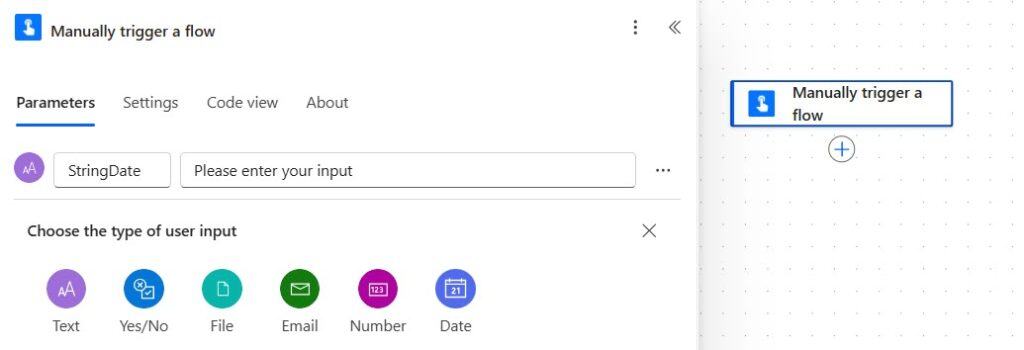
This is where you (or a user) will enter the string date during testing.
Step 3: Initialize a Variable to Hold the String
- Click + New step → search for Initialize variable
- Set Name to
VarStringDate - Set Type to
String - In the Value field, select the dynamic content StringDate from the trigger
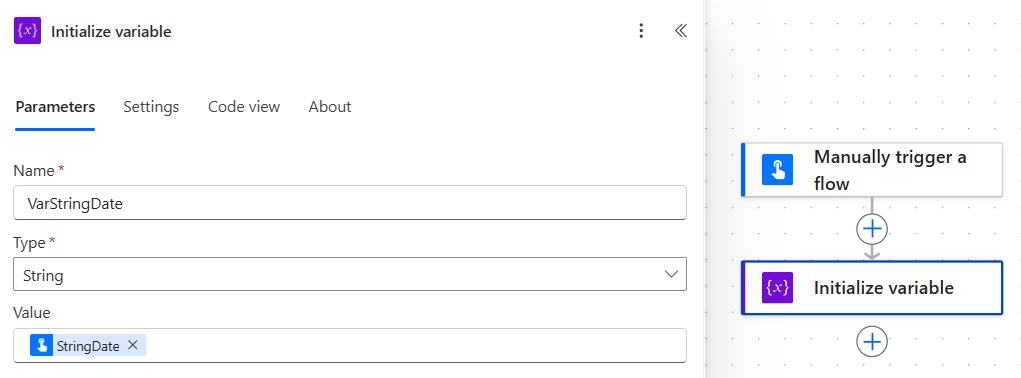
This stores your input string in a variable so you can reference it cleanly in later steps.
Step 4: Split the String into an Array
- Add a Compose action
- In the Inputs field, switch to Expression and enter:
split(variables('VarStringDate'),'/')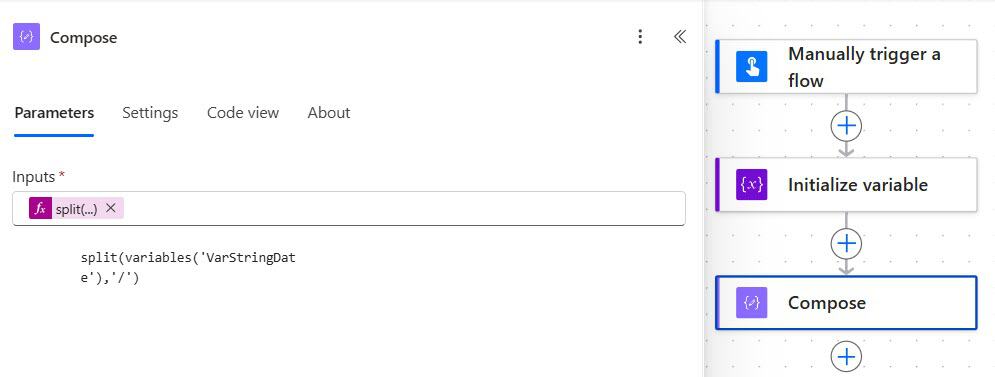
Click OK. This breaks "19/03/2026" into an array: ["19", "03", "2026"].
- Index
[0]= day (19) - Index
[1]= month (03) - Index
[2]= year (2026)
Step 5: Reassemble and Format the Date
- Add another Initialize variable action (or a Compose action — your choice)
- Set Type to
String - In the Value field, go to Expression and enter:
formatDateTime(concat(outputs('Compose')[2], '-', outputs('Compose')[1], '-', outputs('Compose')[0]), 'dd MMM yyyy')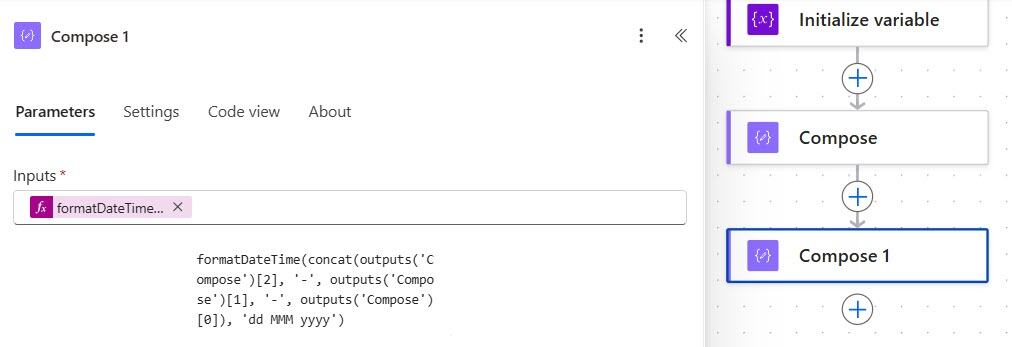
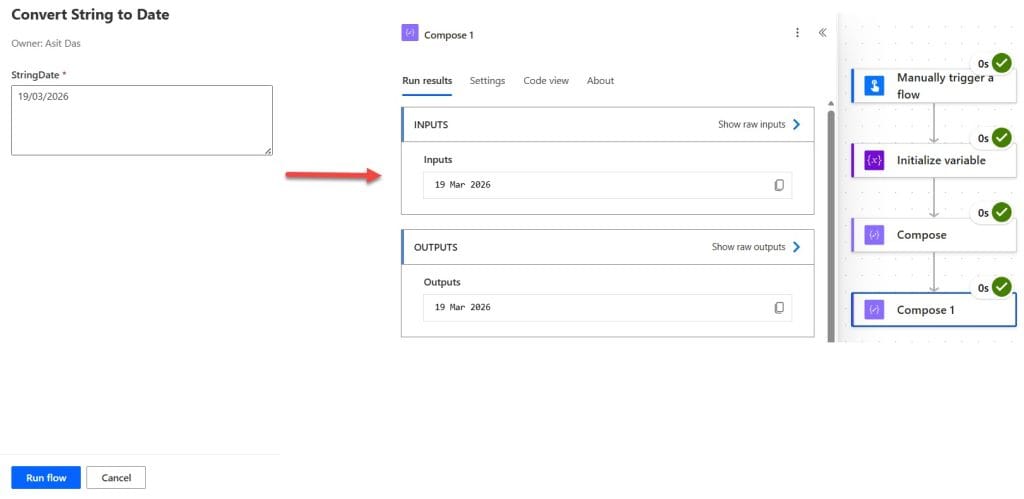
This reassembles the parts in yyyy-MM-dd order (which is what formatDateTime needs), then formats the output as 19 Mar 2026.
Step 6: Test It
Save and run the flow. Enter a date like 19/03/2026 in the input field. You should see the output formatted exactly as specified.
Output Format Options
You don’t have to use dd MMM yyyy. Here are the most useful formats you can drop into the second argument of formatDateTime():
| Format String | Example Output |
|---|---|
dd MMM yyyy | 19 Mar 2026 |
yyyy MMM dd | 2026 Mar 19 |
MMM dd yyyy | Mar 19 2026 |
dd MMMM yy | 19 March 26 |
yyyy-MM-dd | 2026-03-19 |
MM/dd/yyyy | 03/19/2026 |
dd/MM/yyyy | 19/03/2026 |
MMMM d, yyyy | March 19, 2026 |
Just swap the format string in Step 5 to get the output you need.
Method 2: Convert ISO or Locale-Specific Strings Using parseDateTime() Power Automate
If your input string is already close to an ISO format — like "2026-03-19" or a locale-specific string like "19-03-2026" — parseDateTime() is cleaner and more reliable than splitting manually.
When to Use This
- Your string uses separators like
-or.instead of/ - The string comes from an API or database with a known but non-standard structure
- You’re dealing with a compact no-separator format and know the locale
Syntax
parseDateTime('<your string>', '<locale>', '<format pattern>')The locale tells Power Automate which regional format to expect. The format pattern describes the exact structure of your input.
Example 1: Convert “2026-03-19” (ISO-like)
parseDateTime('2026-03-19', 'en-US')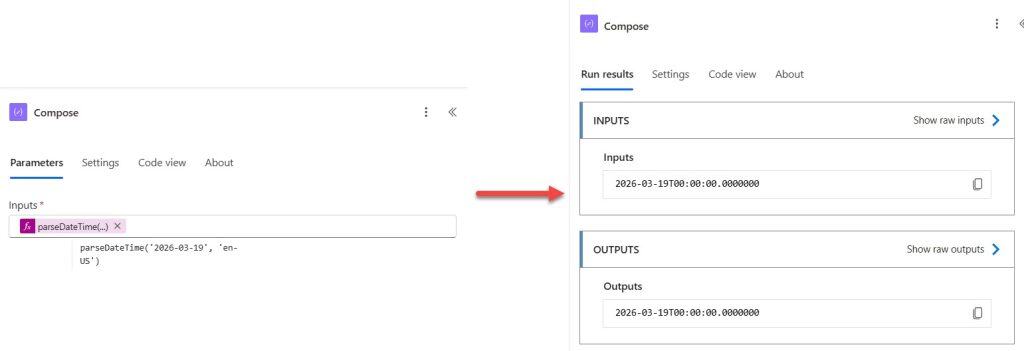
Power Automate can recognize this pattern directly with en-US locale — no format pattern needed.
Example 2: Convert “19-03-2026” (dd-MM-yyyy)
parseDateTime(variables('VarStringDate'), 'en-GB', 'dd-MM-yyyy')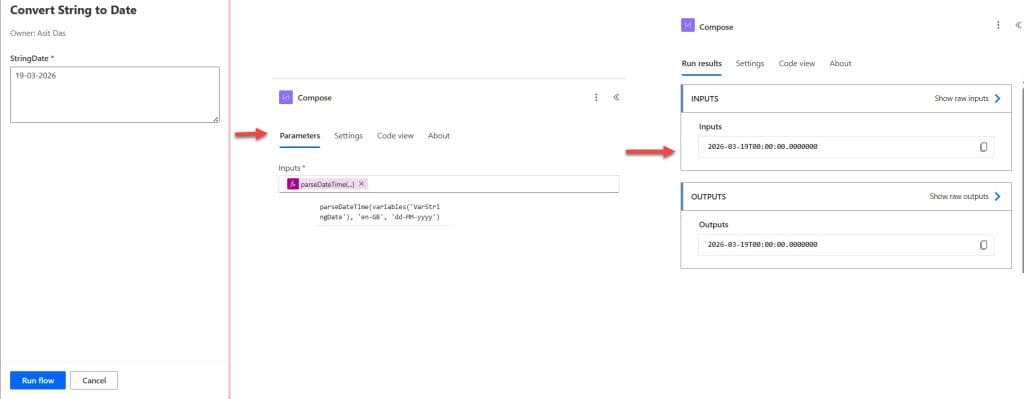
Using en-GB locale here because the day-first format is standard in UK/Australian/Indian regional settings.
Example 3: Convert “19032026” (no separator, compact)
parseDateTime(variables('VarStringDate'), 'en-US', 'ddMMyyyy')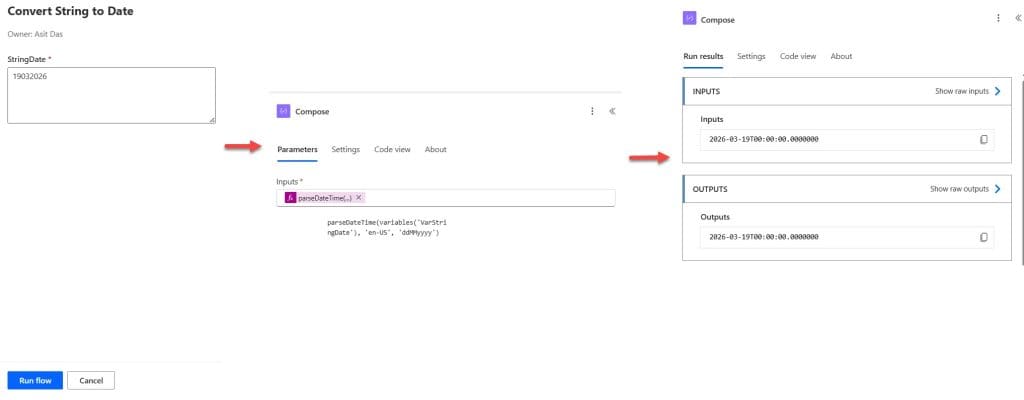
This handles compact strings where there’s no /, -, or . at all.
Using parseDateTime() in Your Flow
- Add a Compose action
- Switch to Expression
- Enter the relevant
parseDateTime()expression for your input - Click OK and run the flow
The output will be a proper DateTime value you can use directly in conditions, addDays(), date comparisons, or when updating SharePoint date columns.
Method 3: Convert Using substring() for Fixed-Length Strings in Power Automate
Sometimes you’ll get a date string in a completely fixed-length format where the positions of day, month, and year are always predictable — like "20260319" (yyyyMMdd). In this case, you can use substring() to extract each part.
Syntax
substring('<text>', startIndex, length)Example: Convert “20260319” (yyyyMMdd) to a readable date
formatDateTime(
  concat(
    substring(variables('VarStringDate'), 0, 4), '-',
    substring(variables('VarStringDate'), 4, 2), '-',
    substring(variables('VarStringDate'), 6, 2)
  ),
  'dd MMM yyyy'
)
This extracts:
- Characters 0–3 → year (
2026) - Characters 4–5 → month (
03) - Characters 6–7 → day (
19)
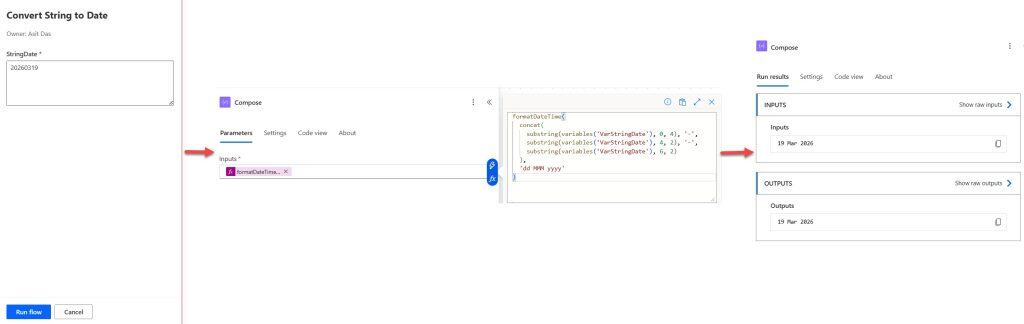
Then reassembles them as 2026-03-19 before passing to formatDateTime().
Common Errors and How to Fix Them
These are the errors I see most often when people work with date strings in Power Automate.
Error 1: “The datetime string must match ISO 8601 format”
What happened: You passed a string like "19/03/2026" directly to formatDateTime() without restructuring it first. formatDateTime() expects its first argument to already be a valid datetime or ISO string.
Fix: Use split() + concat() to reorder the parts into yyyy-MM-dd before passing to formatDateTime(), as shown in Method 1.
Error 2: “The template language function ‘formatDateTime’ expects its first parameter to be of type string. The provided value is of type ‘Null’.”
What happened: The field you’re pulling the date from is empty or null. This is extremely common when processing Excel imports or SharePoint list items where some rows have no date entered.
Fix: Wrap your expression in a null check:
if(empty(variables('VarStringDate')), '', formatDateTime(...))This returns a blank string instead of crashing when the value is missing.
Error 3: The output date is one day behind or ahead
What happened: A time zone offset is shifting your date. For example, if the input is "2026-03-19" and Power Automate stores it as 2026-03-19T00:00:00Z, converting to IST (+5:30) would still show March 19 — but converting to a western time zone (e.g., US Pacific, UTC-8) would show March 18.
Fix: Use convertTimeZone() after your date conversion:
convertTimeZone(outputs('Compose'), 'UTC', 'India Standard Time', 'dd MMM yyyy')Replace 'India Standard Time' with your target time zone as listed in the Windows time zone names.
Error 4: Split gives unexpected results with mixed separators
What happened: Your string uses different separators inconsistently, like "19-03/2026". split() only splits on one delimiter at a time.
Fix: Use replace() to normalize the string first before splitting:
split(replace(variables('VarStringDate'), '-', '/'), '/')This converts all - to / so split() works consistently.
Quick-Reference Cheat Sheet
Save this — it covers the most common input formats and the exact expression to use:
| Input String | Input Format | Expression to Use | Example Output |
|---|---|---|---|
19/03/2026 | dd/MM/yyyy | formatDateTime(concat(split(str,'/')[2],'-',split(str,'/')[1],'-',split(str,'/')[0]),'dd MMM yyyy') | 19 Mar 2026 |
03/19/2026 | MM/dd/yyyy | formatDateTime(concat(split(str,'/')[2],'-',split(str,'/')[0],'-',split(str,'/')[1]),'dd MMM yyyy') | 19 Mar 2026 |
2026-03-19 | yyyy-MM-dd | parseDateTime(str, 'en-US') | DateTime value |
19-03-2026 | dd-MM-yyyy | parseDateTime(str, 'en-GB', 'dd-MM-yyyy') | DateTime value |
19032026 | ddMMyyyy (no sep) | parseDateTime(str, 'en-GB', 'ddMMyyyy') | DateTime value |
20260319 | yyyyMMdd (no sep) | parseDateTime(str, 'en-US', 'yyyyMMdd') | DateTime value |
March 19, 2026 | MMMM dd, yyyy | parseDateTime(str, 'en-US', 'MMMM dd, yyyy') | DateTime value |
In the expressions above, replace str with your actual variable or dynamic content reference, such as variables('VarStringDate').
FAQs
Can I convert a string directly to a date without splitting it?
Yes — if your string is already in or close to ISO format (like 2026-03-19), you can pass it directly to parseDateTime() without any splitting. The split() approach is only needed when you have a dd/MM/yyyy style string that needs the parts reordered.
What’s the difference between formatDateTime() and parseDateTime()?
formatDateTime() takes a valid datetime value and converts it to a formatted text string. parseDateTime() does the reverse — it takes a text string and converts it into a proper DateTime value. For converting strings to dates, parseDateTime() is often the more direct tool.
Does Power Automate have a native Date variable type?
No. When you initialize a variable, the closest option is String. Store your formatted date as a string, then pass it to date-aware functions like addDays() or dateDifference() as needed.
Why does my SharePoint date column reject my formatted date?
SharePoint date columns expect the value in ISO 8601 format: yyyy-MM-ddTHH:mm:ssZ. Use formatDateTime(yourDate, ‘yyyy-MM-ddTHH:mm:ssZ’) when writing a value to a SharePoint Date column via Power Automate.
What if my string has a time component, like “19/03/2026 14:30”?
Split on the space first to separate the date and time, handle each part separately, then use concat() to reassemble into ISO format before formatting.
Conclusion
Date string conversion is one of those things that trips up almost everyone building Power Automate flows for the first time. The good news is that it’s very fixable once you know which function to use.
To summarize:
- Use
split()+formatDateTime()when your input is indd/MM/yyyyand you need to reorder the parts - Use
parseDateTime()when your string is ISO-like or you know the exact input structure and locale - Use
substring()when your string is a fixed-length compact format with no separators - Always handle null values with an
if(empty(...))check to prevent flow failures on blank rows
If you’re working with SharePoint date columns specifically, make sure your output format is yyyy-MM-ddTHH:mm:ssZ — that’s what SharePoint expects when you write back a date via Power Automate.
Also, you may like:
- Power Automate: Format Dates to ISO 8601
- Power Automate Apply to Each
- Create a SharePoint Folder in Power Automate
- Initialize an Object Variable in Power Automate
- Power Automate: Get Attachments From a SharePoint List Item and Send by Email

Preeti Sahu is an expert in Power Apps and has over six years of experience working with SharePoint Online and the Power Platform. She is the co-author of Microsoft Power Platform: A Deep Dive book. As a Power Platform developer, she has worked on developing various tools using Power Apps and Power Automate. She also makes Microsoft 365 videos and shares them on YouTube.

