
In this SharePoint tutorial, I will explain what causes the error message “The server is busy now. Try again later” in SharePoint and how to fix it in both SharePoint on-premises and SharePoint Online. This issue is usually related to resource throttling or temporary overload on the server and can be resolved by adjusting settings or waiting for the load to reduce.
Recently, while opening a SharePoint site, I got the error “The server is busy now. Try again later.” The error might also appear in SharePoint 2016/2019.
The error looks like the following:

What this error means
When you see the message “The server is busy now. Try again later” while opening a SharePoint site or performing an operation, it usually indicates that:
- The SharePoint server is under heavy load (high CPU, memory, or I/O).
- Background processes or services are consuming most of the resources.
- SharePoint resource throttling is limiting requests to protect the farm or site.
In my case, I received this error while opening a SharePoint 2013 site, but it can also appear in SharePoint 2016 and SharePoint 2019.
The server is busy now. Try again later. SharePoint [Common Causes]
Some common reasons why this error appears in SharePoint on-premises are:
- Timer service jobs or other background services running at the same time.
- High number of user requests hitting the same web application.
- Resource throttling settings being too strict for your current usage.
One option is to optimize or reschedule jobs, recycle services more frequently, and reduce the load. Another option is to adjust or disable HTTP request throttling at the SharePoint web application level.
Fix in SharePoint on-premises
Follow the steps below to turn off HTTP request monitoring and throttling for a specific web application from SharePoint Central Administration.
- Open SharePoint Central Administration.
- Go to Application Management.
- Click on “Manage Web Applications”.
- Select the web application where you are getting the error.
- Click the down arrow next to General Settings in the ribbon and select Resource Throttling like in the screenshot below:

- Scroll to the bottom of the Resource Throttling page.
- Find the option HTTP Request Monitoring and Throttling and turn it Off.
- Click OK to save the changes. Follow the screenshot below:
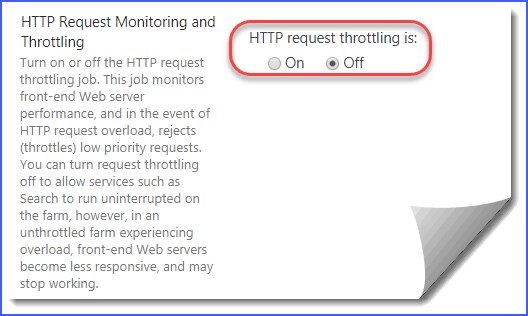
After these changes, try opening the SharePoint site collection again. The “The server is busy now. Try again later” error should not appear for normal site access and basic operations.
Note: Disabling HTTP request monitoring and throttling removes one layer of protection for your farm. Use this carefully in production environments and monitor the server health.
SharePoint Online: The server is busy now. Try again later
If you see the same error in SharePoint Online, you do not have access to farm-level throttling settings like on-premises. In SharePoint Online, this usually happens when:
- The service is temporarily under heavy load.
- There is a temporary issue on the Microsoft 365 side.
Here are the recommended actions for SharePoint Online:
- Wait for some time and try accessing the site again, especially if you are not running any heavy custom code or scripts.
- If the issue continues for a long period or impacts many users, raise a support ticket with Microsoft support through the Microsoft 365 admin center.
Summary
“The server is busy now. Try again later” is usually a resource or throttling-related issue in SharePoint. In SharePoint on-premises, you can turn off HTTP request monitoring and throttling at the web application level from Central Administration, while in SharePoint Online, the main options are to wait and, if needed, contact Microsoft support.
You may also like:
- PowerShell SharePoint Commands And Examples
- SharePoint App Catalog Site
- SharePoint 2010 to SharePoint 2013/2016/2019 Migration Steps
- SharePoint .NET Client Object Model Examples
- This Edition Cannot Be Upgraded Error in Windows Server
- Display User Names From Azure AD using Microsoft Graph API in Windows Forms Application
- No Images Are Available Windows Server VMware
- Windows Server Roles And Features Cannot Be Automatically Installed

After working for more than 18 years in Microsoft technologies like SharePoint, Microsoft 365, and Power Platform (Power Apps, Power Automate, and Power BI), I thought will share my SharePoint expertise knowledge with the world. Our audiences are from the United States, Canada, the United Kingdom, Australia, New Zealand, etc. For my expertise knowledge and SharePoint tutorials, Microsoft has been awarded a Microsoft SharePoint MVP (12 times). I have also worked in companies like HP, TCS, KPIT, etc.


Hi, Can solution for “The server is busy now. Try again later SharePoint” apply for Sharepoint Online ?
Thank you, solved