
Date filters in Power BI trip up a lot of people, not because they’re complicated, but because there are several ways to do the same thing, and picking the wrong one creates unnecessary headaches.
In this tutorial, we will see how to filter dates in Power BI using every practical approach: from the simple relative date filter in the filter pane to DAX-based filtering to dynamic slicers you can hand off to end users. By the end, you’ll know exactly which method to use and when.
Which Method Should You Use?
Before jumping into steps, use this quick guide to pick the right approach:
Is the date range fixed (e.g., Jan 1–Jan 31, 2024)?
→ Use DAX with CALCULATETABLE — best for historical snapshots.
Does the date range roll forward automatically (e.g., last 30 days, this month)?
→ Use the Relative Date Filter in the filter pane — no DAX needed.
Do your users need to pick dates themselves?
→ Use a Date Slicer (Between mode) for a range, or a Relative Date Slicer for rolling periods.
Do you need to compare multiple periods (e.g., Last 12 Months vs. Previous Month)?
→ Use a calculated slicer table + a DAX measure — the most flexible approach.
Do you need to highlight just today’s data in a visual?
→ Use a DAX calculated column with TODAY() as a filter.
⚠️ Before you start anything: Make sure your date column’s data type is set to Date — not Text, not DateTime. If it’s stored as Text, relative filters will silently fail and you’ll spend an hour wondering why nothing works. Click the column in the Data pane and check the data type in the Column Tools ribbon.
How to Create a Relative Date Filter in Power BI
This is the easiest and most useful method. No DAX, no calculated columns — you just drop a date field into the filter pane and configure it. It works at the visual, page, or report level.
Scenario: You have a sales dashboard, and your manager wants it to always show the last 30 days without anyone manually updating it. This is exactly what the relative date filter handles.
Steps:
- Open Power BI Desktop and load your data.
- Add a visual to the canvas (e.g., a Stacked Column Chart with Order Date on the axis and Sales as the value).
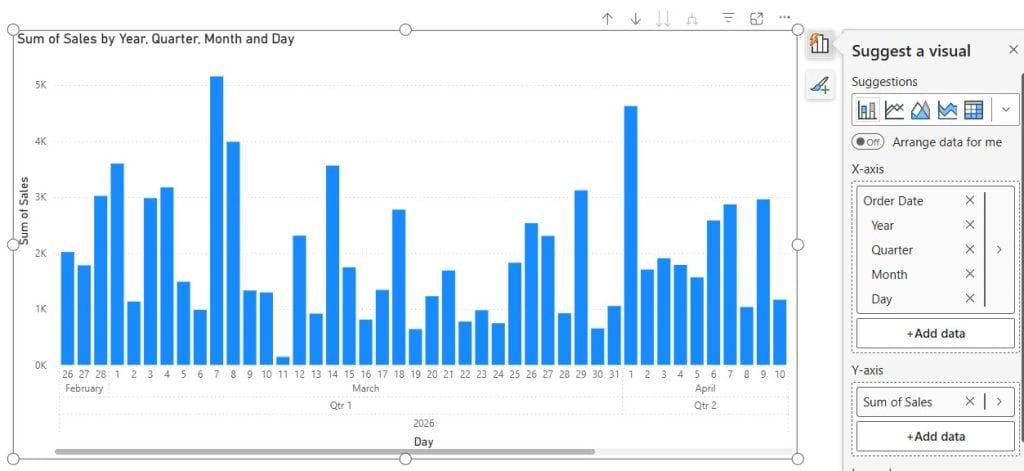
- In the Filters pane, drag your Order Date column into the Filters on this page section.
- Click the dropdown under Filter type and select Relative date.
- Set it to: is in the last → 30 → Days.
- Check the box Include today if you want today’s data included.
- Click Apply filter.
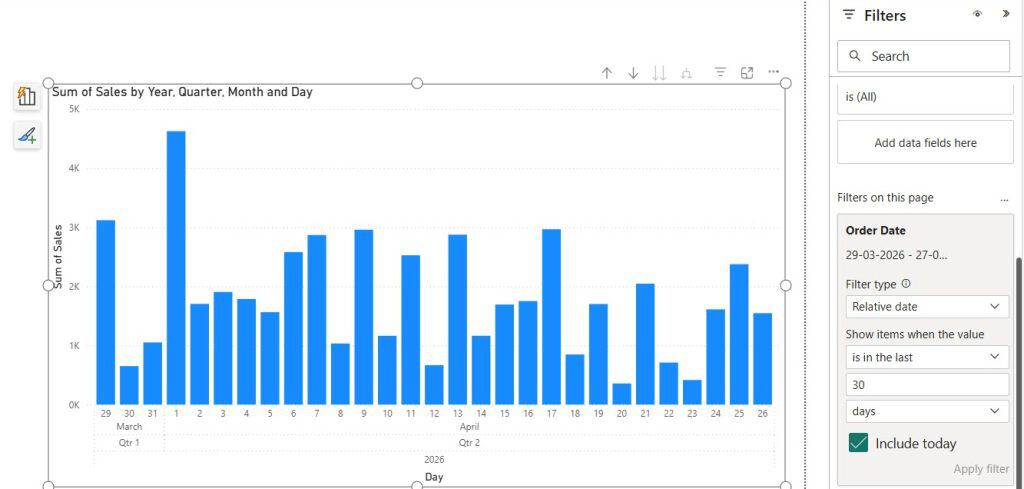
Your chart now automatically shows the last 30 days every time the report is opened — no manual updates needed.
Important note from Microsoft’s documentation: The relative date filter is always based on UTC time when your report is published to the Power BI Service. If your users are in different time zones, they’ll all see the same data window — keep this in mind for reports with strict daily cut-offs.
When to use this vs. a slicer: Use the filter pane approach when you don’t want users to change the date range. If users need control over the period, use a slicer instead (covered below).
How to Filter for Today’s Date in Power BI Using DAX
The filter pane doesn’t have a native “show me only today” option in simple mode, so here’s a clean DAX workaround.
Scenario: You run a daily operations report. You want the chart to show only today’s transactions — nothing from yesterday or earlier.
Steps:
- Go to the Modeling tab → click New column.
- Enter this DAX expression:
Today Flag = IF(SalesData[Order Date] = TODAY(), 1, 0)
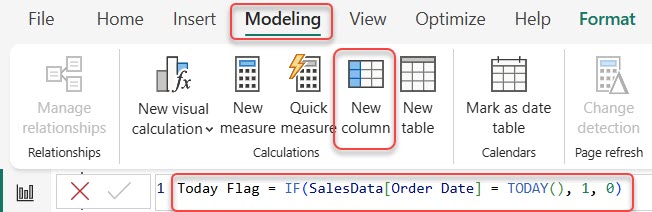
This creates a column that returns 1 for today’s rows and 0 for everything else.
- Add your visual (e.g., Stacked Column Chart with Order Date and Sales).
- In the Filters pane, drag the Today Flag column into Filters on this visual.
- Set the Filter type to Advanced filtering.
- Set the condition: Show items when the value is 1.
- Click Apply filter.
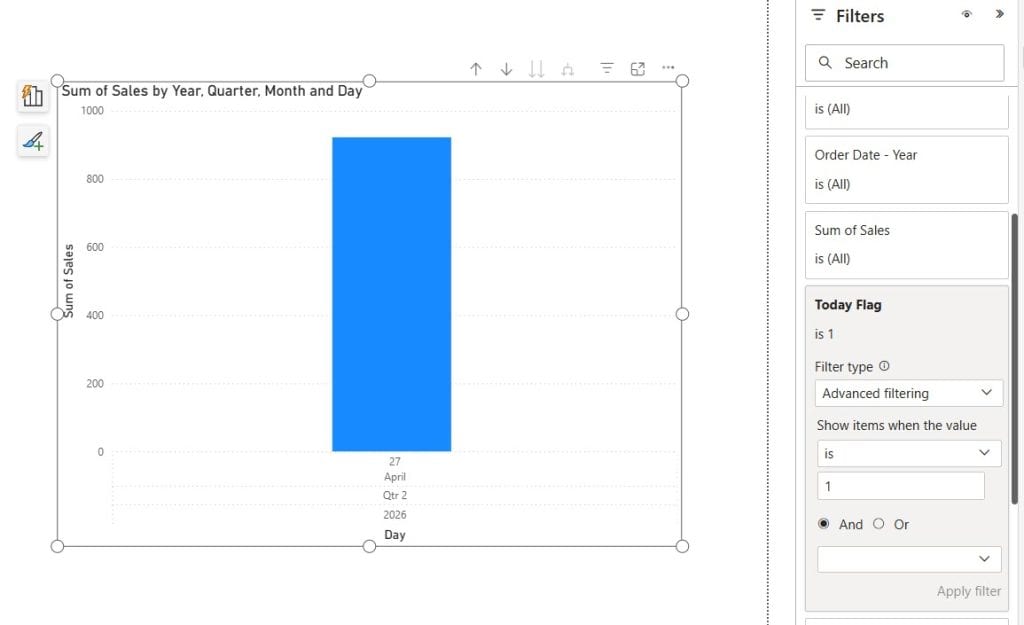
Your visual now shows only today’s data.
💡 From experience: I prefer this method over trying to manually type today’s date into a fixed filter. The moment you forget to update it, the report breaks. A DAX-based approach is self-maintaining.
How to Filter a Date Range Using Power BI DAX (CALCULATETABLE)
Sometimes you need to extract a specific historical date range into a separate table—for example, orders between February 5 and March 15, 2026 —for a specific analysis.
Scenario: Your finance team asks for a reconciliation table covering a fixed two-week period. They need it as a standalone table, not a filtered visual.
Steps:
- Go to Modeling tab → click New table.
- Enter this DAX:
FilteredOrders =
VAR DateStart = DATE(2026, 2, 5)
VAR DateEnd   = DATE(2026, 3, 15)
RETURN
CALCULATETABLE(
    SalesData,
    FILTER(
        SalesData,
        SalesData[Order Date] >= DateStart &&
        SalesData[Order Date] <= DateEnd
    )
)
- Click the checkmark. Power BI creates a new calculated table with only rows in that date range.
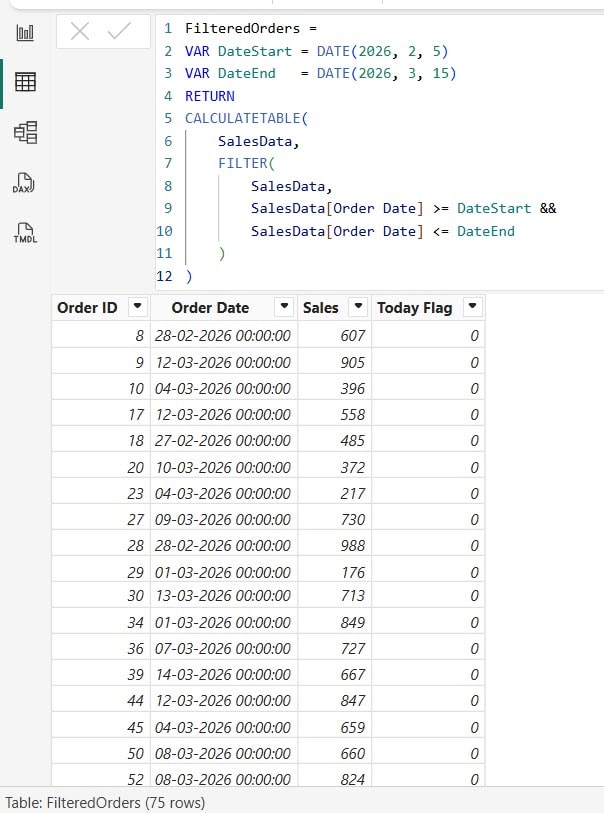
⚠️ Watch out: This creates a disconnected table — don’t try to create relationships from it without a unique key that matches your model. Also, remember that hard-coded dates in DAX don’t update automatically, so this method is best for fixed historical periods only.
How to Set Today as the Default Date in a Power BI Slicer
If you want a date slicer that automatically loads with today’s date selected (so users see today’s data immediately, but can still change the date), here’s how.
Scenario: Your sales team opens the report every morning and wants to see today’s sales right away — but they also need the flexibility to pick a different day.
Steps:
- In Power BI Desktop, select the Slicer visual from the Visualizations pane.
- Drag your Order Date column into the Field area.
- Go to the Format pane, expand the Slicer settings, and under the Options select Relative date.
- Set the options: Last → 1 → Days.
- This pins the slicer to show today (the last 1 day, inclusive).
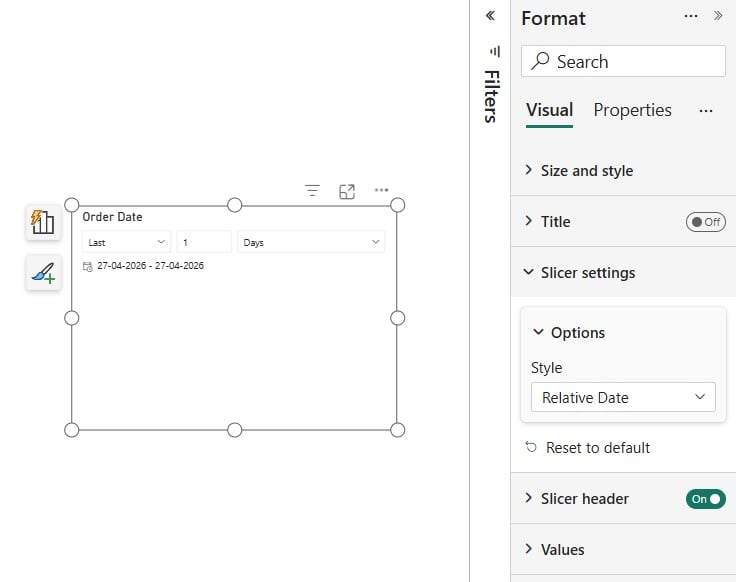
Now every time the report opens, the slicer defaults to today. Users can still change it if they need to look at a different day.
💡 Tip: If you’re using Power BI Service, remember that “today” is resolved in UTC. A user in IST (UTC+5:30) opening the report after midnight their local time might still see yesterday’s data if your data refreshes on UTC time. Worth mentioning this to your stakeholders.
How to Show Only Dates Before Today in Power BI
This is useful when you have a dataset that includes future dates (e.g., order delivery dates, project milestones) and you only want to show what’s already happened.
Scenario: Your delivery report has planned and completed deliveries. You want the slicer to only allow users to pick from past dates, not future ones.
Steps:
- In Power BI Desktop, add a Slicer visual and drag your Order Date column into it.
- Go to Modeling tab → New column and create this:
DateOffset = DATEDIFF(TODAY(), SalesData[Order Date], DAY)
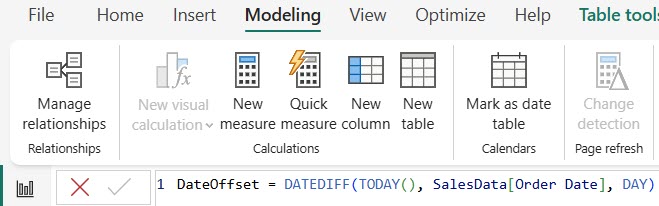
This gives you:
- 0 for today
- Negative numbers for past dates (e.g., -1 for yesterday)
- Positive numbers for future dates
- In the Filters pane, drag DateOffset into Filters on this visual.
- Set Filter type to Advanced filtering.
- Set the rule: Show items when value is less than or equal to -1 → Or → is blank.
- Click Apply filter.
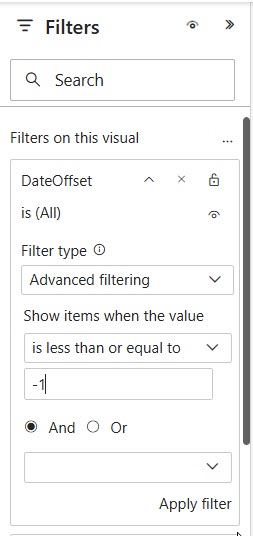
Now the slicer only shows past dates. Clicking a date shows results for that specific day.
How to Filter for the Current Month in Power BI
Scenario: Your monthly sales report needs to automatically show only the current month’s data — and flip over to the new month automatically on the 1st.
Steps:
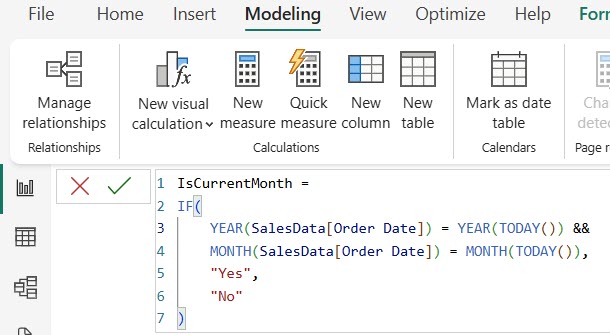
- Go to Modeling tab → New column.
- Enter this DAX:
IsCurrentMonth =
IF(
    YEAR(SalesData[Order Date]) = YEAR(TODAY()) &&
    MONTH(SalesData[Order Date]) = MONTH(TODAY()),
    "Yes",
    "No"
)
- Add a Slicer visual and drag IsCurrentMonth into the Field area.
- Select Yes in the slicer to filter for the current month.
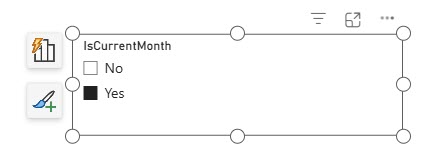
That’s it. On the first of each month, this column automatically recalculates — no one needs to update anything.
💡 From experience: I find this cleaner than using date range filters for current-month scenarios because it’s instantly readable. When a colleague opens the model, they immediately understand what “IsCurrentMonth = Yes” means.
How to Create a Last 12 Months Filter in Power BI
This is slightly more involved but very powerful. You’ll create a dynamic slicer that lets users switch between All, Last 12 Months, and Previous Month — without any hardcoded dates.
Steps:
Step 1 — Create a slicer table:
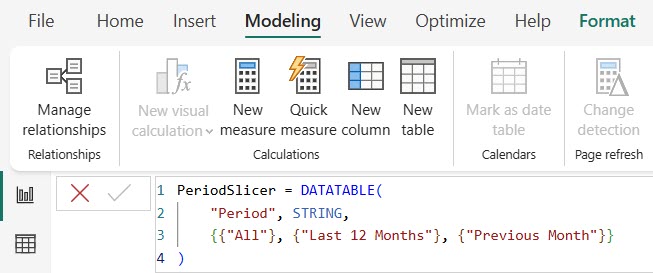
- Go to Modeling tab → New table.
- Enter:
PeriodSlicer = DATATABLE(
    "Period", STRING,
    {{"All"}, {"Last 12 Months"}, {"Previous Month"}}
)
Step 2 — Create the control measure:
- Click New measure in the Modeling tab.
- Enter:
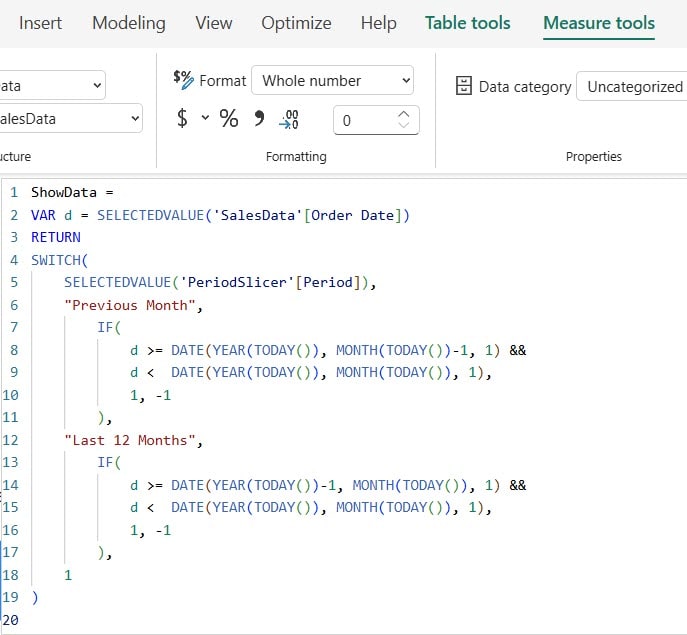
ShowData =
VAR d = SELECTEDVALUE('YourTable'[Date])
RETURN
SWITCH(
    SELECTEDVALUE('PeriodSlicer'[Period]),
    "Previous Month",
        IF(
            d >= DATE(YEAR(TODAY()), MONTH(TODAY())-1, 1) &&
            d <  DATE(YEAR(TODAY()), MONTH(TODAY()), 1),
            1, -1
        ),
    "Last 12 Months",
        IF(
            d >= DATE(YEAR(TODAY())-1, MONTH(TODAY()), 1) &&
            d <  DATE(YEAR(TODAY()), MONTH(TODAY()), 1),
            1, -1
        ),
    1
)
Step 3 — Wire it up:
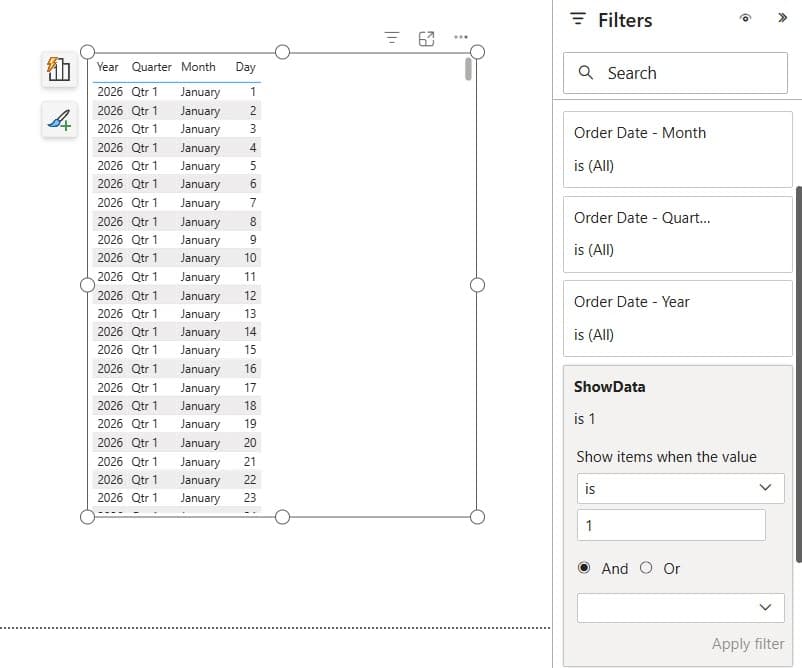
- Add a Table visual with your Date and Value columns.
- In the Filters pane, drag ShowData into Filters on this visual and set it to is equal to 1. Click Apply filter.
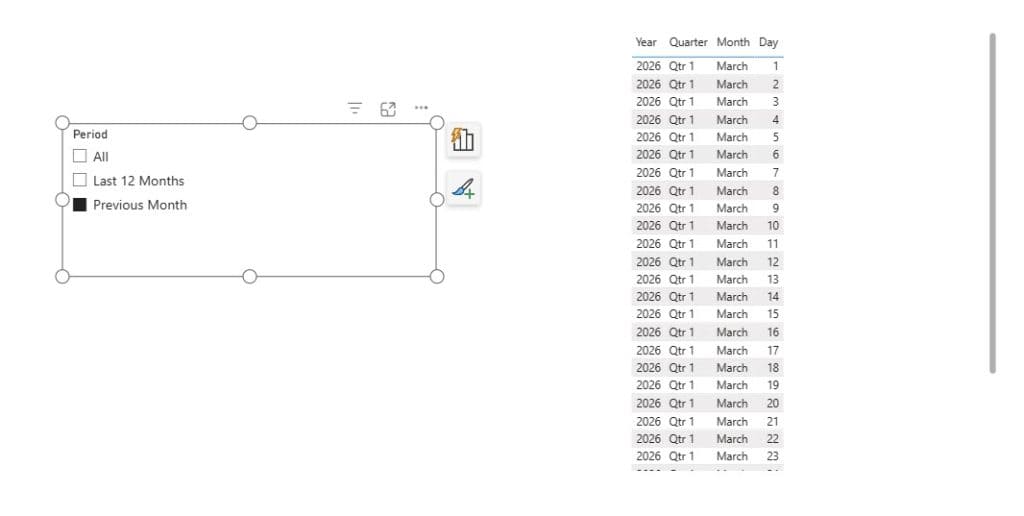
- Add a Slicer and drag the Period column from PeriodSlicer into it.
- Now selecting Last 12 Months or Previous Month in the slicer filters the table visual accordingly.
⚠️ One thing to keep in mind: Replace
'YourTable'[Date]with your actual table and date column name. The measure won’t work until those references are correct.
How to Use a Date Range Slider in Power BI
The Between slicer gives users a draggable slider to pick a start and end date. It’s the most intuitive option for ad hoc exploration.
Steps:
- Add a Slicer visual to the canvas.
- Drag your Order Date column into the Field area.
- Make sure the column data type is Date — if you see text instead of a slider, that’s almost certainly the issue. Click the column in the Data pane and change the type in Column Tools.
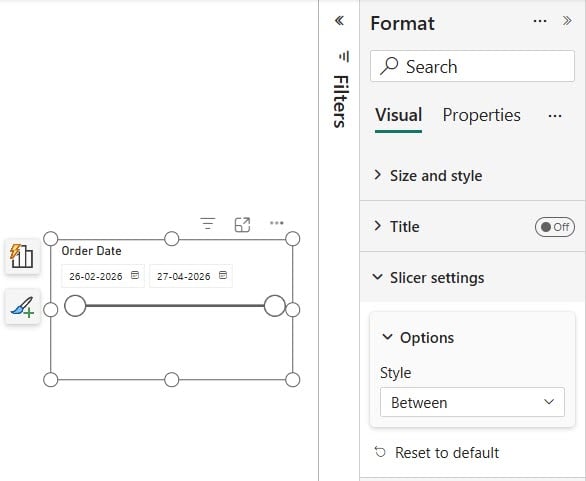
- Click the dropdown arrow on the slicer and select Between.
- You’ll now see two date pickers — users can select a start and end date to filter all visuals on the page.
💡 Tip: If you want users to be able to select only from a specific range of dates (e.g., not future dates), combine this slicer with the DateOffset column from the “Before Today” section above, or set max/min values using a measure.
How to Change the Date Format in Power BI Filters
If your filter pane or slicer is showing dates in the wrong format (e.g., dd/mm/yy when you want mm/dd/yyyy), here’s the fix.
Steps:
- In the Data pane, click your date column.
- The Column Tools ribbon opens at the top.
- Click the Format dropdown and select your preferred date format.
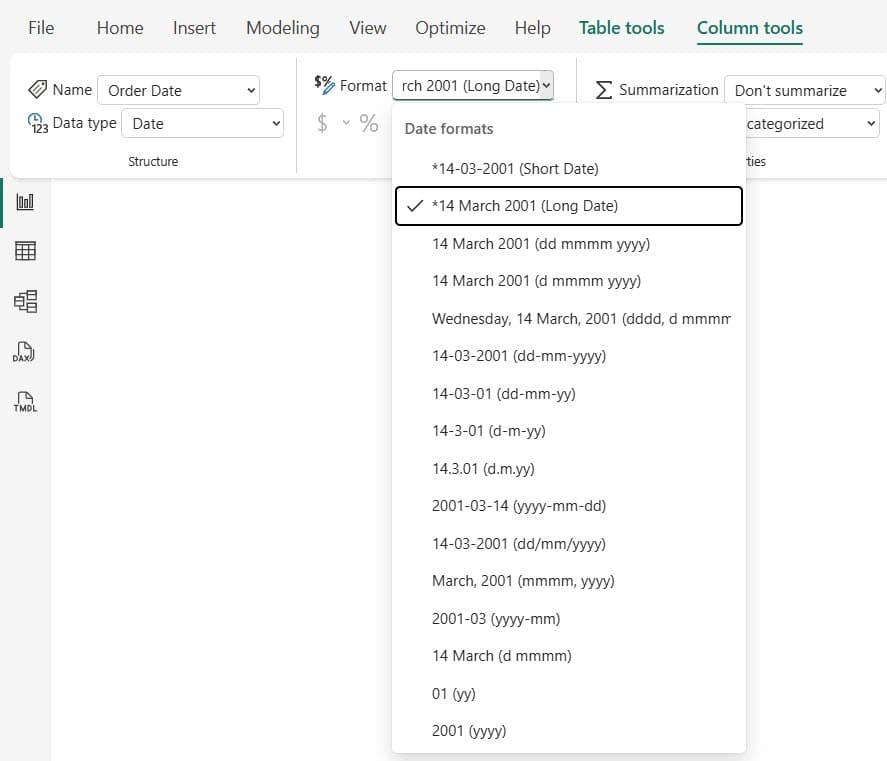
That’s all — the change applies across the entire report, including the filter pane and slicers.
⚠️ Note: If the format option is greyed out, your column is likely recognized as a hierarchy (Auto date/time). In that case, go to File → Options → Current File → Data Load and uncheck Auto date/time. Then use the original date column directly.
Quick Reference: Choosing Your Date Filter Method
| Method | Best Use Case | DAX Needed? | User Can Change It? | Complexity |
|---|---|---|---|---|
| Relative Date Filter (Filter Pane) | Rolling periods (last 30 days, this month) | No | No | Low |
| DAX TODAY() Calculated Column | Filter for today’s date in a visual | Yes | No | Low |
| CALCULATETABLE (DAX) | Fixed historical date range as a new table | Yes | No | Medium |
| Date Slicer – Relative Mode | Rolling periods user can adjust | No | Yes | Low |
| Date Slicer – Between Mode | User picks custom start/end date | No | Yes | Low |
| DateOffset Column + Filter | Restrict slicer to past dates only | Yes | No | Medium |
| Calculated Slicer Table + Measure | Multi-period switching (Last 12M, Prev Month) | Yes | Yes | High |
Pre-Flight Checklist Before Setting Up Any Date Filter
Use this before you start — it’ll save you a lot of debugging time:
- Date column data type is set to Date (not Text or DateTime)
- Auto date/time hierarchy is either used intentionally or disabled
- You know whether the filter should be at visual, page, or report level
- You’ve decided if users need to interact with the filter or if it should be automatic
- If publishing to Power BI Service, you’ve accounted for UTC time zone behavior
Common Mistakes and Fixes
Relative date filter isn’t working:
→ Almost always a data type issue. Make sure the column type is Date, not Text. Date columns show a calendar icon in the Data pane.
The date hierarchy (Year/Quarter/Month/Day) is in my slicer instead of the date column:
→ Power BI’s auto date/time feature creates this hierarchy automatically. Click the arrow next to the date in the Field area and select the actual date column (not the hierarchy), or disable auto date/time in Options.
Slicer shows the wrong “today” for some users:
→ When published, relative dates run on UTC. A user in India (IST = UTC+5:30) at 11 PM will see the same “today” as someone in the US at 5:30 AM. If this is a problem, you’ll need to pass the user’s local time zone as a parameter — it’s a known limitation.
CALCULATETABLE DAX is showing blank results:
→ Check that your date format in DAX matches your data. DATE(2024, 1, 5) is January 5, not May 1. Also confirm the table name matches exactly.
IsCurrentMonth = Yes but the slicer shows no data:
→ Check the calculated column has refreshed. Calculated columns don’t update in real time in the report view — try closing and reopening the file or clicking Refresh.
You may also like the following tutorials:
- Create a Power BI Slicer Panel
- Power BI Date Table
- Create Ribbon Chart in Power BI
- Power BI Desktop (Step‑by‑Step Guide for Beginners)
- Power BI Row Level Security Tutorial (RLS) for Beginners
FAQs
What is the difference between a relative date filter and a date slicer?
A relative date filter lives in the filter pane and users typically can’t see or change it — it works silently in the background. A relative date slicer is a visible element on the canvas that users can interact with. Use filters for locked-down dashboards, slicers for interactive reports.
Can I filter by date without a date table in Power BI?
Yes, for basic filtering (relative date filter, slicers, CALCULATETABLE), you don’t need a separate date table. However, for time intelligence functions like DATESYTD, SAMEPERIODLASTYEAR, or TOTALYTD, you must have a proper date table with continuous dates and mark it as a Date Table in Power BI.
Why is my Power BI date filter not working after I publish to the service?
The most common reasons are: (1) the column is still stored as Text type, (2) the auto date/time hierarchy is being used instead of the date column directly, or (3) time zone differences with UTC. Check all three.
How do I set a default date in a Power BI slicer?
Switch the slicer to Relative date mode and set it to Last 1 Day. This always defaults to today when the report loads. For a fixed default, you’d need to use bookmarks or a Power BI bookmark navigator.
Can I filter by both date and time in Power BI?
Yes — if your column is DateTime type, the relative date slicer has a Relative Time option as well. You can set filters like “last 2 hours” or “last 30 minutes.” This is useful for near-real-time operational dashboards.
What’s the anchor date in a relative date slicer?
The anchor date lets you base the relative period off a specific date instead of today. For example, you could say “last 5 years from October 1, 2024” rather than from today. It’s available in the relative date slicer settings — useful for fiscal year reporting.

After working for more than 18 years in Microsoft technologies like SharePoint, Microsoft 365, and Power Platform (Power Apps, Power Automate, and Power BI), I thought will share my SharePoint expertise knowledge with the world. Our audiences are from the United States, Canada, the United Kingdom, Australia, New Zealand, etc. For my expertise knowledge and SharePoint tutorials, Microsoft has been awarded a Microsoft SharePoint MVP (12 times). I have also worked in companies like HP, TCS, KPIT, etc.

