
If you’ve ever built a Power BI report and wondered, “Why do I need three separate slicers just to let users filter by region, product, and date?” — you’re not alone. This is one of the most common pain points I hear from report builders.
The good news: Power BI gives you several ways to put multiple columns into a single slicer. The tricky part is knowing which method fits your situation, because they work very differently under the hood.
In this tutorial, I’ll walk you through four practical methods:
- The List Slicer (the modern built-in approach, updated in 2025)
- The Hierarchy Slicer (for parent-child related columns)
- A DAX Concatenated Column slicer (for filtering truly independent columns)
- A Date hierarchy slicer (for Order Date vs. Ship Date scenarios)
I’ll also show you how to format slicers properly, how to add search, what the real limitations are, and give you a quick decision guide so you can pick the right method without guessing.
Which Method Should You Use? (Quick Decision Guide)
Before jumping into the steps, use this as your starting point:
| Your Situation | Best Method |
|---|---|
| Columns are in a parent-child hierarchy (Category → Subcategory → Product) | List Slicer (hierarchy mode) |
| Columns are completely unrelated (e.g., City and Product Name) | DAX Concatenated Column |
| You need to let users filter by either Order Date or Ship Date | Date Hierarchy Slicer |
| You need full-text search across multiple column values | Text Filter Custom Visual |
If you’re not sure whether your columns are “related,” ask yourself: does one column’s value depend on another? If yes, they’re hierarchical. If no, go with the DAX method.
Power BI Slicer With Multiple Columns
Now I will show you how to add multiple columns in Power BI Slicer. Here, I will show you different types of methods you can choose based on your requirements.
Method 1: Using the Power BI List Slicer for Multiple Columns (Modern Approach)
The List Slicer is now the recommended approach for multi-field filtering in Power BI. Microsoft introduced it in October 2024 and significantly upgraded it in the May 2025 Power BI update. If you’re still using the old “Slicer” visual from the visualization pane for hierarchies, it’s worth switching to the new one.
Here’s how to set it up:
- Open your report in Power BI Desktop and load your data.
- In the Visualizations pane, click the List Slicer visual (it looks like a bulleted list icon – not the older funnel-style slicer)
- In the Build visual tab, go to the Values field well
- Drag your first column (the parent level, e.g., Category) into the Values field
- Drag your second column (e.g., Product Name) below it in the same Values field
- Your slicer immediately switches from a flat list to a structured hierarchy
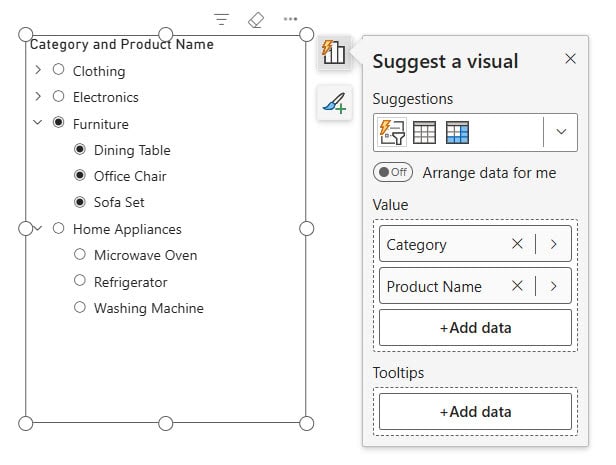
Once you’ve added both columns, you’ll see the parent values with expand/collapse arrows next to them. Click an arrow to drill into the child level.
What’s new in the 2025 update that you should enable:
- Restrict to leaf nodes — Go to Format > Selection > toggle on Restrict to leaf nodes. This forces users to only select items at the lowest level (e.g., individual product names), preventing accidental parent-level selections that can confuse filter logic
- Per-field formatting — You can now format each hierarchy level separately (different font sizes, colors) using the Series dropdown under the Apply settings card
- Image embedding — If your table has an image URL column, you can embed product images directly in the slicer list. Genuinely useful for product catalogs
From my experience: The “Restrict to leaf nodes” option sounds minor, but it saves you from a lot of user confusion. When someone clicks “Electronics” (a parent category) expecting to filter by that, and instead the slicer just expands the list, they get frustrated. Forcing leaf-only selection makes the behavior predictable.
Method 2: Hierarchy Slicer in Power BI (Classic Multi-Column Setup)
If you’re on an older version of Power BI Desktop and don’t yet have the List Slicer, the classic approach still works fine. It also applies to the standard Slicer visual when you drop multiple related fields into it.
Here’s how to do it:
- Click on the Slicer visual from the Visualizations pane
- In the Field well, drag your parent column first (e.g., Product Name)
- Then drag additional columns below it (e.g., Category, then Segment)
- Power BI will automatically create a hierarchy
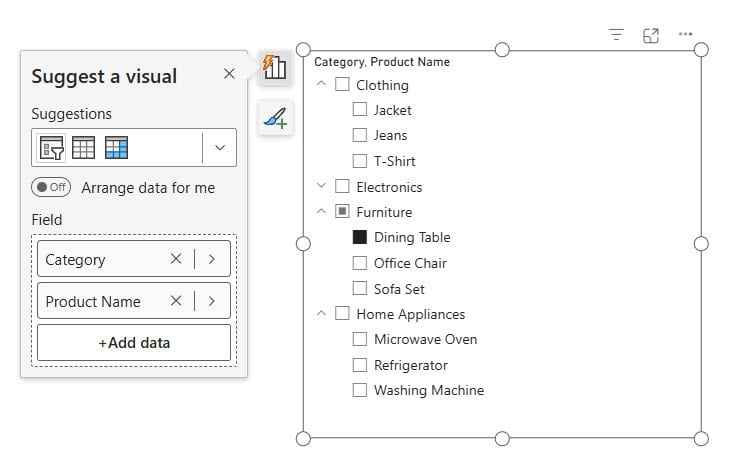
When you open the slicer on your report, you’ll see the expand arrow next to each parent item. Click it to reveal the child level.
Selecting items across levels:
- Selecting a parent item (e.g., “Technology”) automatically selects all its children
- You can also expand the parent and individually select specific child items
- Hold Ctrl to select multiple items across different levels
Method 3: DAX Concatenated Column in Power BI (For Unrelated Columns)
Here’s where things get a bit more interesting. The hierarchy slicer only works well when your columns are logically related. What if you want to filter a table by both City and Product Name using one slicer? These two columns have no parent-child relationship, so the hierarchy method won’t make sense to users.
The solution: create a DAX calculated column that concatenates the values from both columns into a single column. Then use that combined column in your slicer.
Step-by-step:
- Go to the Data view in Power BI Desktop
- Select the table that contains both columns
- Click New Column from the Table tools ribbon
- Write a DAX formula like this:
CategoryAndProduct = Customer[Category] & " – " & Customer[Product Name]

- Go back to Report view
- Add a standard Slicer visual
- Drag your new CategoryAndProduct column into the slicer
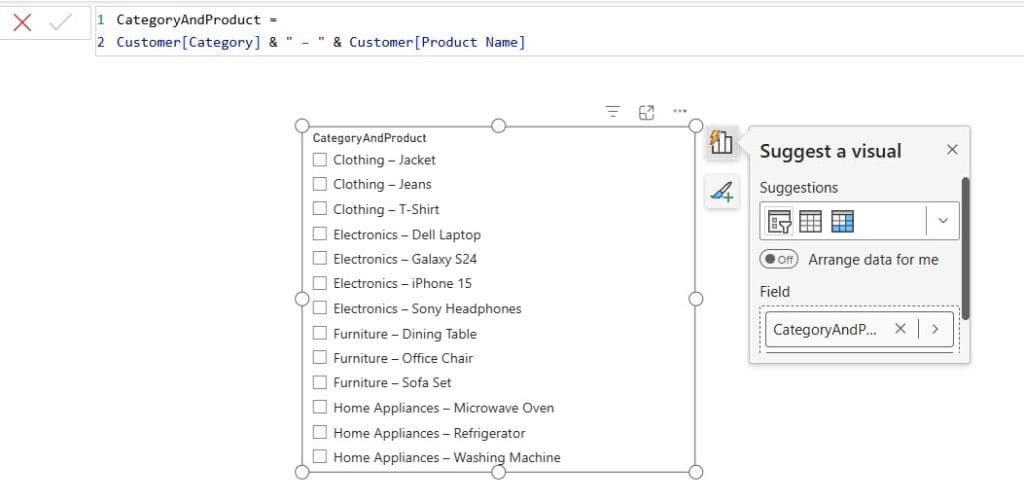
Now, when a user selects “Clothing – jacket” from the slicer, it filters rows where both Category = Clothing AND Product Name = jacket.
Important note: This method works best when there’s a clear, meaningful reason to combine the two fields. If the combination creates thousands of nearly-identical entries (e.g., 500 cities × 1,000 products = 500,000 slicer items), it becomes unusable fast. Think carefully before going this route.
From my experience: I’ve used this technique most successfully for geography combinations like “Country – State” or “Region – Territory.” It creates a clean, scannable slicer and avoids the confusion of a three-level hierarchy. For product + geography combos with large datasets, I’d recommend a search-enabled slicer instead (covered in Method 4 below).
Method 4: Date Hierarchy Slicer in Power BI (Order Date vs. Ship Date)
This is a scenario I see a lot in e-commerce and logistics dashboards: you have two date columns — say, Order Date and Ship Date — and you want users to be able to filter by both with a single slicer.
Here’s how to set it up:
- Add a Slicer visual to your report
- In the Field well, drag in Order Date first
- Then drag Ship Date below it in the same field well
- Power BI will render them in a hierarchical date structure: Year → Quarter → Month → Day
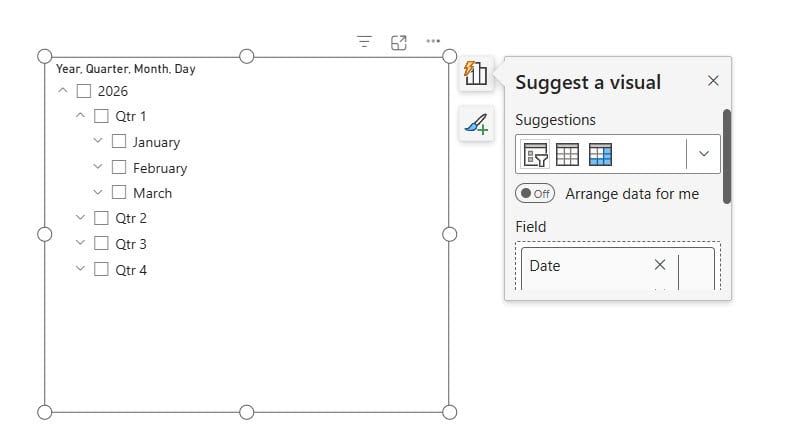
When a user expands the Order Date node and selects, say, January 2024, the report filters all records with an Order Date in January 2024. If they expand Ship Date instead and select a date, it filters by ship date.
A practical example:
Imagine you’re building a report for a warehouse manager. They want to see which orders were placed in Q1 2024 but shipped in Q2 2024 (delayed shipments). With a date hierarchy slicer, they can toggle between both date columns in one place, rather than hunting for separate filter panels.
TIPS:
Rename the slicer header to something like “Filter by Date” rather than leaving it as the default field name. Go to Format > Slicer header > Title text and type in a user-friendly label.
How to Format Your Multi-Column Slicer in Power BI
Once you’ve built your slicer, a few formatting changes make a big difference in usability.
Change the slicer style:
- Select the slicer → Format pane → Slicer settings → Style
- Switch between List and Dropdown depending on your report layout
- Dropdown is great when screen space is tight
Edit the slicer title:
- Format pane → Slicer header → toggle on Title
- Type something meaningful like “Filter by Product Category” instead of leaving it as the raw field name
Change the expand/collapse icon:
- Format pane → Items → Expand and collapse icon
- Options include: Chevron (default arrow), Caret, Plus/Minus
- I personally prefer Plus/Minus — it’s universally understood and feels more clickable
Adjust indentation:
- Format pane → Items → Stepped layout indentation
- Default is 15px. Reduce it to 8–10px if your report canvas is narrow and child items are getting cut off
How to Add Search to a Multi-Column Slicer in Power BI
By default, Power BI slicers don’t show a search box. But you can enable it with one quick shortcut.
Quick method:
- Click on your slicer to select it
- Press Ctrl + F
- A search bar appears at the top of the slicer
This works for the standard Slicer and List Slicer visuals. Users can then type a keyword, and the slicer filters its own list in real time.
For searching across truly unrelated columns (like the DAX concatenated column example above), the built-in search works well because all values are already in one column.
For advanced full-text search across multiple separate columns:
Use the Text Filter custom visual from AppSource. Here’s the workflow:
- Create a concatenated column in DAX (as described in Method 3)
- Add the Text Filter visual to your report
- Point it at your concatenated column
- Users can type any part of the value and it filters the entire report
Known Limitations (And How to Work Around Them)
These are the real-world gotchas I want you to know about before you build:
1. Ragged hierarchies with SSAS live connections
If your Power BI report connects live to SQL Server Analysis Services (SSAS) and the model has “hide blank members” enabled on a hierarchy, Power BI doesn’t honor that setting — it shows the blank members anyway. This creates a “ragged” hierarchy where some branches look empty. The workaround is to handle blank member visibility at the SSAS model level (requires SSAS 2017+ for tabular, SSAS 2019 CU5+ with SuperDAXMD for multidimensional).
2. Large datasets make slicers slow
If your column has tens of thousands of unique values, the slicer will render slowly and become unwieldy. Fix: either pre-filter the dataset in Power Query before it hits the report, or use a search-enabled approach rather than a scrollable list.
3. Mobile layout breaks multi-column slicers
This one catches people off guard. A hierarchy slicer that looks clean on desktop often collapses or overlaps on the phone layout. Always check the mobile layout view (View → Mobile layout) after building your slicer and resize/reposition it there separately.
4. Leaf-node restriction not available in old Slicer visual
The “Restrict to leaf nodes” option is only available in the new List Slicer visual, not the classic Slicer. If this feature is important to your report, it’s worth migrating to the List Slicer.
Pre-Publish Checklist: Multi-Column Slicers
Before you publish your report, run through this quickly:
- Hierarchy levels make logical sense to your end users (not just technically correct)
- Slicer header has a clear, plain-English title — not a raw field name
- Default selection state is set intentionally (All selected vs. nothing selected)
- Tested the slicer in mobile layout — it doesn’t overlap other visuals
- If using “Restrict to leaf nodes” — confirmed it’s enabled and working as expected
- All screenshots in your report guide/documentation match the current slicer style
Frequently Asked Questions
Can a Power BI slicer filter two completely unrelated columns at the same time?
Not natively using the built-in hierarchy approach — that only works for related, parent-child columns. For unrelated columns, use the DAX concatenated column technique (Method 3 above). It creates a combined field that drives a single slicer while filtering both source columns.
What’s the difference between the old hierarchy slicer and the new List Slicer?
The old Slicer visual supports multiple fields and creates a hierarchy, but has limited formatting options. The new List Slicer (available since October 2024, significantly upgraded in May 2025) supports the same hierarchy behavior plus image embedding, per-level formatting, leaf-node restriction, and paste-from-clipboard functionality. For new reports, use the List Slicer.
Why is my Power BI slicer showing blank items in a hierarchy?
This usually means your data has rows where one of the hierarchy levels has a null or empty value. The slicer exposes those as blank entries. Fix it at the data source in Power Query: filter out blanks or replace nulls with a placeholder like “Unknown” before loading the data.
How do I let users switch between Order Date and Ship Date in one slicer?
Add both date columns to the same Slicer visual field well (Method 4 in this tutorial). The slicer will display both date hierarchies nested together. Rename the slicer header to “Filter by Date” for clarity.
Why does my multi-column slicer look fine on desktop but broken on mobile?
Power BI has separate canvas layouts for desktop and mobile. Slicers don’t automatically resize for the phone view. Go to View → Mobile layout and manually position and resize your slicer there. Think of it as designing two separate reports — they just share the same data.
Can I search inside a multi-column slicer in Power BI?
Yes. Select the slicer and press Ctrl + F — this activates the built-in search bar. For the List Slicer, you can also right-click the slicer and enable the search header from the context menu.
Conclusion
To recap, here’s the quick guide on which method to reach for:
- List Slicer → your default choice for related columns and hierarchies in 2025
- DAX Concatenated Column → when columns are unrelated and you still want one slicer
- Date Hierarchy Slicer → for Order Date / Ship Date (or any two date columns)
- Text Filter Custom Visual → when you need full-text search across a combined column
The biggest mistake I see people make is defaulting to the hierarchy slicer for everything. If your columns don’t have a natural parent-child relationship, the hierarchy slicer just confuses your report users. Match the method to the data structure, and your reports will feel much more intuitive.
If you found this helpful, check out these related tutorials:
- Create a Power BI Slicer Panel
- Power BI Card Visual
- Create Ribbon Chart in Power BI
- Power BI Desktop (Step‑by‑Step Guide for Beginners)
- Power BI Row Level Security Tutorial (RLS) for Beginners

After working for more than 18 years in Microsoft technologies like SharePoint, Microsoft 365, and Power Platform (Power Apps, Power Automate, and Power BI), I thought will share my SharePoint expertise knowledge with the world. Our audiences are from the United States, Canada, the United Kingdom, Australia, New Zealand, etc. For my expertise knowledge and SharePoint tutorials, Microsoft has been awarded a Microsoft SharePoint MVP (12 times). I have also worked in companies like HP, TCS, KPIT, etc.


i have multiple column like jan, feb, mar… with value. and multiple row like salary, rent, other expenses… i want to visualize latest month column value of salary, rent, other expenses…… and i want slicer of month. please tell me how to resolve it.
If we have table with sales, country and date columns. we want slicer that contain date and country data. if we click on country then only shows as per country and if we click on date then sales need to show as per date.