
If you want your team’s SharePoint files right in File Explorer, open the library in your browser and select Sync. OneDrive then keeps a copy on your PC that updates both ways.
Most people get stuck on the details instead: which button to pick, why a folder shows a lock, or how to stop syncing later.
In this tutorial, I’ll show you how to sync sharepoint to onedrive with the Sync button, how to sync a single folder, when a shortcut in My files is the better choice, and how to control what stays on your computer.
The sample library we’ll use
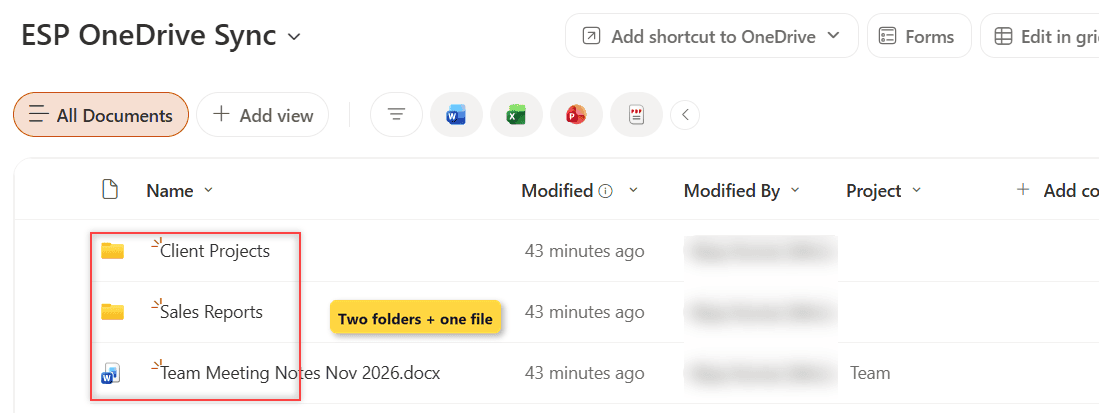
I built a small SharePoint document library called ESP OneDrive Sync on my EnjoySharePoint site, so every step here uses real files.
- Client Projects – a folder with Riverside Clinic Remodel Proposal.docx and Riverside Clinic Budget Nov 2026.xlsx ($48,500 total).
- Sales Reports – a folder with Q4 2026 Sales Summary.xlsx for Maria Torres, Kevin Brooks and Jordan Ellis.
- Team Meeting Notes Nov 2026.docx – one file at the library root.
The two folders matter later, because you don’t always want the whole library on your laptop.
Method 1: Sync the whole library with the Sync button
Use this when you work in the library every day on one computer and want all of it in File Explorer. You need the OneDrive app installed and signed in with your work account, which Windows 10 and 11 include.
- Open the SharePoint site and select Documents, or the library you want (for me, ESP OneDrive Sync).
- On the command bar, select … (More), then Sync. On a very wide screen it can sit right on the bar.
- If the browser asks for permission to open Microsoft OneDrive, allow it.
- OneDrive starts syncing, and the library appears in File Explorer.
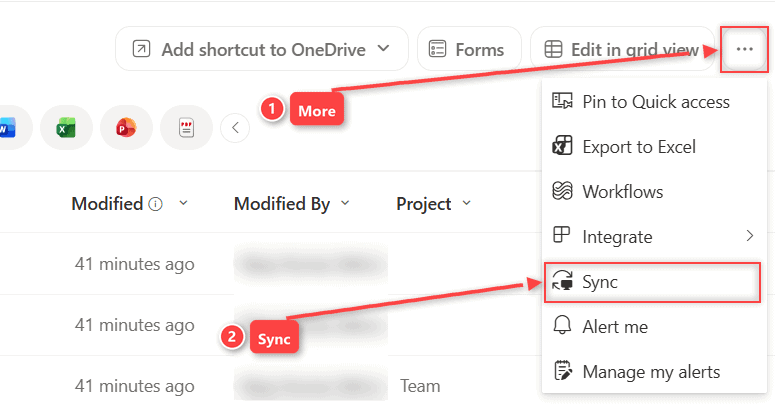
On my EnjoySharePoint site, Sync sits in the … menu next to Pin to Quick access and Alert me, not on the bar itself. You only need to do this once per computer for each library.
How does this work?
The Sync button hands the library to the OneDrive app. OneDrive puts it in a folder named after your organization, in the left pane of File Explorer, and you can’t pick a different location.
It doesn’t move anything into your personal OneDrive, though. The files still live in SharePoint, which is the key difference between OneDrive and SharePoint. Edit a file in File Explorer and OneDrive uploads the change to the library automatically.
Important: if you see Which library do you want to sync?, the site isn’t set up for the current OneDrive app. Ask your IT admin to fix that.
Method 2: Sync only one folder
Same sample library, but say you only need the Riverside Clinic files. Syncing one folder keeps your laptop lean and avoids pulling down thousands of files you never open.
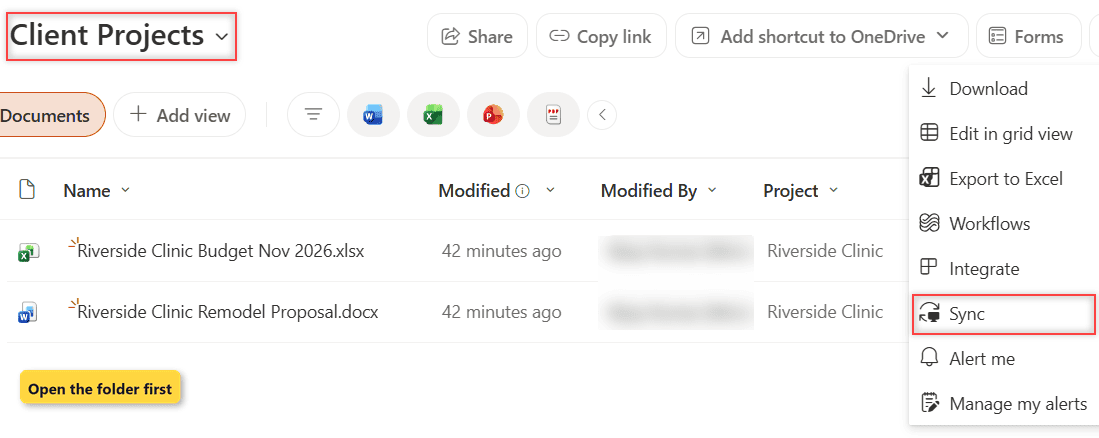
- Open the library and select the Client Projects folder to go inside it.
- Select Sync on the command bar.
- Allow the browser to open OneDrive, as before.
How does this work?
When you select Sync inside a folder, OneDrive syncs only that folder. For my sample, that means Client Projects and its two Riverside Clinic files sync, while Sales Reports stays in the cloud.
Already syncing the whole library? Open OneDrive settings and use Choose folders to clear the ones you don’t need. If a folder has unique permissions in the library, you only see what you’re allowed to open.
Method 3: Add a shortcut to My files
Microsoft now recommends this option when it’s available. A shortcut puts the library or folder inside your OneDrive, so it follows you to every computer and to the OneDrive mobile app.
- Open the same library (or one of its folders, like Client Projects).
- On the command bar, open the arrow next to Add shortcut to OneDrive and select My files.
- Open OneDrive on the web or in File Explorer. The shortcut appears in My files with a link icon.
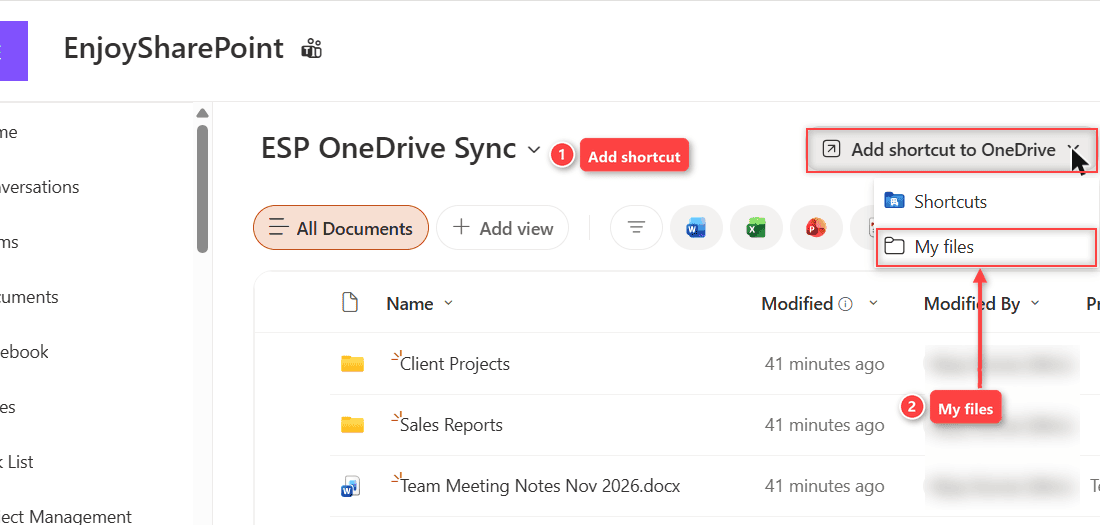
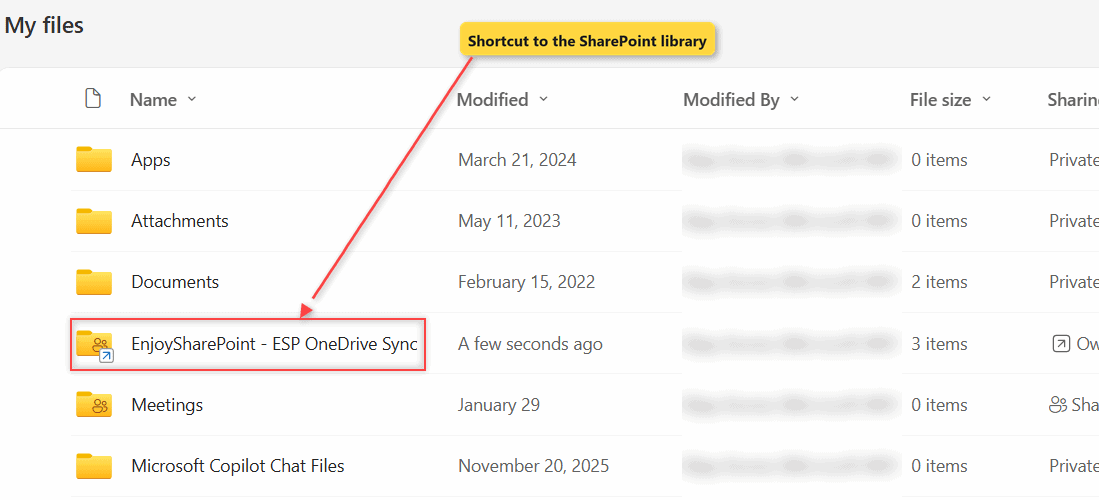
SharePoint confirmed it with an Added 1 shortcut message. In My files, the library appeared as EnjoySharePoint – ESP OneDrive Sync with a small link arrow on the folder icon and 3 items inside.
How does this work?
The shortcut is just a pointer. The files stay in SharePoint and don’t count against your OneDrive storage, and any PC that syncs your OneDrive shows the shortcut too.
You can add shortcuts to folders only, not single files, and each library allows 100 shortcuts. For a side-by-side look at both options, see my guide on SharePoint sync vs add shortcut.
Important: don’t use both on the same library. If you sync a library and also add a shortcut from it, OneDrive shows Sorry, we can’t sync this folder. Remove one of them first.
Keep files online-only with Files On-Demand
Syncing doesn’t have to fill your disk. Files On-Demand is on by default in current OneDrive builds, so synced files start as online-only placeholders and download when you open them.
| Icon in File Explorer | What it means |
|---|---|
| Blue cloud | Online-only. Takes no space; needs internet to open. |
| Green check mark | Downloaded when you opened it; OneDrive can free the space later. |
| Solid green circle with white check | Marked Always keep on this device; works offline. |
Right-click a file or folder in the synced library and choose Always keep on this device before a flight. Choose Free up space to turn it back into an online-only file.
Change or stop syncing a library
Here’s how to change or undo a sync:
- Select the OneDrive cloud icon in the taskbar notification area (use the Show hidden icons arrow if you don’t see it).
- Select the Help and Settings gear, then Settings.
- Open the Account tab to see every library you sync.
- Select Choose folders to change what syncs, or Stop sync to disconnect the library.
After Stop sync, the local copies stay on your PC but stop updating, so delete them to avoid editing an old copy. If Office still opens stale versions afterward, clear the SharePoint and Office cache.
Which method should you use?
| You want to | Use |
|---|---|
| Work on a whole library from one PC | Method 1: Sync button |
| Keep only one project folder on your laptop | Method 2: Sync one folder |
| See the files on every device and on your phone | Method 3: Add shortcut to My files |
| Save disk space on any of these | Files On-Demand (online-only files) |
I’d pick the shortcut for most people today, and keep the Sync button for libraries you only use on one machine.
Things to Keep in Mind
- Lock icon on files: the library syncs read-only when you lack edit rights or it requires check out in SharePoint or required columns. Your local edits won’t upload.
- No Sync button: an admin may have turned off offline availability for the library or site. For this and other errors, see my guide to fixing OneDrive sync issues.
- Size limits: files up to 250 GB sync, and Microsoft recommends no more than 300,000 synced items in total.
- File names: characters such as ” * : < > ? / \ | aren’t allowed, and a site whose name has one (like “:”) can’t sync.
- Mac: the browser steps are the same, and the files show up in Finder instead of File Explorer.
Once your library is synced, these will help you organize it:
Frequently Asked Questions
Does syncing SharePoint use my OneDrive storage?
No. Synced libraries and shortcuts stay in SharePoint and count against the site’s storage, not your personal OneDrive quota. They only use disk space on your PC for files you’ve downloaded.
Why is my synced SharePoint folder read-only?
A lock icon means you have view-only access, or the library requires check out or required columns. Ask the site owner for edit rights, or change those library settings if you own it.
How do I stop syncing a SharePoint library?
Open OneDrive Settings > Account and select Stop sync next to the library. Microsoft lists every step in its guide to syncing SharePoint files.

I have worked with Microsoft technologies for more than 18 years, including SharePoint, Microsoft 365 and the Power Platform (Power Apps, Power Automate and Power BI), at companies like HP, TCS and KPIT. I started EnjoySharePoint in 2011 to share the solutions I build in real projects with readers in the United States, Canada, the United Kingdom, Australia, New Zealand and beyond. Microsoft has recognized this work with the Microsoft MVP award 13 times since 2014.