
Megan Bowen, our sales lead in Boston, keeps the quarterly numbers in one Excel workbook. She wanted those numbers on the team’s SharePoint page, so nobody has to dig through a library to find them.
The File and media web part does this in a few minutes. The workbook stays in its library, and the page shows the latest saved version.
In this tutorial, I’ll show you how to embed excel in sharepoint page layouts, first the whole workbook and then a single chart, table or range.
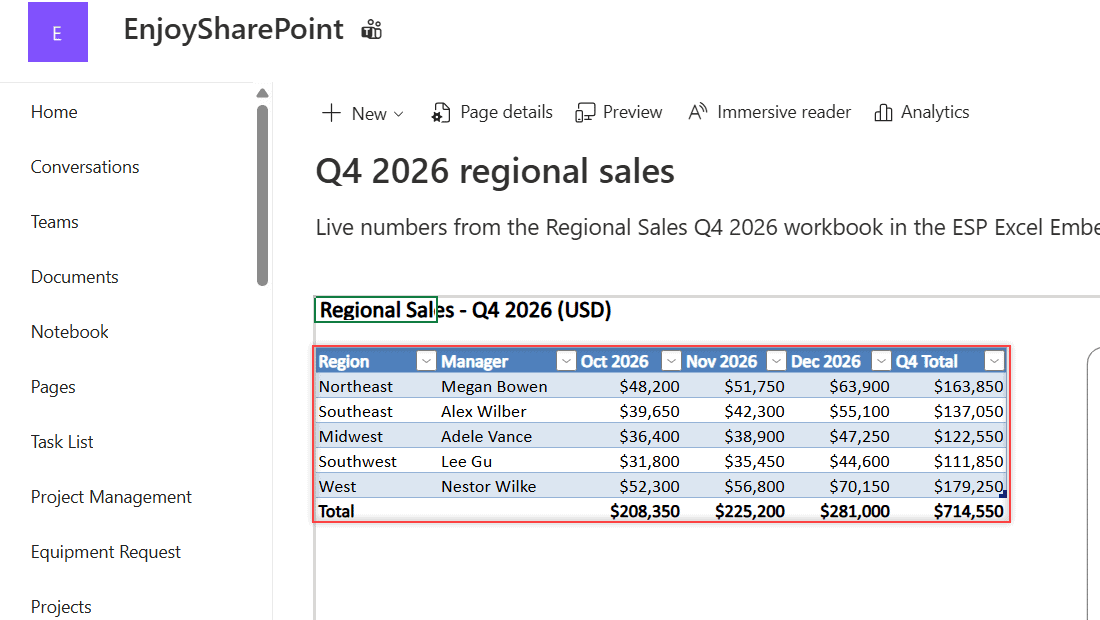
Here’s what we’re building, a published page with the live Q4 sales workbook on it:
Before You Start
You need edit rights on the page, and readers need at least view access to the file. The workbook must live in a SharePoint document library or OneDrive, not on your PC.
My sample workbook, Regional Sales Q4 2026.xlsx, has a table named SalesTable and a column chart. These are the Q4 totals:
| Region | Manager | Q4 2026 Total |
|---|---|---|
| Northeast | Megan Bowen | $163,850 |
| Southeast | Alex Wilber | $137,050 |
| Midwest | Adele Vance | $122,550 |
| Southwest | Lee Gu | $111,850 |
| West | Nestor Wilke | $179,250 |
Step 1: Upload the Workbook to a Library
- Create a document library called ESP Excel Embed.
- Select Create or upload, upload the workbook, or drag it onto the library.
I did the same with PnP PowerShell:
Connect-PnPOnline -Url "https://<tenant>.sharepoint.com/sites/EnjoySharePoint" -ClientId "<your-app-id>" -Interactive
New-PnPList -Title "ESP Excel Embed" -Url "ESPExcelEmbed" -Template DocumentLibrary
Add-PnPFile -Path "C:\SPGuidesDemo\ExcelEmbed\Regional Sales Q4 2026.xlsx" -Folder "ESPExcelEmbed"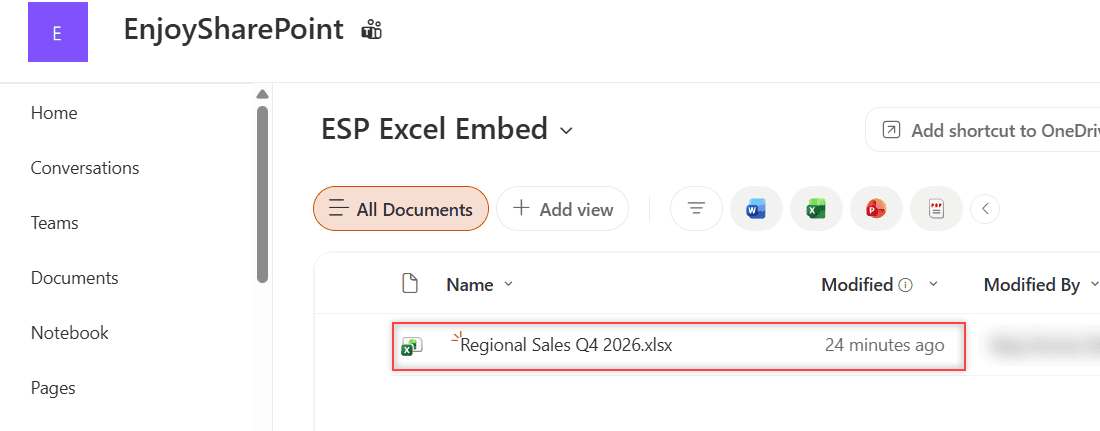
Checkpoint: the library shows one file of about 15 KB.
Step 2: Add the File and Media Web Part
- Open the page, or create one with New > Page, and select Edit.
- Open the Toolbox on the right, or select the + sign on the page.
- Search for file and select File and media.
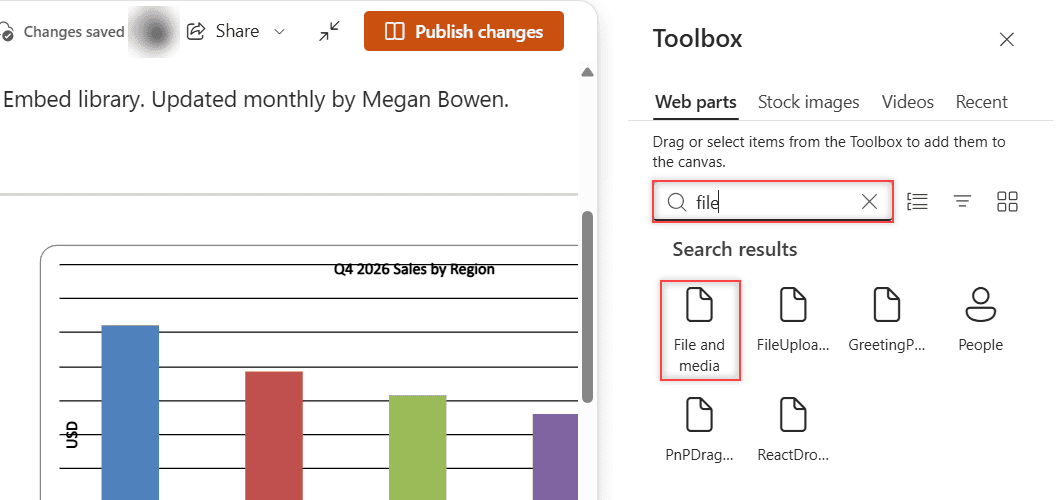
Some Microsoft pages still call it File viewer. The File and media web part also shows Word, PowerPoint, PDF and video files, but not images.
Step 3: Pick the Workbook
- In Pick a file, select Site and open the ESP Excel Embed library.
- Select Regional Sales Q4 2026.xlsx, then select Select at the bottom.
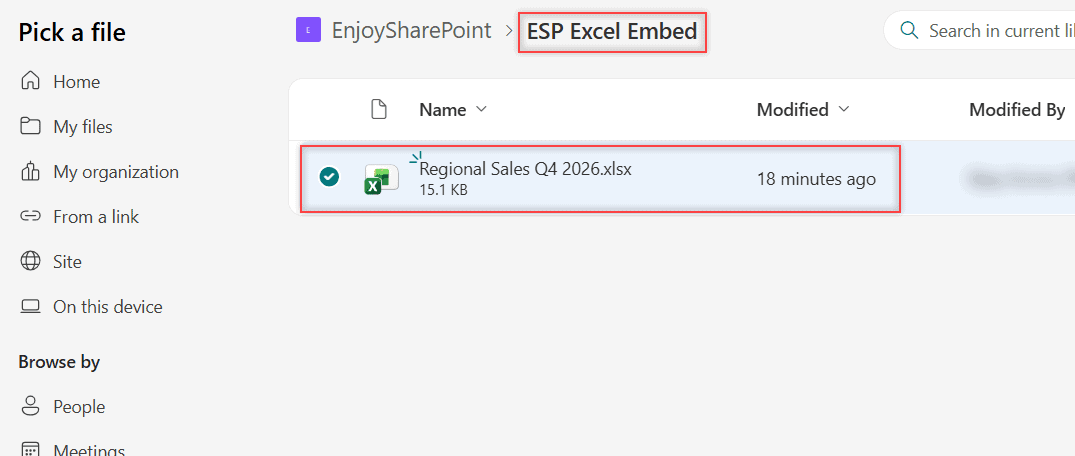
Skip On this device for shared numbers. Microsoft stores that upload as a separate copy in Site Assets, so it won’t follow changes to the real file.
Checkpoint: the web part shows the Q4 Sales sheet with its sheet tabs. Select Republish.
Step 4: Show Only a Chart, Table or Range
On a busy home page, the whole workbook can be too much. The web part can show one piece of it.
- Select the web part and choose Edit properties (the slider icon).
- Change Entire workbook to Chart, Table or Range.
- Type the item’s name. My chart is Chart 1, and the table is SalesTable.
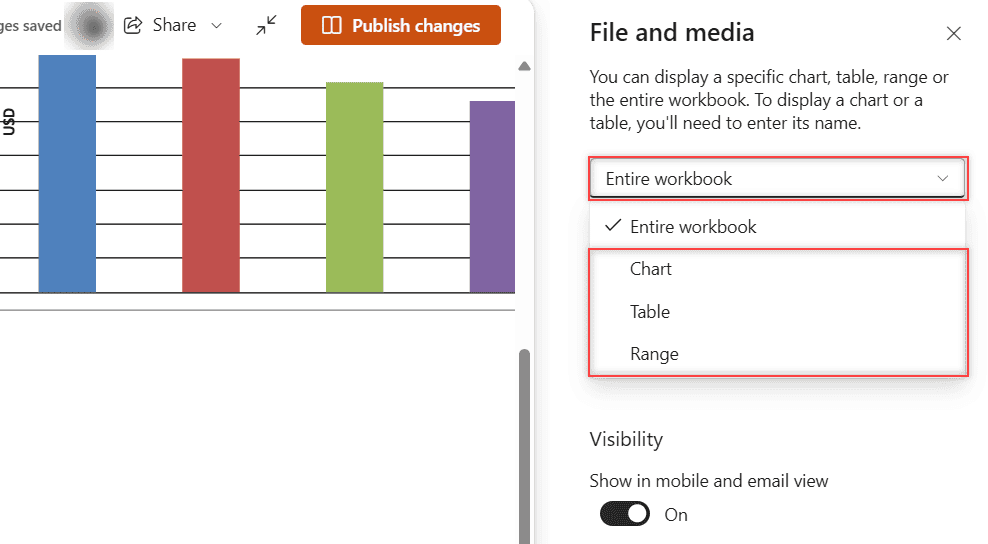
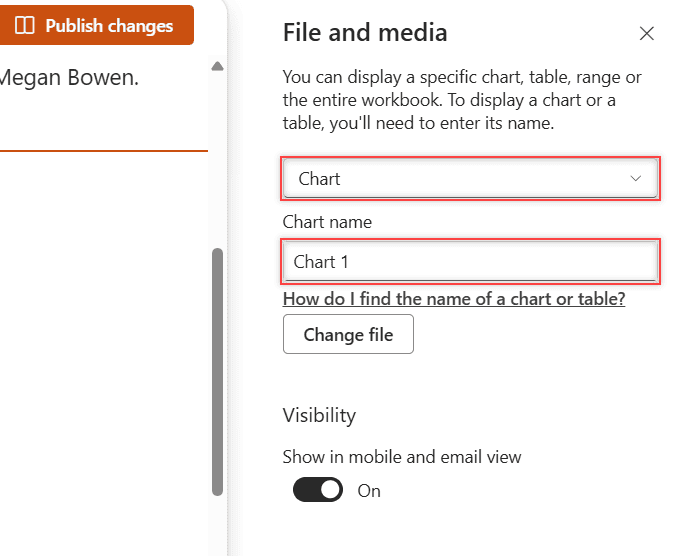
Not sure of the name? Open the workbook in Excel, select the chart and read its name in the Name Box. For a table, check Table Name on the Table Design tab.
For the whole workbook, the pane also has Show grid lines, Show row and column headers and Allow sorting and filtering columns.
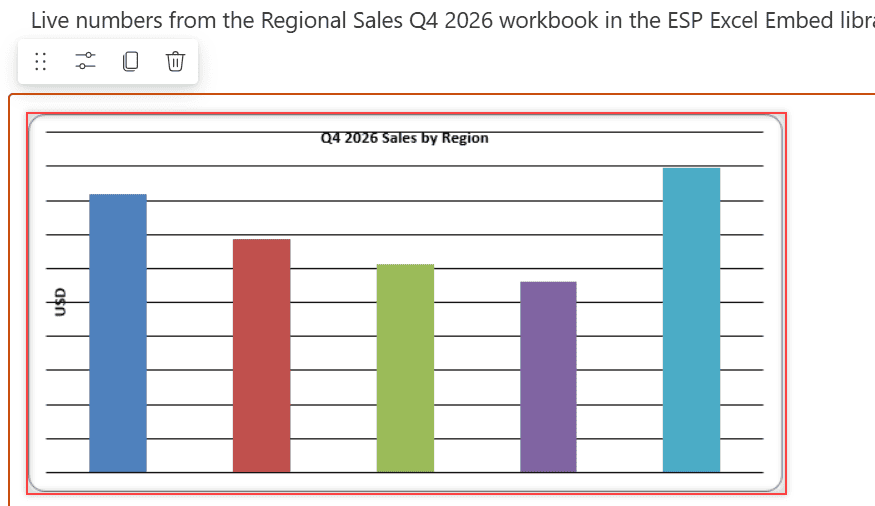
Checkpoint: only the chart appears. For list data, the Quick Chart web part is another option.
Test the Page
Change a December number in the workbook, save it and refresh the page. The new total should appear. If a colleague sees an error instead, they lack access to the file, much like the sharing is limited on this item error.
Make It Production-Ready
- Give readers view access to the library. They can’t edit the workbook on the page.
- Keep the workbook small. Microsoft caps embedded workbooks at 10 MB.
- Use table and chart names, so the view survives when rows move.
- Looking for Excel Web Access? It’s a classic web part and isn’t available on modern pages.
Where to Take It Next
For a full dashboard, build a Power BI report from SharePoint and Excel. If the rows belong in a list, import Excel data into a SharePoint list instead.
More ways to put content on your SharePoint pages:
Frequently Asked Questions
Can I embed just one Excel chart on a SharePoint page?
Yes. In the File and media web part, open Edit properties, choose Chart and type the chart name. For pages outside SharePoint, Microsoft explains the embed code in Embed your Excel workbook.
Can people edit an embedded Excel workbook on the page?
No. The page shows a view-only copy. People with edit permission open the file in Excel to change it.
Does the embedded workbook update automatically?
Yes. The web part points at the file in the library, so the page shows the latest saved version when it loads.

I have worked with Microsoft technologies for more than 18 years, including SharePoint, Microsoft 365 and the Power Platform (Power Apps, Power Automate and Power BI), at companies like HP, TCS and KPIT. I started EnjoySharePoint in 2011 to share the solutions I build in real projects with readers in the United States, Canada, the United Kingdom, Australia, New Zealand and beyond. Microsoft has recognized this work with the Microsoft MVP award 13 times since 2014.