
Your team got a new name, but the SharePoint site still shows the old one everywhere. The name takes a minute to fix; the URL is a separate, admin-only job.
In this tutorial, I’ll show you how to change SharePoint site name settings from Site information, and then how a SharePoint admin changes the site URL without rebuilding the site or losing content.
Quick answer: To rename a site, open it, select Settings (gear) > Site information, edit Site name and select Save. That doesn’t change the URL. To change the address, a SharePoint admin opens Active sites, selects the site and edits Site address on the General tab.
What You Need Before You Start
- For the name: owner or designer permission on the site. If you don’t see Site information in the gear menu, ask the owner.
- For the URL: the SharePoint Administrator role (or Global Administrator).
Not sure who owns the site? Here’s how to find the SharePoint site owner. For my examples we use a communication site called ESP Rename Demo with one list, ESP Field Visits, holding four sample visits (Jordan Ellis in Denver, Maria Torres in Austin, and so on).
Step 1: Change the Site Name in Site Information
Open the site, select the gear icon at the top right, and choose Site information.
- Replace the text in Site name (it’s required, so it can’t be blank).
- Update Site description if it mentions the old name.
- Select Save.
Note: in our tenant the first Save failed with “Classification options for your group have changed. Please select the appropriate classification.” Picking a value under Sensitivity fixed it.
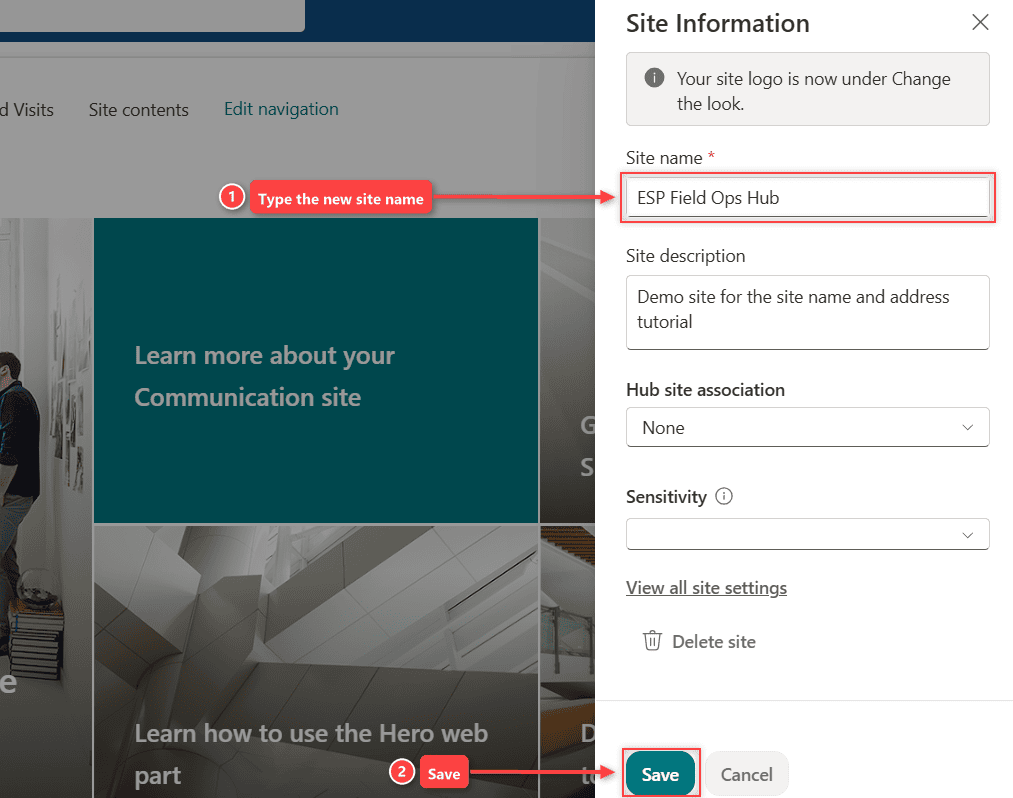
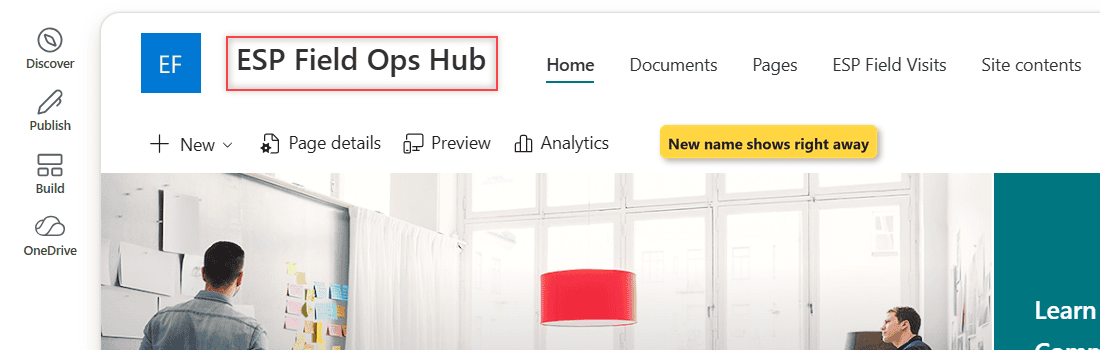
We renamed ESP Rename Demo to ESP Field Ops Hub, and the header showed the new name right after saving. The panel also notes that the site logo now lives under Change the look, so if the old logo carries the old name too, change the SharePoint site logo from Change the look > Header.
Step 2: Check What the New Name Changed (and What It Didn’t)
The address bar still ends in /sites/ESPRenameDemo, because the site name is only a display title. Links, bookmarks and synced folders keep working.
On a team site connected to a Microsoft 365 group, the site shares its name and logo with the group, so the change can show in Outlook and Teams. The group’s email address never changes. If the site belongs to a team, see how SharePoint sites connect to Microsoft Teams.
One thing we noticed: the SharePoint admin center kept showing the old name for our site until the address change below refreshed it, so don’t panic if it lags.
Step 3: Change the Site Address in the SharePoint Admin Center
When the old URL has to go too, a SharePoint admin changes it. It works for communication sites and for team sites with or without a group.
- Open the SharePoint admin center and go to Sites > Active sites.
- Select the site name to open the details panel.
- On the General tab, under Site address, select Edit.
- Type the new address and select Save.
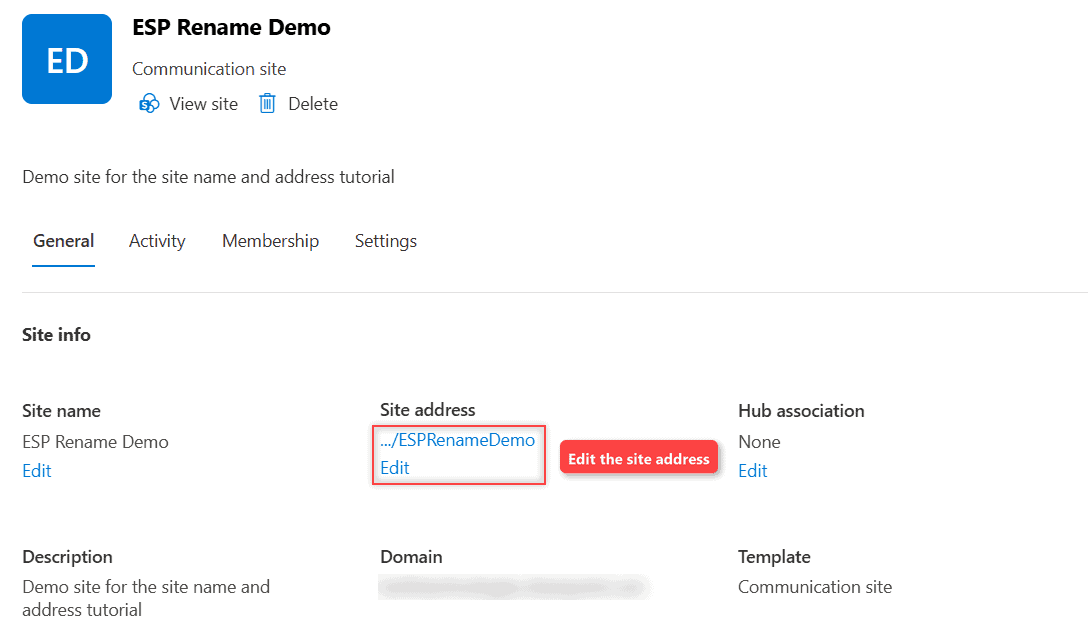
Only the part after /sites/ can change, so a site can’t move from /sites to /teams. Our demo went from the first address to the second:
https://<tenant>.sharepoint.com/sites/ESPRenameDemo
https://<tenant>.sharepoint.com/sites/ESPFieldOpsHub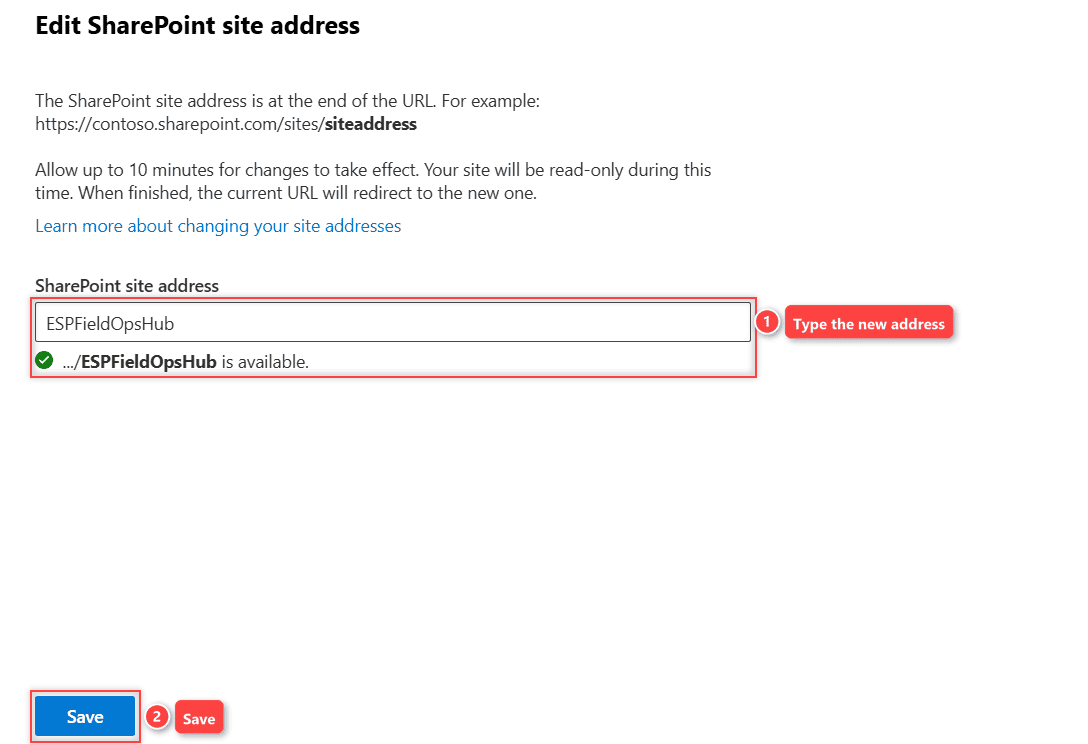
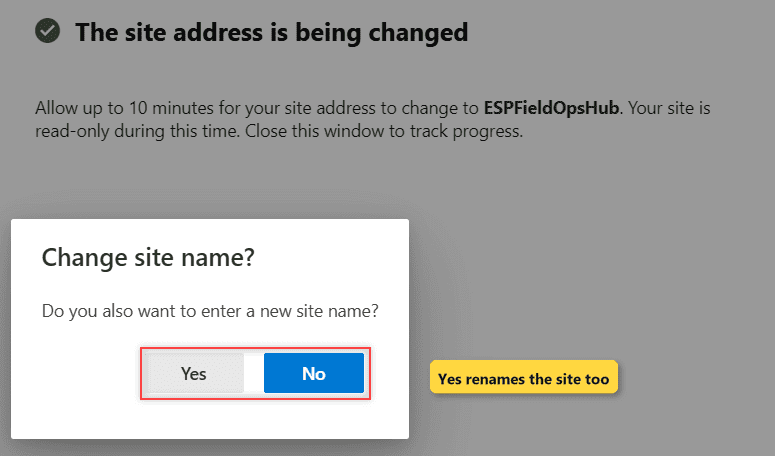
As you type, the panel checks the name; ours said …/ESPFieldOpsHub is available. After Save, the panel says the address is being changed and asks Change site name? Select Yes to rename the site in the same pass, or No if you already did Step 1, as we did:
Hub sites can’t be renamed this way; see creating a hub site in SharePoint Online.
Step 4: Test the Redirect and Fix What Breaks
The change takes about 10 minutes, depending on the site’s size, and the site is read-only until it finishes. Our small demo site was done in about a minute. SharePoint then leaves a redirect at the old address, so old links and bookmarks still land on the site.
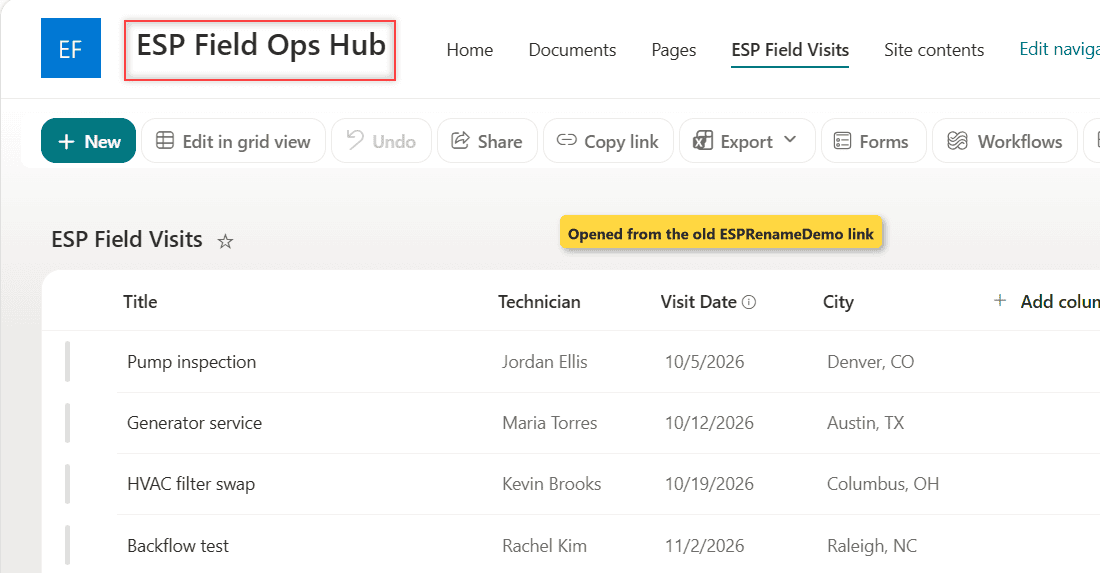
All four ESP Field Visits items and the permissions came through. If a browser keeps loading the old page, clear the SharePoint cache. Then check what Microsoft says doesn’t update on its own:
- Links typed into web parts (News, Quick links, Text) and page thumbnails.
- Power Apps custom list forms, which must be recreated.
- Hub association, custom code and SharePoint 2013 workflows that store the URL.
Cheat Sheet: Site Name vs Site Address
| Site name | Site address (URL) | |
|---|---|---|
| Where | Settings > Site information | Admin center > Active sites > General |
| Who | Site owner or designer | SharePoint Administrator |
| Downtime | None | About 10 minutes read-only |
| Old links | Unaffected | Redirected automatically |
| Not allowed for | – | Hub, locked or on-hold sites, publishing sites, 15M+ documents |
Common Mistakes to Avoid
- Building a new site to get a new name. A new site starts empty, so files, permissions and links all have to be redone.
- Reusing the old address right away. It’s taken by the redirect until an admin deletes it, and then old links stop working.
- Forgetting members. Renaming doesn’t add anyone; to give the renamed team access, add users to the SharePoint site.
Does Renaming a SharePoint Site Change the URL?
No. Site information only changes the display name; the URL stays until an admin edits the site address. To compare how site types handle this, see team site vs communication site.
Next Steps
With the name and address settled, refresh the home page so it matches the new name; customize the SharePoint site home page with the out-of-the-box web parts. If the team’s needs changed too, the types of SharePoint sites help you check the site still fits.
If we’re tidying up a renamed site, these are the next things we’d look at:
Frequently Asked Questions
Who can change a SharePoint site name?
Anyone with owner or designer permission on the site, from Settings > Site information. Members and visitors don’t see that option.
Can I change the site URL without admin rights?
No. Changing the site address needs the SharePoint Administrator role. A site owner can rename the site but has to ask an admin for a new URL.
Will old links break after a site address change?
No. SharePoint creates a redirect at the old address, so sharing links and bookmarks keep working. Microsoft lists every effect in its guide to changing a site address.
Can I change the address of a hub site?
No. Microsoft doesn’t support address changes for hub sites, locked or on-hold sites, or sites that ever used the Publishing feature.

I have worked with Microsoft technologies for more than 18 years, including SharePoint, Microsoft 365 and the Power Platform (Power Apps, Power Automate and Power BI), at companies like HP, TCS and KPIT. I started EnjoySharePoint in 2011 to share the solutions I build in real projects with readers in the United States, Canada, the United Kingdom, Australia, New Zealand and beyond. Microsoft has recognized this work with the Microsoft MVP award 13 times since 2014.
Is this something I should do when I have many Power Automate Flows and PowerApps?