
If you manage projects, leaves, or contracts in SharePoint, dates are usually the most important columns in your list. When something is overdue or about to start, you want it to visually stand out without having to read every row.
In this tutorial, you’ll learn step-by-step how to apply conditional formatting in a SharePoint Online list based on date values – for entire rows as well as specific columns – using both the built-in UI and JSON formatting.
We’ll cover:
- Conditional formatting for the entire row based on a date
- Conditional formatting for a single column based on a date
- Using a calculated column with dates
- Using JSON for more advanced date-based formatting
Scenario 1: Conditional Formatting for the Entire Row Based on Start Date
Imagine you have an Employee Leave Tracker SharePoint list and you want to quickly see:
- Leaves that have already started or are in the past
- Leaves that are starting this week
- Leaves that are planned after next week
Instead of scanning the dates, you can color the entire row based on the Start Date.
Sample list structure
Let’s say your SharePoint list is named Employee Leave Tracker with the following columns:
- Employee ID (Single line of text or Number)
- Employee Name (Single line of text)
- Leave Type (Choice – e.g., Sick, Casual, Vacation)
- Leave Start Date (Date and time)
- Leave End Date (Date and time)
Business rule
We’ll format the entire row like this:
- If the Leave Start Date is on or before today → Row background: Light Red
- If the Leave Start Date is between tomorrow and the end of this week → Row background: Orange
- If the Leave Start Date is after one week from today → Row background: Green
This gives managers an instant picture of what’s happening now versus upcoming leaves.
As a SharePoint developer, you can also create the above SharePoint list and try along with me.
Steps: Apply conditional formatting to the entire SharePoint list row
- Open your SharePoint list
- Go to the list where you want to apply the formatting.
- Make sure you’re in a modern view like All Items.
- Open the view formatting panel
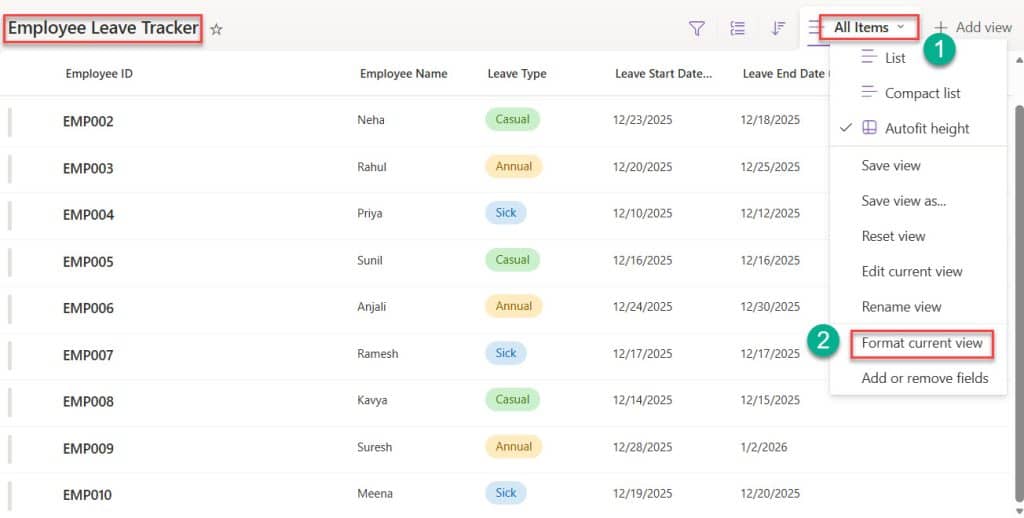
- Click the View dropdown (for example, “All Items”).
- Click Format current view. Follow the screenshot below:
- Switch to conditional formatting
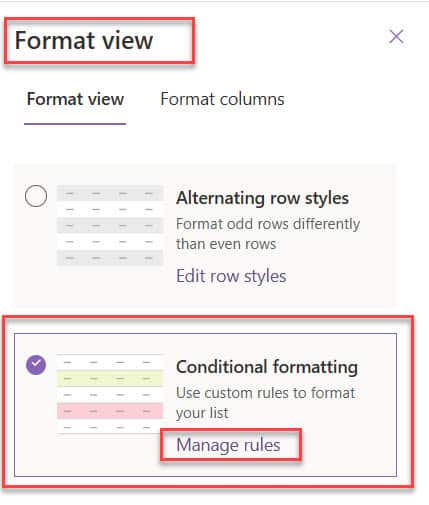
- In the panel that opens on the right, select Conditional formatting.
- Click Manage rules if you see that option.
- Add the first rule – “On or before today” (Light Red)
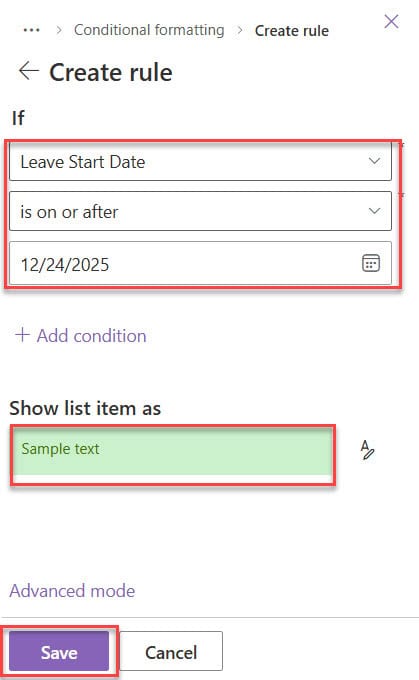
- Click + Add rule.Under Choose a column, select Leave Start Date.Under Condition, choose is on or before.Under Value, select Today (relative) so it always uses the current date.Under Show list item as, click the pencil icon and choose a Light Red background color.Click Save.
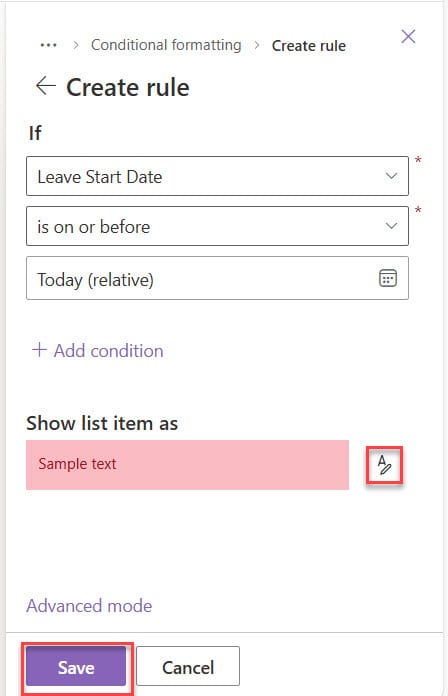
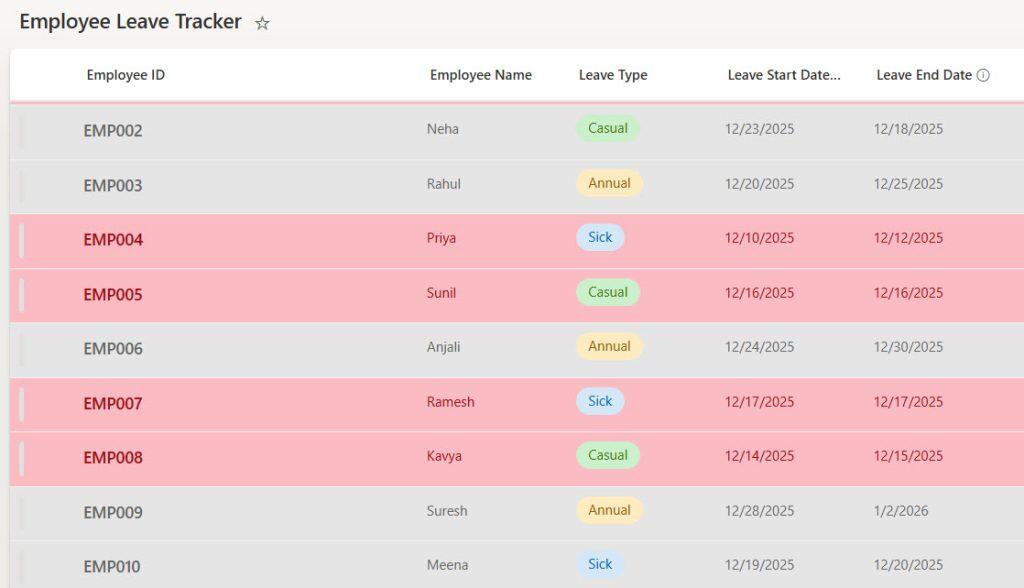
Now all rows where the Leave Start Date is today or in the past will appear with a light red background. Here is the screenshot for your reference:
- Add the second rule – “Within this week” (Orange)
- Again, click + Add rule.
- Choose column: Leave Start Date.
- Choose an appropriate condition, for example:
- is between → from Tomorrow to End of this week (depending on what options your tenant shows), or
- Use a relative date option that represents “within this week”.
- Under Show list item as, pick an Orange background.
- Click Save.

- Add the third rule – “After next week” (Green)
- Click + Add rule again.
- Column: Leave Start Date.
- Condition: something like is after a relative date such as “Next week” or a fixed date representing one week from now (depending on how you want to define it).
- Choose Green under Show list item as.
- Click Save. Here is a screenshot of the rule we created.
- Check the result
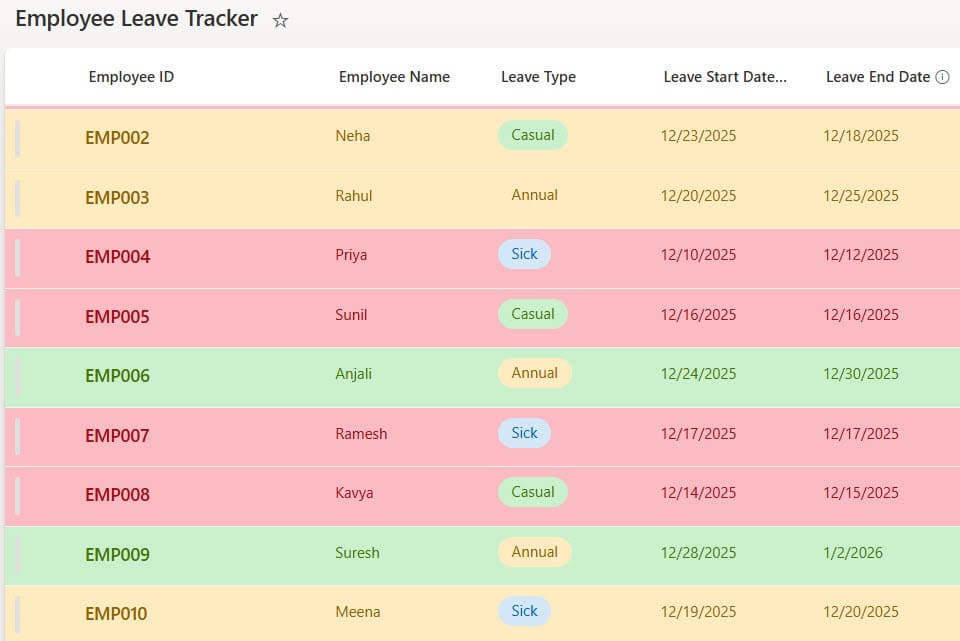
- Your list should now show:
- Light red rows for leaves started or starting today or earlier.
- Orange rows for leaves starting soon (this week).
- Green rows for leaves starting later (after one week).
- Your list should now show:
You can see the complete output in the screenshot below:
This is a simple but powerful way to turn a basic leave tracker into a visual dashboard your team can understand at a glance.
Check out SharePoint List Conditional Formatting
Scenario 2: Conditional Formatting for a Single Column Based on End Date
Sometimes you don’t want to color the entire row; you only want to highlight the date column itself in the SharePoint list view – for example, contract end dates.
Let’s say you have a Vendor Contract Renewal Tracker list with these columns:
- Vendor Name
- Contract Owner
- Contract Start Date
- Contract End Date
Business rule
We’ll color only the Contract End Date column:
- If the contract has already expired (End date before today) → Red
- If the contract will expire within 1 month → Orange
- If the contract end date is after 1 month → Green
This makes it easy to focus on renewals. Follow the below steps:
Steps: Apply conditional formatting to a column based on date
- Open the SharePoint list and locate the column
- Go to your Vendor Contract Renewal Tracker list.
- Hover over the Contract End Date column header.
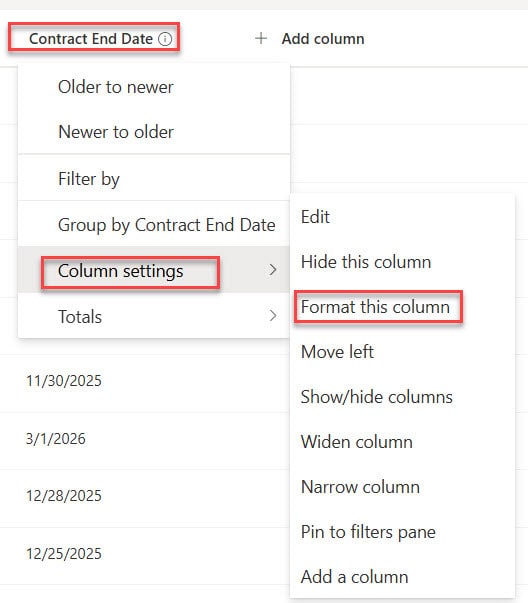
- Open column formatting
- Click the dropdown on the Contract End Date column.
- Click Column settings.
- Click Format this column. Here is the screenshot for your reference.
- Switch to conditional formatting
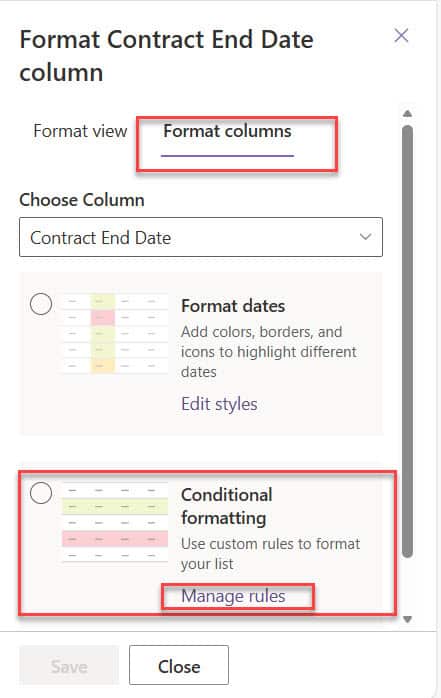
- On the right panel, under Format columns, select Conditional formatting.
- Click Manage rules if needed.
- Add the first rule – “Expired” (Red)
- Click + Add rule.Choose column: Contract End Date.Condition: is before.Value: Today (relative).Under Show list item as, pick a Red background color.Click Save.
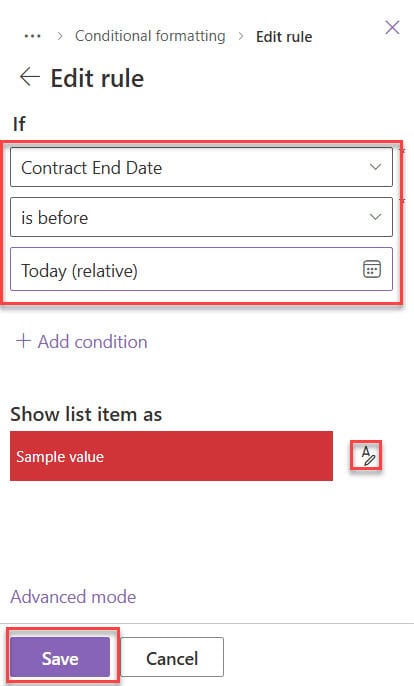
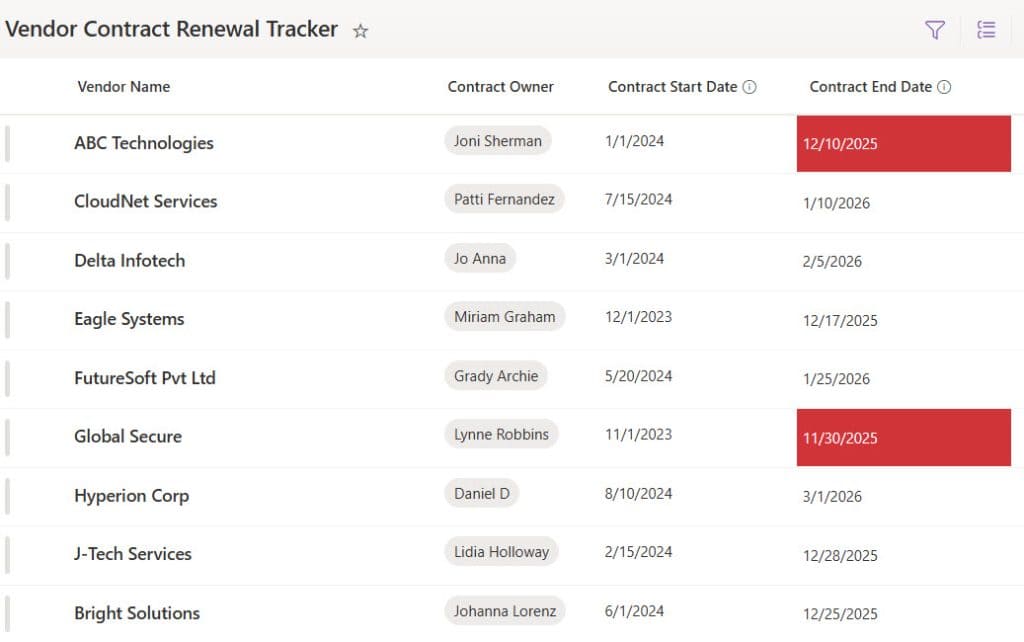
Now all expired contracts will have the Contract End Date cell highlighted in red.
- Add the second rule – “Expires within 1 month” (Orange)
- Click + Add rule again.
- Column: Contract End Date.
- Condition: is between.
- Start value: Today (relative).
- End value: a relative date that represents 1 month from today (for example, using a date picker or a specific future date based on your requirement).
- Choose Orange under Show list item as.
- Click Save. Check the screenshot below for the rule configuration.
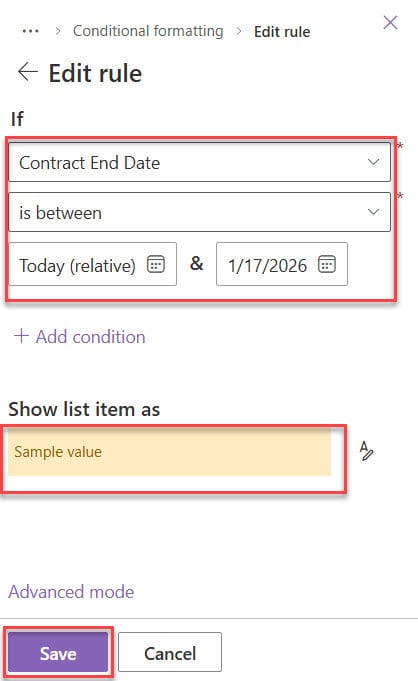
This surfaces contracts that need immediate renewal attention in the SharePoint list view.
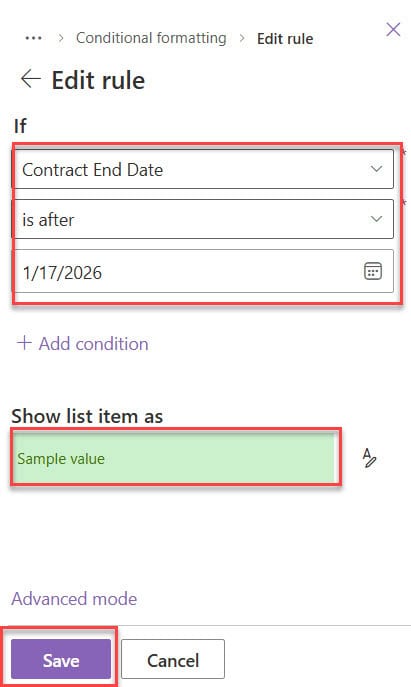
- Add the third rule – “Expires after 1 month” (Green)
- Click + Add rule.
- Column: Contract End Date.
- Condition: is after.
- Value: the same future date you used as “1 month from today” or a suitable relative option.
- Choose Green as the background.
- Click Save. You can see the exact rule configuration in the screenshot below:
- Verify the result
- Review your list and confirm:
- Expired contracts have a red Contract End Date.
- Contracts expiring soon are in orange.
- Contracts that are not urgent appear in green.
- Review your list and confirm:
Below is the screenshot of the SharePoint list view.
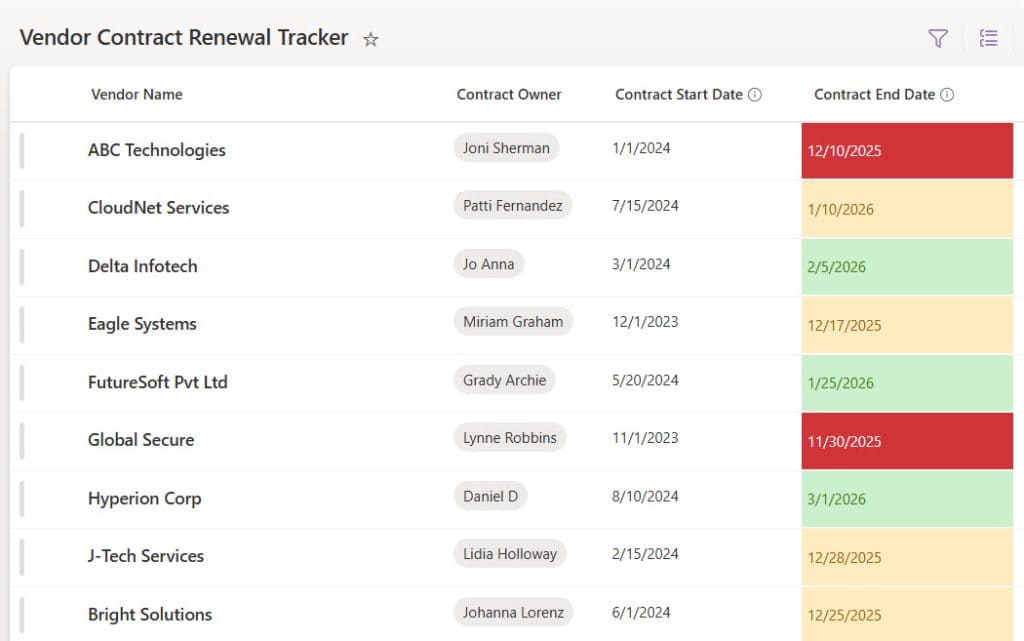
This approach is great when you want to visually emphasize a single critical column instead of the entire SharePoint list row.
Check out Add SharePoint Column Formatting with JSON
Scenario 3: Conditional Formatting Based on Start Date and Due Date (Duration logic)
In many SharePoint project scenarios, you want to color-code tasks based on the duration between two dates – for example, Start Date and Due Date.
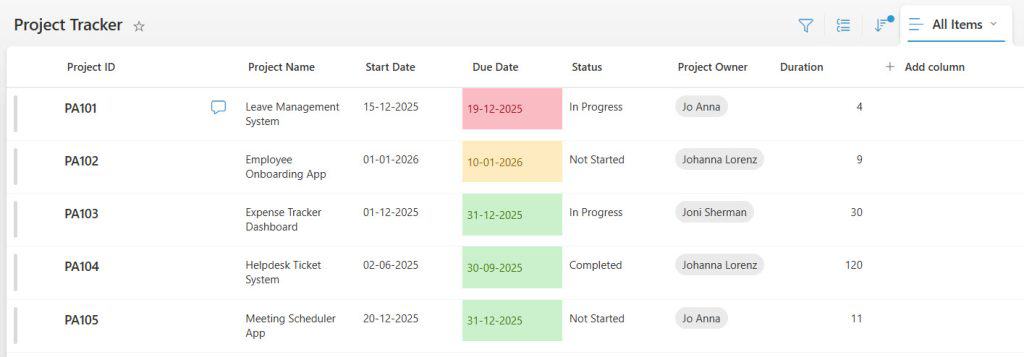
Let’s say you have a Project Tracker list with columns:
- Project ID
- Project Name
- Start Date
- Due Date
- Status
- Project Owner
- Duration (Calculated column)
Business rule
You want to calculate the duration between Start Date and Due Date, then apply formatting based on that duration:
- Duration less than 5 days → Red
- Duration less than 10 days (but ≥ 5) → Orange
- Duration greater than 10 days → Green
We’ll see two approaches:
- Using a calculated column
- Using JSON formatting for more flexible control
Method 1: Using a calculated column
First, create a calculated column that stores the number of days between Start Date and Due Date.
- Create the Duration calculated column in the SharePoint list
- Go to List settings.Click Create column.Name: Duration.Type: Calculated (calculation based on other columns).In the formula box, use something like:
=[Due Date] - [Start Date]
- Go to List settings.Click Create column.Name: Duration.Type: Calculated (calculation based on other columns).In the formula box, use something like:
- Open formatting for the Due Date column
- Go back to the list.
- Click the dropdown on the Due Date column.
- Click Column settings → Format this column.
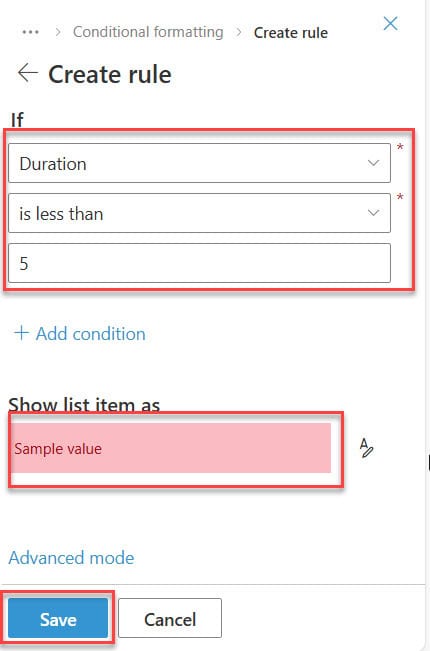
- Add rule for short duration (< 5 days) – Red
- In the Format column panel, go to Conditional formatting.
- Click + Add rule.
- Choose column: Duration.
- Condition: is less than.
- Value:
5. - Under Show list item as, select a Red background.
- Save the rule. You can see the exact rule in the screenshot below:
- Add rule for medium duration (< 10 days) – Orange
- Click + Add rule again.
- Column: Duration.
- Condition: is less than.
- Value:
10. - Background color: Orange.
- Save the rule.
Note: Because rules are evaluated in order, you may want to consider ordering or adjusting conditions so that items under 5 days show as red instead of being overridden. One simple way is to add the stricter condition first.
- Add rule for long duration (> 10 days) – Green
- Click + Add rule.
- Column: Duration.
- Condition: is greater than.
- Value:
10. - Background color: Green.
- Save the rule.
- Review the result
- Your Due Date column will now be color-coded based on the calculated duration:
- Short, urgent tasks in red.
- Medium-duration tasks in orange.
- Longer tasks in green.
- Your Due Date column will now be color-coded based on the calculated duration:
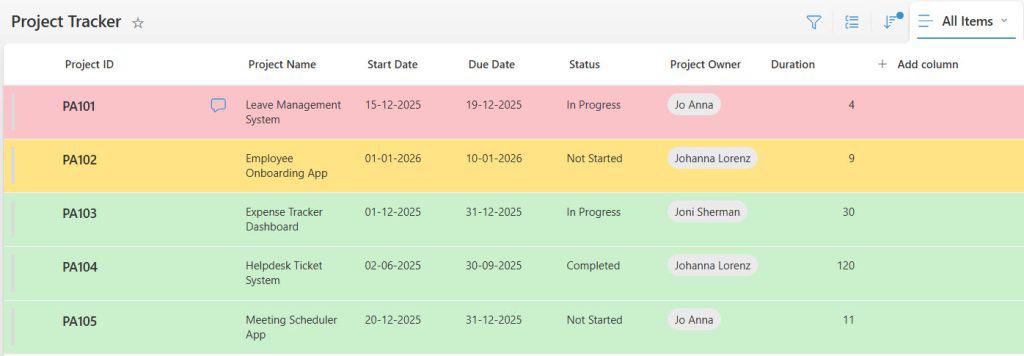
Using a calculated column keeps the logic simple and reusable. Users can also sort and filter on the Duration column directly. Below is the screenshot for your reference.
Check out SharePoint Calculated Column Round Up to Decimal Places
Method 2: Using JSON to format rows based on date
If you need more flexibility than the basic UI rules provide, you can use JSON to format the entire view based on date conditions. JSON formatting lets you refer to fields, perform comparisons, and set colors or icons exactly the way you want.
JSON formatting is ideal when:
- You want complex conditions that the simple rule builder does not support.
- You want to combine multiple fields (e.g., dates + status).
- You want fine control over styles (icons, font, multiple colors, etc.).
In this example, you’ll format the entire row in the Project Tracker list based on conditions using Start Date and Due Date (or Duration).
- Open the view formatting
- Go to your Project Tracker list.
- Click the view dropdown (e.g., All Items) → Format current view.
- Switch to advanced mode
- In the right panel, choose Conditional formatting (if shown).
- Click Manage rules, then click Advanced mode.
- You should now see a JSON editor area.
Below is the JSON code to format rows based on the Duration calculated column (less than 5 = Red, less than 10 = Orange, otherwise Green):
{
  "$schema": "https://developer.microsoft.com/json-schemas/sp/v2/view-formatting.schema.json",
  "additionalRowClass": "=if(Number([$Duration]) < 5, 'sp-row-bg-red', if(Number([$Duration]) < 10, 'sp-row-bg-orange', 'sp-row-bg-green'))",
  "rowFormatter": {
    "elmType": "div",
    "attributes": {
      "class": "ms-bgColor-neutralLighter ms-fontColor-neutralPrimary"
    },
    "style": {
      "display": "flex",
      "align-items": "stretch"
    },
    "children": [
      {
        "elmType": "div",
        "style": {
          "display": "flex",
          "flex-wrap": "nowrap",
          "width": "100%"
        },
        "children": [
          {
            "elmType": "div",
            "style": {
              "padding": "4px 8px",
              "width": "100%",
              "box-sizing": "border-box",
              "background-color": "=if(Number([$Duration]) < 5, '#fde7e9', if(Number([$Duration]) < 10, '#fff4ce', '#e6f4ea'))",
              "border-left": "=if(Number([$Duration]) < 5, '4px solid #a80000', if(Number([$Duration]) < 10, '4px solid #ffaa44', '4px solid #107c10'))"
            },
            "children": [
              {
                "elmType": "div",
                "attributes": {
                  "class": "ms-font-m"
                },
                "children": [
                  {
                    "elmType": "span",
                    "txtContent": "=@currentField"
                  }
                ]
              }
            ]
          }
        ]
      }
    ]
  }
}
If you want to reference Start Date and Due Date directly (without using the Duration column), you can use this variant, which calculates the day difference on the fly:
{
  "$schema": "https://developer.microsoft.com/json-schemas/sp/v2/view-formatting.schema.json",
  "rowFormatter": {
    "elmType": "div",
    "style": {
      "display": "flex",
      "align-items": "stretch",
      "background-color": "=if((Number(@now) - Number([$StartDate])) / 86400000 > (Number([$DueDate]) - Number([$StartDate])) / 86400000, '#fde7e9', if(((Number([$DueDate]) - Number([$StartDate])) / 86400000) < 5, '#fde7e9', if(((Number([$DueDate]) - Number([$StartDate])) / 86400000) < 10, '#fff4ce', '#e6f4ea')))",
      "border-left": "=if(((Number([$DueDate]) - Number([$StartDate])) / 86400000) < 5, '4px solid #a80000', if(((Number([$DueDate]) - Number([$StartDate])) / 86400000) < 10, '4px solid #ffaa44', '4px solid #107c10'))"
    },
    "children": [
      {
        "elmType": "div",
        "style": {
          "display": "flex",
          "flex-wrap": "nowrap",
          "width": "100%",
          "padding": "4px 8px",
          "box-sizing": "border-box"
        },
        "children": [
          {
            "elmType": "span",
            "txtContent": "=@currentField"
          }
        ]
      }
    ]
  }
}
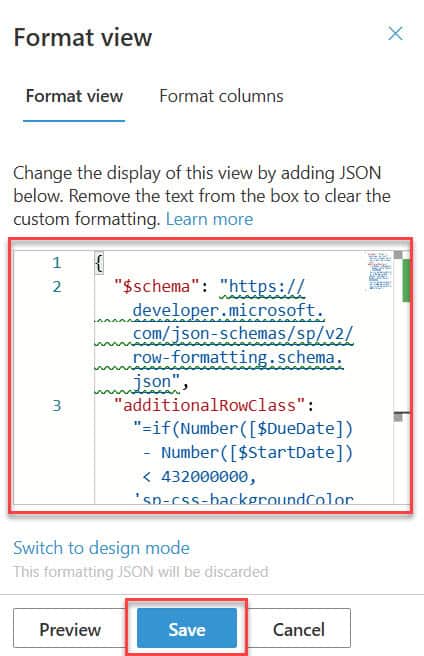
After you paste the above code, it should look like the below screenshot:
Now, the SharePoint list view looks like the below screenshot.
Conclusion
Conditional formatting based on dates is one of the easiest ways to turn a plain SharePoint list into a simple, visual dashboard your users can actually act on. By highlighting rows or specific date columns, you help people instantly spot overdue items, upcoming deadlines, and safe items without digging into the details.
You started with basic no-code rules for full rows and single columns, then moved into calculated columns to add duration logic between Start Date and Due Date. Finally, you enhanced it further with JSON formatting so you can implement more advanced, flexible rules that go beyond what the UI offers.
You may also like the following tutorials:
- Add Comments to SharePoint List Item
- SharePoint Online Rating Column
- Add Attachments Column in SharePoint Online List

After working for more than 18 years in Microsoft technologies like SharePoint, Microsoft 365, and Power Platform (Power Apps, Power Automate, and Power BI), I thought will share my SharePoint expertise knowledge with the world. Our audiences are from the United States, Canada, the United Kingdom, Australia, New Zealand, etc. For my expertise knowledge and SharePoint tutorials, Microsoft has been awarded a Microsoft SharePoint MVP (12 times). I have also worked in companies like HP, TCS, KPIT, etc.

