
As a SharePoint developer, I have frequently been required to work with calculated columns, particularly those involving date fields. In this tutorial, I will provide various examples related to SharePoint calculated column dates.
All these calculated examples are related to SharePoint date column types.
If you are new to calculated columns in SharePoint Online, you should check a tutorial on SharePoint calculated columns.
Here are a few examples of calculated columns related to SharePoint date and time columns.
Example 1: Calculated Difference Between Two Dates in Days using SharePoint Calculated Column
This is a common requirement for most SharePoint projects. You need to find the differences between two dates in days using a calculated column in SharePoint.
Below is the SharePoint list, which has two date and time columns. I want to get the days between these two date columns.
| Column Name | Data Type |
|---|---|
| Project Title | Default Title column – Renamed to Project Title |
| Project Start Date | Date and Time |
| Project End Date | Date and Time |

For this example, consider the Project Start Date and End Date; we need to calculate the difference between these two dates in days.
Here is the formula to calculate the date difference in days:
=DATEDIF([Column1], [Column2],"d")If you are not aware of calculated columns, you can also check out the tutorial on how to create a calculated column in SharePoint.
Here are the steps to do this:
- Open your SharePoint list, where you want to add the calculated column, to check the difference between two dates.
- Click on the +Add column & select See all column types -> Then click on the Next button.

- On the Create Column page, provide the column name and choose the type as Calculated (calculation based on other columns).

- In the Formula box of this column, provide the formula placed in the code below. Else, you can also enter manually by selecting columns from the “Insert Column” box.
=DATEDIF([Project Start Date],[Project End Date],"d")- Select the data type returned from this formula is: Number. Click on OK.

- Now, the calculated column has been created in SharePoint. This column will show the difference b/w [Project Start Date & End Date] in days. You can have a look at the image for reference:

Check out Add Leading Zeros to SharePoint List Column using Calculated Column
Example 2: Calculated Difference Between Two Dates in Months using SharePoint Calculated Column
By using a SharePoint calculated column, you can also calculate the difference between two date columns in months.
The formula below works in this case to get the date difference in Months:
=DATEDIF([Column1], [Column2],"ym")This formula will only return the number of months between two dates, ignoring the year part.
Example:
If the Project Start Date is 1/1/2024 and the Project End date is 1/1/2025, the output will return” 0.”
In the same way, if the Project Start Date is on 1/1/2024 and the Project End date is 5/1/2025. The output return here is “4”. Which means it will return the difference between months, irrespective of the year. You should only check the Month difference.

Read How To Reset Id In SharePoint List
Example 3: Calculate the Difference Between Two Dates in Hours using SharePoint Calculated Column
So, if you want to get the date difference result in hours format, follow the example below:
Below is the SharePoint list, “Task Tracker,” with columns such as Start Date and End Date. I want to calculate the difference between these two dates in hours.
| Column Name | Data Type |
|---|---|
| Task Name | Title Column |
| Start Date | Date and Time Column |
| End Date | Date and Time Column |

I need to calculate the difference between the Start Date & End Date in hours to give Task Completion Hours [Calculated Column].
As you already know, the steps to create a calculated column in a SharePoint list/ library are as follows. Let’s start with the following steps.
- On the Create column window, provide a column name and select the type of information in this column is Calculated (calculation based on other columns).

- Paste the following formula in the Formula box. Choose the data type returned from this formula as “Number”. (Replace the columns with your SharePoint columns). Then, click on the OK button at the bottom of the page.
=(INT(([End Date]-[Start Date])*1440)-MOD(INT(([End Date]-[Start Date])*1440),60))/60&" Hours "
- You can now return to the SharePoint list. You can see that the calculated column Task Completion Hours will be added to the list.

Check out Create SharePoint List Items Using Power Automate
Example 4: Calculate Date Difference in Minutes in SharePoint List using Calculated Column
In most cases, we won’t calculate the difference between dates in minutes, as it is complex, and return the output in a large number.
So, if you want to get the output in minutes format, you can adjust the above used formula to “Minutes” instead of “Hours”. This is the formula for calculating the date differences in minutes. You can directly replace the list column names with yours.
=(INT(([End Date]-[Start Date])*1440)-MOD(INT(([End Date]-[Start Date])*1440),60)&" Minutes")As in the above example, create a calculated column and insert the formula provided in the Formula box.
Look at the screenshots for your reference:


Output:

Check out Retrieve SharePoint List Items Using Power Automate
Example 5: Calculate Days Between Date Column and Today in SharePoint List using Calculated Column
In this example, I will demonstrate how to calculate the difference between the current date and the date column in days using a calculated column in a SharePoint list.
The table below displays the SharePoint list with a few columns. I wanted to calculate the number of days left until the warranty expires.
So, we need to calculate the difference based on the Warranty Expiry column and the TODAY() function for the current date.
| Column Name | Data Type |
|---|---|
| Product Title | Title column |
| Purchased Date | Date & time column |
| Warranty Expiry | Date & time column |

Check out the steps here:
- On the SharePoint list, click on +Add column -> choose See all column types -> Then click on the Next button.
- In the Create Column page, provide the column name and select Calculated (calculation based on other columns) data type.
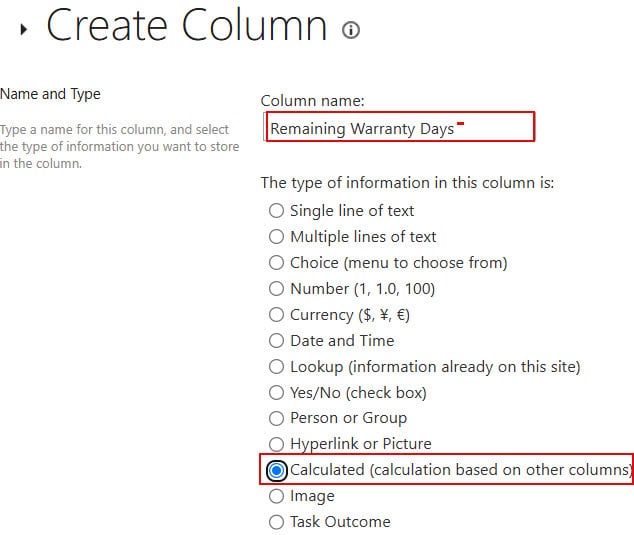
- To calculate the difference between the current day and the date column, copy and paste the code below in the Formula box.
- Next, select the data type returned from this formula as a Number. Then, click on the OK button.
=DATEDIF([Warranty Expiry],TODAY(),"D")
- That’s it! A newly created calculated column will be added to your SharePoint list.

This is how to create a calculated column to get the difference between the date column and the current day in a SharePoint list.
Check out Send an Email When an Item is Deleted from the SharePoint List Using Power Automate
Example 6: SharePoint Calculated Column Today
To get the current date in the SharePoint list or document library, we can use the TODAY() function. It is useful when you want to update the date column with today’s date or when a calculation depends on the current date.
By using the Today() function in a SharePoint calculated column, you can easily see the task for which the due date has already passed the current date.
A few important things to know about Today():
- You can not use TODAY() or [Today] in a SharePoint calculated column dynamically.
- The Today() field is like a static field. It is only updated when the item is updated; otherwise, it remains at its default value. For example, if the list item is not updated for a month, the today() function will display the previous update date.
If you want to create a calculated column in a SharePoint list that contains the current date, you can use the Today() function in a Formula.
Suppose I will take a SharePoint list named “Event Registration List”, where I want to include Today date to that list.
The image below shows the output with the current date:

And here are the steps to create a calculated column with Today’s date:
- Go to the SharePoint list/ library, click on + Add column -> select See all column types. Then, click on the Next button.

- It will navigate to the Settings page, where you can create a column in the SharePoint list. On the Create Column page, type a name for the column, and select the type of information you want to store in the column.

- Next, scroll down the page to get Additional column settings; you can provide a formula in the Formula box. Select the data type returned from this formula to “Date and Time“. Click the OK button.
=Today()
- Now, the calculated column will be created in the SharePoint list by displaying Today’s date. Have a look at the reference image:

Check out Update Only One Field in a SharePoint List Item Using Power Automate
Example 7: SharePoint Calculated Column Today Plus Date in SharePoint List
In the above example, I used the Today() function to get the current date in a SharePoint column.
In this section, let’s see about the Today() + Date column.
Important Note:
You won’t be able to directly specify today in the calculated column to set the values. You will have to create columns named Today and then use it in your calculated column.
You cannot use
=TODAY() or[Today]in SharePoint calculated columns as a dynamic function.
Even if we use a SharePoint trick, such as creating a dummy ‘Today’ column in a SharePoint list and deleting it afterwards, it will also not be supported to add a date column to ‘Today()’. The output does not provide the correct answer.
I have tested it on my side. You can go through the steps.
Suppose I have a SharePoint list with the following columns. I want to create a calculated column named “Extended End Date” by adding the Today() value to the End Date column.

As we know, we cannot directly use [Today] in calculated columns to compare with another date. So, I created a column named Today with a default value of Today’s date. This column can be hidden in views (if you want to hide).
Refer to the image below:

- Now, create a calculated column by referencing the Today column in a calculated field.

- Then, create another calculated column[Extended End Date] to add the End date column + Current Date column in the Formula bar. Select the return type as Date and Time.

- Now, the calculated column has been created by adding the current date and the Date column, as you can see from the image below, the value is not correct.
In the image below, if End date + Current, it should give 4/24/2025. However, it is displaying an incorrect date, which is irrelevant.

Today() is also not supported, for Today() minus the Date column.
For an alternative solution, I suggest using JSON column formatting or Power Automate to set the Today() value dynamically.
Check out Check if an Item Exists in a SharePoint list Using Power Automate
Example 8: Extract Current Month from Today() in SharePoint Calculated Column
Let’s check on how to extract the current month name from Today() in a SharePoint calculated column.
You can not directly retrieve the month from a TODAY() in a calculated column. Create a calculated column by typing Today () in the formula box.
I already have the Current Date in my SharePoint list that I created during the first example, I will make use of it.

You already know how to create a calculated column from the above example. Let’s begin with the following steps.
Here are the steps:
- On the Create Column window, provide a name for the column and choose type as Calculated (Calculation based on other columns).

- Enter the following formula in the Formula box. Select the return type from the formula as a Single line of text. Click OK.
=TEXT([Current Date],"MMMM")
- Then, you can see the calculated column displaying the Month in your SharePoint list.

Check out Add Hyperlinks to SharePoint List Items Using Power Automate
Example 9: Extract Current Year from Today() in SharePoint Calculated Column
You can get the current year from Today() by adjusting the above formula by following the same steps.
Formula:
=TEXT([Current Date],"YYYY")
Output:

That’s it, you can see the calculated column extracting the current year from the current date. This is how Today() will work in calculated columns.
Read Remove Duplicate Items From SharePoint List Using Power Automate
Example 10: Add Days to Date Column using SharePoint Calculated Column
A few weeks ago, we got a requirement from one of our clients to design a ‘Project Management’ site page to track the project details. The site page should consist of list views that will track tasks based on due dates, submission dates, and project deadlines.
To do this, we need to perform date calculations, such as adding days to the date column. This can be achieved by using a SharePoint calculated column.
You can add days to the date column by using a simple formula =[Column1]+[Column2] in a SharePoint calculated column.
Here, I have a SharePoint Online list named “Project Information” that contains the following columns.
| Column Name | Data Type |
|---|---|
| Project ID | Title column – Renamed to Project ID |
| Project Name | Single line of text |
| Project Start Date | Date & Time column |
| Project Duration Days | Number Column |

Now, I will show how to add days to the SharePoint list date column by using a calculated column: [03/06/2025 + 1 = 04/06/2025].
My requirement is [Project Start Date] + [Project Duration Days] = Project End Date.
Follow the steps below to create a calculated column based on Project Start Date and Project Duration Days.
- Open your SharePoint list/ library and then click on the + Add column -> Then, select the See all column types option -> Click Next.

- On the Create Column page, create a calculated column. Provide a column name, and select the data type as Calculated (Calculation based on other columns).

- In the Additional Column Settings section, insert the following expression in the Formula box. Make sure that you select the return data type as ‘Date and Time’. Then, click OK at the bottom of the page.
=[Project Start Date]+[Project Duration Days]
Now, the calculated column has been created by adding the Project duration days to the Project start date.
Output:

Check out Get All SharePoint List Items in Power Automate
Example 11: Add Days to Created Date using SharePoint Calculated Column
Recently, our organization gave out travel vouchers to all employees. I have been assigned the task of sending all the traveling voucher details to the HR Management Team, as shown below.
The HR Department asked me to set the Travelling Voucher expiry to 30 days after the request is raised.

My task is to calculate and display the expiry date for each voucher by adding 30 days to the “Created” date in the SharePoint list [Created Date + 30 Days].
Below are the steps to add a calculated column to the SharePoint list that shows the Expiry Date of the Travelling voucher.
- You can add a calculated column in both SharePoint lists/libraries. In my case, I’m taking a SharePoint list. Click on + Add column. Select See all column types. Click on the Next button.

- Then, the Create Column page will open. On the Create Column window, you can enter the name of the column and select the data type Calculated(Calculations based on other columns).

- In the Formula box of Additional Column Settings, enter the following formula. Select Date and Time as the return data type. Click on the OK button at the bottom of the page.
[Created]+30
That’s it.
The above steps will add a new calculated column to the SharePoint list by adding days to the Created column.

Check out Get Last & First Item ID from SharePoint List in Power Automate
Example 12: Add Days to Current Date and Time using a SharePoint Calculated Column
Let’s see one more example that will add days to the current date and time, which means I will add days to the Now() function.
Below, I have a SharePoint list named ” Event Tracker” with a Title column, i.e, renamed to “Event Name“. I want to add 10 days to the current date and time, which gives the Event Start Date and Time in a column.

By following the examples, you might already know how to create a calculated column in SharePoint.
Let’s begin with the following steps:
- On the Create Column page, enter a name for the column and select the data type as Calculated.

- Enter the following formula in the Formula box. Select the data type returned from this formula as “Date and Time“. Ensure that you select the Date & Time option.
=NOW()+10
- Then, click on OK at the bottom of the page. Return to your SharePoint list, where you can see the Event Start Date & Time column [Calculated column].
Output:

This way, you can add days to the current date and time by using a calculated column in SharePoint.
Example 13: SharePoint Calculated Column Blank Date Example
In this example, I will demonstrate how to create a calculated column when a date column is blank in SharePoint.
We will check a real example.
Here, I have a SharePoint List (Order Details) that includes an Estimated Date column (Date and Time type).
I will create a calculated column (Order Status) based on that column, using the if statement. If the estimated date column is blank, it provides the order status as “Delivered” or “Product will deliver in 2/3 days“.

Now we will see how to achieve it:
- Open the SharePoint list, where you must create a calculated blank date using a single date column.
- Now click on the +Add column -> choose See all column types -> Then click on the Next button.

- In Create column page, provide the column name and choose the type as Calculated (calculation based on other columns) as shown below:

- Now, provide the below formula in the formula box:
=IF(ISBLANK([Estimated Date]),"Delivered","Product will deliver in 2/3 days")- The data type returned from this formula is: Choose the data type, as “Single line of text”. Then, click on the OK button.

- Now open your SharePoint list, and the calculated column will be added as Order Status.

This is how to create a SharePoint calculated column if the date is blank.
I hope these SharePoint calculated column date examples will help you work with date columns in SharePoint lists or document libraries.
You may also like the following tutorials:

After working for more than 18 years in Microsoft technologies like SharePoint, Microsoft 365, and Power Platform (Power Apps, Power Automate, and Power BI), I thought will share my SharePoint expertise knowledge with the world. Our audiences are from the United States, Canada, the United Kingdom, Australia, New Zealand, etc. For my expertise knowledge and SharePoint tutorials, Microsoft has been awarded a Microsoft SharePoint MVP (12 times). I have also worked in companies like HP, TCS, KPIT, etc.

