
A blank SharePoint column looks harmless until your flow tries to use it. The email says “Phone: ” with nothing after it, or formatDateTime() stops the whole run because a date was never filled in.
The coalesce() function fixes that in one line. You give it a list of values, and it hands back the first one that isn’t null, so a default value is always waiting at the end of the list.
In this tutorial, I’ll show you how to use the power automate coalesce function with plain values, blank SharePoint text, choice and date columns, a fallback across several columns, and the empty string trap that catches most people.
coalesce() Function Syntax
Here is the syntax:
coalesce(<object_1>, <object_2>, ...)| Parameter | Required | Type | Description |
|---|---|---|---|
object_1, object_2, … | Yes | Any (you can mix types) | One or more values to check for null, read from left to right. |
Return value: the first value that isn’t null, with its own type (string, number, object, and so on). If every value is null, coalesce() returns null.
One rule matters more than anything else here. Only null counts as missing. Empty strings, empty arrays and empty objects are real values, so coalesce() returns them instead of moving on.
Pro Tip: Before coalesce(), the usual way to set a default was an if() expression with an empty() or equals() check. coalesce() does the same job with one function and no repeated column names.
When to Use the coalesce() Function
- A SharePoint list item has blank columns, and you want “Not provided” in the email instead of an empty space.
- You have two or three possible sources for one value, such as a mobile phone, then an office phone, then a default.
- A Switch control in Power Automate fails when the value it checks is null; coalesce() gives it a safe default case.
- A date or number function (formatDateTime(), add(), mul()) would throw an error on a blank value.
- A JSON property from an HTTP call or Parse JSON is sometimes missing, and you read it with the ?[] operator.
Example 1: Return the First Non-Null Value
Let’s start with the bare function on a Compose action, so you can see exactly how it walks through the list.
coalesce(null, 'Jordan Ellis', 'Maria Torres')To type it, add a Compose action, click inside the Inputs box, then click the fx icon (or type / and pick Insert expression). Paste the expression and click Add.
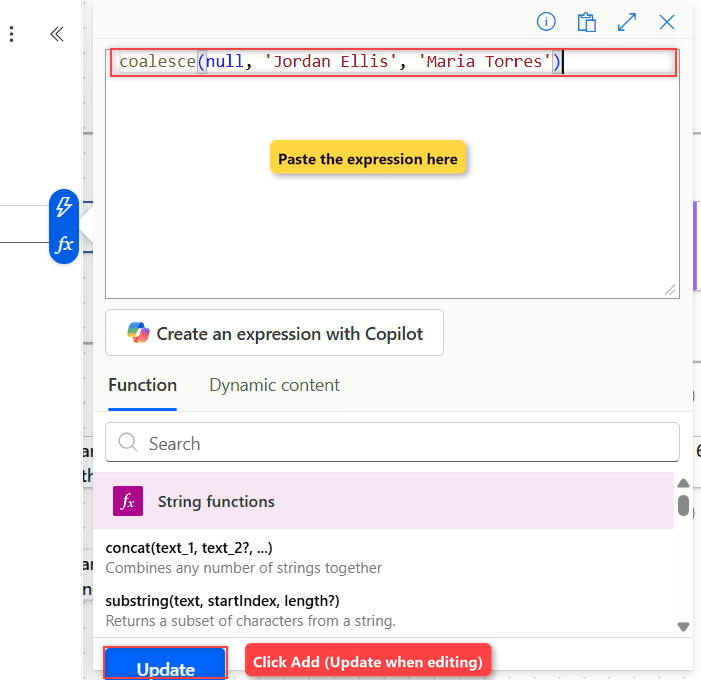
I added two more Compose actions in the same test flow to check mixed types and the all-null case:
coalesce(null, null, 42, 'Kevin Brooks')
coalesce(null, null, null)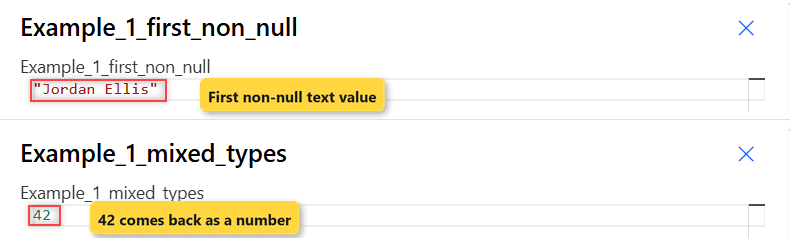
How does this work? coalesce() skips the first null and returns Jordan Ellis. The second one skips two nulls and returns 42 as a real number (the raw output shows it without quotes). The last one has nothing to return, so the Compose output is empty (null).
Example 2: Replace a Blank SharePoint Column with a Default Value
I built a vendor contact list called ESP Fn Coalesce with four people. Some of them never gave us an office phone.
| Contact Name | Company | Mobile Phone | Office Phone | Region | Renewal Date |
|---|---|---|---|---|---|
| Jordan Ellis | Ridgeway Supply | (555) 201-4410 | (555) 201-4000 | East | 12/15/2026 |
| Maria Torres | Lakeside Print Co. | (blank) | (555) 318-2200 | Central | (blank) |
| Kevin Brooks | Summit Office Furniture | (blank) | (blank) | (blank) | 12/1/2026 |
| Ashley Nguyen | Bayview Catering | (555) 427-9031 | (blank) | West | (blank) |
The flow runs Get items, then a Select action. In the OfficePhone value I used:
coalesce(item()?['OfficePhone'], 'No phone on file')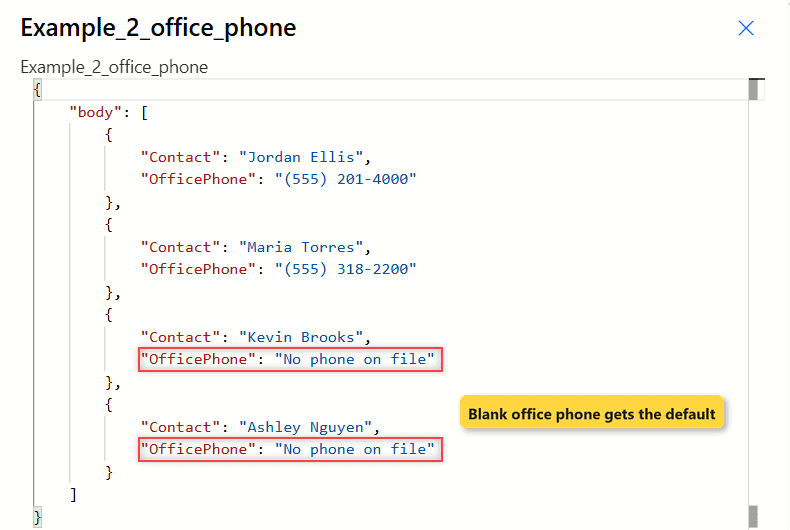
How does this work? A blank text column has no value in the Get items output, and the ?[] operator turns that into null instead of an error. Jordan and Maria get their real numbers, while Kevin and Ashley get No phone on file.
Pro Tip: If you’d rather skip blank rows than fill them, filter them out in Get items instead. Here’s how a Filter Query for blank columns looks for each column type.
Example 3: Fall Back Across Several Columns
Here’s where coalesce() really shines. I want the best number to call: mobile first, then office, then a default.
coalesce(item()?['MobilePhone'], item()?['OfficePhone'], 'No phone on file')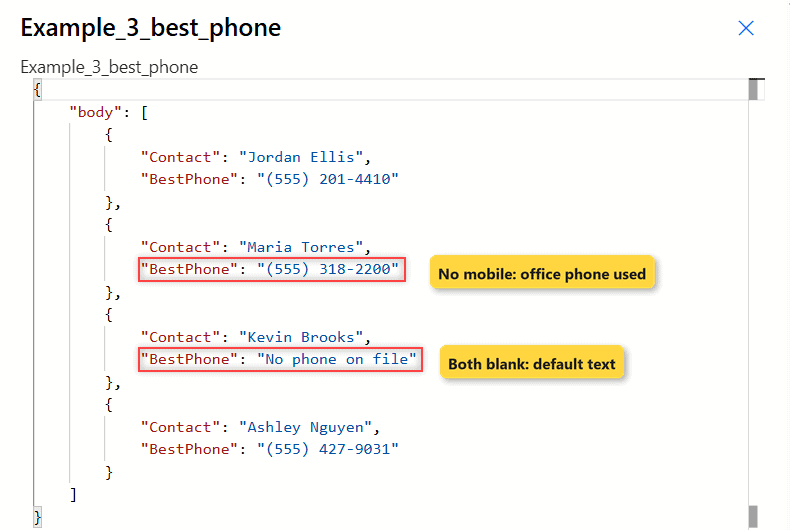
How does this work? coalesce() reads left to right and stops at the first value. Jordan returns his mobile, Maria falls through to her office number (555) 318-2200, Ashley returns her mobile, and Kevin gets the default.
Example 4: Default a Blank SharePoint Choice Column
Choice columns come back as an object, and the text sits in its Value property. When Region is blank, there’s no object to read.
coalesce(item()?['Region']?['Value'], 'Unassigned')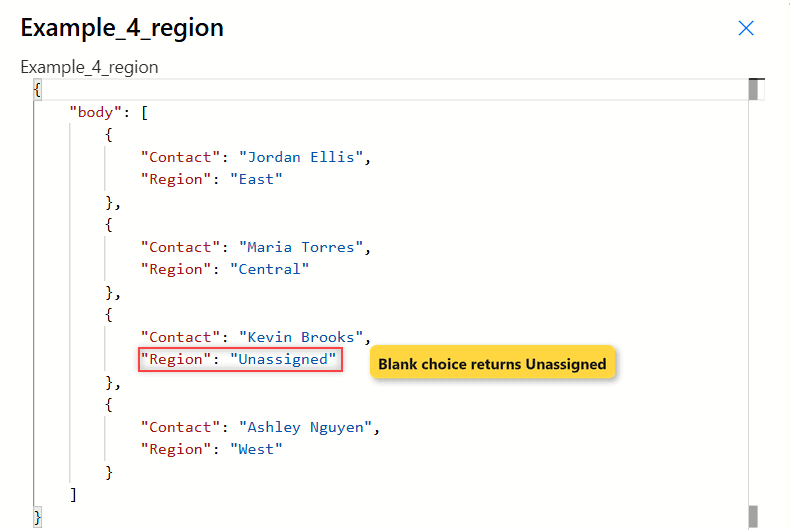
How does this work? The first ?[] returns null for Kevin’s empty Region, and the second ?[] stays null instead of throwing an error. coalesce() then returns Unassigned, while the others keep East, Central and West.
This is the safe value to feed a Switch, so blank items land in a real case. See how to get SharePoint choice values in Power Automate for multi-select choices.
Example 5: Use coalesce() with formatDateTime() on a Blank Date
formatDateTime() needs a string. Point it at Maria’s blank Renewal Date and the action fails with this error:
InvalidTemplate. Unable to process template language expressions in action 'Example_5_error_without_coalesce' inputs at line '0' and column '0': 'The template language function 'formatDateTime' expects its first parameter to be of type string. The provided value is of type 'Null'.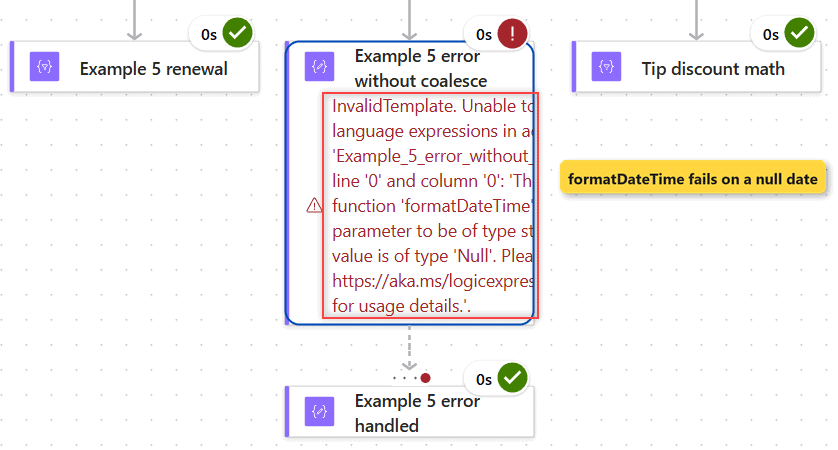
Wrap the column in coalesce() with a default date, and the error is gone:
formatDateTime(coalesce(item()?['RenewalDate'], '2026-12-31'), 'MMM d, yyyy')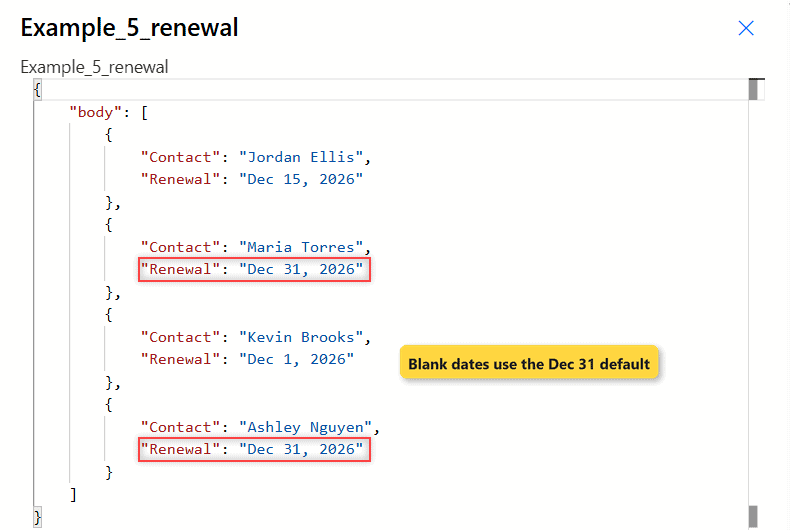
How does this work? coalesce() runs first, so formatDateTime() always gets a string. Jordan shows Dec 15, 2026, Kevin Dec 1, 2026, and the two blank rows show Dec 31, 2026.
More format strings are in my formatDateTime() function guide, and here’s how to check if a date is blank in Power Automate with a Condition.
Example 6: Treat an Empty String as Missing
Some values arrive as an empty string, not null, such as a text input someone skipped. coalesce() doesn’t skip those.
coalesce(outputs('Example_6_notes_from_form'), 'No notes provided')That returns an empty string, not the default. The fix is to turn the empty string into null first:
coalesce(if(empty(outputs('Example_6_notes_from_form')), null, outputs('Example_6_notes_from_form')), 'No notes provided')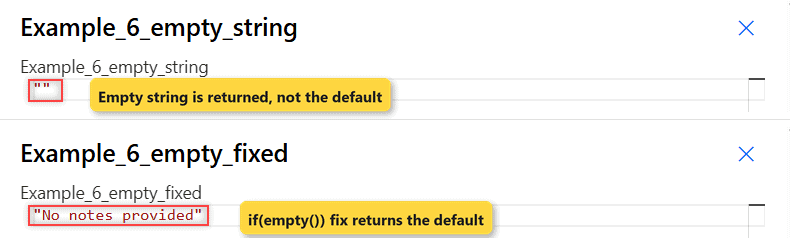
How does this work? empty() returns true for '', so if() sends null into coalesce(), which then returns No notes provided. For more on this check, see how to check if a string is empty in Power Automate.
Tips & Common Mistakes
- Empty is not null. coalesce(”, ‘Default’) returns
''. Use the if(empty()) pattern from Example 6. - Always use ?[] for columns. item()[‘OfficePhone’] fails when the property is missing; item()?[‘OfficePhone’] returns null.
- Match the default’s type. For numbers use
coalesce(item()?['Discount'], 0), not ‘0’, so the result stays a number for math. In my test,div(mul(1200, coalesce(item()?['Discount'], 0)), 100)returned 120, 60, 0 and 180, with 0 for the blank discount. - A null result is still possible. If every argument can be null, end the list with a fixed default.
- Errors that start with “Unable to process template language expressions” often point to a null. Here’s a full guide to fixing template language expression errors.
Wrapping Up
coalesce() returns the first value that isn’t null, so a fixed default at the end of the list protects your flow from blank columns, missing JSON properties and failed date formatting. Just remember that empty strings aren’t null.
For more expressions like this one, browse all Power Automate functions, and check Microsoft’s coalesce() reference on Microsoft Learn for the official definition.
Other Power Automate functions you may find useful:

I have worked with Microsoft technologies for more than 18 years, including SharePoint, Microsoft 365 and the Power Platform (Power Apps, Power Automate and Power BI), at companies like HP, TCS and KPIT. I started EnjoySharePoint in 2011 to share the solutions I build in real projects with readers in the United States, Canada, the United Kingdom, Australia, New Zealand and beyond. Microsoft has recognized this work with the Microsoft MVP award 13 times since 2014.