
In a recent Power Automate project, I needed an easy way to get the current date and time to track when actions were happening. That’s when I found the utcNow() function, which is a quick way to grab the exact date and time in UTC format.
In this tutorial, I will show you how to use the Power Automates utcNow() function. I will explain how to format the date and time in various ways, subtract or add days, and even manipulate the time by adding hours.
Power Automate utcNow() Function
The utcNow() function in Power Automate gets the current date and time in UTC format (Coordinated Universal Time), a standardized time zone that ensures consistency, regardless of where users are located.
Syntax:
utcNow('format')- utcNow = It is mandatory to give utcNow() to get the current date and time.
- Format = This is an optional field where users can provide a custom timestamp format. If not provided, it will take the default format[yyyy-MM-ddTHH:mm: ss.fffffffK].
This function returns the current date and time in UTC (for example, 2024-11-08T12:30:45Z).
This function is helpful in scenarios where accurate timing and tracking across different regions is critical, making it a core tool for date-time handling in Power Automate flows.
Subtract One Day From utcNow() in Power Automate
Suppose you need to send a reminder email to users if their task is due tomorrow. To do this, you will compare the task due date with yesterday’s date. This is where subtracting one day from utcNow() becomes helpful.
To subtract one day, follow the below steps:
1. Create an Instant cloud flow and provide the flow name, choose the flow trigger (manually trigger a flow).

2. Then add Compose action and use the below expression to subtract one day from the current date and time:
addDays(utcNow(), -1)Here, addDays() is a function that adjusts the date. Using -1 as the second parameter, subtract one day from utcNow().

Now, click Save and run the flow manually. You will see that it successfully subtracts one day from the utcNow() function.

In the same way, if you want to add days in the UTCNow() function, you can use a positive number, like addDays(utcNow(), 1), to get tomorrow’s date.
Power Automate utcNow() Format
Power Automate utcNow() is even more useful because you can add a format string directly inside the utcNow() function to get the date and time in the exact format you need.
For example, the expression below will give you the current date in the format of day, month, and year.
utcNow('dd-MM-yyyy') You can get results like below screenshot:

Power Automate utcNow() Format Year-Month Name-Day
In Power Automate Instant cloud flow, add an Initialize Variable action and set the variable’s name, type, and value. For this example, you can create a variable named varCurrentDate of type ‘String’ and set the value to utcNow(‘yyyy-MMMM-dd’).

When you run this flow, you will see the format like below screenshot:

Similarly, if you want the date in a different format, such as ‘Year-Month-Day,’ you can use the below expression:
utcNow('yyyy-MMM-dd')This will return the date in a format like:

The table below will represent different date format codes:
Here, I am considering today’s date to be 9/9/2024.
| Format | Output | Description |
|---|---|---|
| d | 9 | Day of the month (1-31) |
| dd | 09 | Day of the month, always 2 digits (01-31) |
| ddd | Mon | Abbreviated day of the week (Mon-Sun) |
| dddd | Monday | Full day of the week (Monday-Sunday) |
| M | 9 | Month (1-12) |
| MM | 09 | Month, always 2 digits (01-12) |
| MMM | Sept | Abbreviated month (Jan-Dec) |
| MMMM | September | Full month name (January-December) |
| yy | 24 | Two-digit year (2024 -> 24) |
| yyyy | 2024 | Four-digit year (2024) |
Power Automate utcNow() in Date with Time Format
In Power Automate, you can get the desired format inside the function if you use the utcNow() function to get the current date and time in a specific format.
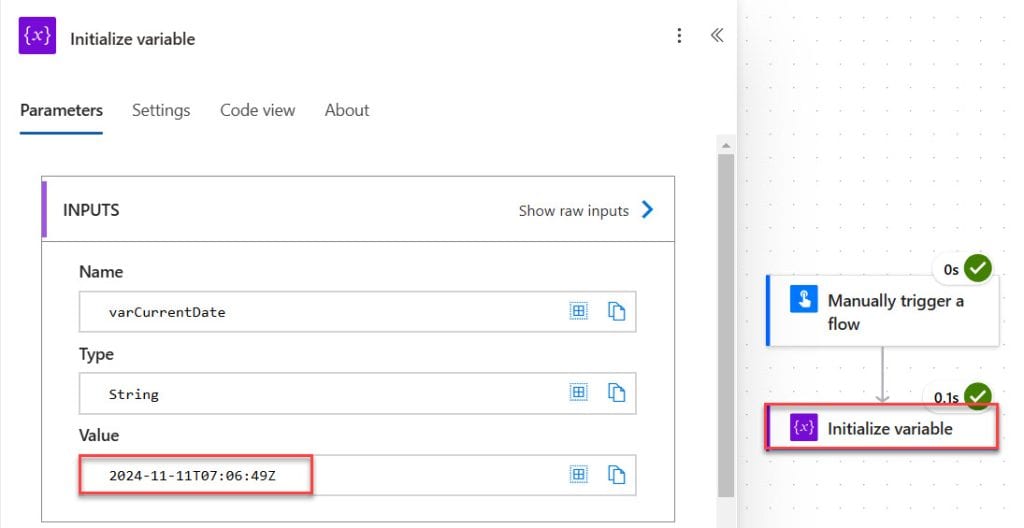
For example, to get the date and time in the yyyy-MM-ddTHH:mm:ssZ format (which represents a date with time in UTC), you can use the below expression:
utcNow('yyyy-MM-ddTHH:mm:ssZ')You can get results like below screenshot:
Power Automate utcNow() in dd/MM/yyyy with 12 Hours of Time
To get the current date in the dd/MM/yyyy format with 12-hour time in Power Automate using the utcNow() function, you can use the below format string:
utcNow('dd/MM/yyyy hh:mm tt')
Similarly, if you want the date in a different format, such as ‘Day/Month/Year with 24-hour Time,’ you can use the below expression:
utcNow('dd/MM/yyyy HH:mm')This will return the date and time in a format like:

The table below will represent different time format codes:
Here, I am considering the time to be 09:30 PM.
| Format | Output | Description |
|---|---|---|
| h | 9 | Hour (1-12) in 12-hour format |
| hh | 09 | Hour, always 2 digits (01-12) in 12-hour format |
| H | 14 | Hour (0-23) in 24-hour format |
| HH | 14 | Hour, always 2 digits (00-23) in 24-hour format |
| m | 30 | Minute (0-59) |
| mm | 30 | Minute, always 2 digits (00-59) |
| s | 45 | Second (0-59) |
| ss | 45 | Second, always 2 digits (00-59) |
| tt | PM | AM/PM |
| z | UTC+00:00 | Timezone |
| Z | Z | UTC (Universal Time) |
Power Automate utcNow() with Weekday Name and Full Date
To get the current date with the weekday name and full date in Power Automate, use the utcNow() function; you can use the below format string:
utcNow('dddd, MMMM dd, yyyy')This will return the current date in a format like this:

Power Automate utcNow() Add Hours
To add hours to the current date and time using the utcNow() function in Power Automate, you can use the addHours() function. This function allows you to add specific hours to the current date and time.
Create an Instant cloud flow, provide the flow name, and choose the flow trigger (manually trigger a flow). Then add Compose action and use the below expression to add hours:
addHours(utcNow(), 5)
Now, click Save and run the flow manually. You will see that it successfully added five hours to the utcNow().

In this tutorial, I explain how to use the utcNow() function in Power Automate to get the current date and time in UTC format, which is useful for tracking actions and timing in your flows.
I also explain how to subtract or add days using the addDays() function, format the date with custom string formats, and include the time with the utcNow() function. Additionally, I explain how to add hours in Power Automate utcNow().
Related Power Automate tutorials:
- 5 Easiest Ways to Embed an Image into an Email in Power Automate
- Power Automate isInt() Function
- Power Automate slice() Function
- Power Automate concat() Function
- Power Automate indexOf() Function
- Power Automate dateDifference() Function
- Update SharePoint List Items Using Power Automate

Preeti Sahu is an expert in Power Apps and has over six years of experience working with SharePoint Online and the Power Platform. She is the co-author of Microsoft Power Platform: A Deep Dive book. As a Power Platform developer, she has worked on developing various tools using Power Apps and Power Automate. She also makes Microsoft 365 videos and shares them on YouTube.

