
Kevin Brooks from our Denver sales team pasted a contract “link” into a project tracker, and two weeks later it showed a sign-in error for half the team. He hadn’t copied the file’s address at all; he’d created a sharing link.
A file’s real address and a sharing link look alike, but they behave very differently.
In this tutorial, I’ll show you how to get the sharepoint file path of any document or folder, when to use it instead of Copy link, and how to plug it into Power Automate, using a real library on our EnjoySharePoint site.
Quick answer: Open the library, select the file’s checkbox, and select Details at the right end of the command bar. Scroll to the bottom of the details pane, find Path, and select the copy icon next to it. That copies the file’s full web address without creating a sharing link.
What a SharePoint file path looks like
Every path follows the same chain: site, document library, folders, then the file name. This is the path SharePoint copied for the sample contract in my ESP File Path Demo library:
https://yourcompany.sharepoint.com/sites/EnjoySharePoint/ESPFilePathDemo/2026/Q4%20Agreements/Brooks%20Landscaping%20Service%20Agreement.docxSpaces become %20, and the library part is its URL name (ESPFilePathDemo), not the display name you see. SharePoint keeps the URL name you typed first, so renaming a library later doesn’t change its path.
Copy the path from the details pane
I use this method every day because it doesn’t touch permissions.
- Open the library and go to the folder that holds the file.
- Select the circle next to the file name (don’t open the file). The command bar shows 1 selected.
- Select Details at the right end of the command bar.
- Scroll to the bottom of the pane. Path shows the location as a breadcrumb; select the copy icon next to it.
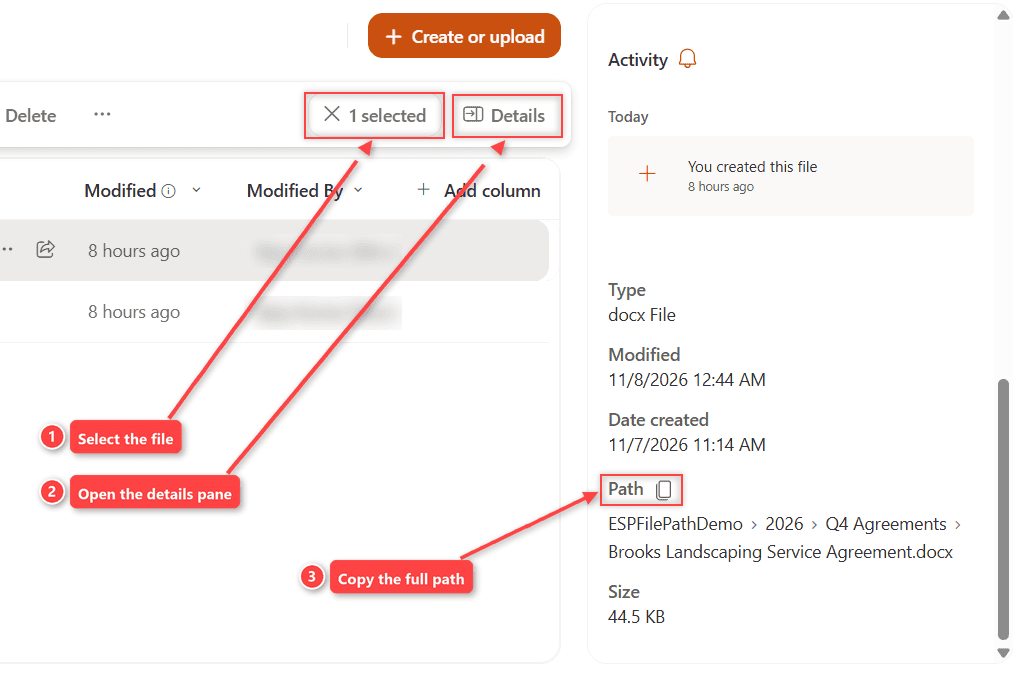
The pane shows only ESPFilePathDemo > 2026 > Q4 Agreements, but the clipboard gets the full encoded URL above. The same pane said “This item is not shared,” and copying the path didn’t change that. To give someone new access, use the right SharePoint sharing link instead.
Copy link vs. file path: which one to send
Copy link on the command bar opens Choose who can access the file link. In our tenant it defaulted to “Only people added to the file have access,” and Change lets you widen it. The link is created when you select Copy link.
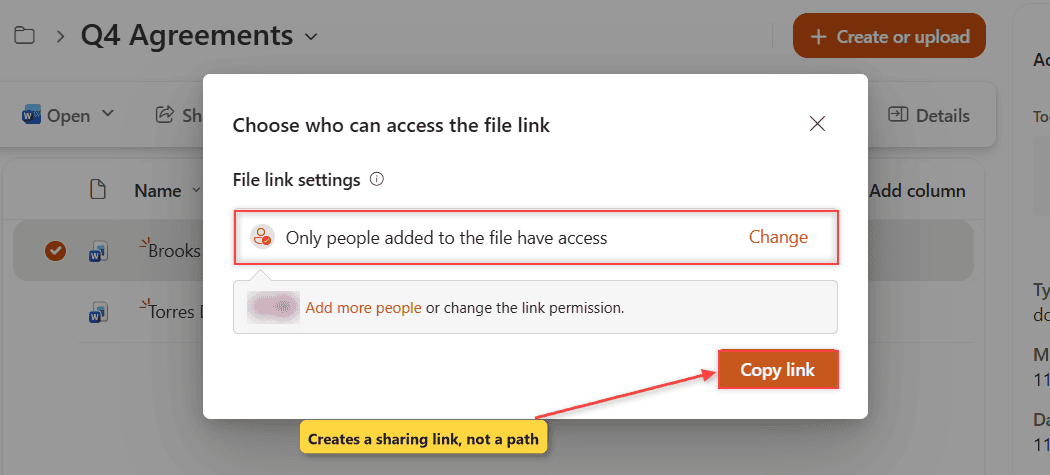
| Use | Pick |
|---|---|
| Bookmarks, wikis, trackers, Power Automate | File path |
| Someone who doesn’t have access yet | Sharing link (Copy link) |
Kevin’s broken link had passed its expiration date. A path never expires; it breaks only when someone moves or renames the file.
Get the path from Word, Excel or PowerPoint
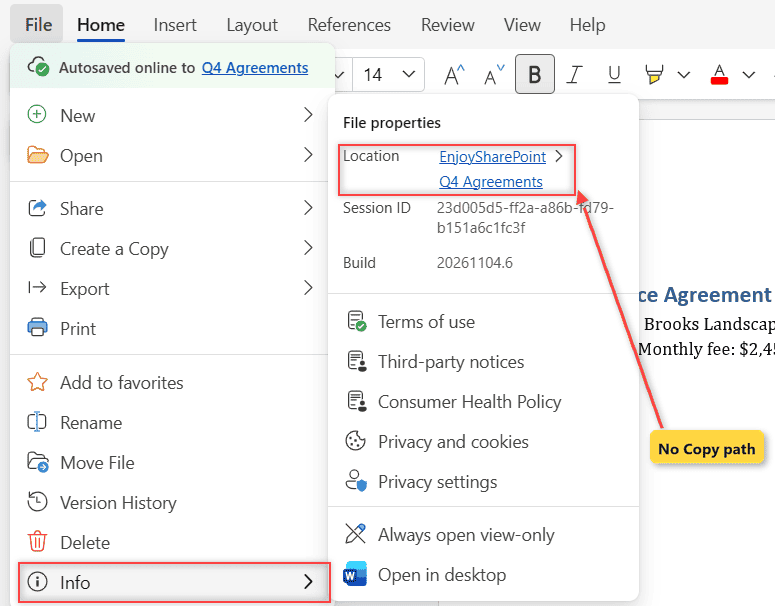
In the desktop apps, select File > Info, then Copy path. A path copied there can end with ?web=1, which only tells SharePoint to open the file in the browser; delete it if a tool needs the bare path.
Word for the web is different. File > Info shows the Location (site and folder) but no Copy path, and the address bar shows a Doc.aspx?sourcedoc= URL, not the path. Use the details pane instead.
Get the path of a folder or a whole library
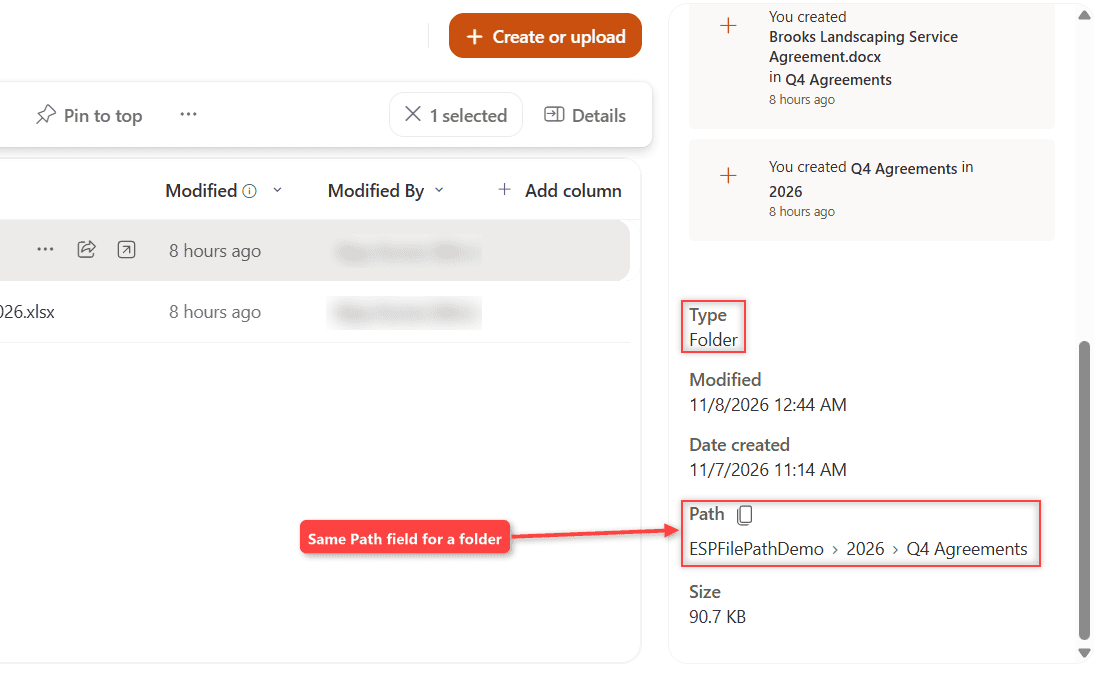
Select a folder’s checkbox and use the same details pane. For Q4 Agreements it copied …/ESPFilePathDemo/2026/Q4%20Agreements. For a library, copy the address bar up to the library name; everything from /Forms/ on is the view page.
In a synced library, File Explorer’s Copy as path gives a local path on your PC that works only for you; see sync vs. Add shortcut to OneDrive.
Use the path in Power Automate (and the length limit)
Get file content using path splits the path in two: the site URL goes in Site Address, and the rest goes in File Path with plain spaces:
Site Address: https://yourcompany.sharepoint.com/sites/EnjoySharePoint
File Path:    /ESPFilePathDemo/2026/Q4 Agreements/Brooks Landscaping Service Agreement.docx
The full flow is in Get file content using path. Microsoft caps the decoded path, file name included, at 400 characters; my sample uses 99.
Common errors and how to fix them
- “You need access” when someone opens the path. A path doesn’t grant access. Share the file with that person first.
- The path stopped working. The file was moved or renamed. Copy the path again from its new location.
- Power Automate can’t find the file. You used the library’s display name or kept %20. Use the URL name and plain spaces.
If you work with SharePoint links a lot, these guides help next:
Frequently Asked Questions
Does copying a SharePoint file path change the file’s permissions?
No. The copy icon in the details pane only copies the address. It doesn’t create a sharing link, so people still need access to open the file.
What’s the maximum file path length in SharePoint?
The entire decoded path, including the file name, can’t be more than 400 characters. Microsoft lists it in the SharePoint limits service description.
Why doesn’t my SharePoint path match the library name I see?
The path uses the library’s URL name, set when the library is created. Renaming the library changes only the display name.
Can I get the path of a file in Microsoft Teams?
Yes. Teams channel files live in the team’s SharePoint site. Select Open in SharePoint on the channel’s Files tab, then copy the path from the details pane.

I have worked with Microsoft technologies for more than 18 years, including SharePoint, Microsoft 365 and the Power Platform (Power Apps, Power Automate and Power BI), at companies like HP, TCS and KPIT. I started EnjoySharePoint in 2011 to share the solutions I build in real projects with readers in the United States, Canada, the United Kingdom, Australia, New Zealand and beyond. Microsoft has recognized this work with the Microsoft MVP award 13 times since 2014.