
Our communications lead, Jordan Ellis, sent a short request before the new year: clear out the event pages from 2025 and earlier this year, because people keep landing on last year’s holiday party invite.
Removing a page takes about ten seconds once you know where the button is. The part that trips people up is what happens afterward, with links, navigation and the recycle bin.
In this tutorial, I’ll show you how to delete a SharePoint page from the page itself and from the Site Pages library, remove several pages at once, and bring one back.
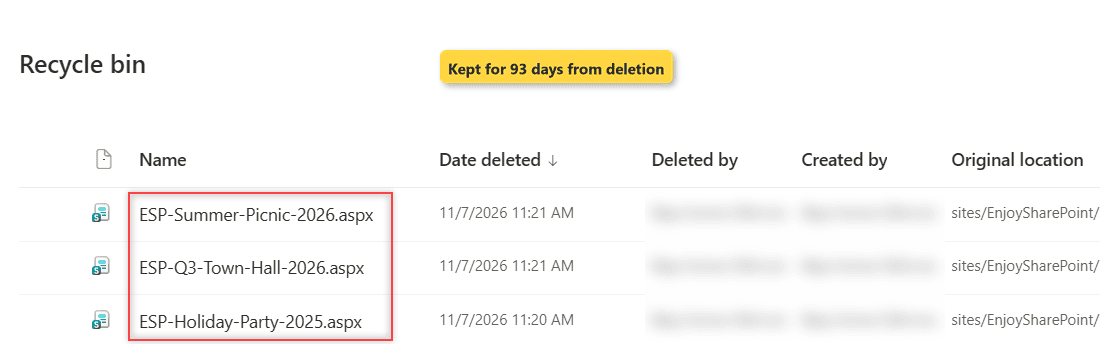
Here’s what we’re building toward, the site recycle bin holding our three retired event pages:
Before You Start
You need to be a site owner or a SharePoint admin, because members can edit pages but can’t delete them. Not sure who owns your site? Here are three quick ways to find the SharePoint site owner.
These are the three demo pages I created on the EnjoySharePoint site for this walk-through:
| Page | File name | Why it goes |
|---|---|---|
| ESP Holiday Party 2025 | ESP-Holiday-Party-2025.aspx | Event was December 12, 2025 |
| ESP Summer Picnic 2026 | ESP-Summer-Picnic-2026.aspx | Event was July 18, 2026 |
| ESP Q3 Town Hall 2026 | ESP-Q3-Town-Hall-2026.aspx | Event was September 24, 2026 |
Important: the page set as the site’s home page can’t be deleted this way. When I opened Page details on our Home page, the Delete page option simply wasn’t there.
Step 1: Find the Pages in the Site Pages Library
Every modern page is a file in the Site Pages library.
- Select Settings (the gear icon) at the top right.
- Select Site contents.
- Open Site Pages.
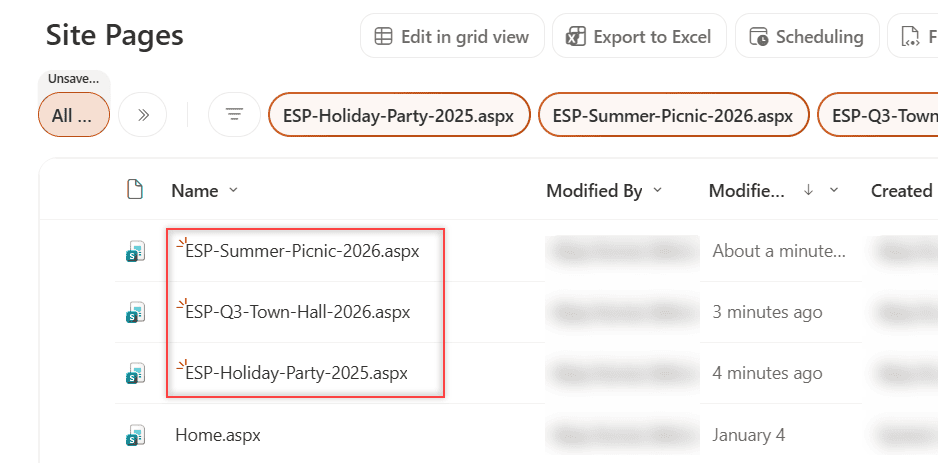
Checkpoint: the library lists all three ESP pages with their Modified dates. If you want a reusable layout before cleaning up, save a good page as one of your SharePoint page templates first.
Step 2: Delete a Page from the Page Itself
This is the fastest route when you already have the page open. We’ll delete ESP Holiday Party 2025.
- Open the page. You don’t need to select Edit first.
- On the command bar, select Page details.
- Scroll to the bottom of the pane and select Delete page, under Version history.
- In the confirmation box, select Delete.
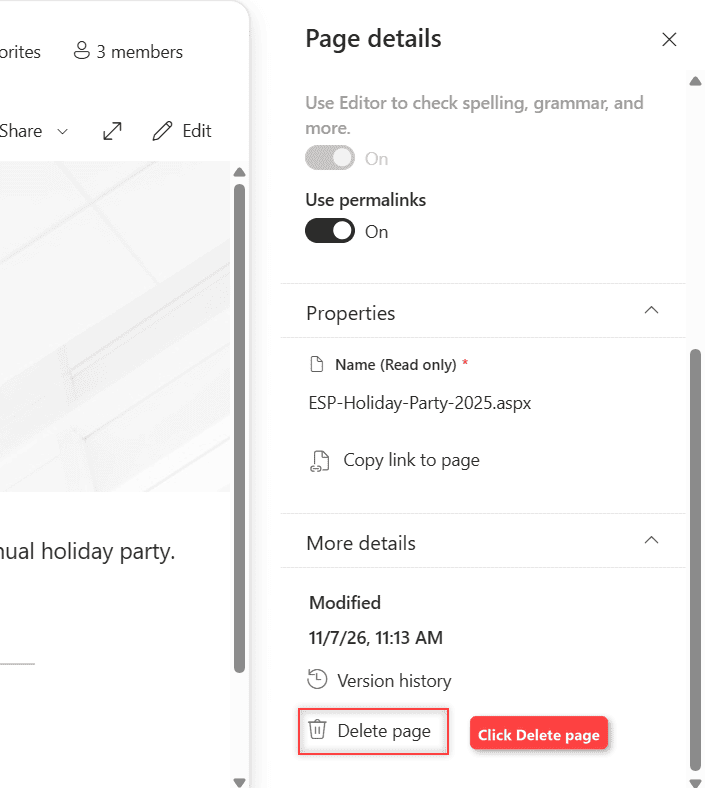
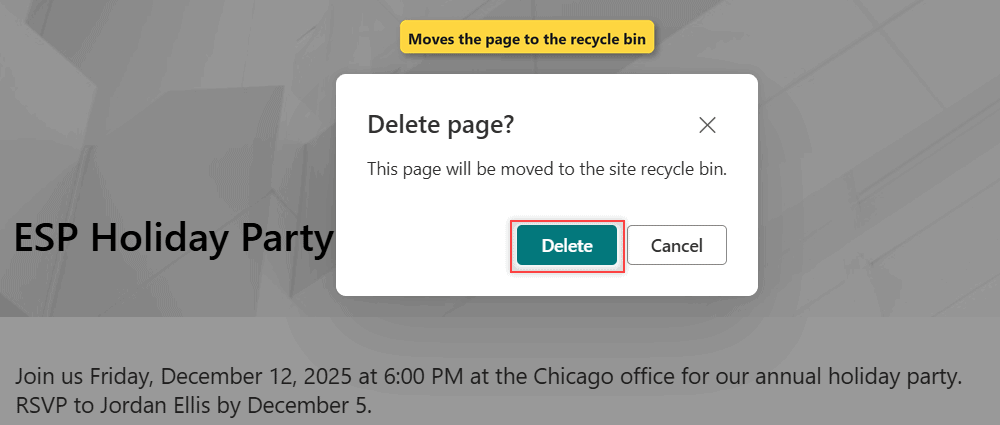
Checkpoint: the dialog says the page will be moved to the site recycle bin. SharePoint then drops you on the site home page, and ESP Holiday Party 2025 is gone from Site Pages.
Step 3: Delete Several Pages from the Site Pages Library
For a bigger cleanup, the library lets you select several pages at once.
- In Site Pages, select the check circle next to ESP Summer Picnic 2026 and ESP Q3 Town Hall 2026.
- Select Delete on the command bar. For one page, you can also use … (Show actions) > Delete.
- In the Delete? dialog, select Delete to send both pages to the site recycle bin.
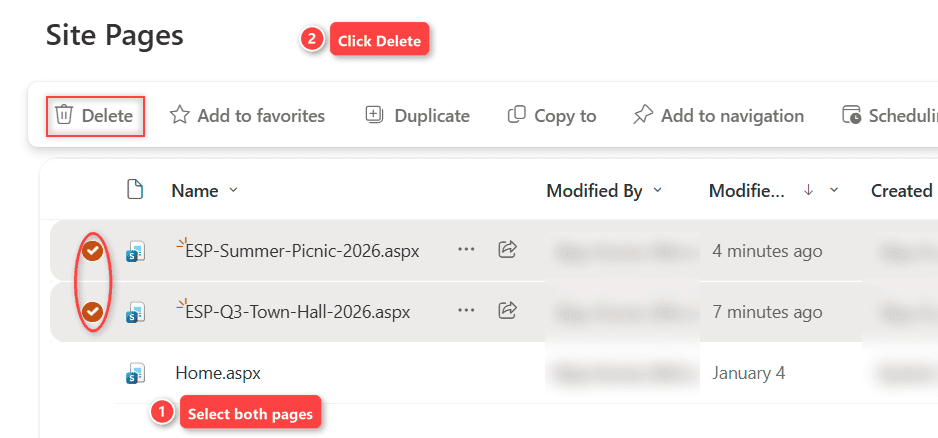
Checkpoint: both pages disappear from the library. Any link to them in the site left navigation is removed too, but links typed into other pages stay and break.
Step 4: Restore a Deleted Page from the Recycle Bin
Jordan changed her mind about the summer picnic page, since HR wants it as a model for 2027. Here’s how we got it back.
- Select Recycle bin in the left navigation, or go to Settings > Site contents > Recycle bin.
- Select ESP Summer Picnic 2026.
- Select Restore. There’s no confirmation; a small Restored 1 item message appears.
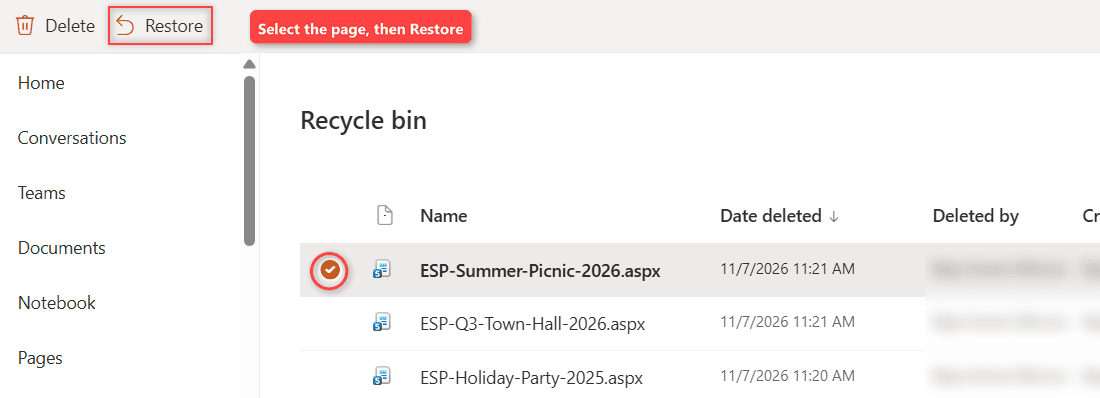
Deleted pages stay in the recycle bin for 93 days from the moment you delete them.
Test the Cleanup
To test, I pasted the old address of ESP Holiday Party 2025 into the browser. SharePoint returned a plain 404 NOT FOUND page, which is exactly what a bookmark or old email link now hits.
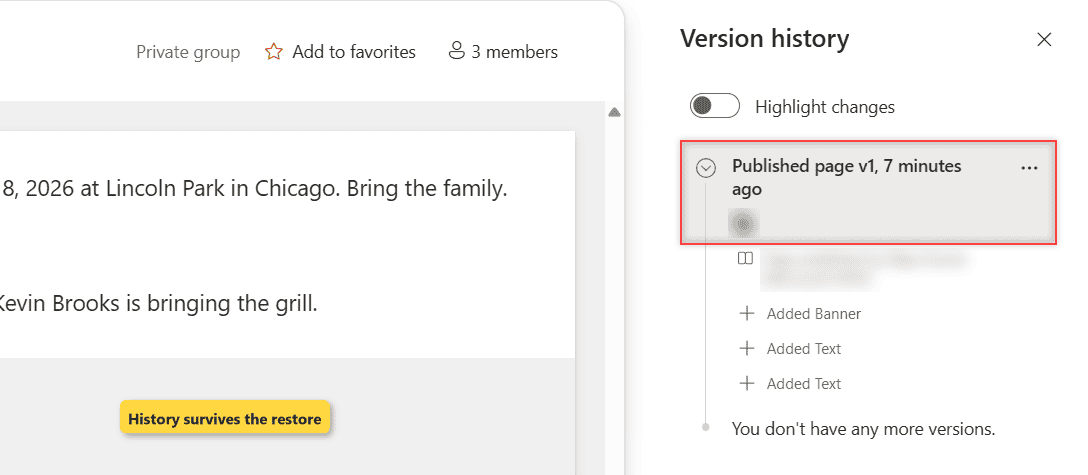
Then I opened the restored ESP Summer Picnic 2026 page. It’s back in Site Pages, and its version history still lists Published page v1 with the banner and text I added before the delete. Restoring doesn’t reset history.
Troubleshooting
- No Delete page button: you’re a member, not an owner, or your admin turned page deletion off.
- People hit a broken link: search your other pages for the old URL and update those links by hand.
Where to Take It Next
Once the old pages are gone, it’s a good moment to tidy the landing page with out-of-the-box web parts on the site home page. If old files pile up in libraries too, you can delete files older than three years with Power Automate.
More guides for keeping SharePoint pages tidy:
Before you delete a page, it can be safer to roll it back to an earlier version instead; SharePoint version history walks through restoring an older copy. And if you’re rebuilding the page from scratch, my list of SharePoint web parts and what each one is for helps you pick the right pieces.
Frequently Asked Questions
Who can delete a page in SharePoint?
Only site owners and SharePoint admins. Microsoft notes that an admin can also turn page deletion off, see Delete a page from a SharePoint site.
How long can I restore a deleted SharePoint page?
For 93 days from the day it was deleted. After it’s emptied from the site recycle bin, a site collection admin can still restore it from the second-stage bin.
Does deleting a page remove it from navigation?
Yes for site navigation links that point to it, such as the left menu. Links you added inside other pages or documents are not removed.

I have worked with Microsoft technologies for more than 18 years, including SharePoint, Microsoft 365 and the Power Platform (Power Apps, Power Automate and Power BI), at companies like HP, TCS and KPIT. I started EnjoySharePoint in 2011 to share the solutions I build in real projects with readers in the United States, Canada, the United Kingdom, Australia, New Zealand and beyond. Microsoft has recognized this work with the Microsoft MVP award 13 times since 2014.