
To see the version history of a file in SharePoint, select the file, open the … menu and choose Version history. From there you can view, restore or delete any older copy.
In this tutorial, I’ll show you how to use sharepoint version history for files and list items, restore and delete versions, turn versioning on, and how version limits quietly trim old versions.
The sample library and list we’ll use
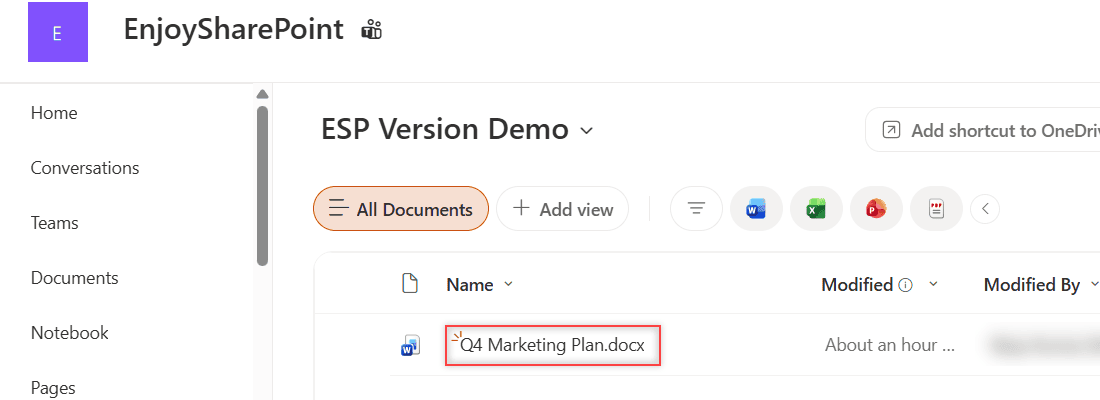
On my EnjoySharePoint site, ESP Version Demo is a SharePoint document library with one Word file, Q4 Marketing Plan.docx, saved five times. It went from a $42,000 draft (1.0) to a $48,000 final approved by Megan Bowen (5.0).
ESP Version Tracker is a list with Status, Budget and Due Date columns. Its item Holiday Email Campaign was edited four times.
Method 1: View the version history of a file (Recommended)
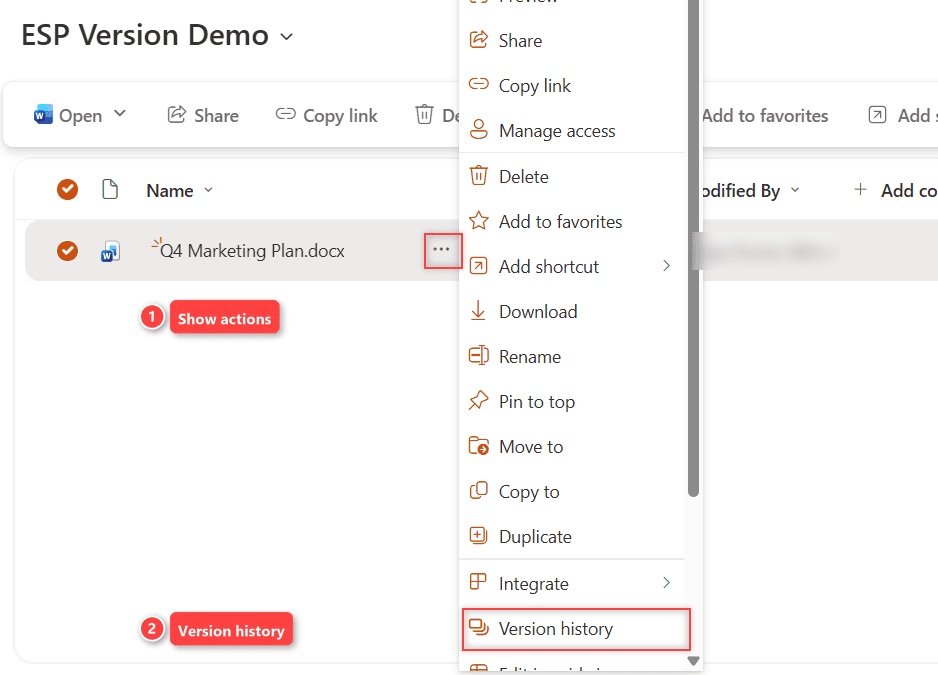
- Open the library and select the circle next to the file.
- Select … (Show actions) next to the name, then Version history.
- Hover over a version, select the down arrow, then View to open that copy.
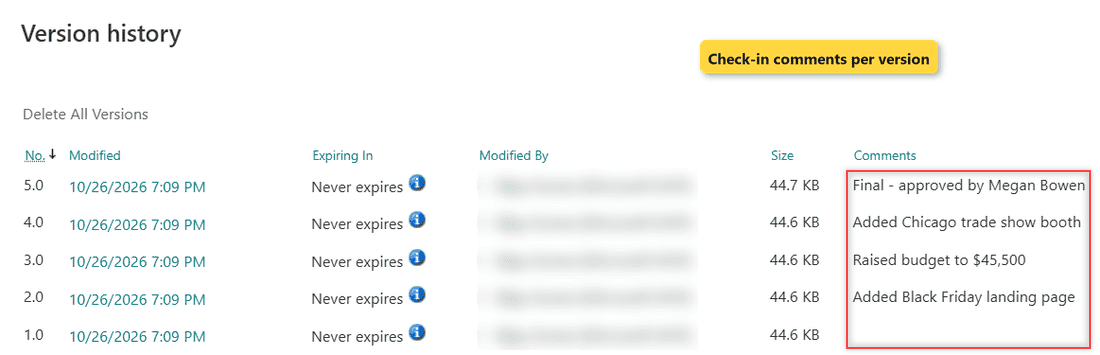
The dialog lists all five versions, newest first:
How does this work?
Each row shows the version number, date, an Expiring In value, author, size and comment. Notes like “Raised budget to $45,500” make the right version easy to spot.
People add those comments when they check a file in. Here’s how check in and check out work.
Method 2: Restore a previous version
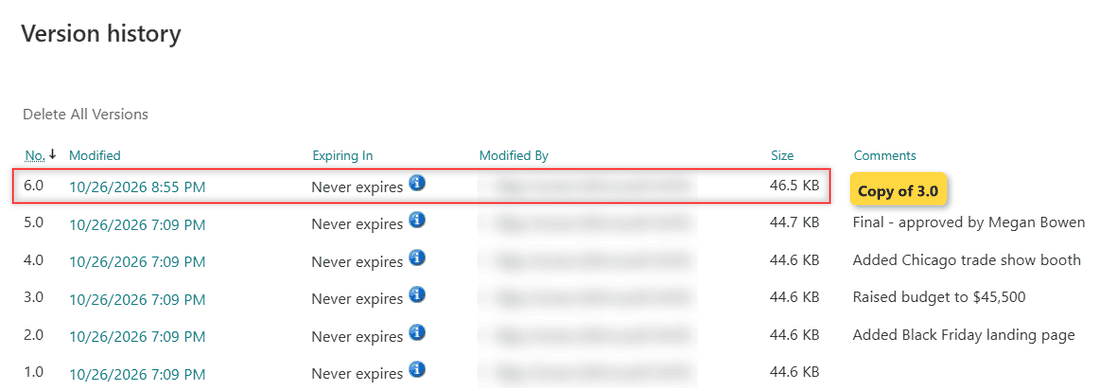
Say Megan’s final numbers are wrong and you want 3.0 back.
- Open Version history for the file.
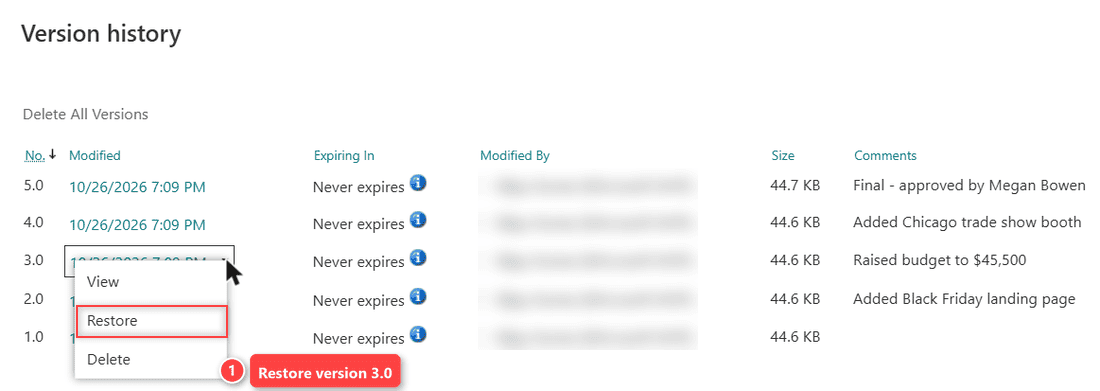
- Hover over version 3.0, select the down arrow, then Restore.
- Select OK to make it the current version.
How does this work?
SharePoint doesn’t throw anything away. It saves a copy of 3.0 as the new version 6.0, so 5.0 stays in the list.
Restoring needs Contribute permission (Members by default). Visitors can only view versions.
Method 3: Delete one version or all versions
- One version: hover over it, select the down arrow, then Delete and OK.
- All older versions: select Delete All Versions at the top of the dialog, then OK. Only the current version stays.
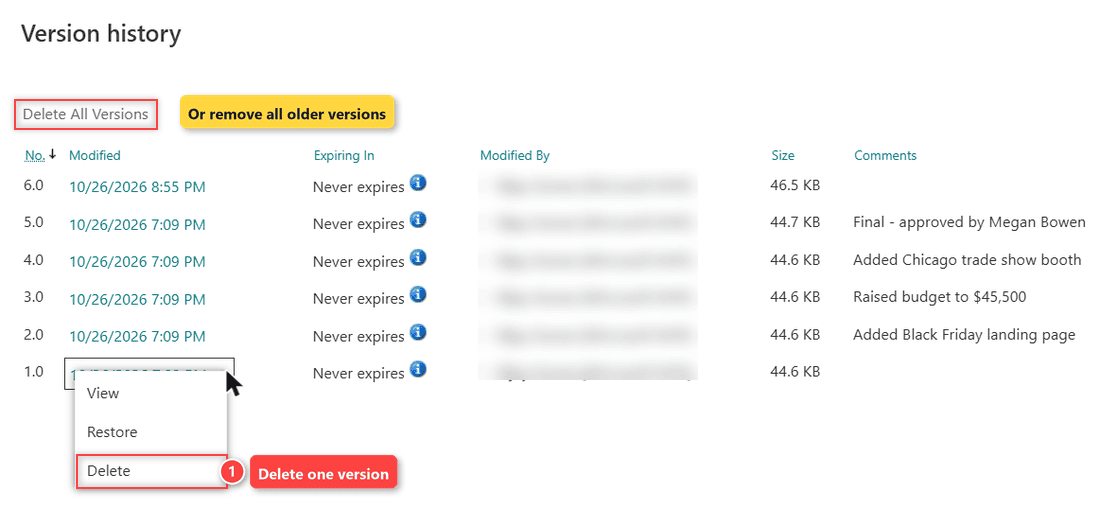
SharePoint asks if you want to send the version to the site Recycle Bin. My deleted 1.0 landed there, so it can still come back. To clear out whole old files instead, you can delete files older than three years with Power Automate.
Method 4: See the version history of a list item
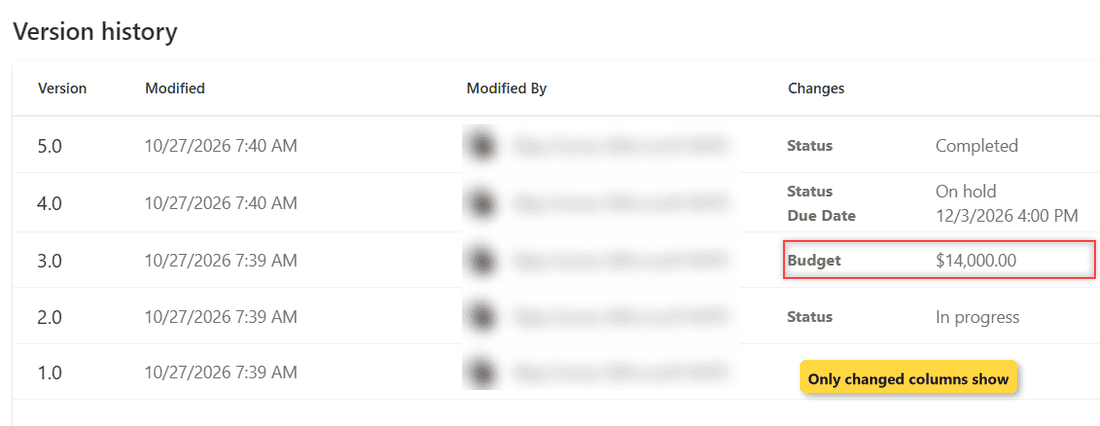
A SharePoint list keeps item versions too and shows which column changed. Select the item, then … > Version history.
How does this work?
The Changes column lists only what changed, with the new value: Status In progress in 2.0, Budget $14,000.00 in 3.0, and On hold plus a new Due Date in 4.0.
Method 5: Compare versions in Word, Excel or PowerPoint
- Open the file in the desktop app from the library.
- Select File, then the version history option.
- Open an older version, then select Compare to see the differences, or Restore to make it current.
Word’s Compare highlights every insertion and deletion. During a review, lock the file in the library so nobody adds versions.
How to turn on versioning and set version limits
New libraries and lists already have versioning on; my library started at 500 major versions and my list at 50.
- In the library, select Settings (gear) > Library settings > More library settings.
- Select Versioning settings.
- Choose Create major versions or Create major and minor (draft) versions.
- Pick a Version time limit (No time limit, Automatic or Manual) and set Keep the following number of major versions.
- Select OK.
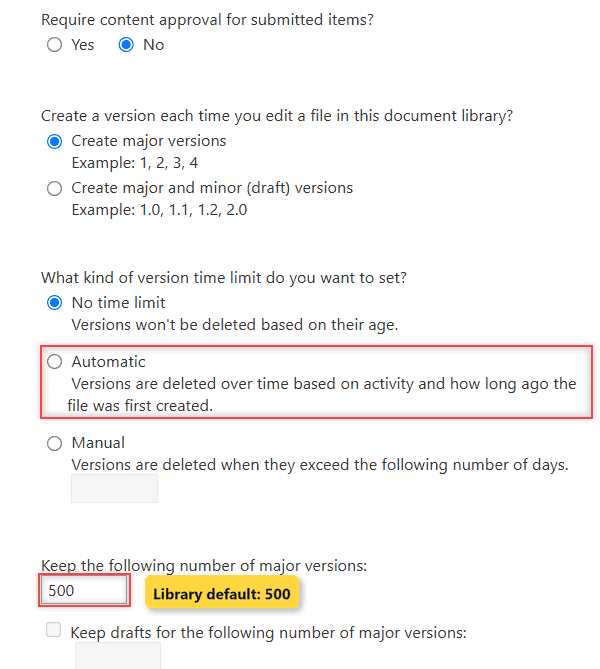
There’s no option to switch versioning off for a library. The same page lets you require check-out and turn on content approval in a document library.
Version history limits and automatic trimming
Admins set the default in the SharePoint admin center under Settings > Version history limits. Out of the box it’s Manually, with 500 major versions and Time set to Never.
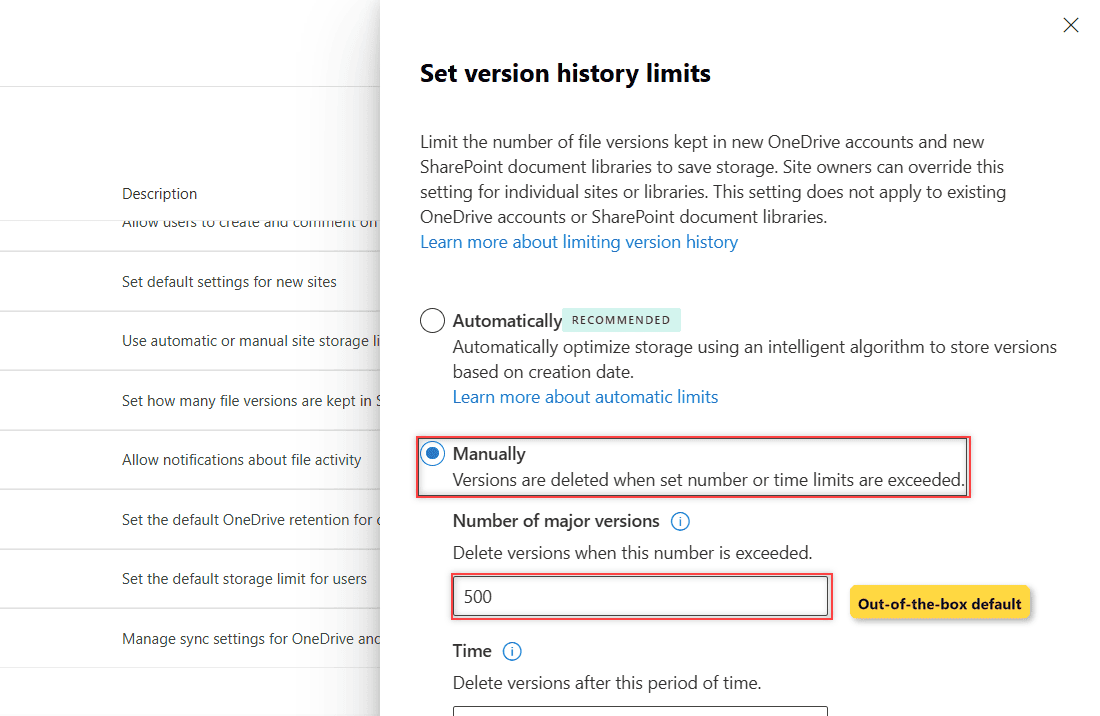
The Automatically option (marked Recommended) thins out old versions based on age:
- First 30 days: every version, up to 500.
- Days 30 to 60: hourly versions.
- Days 60 to 180: daily versions.
- After 180 days: weekly versions, until the 500 cap.
Versions removed by a limit skip the Recycle Bin and are gone for good. The org setting only affects new libraries, and retention policies override limits.
Which method should you use?
| You want to | Use |
|---|---|
| See who changed a file and when | Method 1: Version history |
| Undo a bad edit | Method 2: Restore |
| Remove old drafts or free storage | Method 3: Delete |
| Track column changes on an item | Method 4: list item history |
| See the exact text that changed | Method 5: Compare in Office |
Things to Keep in Mind
- Version history is grayed out: versioning is off or you lack permission.
- Lowering the count: extra versions are trimmed gradually, up to 20 per new save. The UI won’t accept fewer than 100.
If you manage busy libraries, these will help too:
Frequently Asked Questions
How many versions does SharePoint keep by default?
New libraries keep 500 major versions and new lists keep 50, unless your admin changed the default.
Can I recover a deleted version in SharePoint?
Yes, if you deleted it yourself; restore it from the site Recycle Bin. Versions removed by a limit are gone for good.
Why did my old versions disappear?
A version limit or Automatic trimming probably removed them. Microsoft explains the rules in its version history limits overview.

I have worked with Microsoft technologies for more than 18 years, including SharePoint, Microsoft 365 and the Power Platform (Power Apps, Power Automate and Power BI), at companies like HP, TCS and KPIT. I started EnjoySharePoint in 2011 to share the solutions I build in real projects with readers in the United States, Canada, the United Kingdom, Australia, New Zealand and beyond. Microsoft has recognized this work with the Microsoft MVP award 13 times since 2014.