
Maria Torres, the operations manager at a Denver services firm, called me with a question I hear every month: “Which client contracts expire before New Year’s, and who owns them?” The answer was buried four folders deep.
The folders were sorted by client, so checking dates meant opening every file. Another folder level for the year would only bury them deeper.
In this tutorial, I’ll explain what is metadata in SharePoint, which kinds you get for free and which you add yourself, and how I used it to answer Maria’s question in one view, on a real contracts library.
Quick answer: Metadata in SharePoint is information about a file or list item, stored in columns next to it. SharePoint adds some automatically, such as Name, Modified, Modified By and Created. You add the rest as columns, such as Department, Client or Expiration Date, and then sort, filter, group and search by them instead of digging through folders.
What metadata means in SharePoint
Microsoft defines metadata as information about information. A book’s title and author are metadata about the book, and a contract’s client and expiration date are metadata about the contract.
In SharePoint, every piece of metadata is a column. In a SharePoint document library, the file is the row and each column holds one fact about it. There are two kinds:
| Kind | Who fills it in | Examples |
|---|---|---|
| System metadata | SharePoint, automatically | Name, Created, Created By, Modified, Modified By, File Size, Version |
| Custom metadata | You or your team (or a flow) | Department, Client, Contract Type, Contract Value, Expiration Date, Status |
Where you see metadata in a library
For this post I built ESP Metadata Contracts, a library with six sample contracts. Each file has six custom columns: Client, Contract Type, Department, Contract Value, Expiration Date and Status.
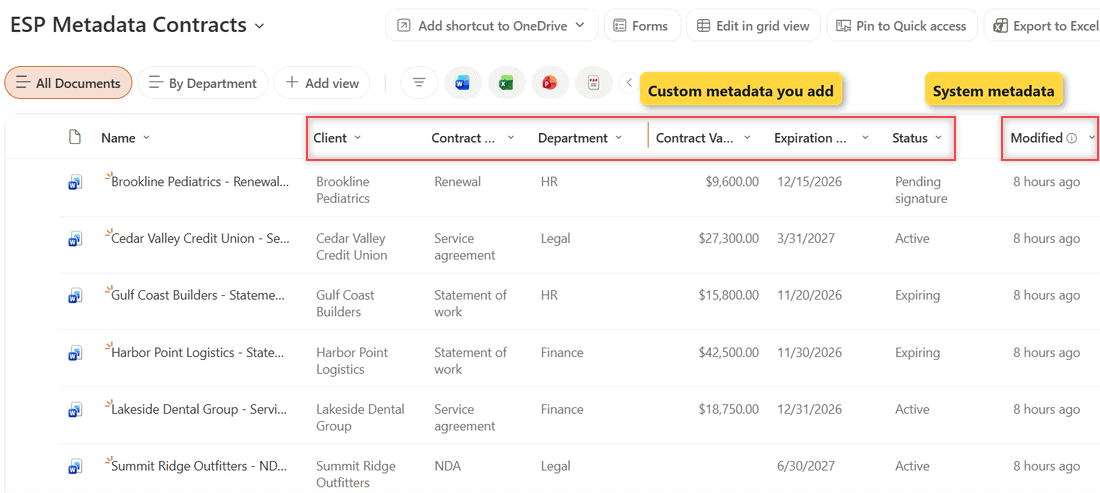
You see metadata in two places. The columns in the current view show it for every file at once. The details pane shows every property of one file: select a file and choose Details at the top right. The pane’s Properties section lists every column, and Edit all opens them as a form.
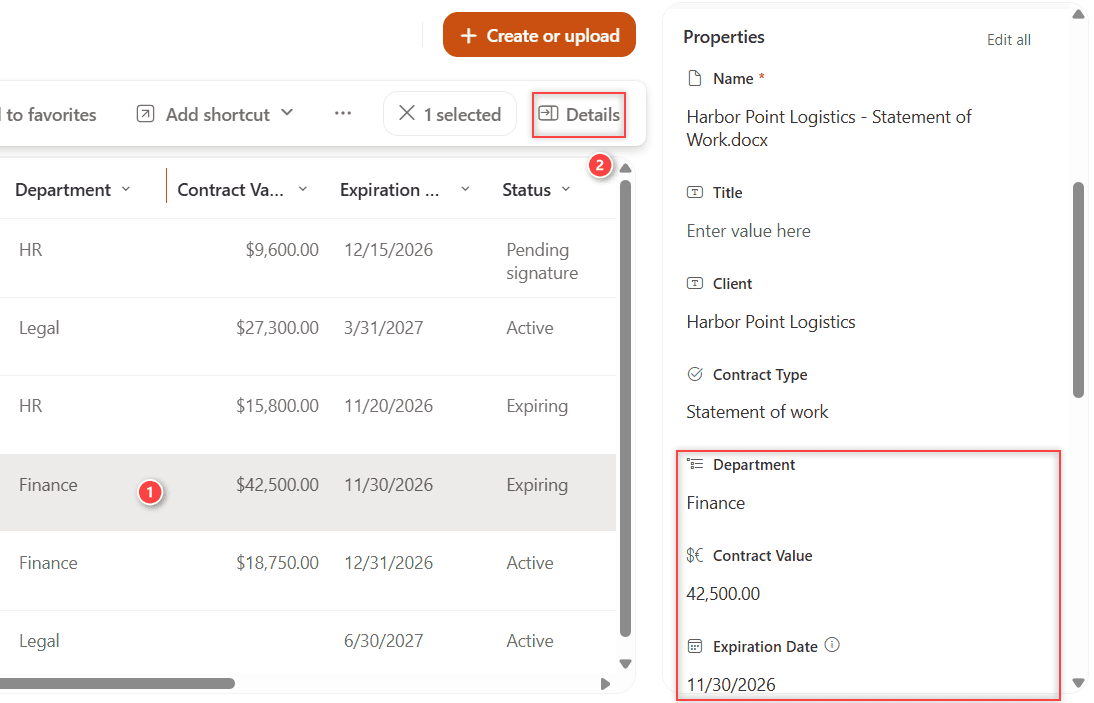
For Harbor Point Logistics, the pane shows Finance, $42,500 and 11/30/2026, and you can edit each value there.
Which columns you can use for metadata
Any column type works as metadata, but a few do most of the work. Pick a type that limits the answer, because free text invites typos. The full list is in my guide to SharePoint column types.
- Choice: a short fixed list, such as Contract Type or Status.
- Date and time: deadlines and review dates you want to sort by.
- Currency and Number: values you want to total or filter by range.
- Person: an owner, with a profile card and email.
- Lookup: values kept in another list, such as clients; see this SharePoint lookup column guide.
- Managed metadata: terms from a central term set that every site can share (next section).
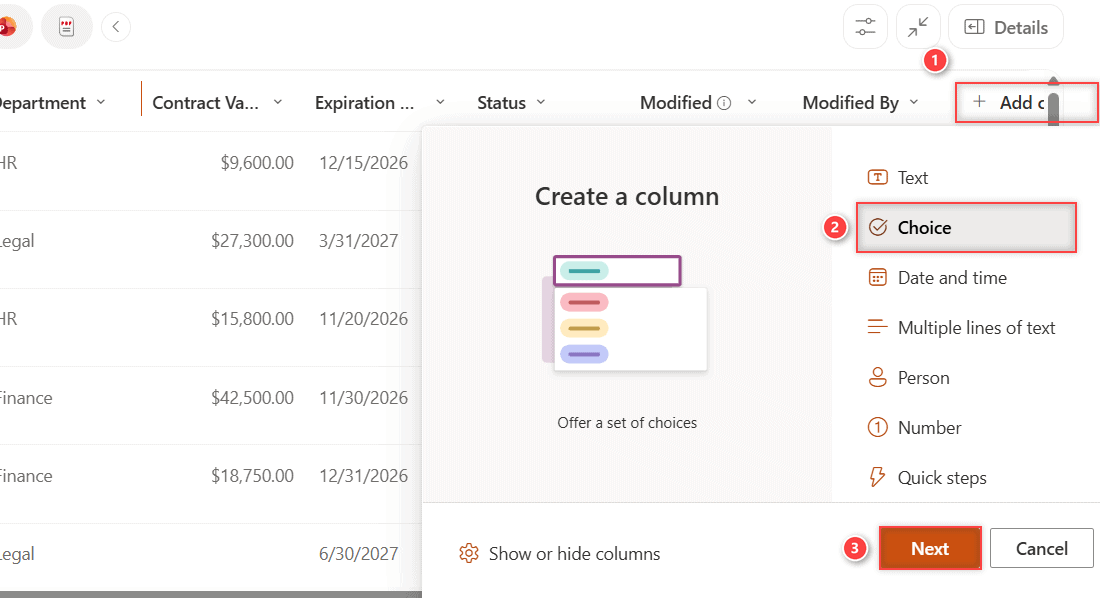
To add one, open the library, select + Add column, pick the type, select Next, type a name and select Save. You need the Manage Lists permission, which site owners have by default.
What managed metadata and the term store are
Managed metadata is SharePoint’s shared vocabulary. Instead of typing choices into each column, you keep the words in one place, the term store, and point columns at them.
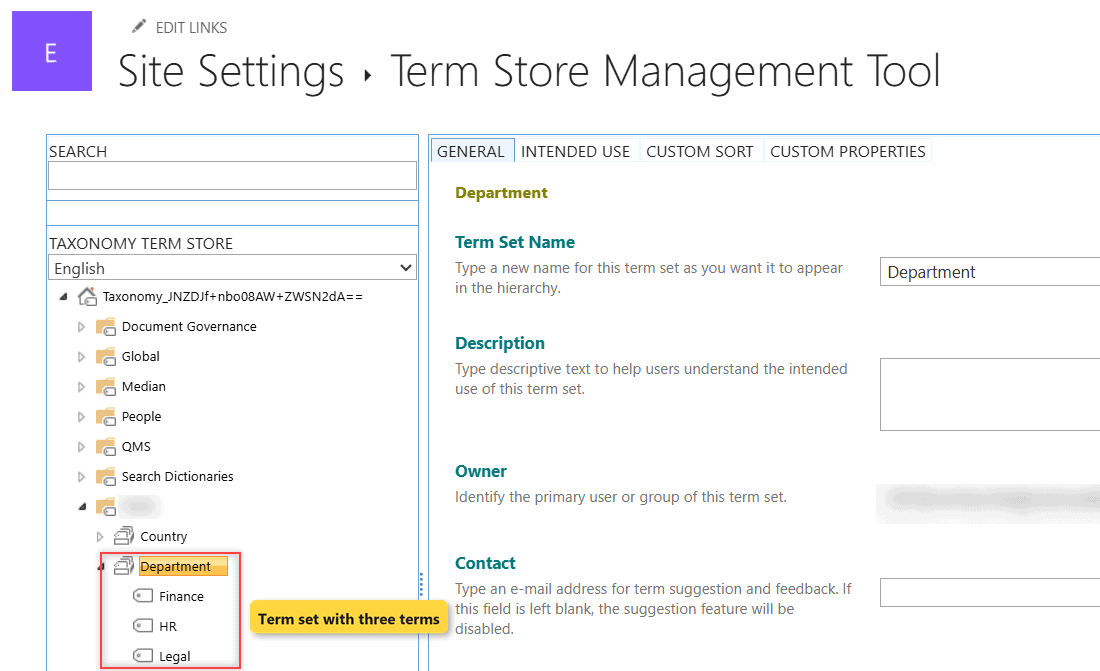
- A term is one word or phrase, such as Finance. Each term has a unique ID and can have synonyms, so “Accounting” can lead to Finance.
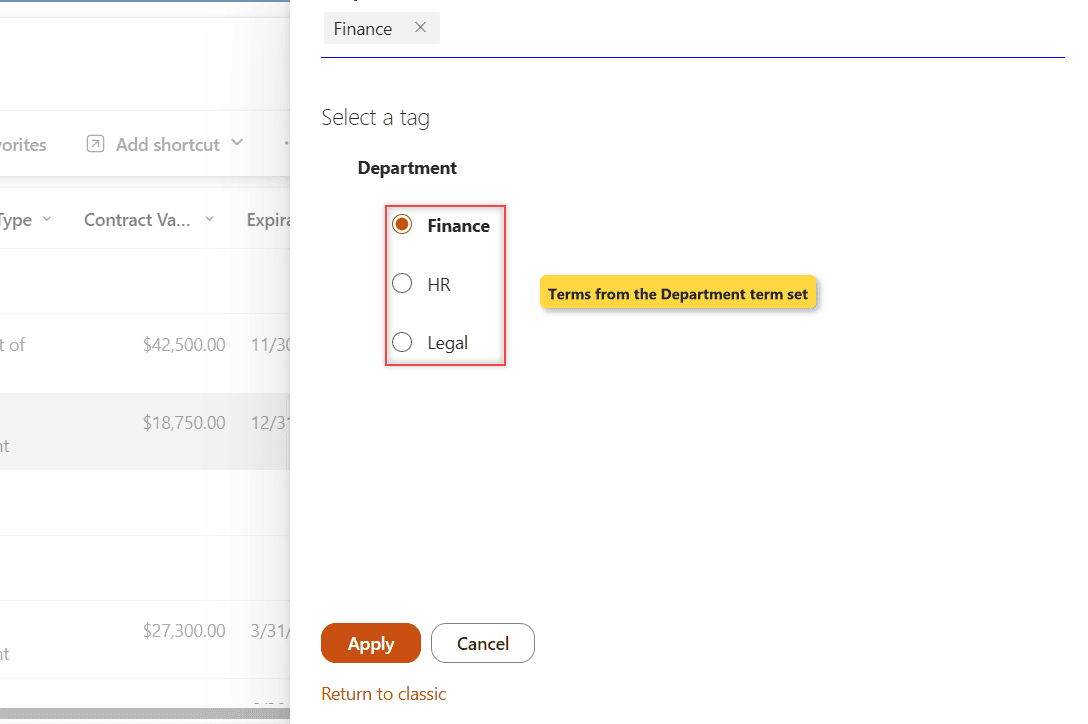
- A term set groups related terms, such as Department = Finance, HR, Legal.
- A global term set is available to every site. A local one, which you can create while adding a column, works only in that site collection.
- A closed term set stops users from adding new terms; an open one lets them type new values in the column.
My Department column is a Managed metadata column linked to a Department term set. In the details pane, the tag icon next to the field opens Select a tag, so people pick a term instead of typing.
Admins open the term store from the SharePoint admin center under Content services > Term store. Site owners can manage a site’s local terms from Site settings > Term store management. Global terms need a SharePoint Administrator or Term Store Administrator.
If an admin merges two terms, tagged files update automatically. To bundle a set of metadata columns for one kind of document, use SharePoint content types.
How I tagged six contracts in a few minutes
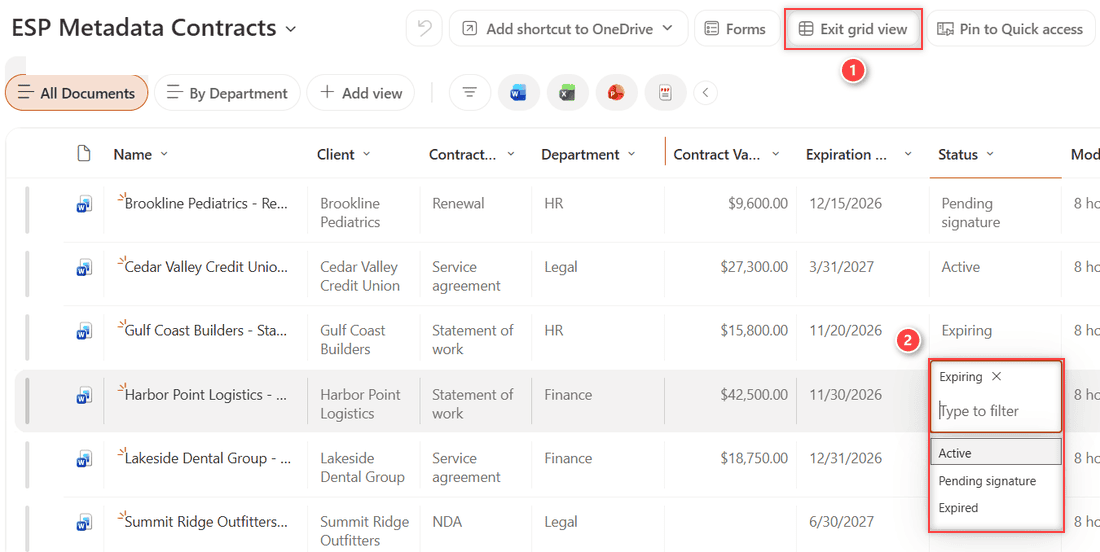
For a batch of files, grid view is faster than the details pane:
- Open the library and select Edit in grid view.
- Click a cell, then click it again to type or pick a value; choice cells open a list of their options.
- Select Exit grid view when you’re done.
Files arriving from email or a scanner can be tagged by a flow instead. One example: upload files to SharePoint and set their metadata with Power Automate Desktop.
Metadata vs folders: answering Maria’s question
A folder gives each file one location, so you get one way to slice the content. Metadata lets the same file appear in many views without moving it.
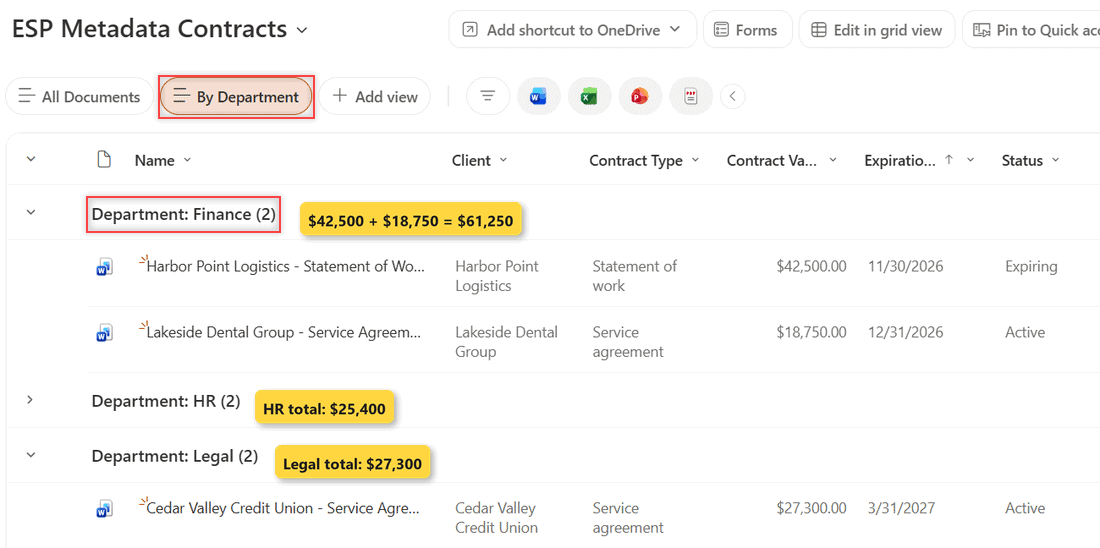
Here’s the view that answered Maria. I created By Department, grouped by Department and sorted by Expiration Date. Each group header shows a count: Finance (2) adds up to $61,250, HR (2) to $25,400 and Legal (2) to $27,300. Here’s how to build one with this SharePoint list views guide.
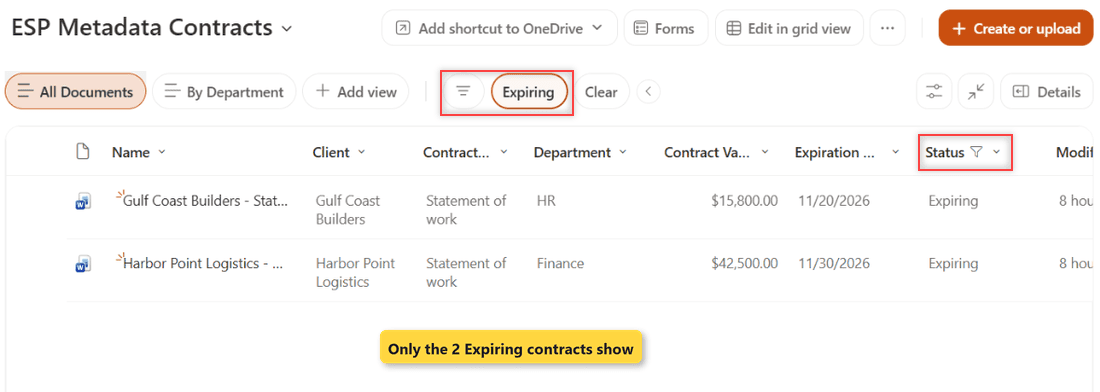
For the deadline part, I opened the filters pane and picked Status = Expiring. It returns 2 files: Gulf Coast Builders (11/20/2026) and Harbor Point Logistics (11/30/2026). Four of the six expire before the end of 2026.
Folders still make sense in two cases: when a whole set of files needs different permissions (see SharePoint permissions), and very large libraries. I keep folders shallow and let metadata sort.
What else metadata does for you
- Search: the refinement panel on the search results page uses metadata, so people can narrow results by a property such as Department.
- Formatting: color the Status column so expiring contracts stand out with SharePoint conditional formatting.
- Automation: a Power Automate flow can watch the Expiration Date and email the owner 30 days ahead.
- Required fields: make a column required so people can’t skip key information. In column settings, that’s the Require that this column contains information option.
Common errors and how to fix them
- You can’t sort or group by a column. It allows multiple values. Microsoft notes multi-value columns can’t be sorted in views, so use a single-value column for anything you sort by.
- Users can’t type a new term. The term set is closed, or the column doesn’t allow fill-in. Ask the term store manager to add the term, or open the set.
- The same department shows up three ways. It’s a text column. Switch to Choice or managed metadata, then fix old values in grid view.
- Values vanished after changing the column type. Microsoft warns that changing a column type can corrupt stored data. Export the library to Excel first.
If you’re organizing a library with metadata, these guides help next:
Frequently Asked Questions
What are examples of metadata in SharePoint?
System examples are Name, Created, Modified, Modified By and File Size, which SharePoint fills in for you. Custom examples are columns you add, such as Department, Client, Project, Document Type, Status and Expiration Date.
Is metadata the same as a column in SharePoint?
Practically, yes. Every piece of metadata is stored in a column, and site columns let you reuse the same column across libraries.
What is the difference between metadata and managed metadata?
Metadata is any information about an item. Managed metadata is a column type whose values come from a central term set in the term store, so every site uses the same words. Microsoft explains the terms in Introduction to managed metadata.
Should I use folders or metadata in SharePoint?
Use metadata to describe and find files, because one file can appear in many views. Keep a few shallow folders for permissions or very large libraries.

I have worked with Microsoft technologies for more than 18 years, including SharePoint, Microsoft 365 and the Power Platform (Power Apps, Power Automate and Power BI), at companies like HP, TCS and KPIT. I started EnjoySharePoint in 2011 to share the solutions I build in real projects with readers in the United States, Canada, the United Kingdom, Australia, New Zealand and beyond. Microsoft has recognized this work with the Microsoft MVP award 13 times since 2014.