
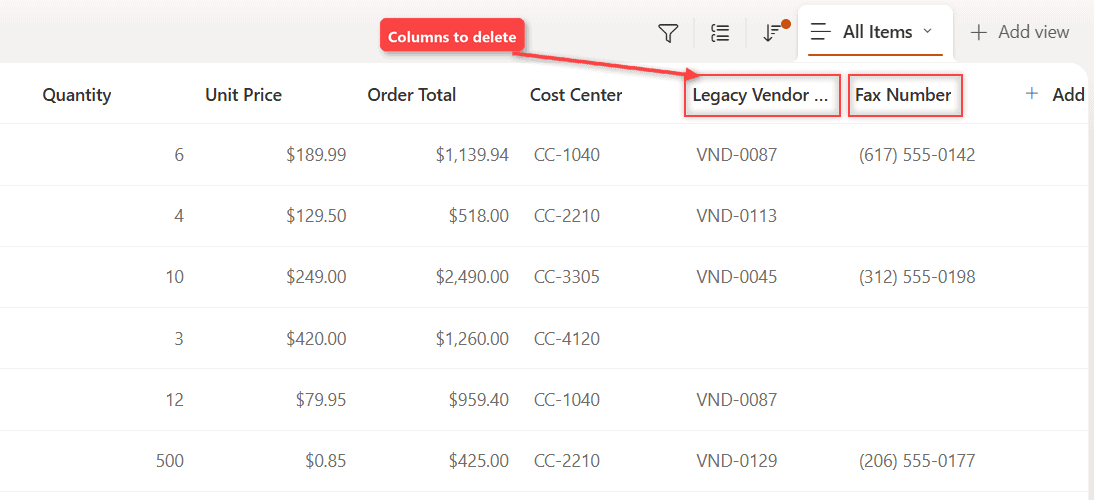
Old lists collect clutter. Ours had a Legacy Vendor Code column from a purchasing system we retired last spring, and a Fax Number column nobody had filled in for years.
In this tutorial, I’ll show you how to delete column in sharepoint list setups the safe way: check what depends on the column, remove it from the column header or List settings, and hide the columns SharePoint won’t let you delete.
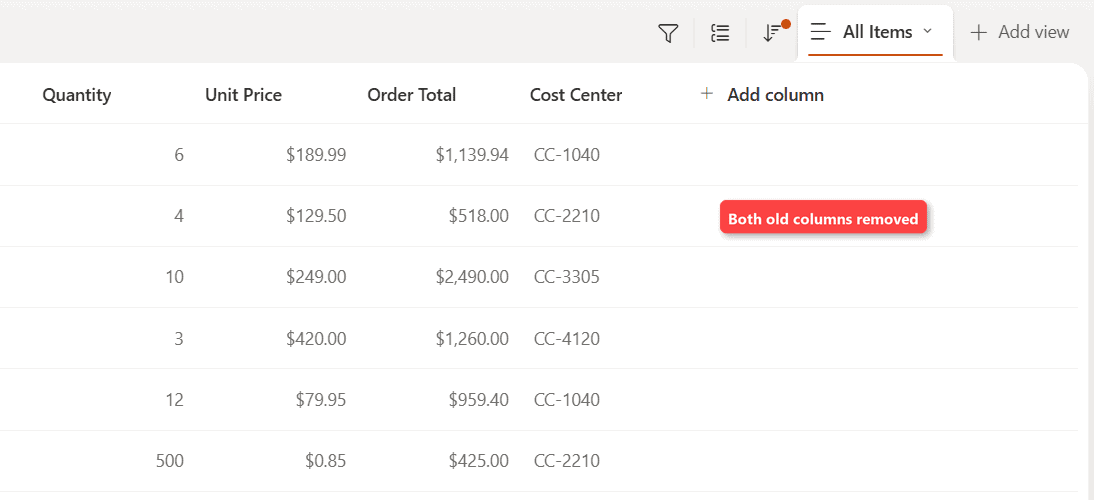
Here’s what we’re building, the same orders list after the cleanup, with both dead columns gone and every total intact:
Before You Start
You need the Edit permission level or higher on the list (the site Members group has it). If you’re unsure what a column holds, my cheat sheet of SharePoint column types helps you recognize it.
My demo list, ESP Delete Column Demo, tracks six office orders for November 2026:
| Name | Type | Notes |
|---|---|---|
| Order Name | Single line of text | The renamed Title column, required |
| Requester / Department | Text / Choice | Jordan Ellis, Maria Torres, Kevin Brooks and others |
| Quantity / Unit Price | Number / Currency | Unit Price in USD |
| Order Total | Calculated | Uses Quantity and Unit Price |
| Cost Center | Single line of text | Indexed |
| Legacy Vendor Code, Fax Number | Single line of text | To delete |
Step 1: Check What Uses the Column
There’s no undo, so spend two minutes here. A column can feed formulas, filters, forms, apps and flows.
- Open each calculated column in the list and read its formula.
- Check your views for filters, sorting or grouping on the column.
- Look for lookup columns in other lists, Power Apps screens and Power Automate flows that read it.
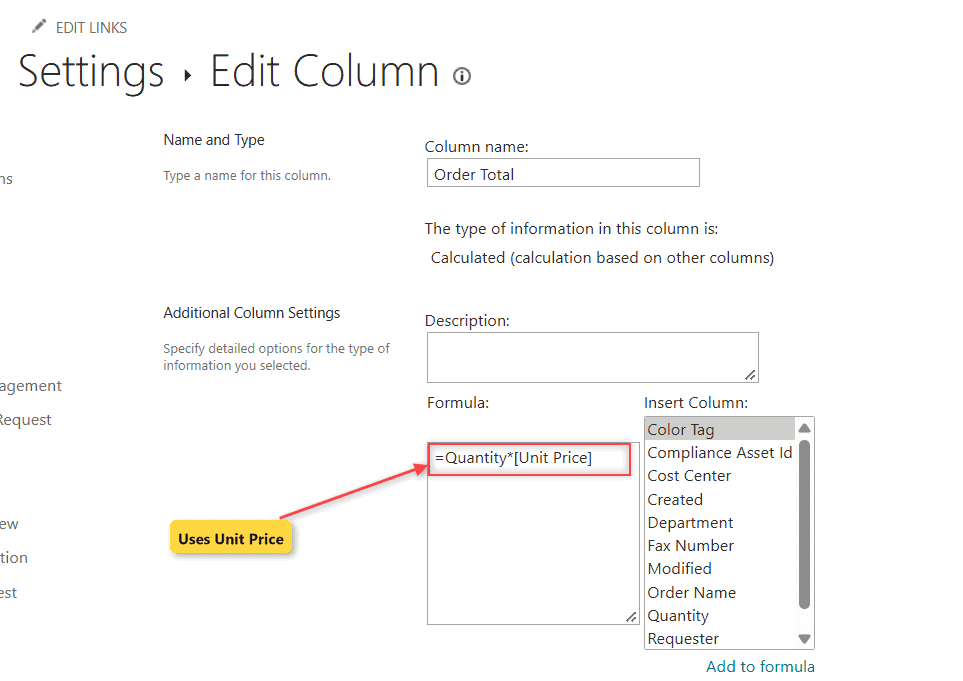
I tested what happens when you skip this. SharePoint let me delete Unit Price even though Order Total used it, and the formula silently turned into this:
=Quantity*#NAME?Checkpoint: Order Total showed an error on all six items. I re-added Unit Price and restored =Quantity*[Unit Price], but the prices had to be typed back in.
Step 2: Delete the Column from the Column Header
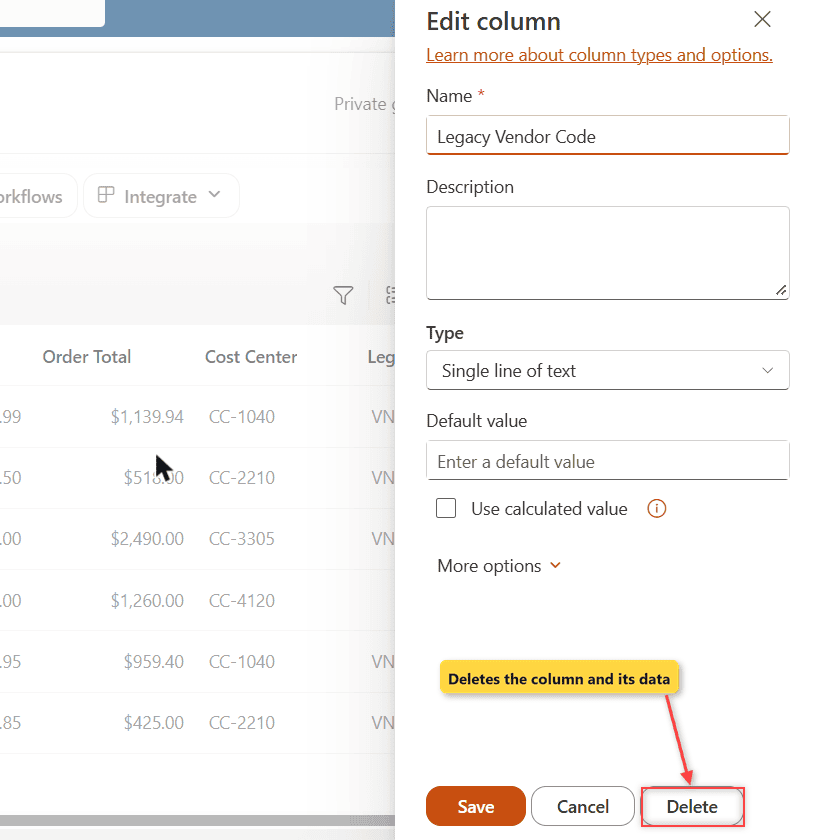
- Select the Legacy Vendor Code column header.
- Choose Column settings > Edit.
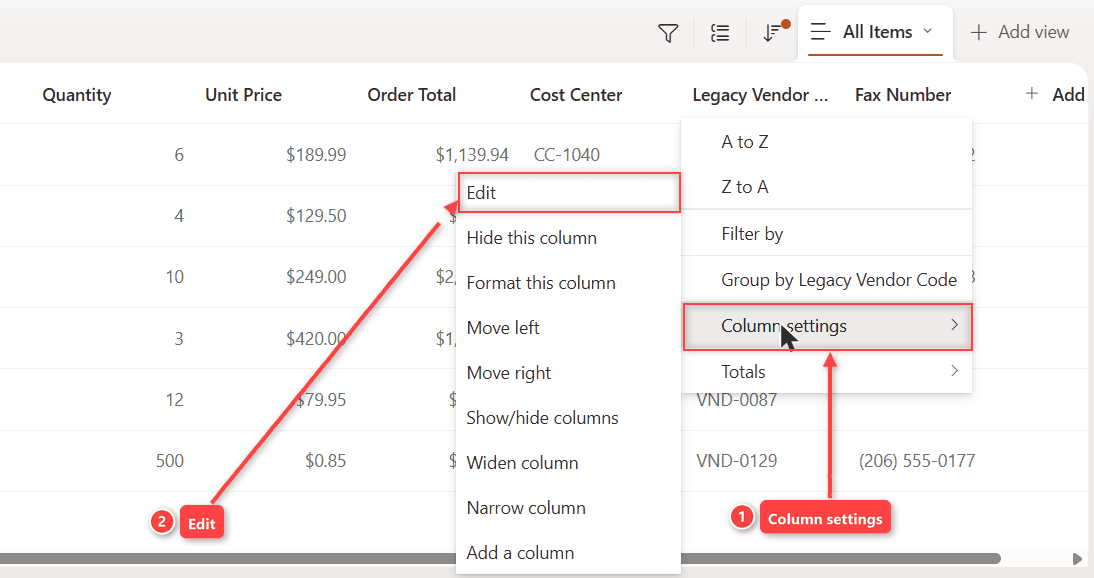
- At the bottom of the Edit column pane, select Delete.
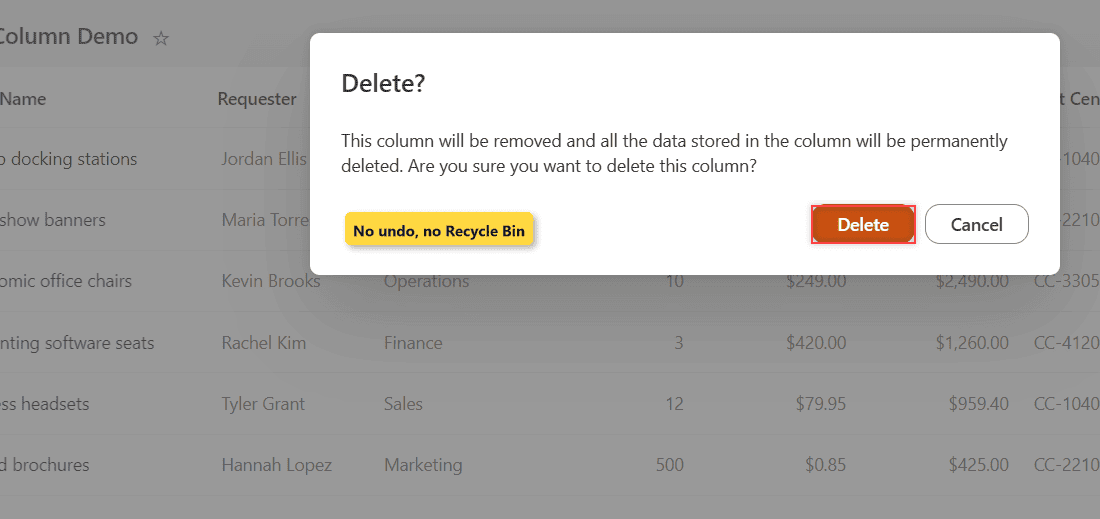
- In the Delete? dialog, select Delete again.
The dialog spells it out: the column is removed and all the data stored in it is permanently deleted.
Checkpoint: the column disappears from the list and from every view. My SharePoint list view guide shows where custom views live.
Step 3: Delete a Column from List Settings
List settings shows every column, including ones hidden from views. It’s also the only route for calculated columns, whose header menu has no Edit item.
- Select the Settings gear > List settings.
- Under Columns, select Fax Number.
- Scroll down, select Delete, then OK.
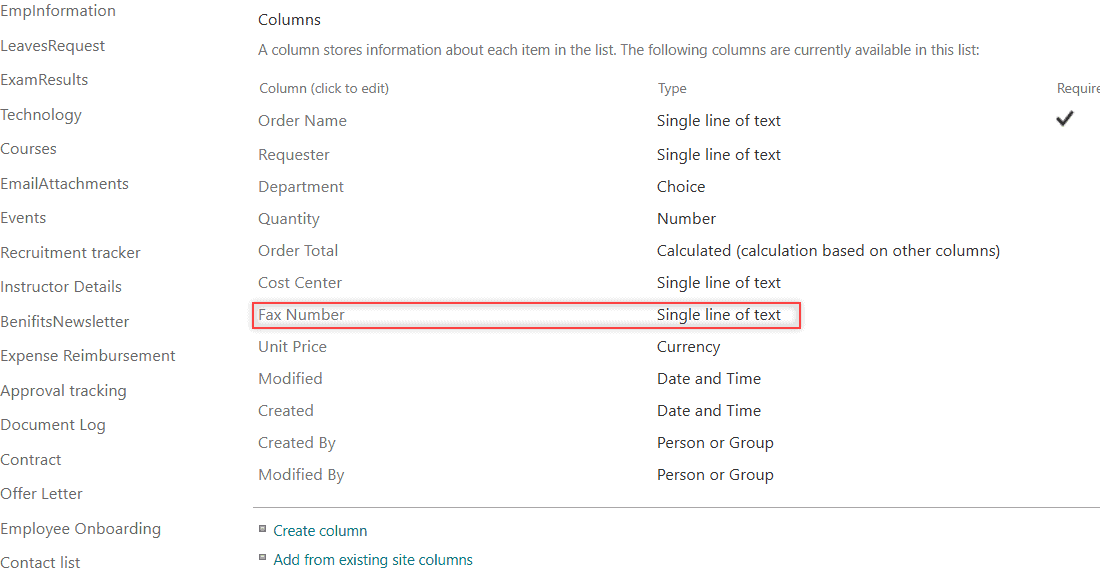
Checkpoint: the Columns section no longer lists Fax Number.
Test the Cleanup
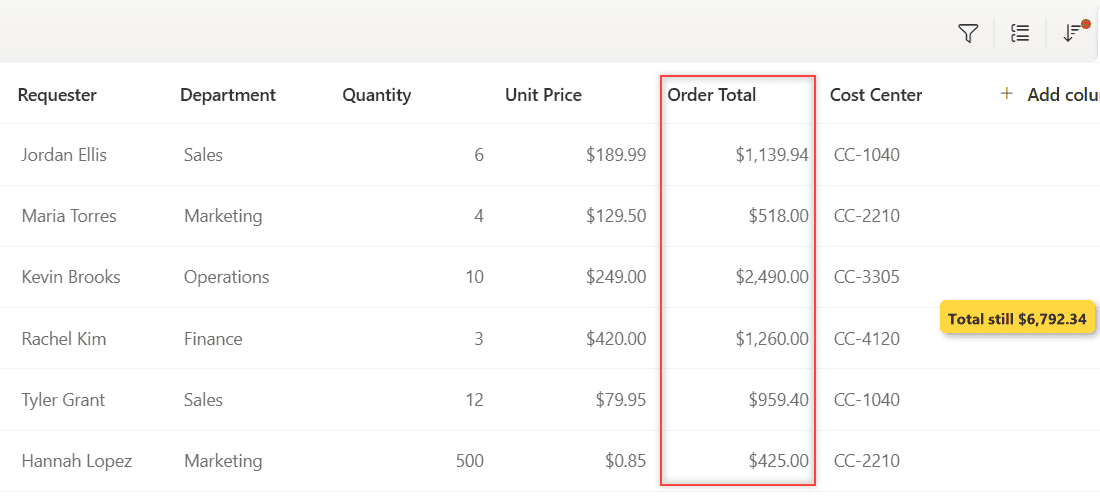
Back on the list, both columns were gone, all six orders were still there, and Order Total still added up to $6,792.34, because neither deleted column fed the formula.
Hide a Column Instead
Required columns such as Title have no Delete button. For those, or for data you still want, select the header and choose Column settings > Hide this column. My guide to remove or hide the Title column covers the form settings too.
Delete a Site Column
Deleting a site column inside one list only removes it there. To remove it everywhere, open Site settings > Site columns, select it, then Delete and OK. Check your content types in SharePoint lists first.
Troubleshooting
- No Delete button: the column is required, like Title. Hide it instead.
- No Edit in the header menu: it’s a calculated column. Use List settings.
- #NAME? in a formula: re-add the deleted column with the same name and fix the formula.
- The field still shows in a form: refresh the Power Apps data source, or check your list form JSON formatting.
Important: the Recycle Bin doesn’t restore columns. Export the list to Excel first if you might need the data.
Where to Take It Next
Make the remaining columns easier to read with SharePoint column formatting with JSON, or turn the list into a canvas app built from a SharePoint list.
More ways to keep your SharePoint lists tidy:
Frequently Asked Questions
Can I restore a deleted column in a SharePoint list?
No. Deleted columns and their data skip the Recycle Bin, as Microsoft notes in Delete a column in a list or library. Re-create the column and re-enter the values.
Why can’t I delete the Title column?
Title is required by every list, so there’s no Delete button. Rename it, make it optional and hide it instead.
Does deleting a column delete the list items?
No. The items stay, but the values in that column are removed from every item.
Can I delete a SharePoint column with PowerShell?
Yes. After Connect-PnPOnline, PnP PowerShell removes it by internal name: Remove-PnPField -List "ESP Delete Column Demo" -Identity "LegacyVendorCode" -Force

I have worked with Microsoft technologies for more than 18 years, including SharePoint, Microsoft 365 and the Power Platform (Power Apps, Power Automate and Power BI), at companies like HP, TCS and KPIT. I started EnjoySharePoint in 2011 to share the solutions I build in real projects with readers in the United States, Canada, the United Kingdom, Australia, New Zealand and beyond. Microsoft has recognized this work with the Microsoft MVP award 13 times since 2014.