
Jordan Ellis joined our Denver office on Monday and still couldn’t open the team site by lunch. His password was fine; he was signing in with the wrong account.
In this tutorial, I’ll show you how to sign in to SharePoint the right way, jump straight to your site from its URL, and fix the sign-in problems I see most often.
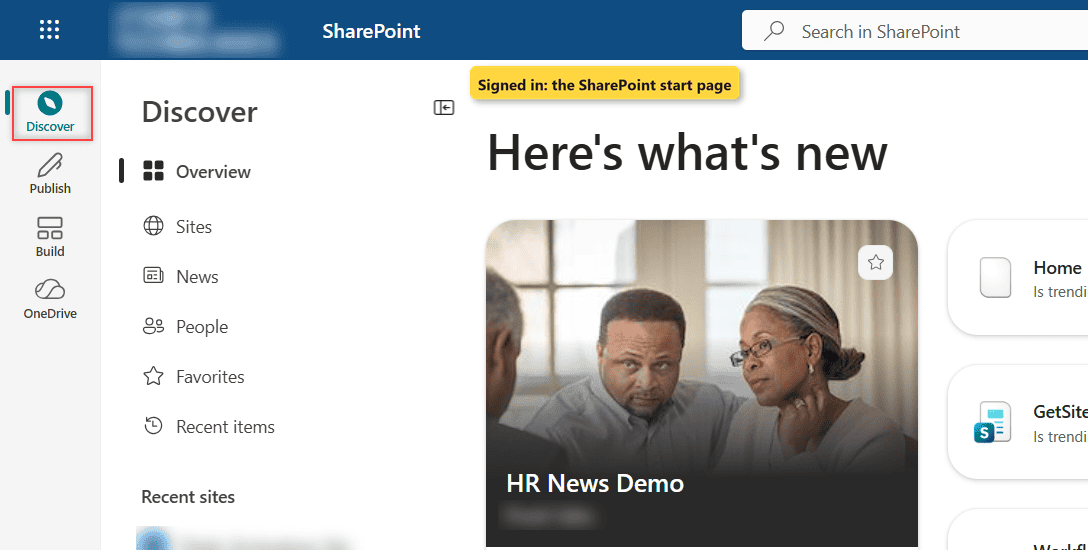
Here’s where we’re headed, the SharePoint start page after a clean sign-in:
Before You Start
SharePoint Online runs in your browser, so there’s nothing to install. Get these from your IT team:
| What you need | Example |
|---|---|
| Work or school account | jordan.ellis@yourcompany.com (not Outlook.com or Hotmail) |
| Password | Set on your first day; IT may make you change it |
| Verification method | Microsoft Authenticator, if your company uses multifactor authentication (MFA) |
| Site URL (optional) | https://yourcompany.sharepoint.com/sites/EnjoySharePoint |
Not sure what kind of site you’ll land on? My guide to the types of SharePoint sites explains team and communication sites.
Step 1: Open the Microsoft 365 Sign-In Page
- Open Edge, Chrome, Firefox or Safari.
- Go to m365.cloud.microsoft. If you aren’t signed in, the Sign in box appears.
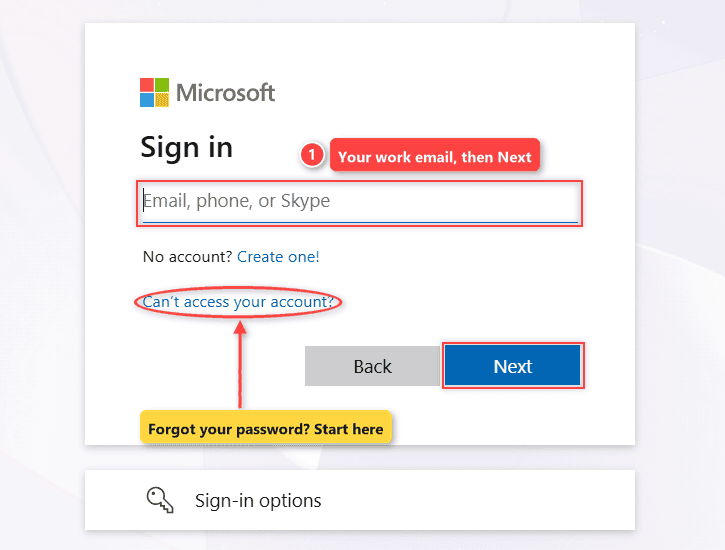
Checkpoint: you see an empty Email, phone, or Skype field. Learning without a work account? An Office 365 E5 trial gives you one.
Step 2: Enter Your Work Account and Verify It
- Type your work email and select Next.
- Enter your password and select Sign in.
- If Authenticator shows a New sign-in request, enter the number shown on your computer and tap Approve.
- On Stay signed in?, select Yes on your own computer, No on a shared one.
Yes keeps you signed in. No ends the session when the browser closes, or after 24 hours. If you’ve signed in before, you’ll get Pick an account instead; choose the one with the work badge.
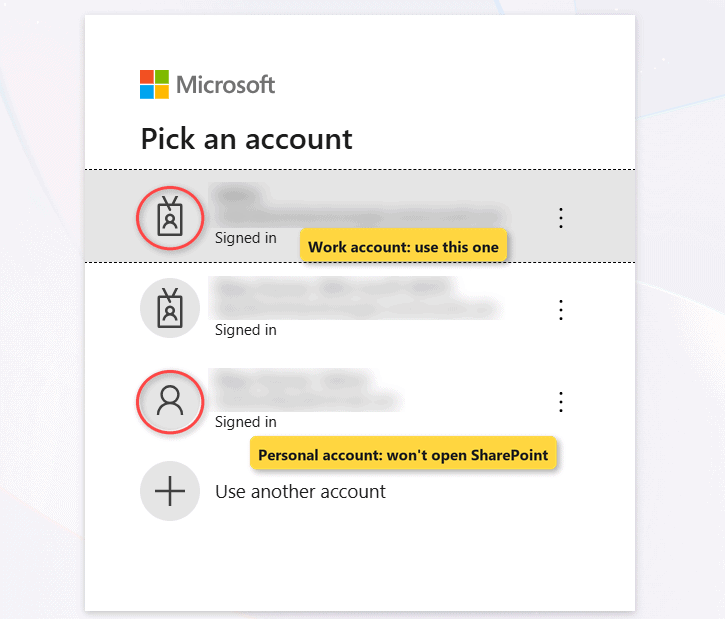
Important: never approve a request you didn’t start. To cut down the prompts, see turning off Microsoft Authenticator prompts.
Checkpoint: Microsoft 365 opens, with your initials or photo in the top-right corner.
Step 3: Open SharePoint from the App Launcher
- Select the nine-dot App launcher in the top-left corner.
- Select SharePoint. If it’s missing, type it in Find Microsoft 365 apps.
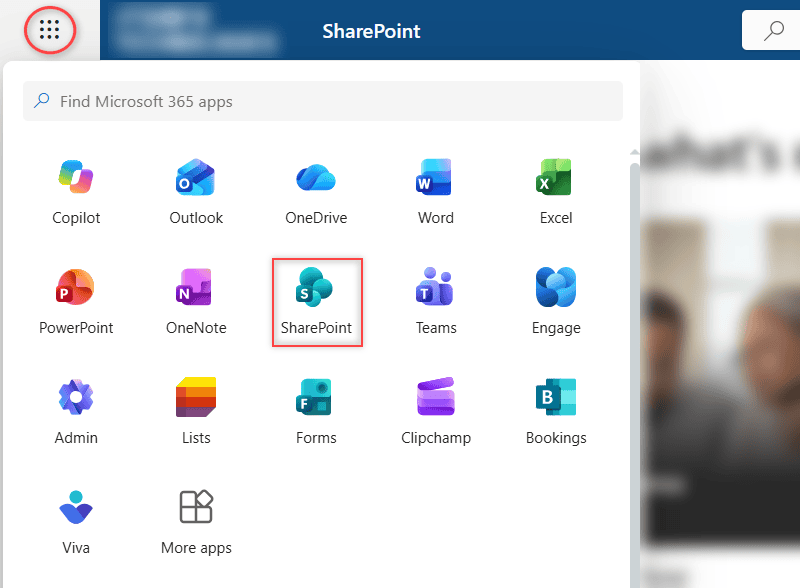
Checkpoint: the SharePoint start page opens. If SharePoint never appears, your account likely has no SharePoint license, which only IT can fix.
Step 4: Go Straight to Your Site with Its URL
The quicker way in is the site address. Every SharePoint Online site uses this pattern:
https://yourcompany.sharepoint.com/sites/EnjoySharePoint- Paste the URL into the address bar and press Enter.
- If you aren’t signed in, you’re sent to the sign-in page. Repeat Step 2.
- Bookmark the site once it opens (Ctrl+D).
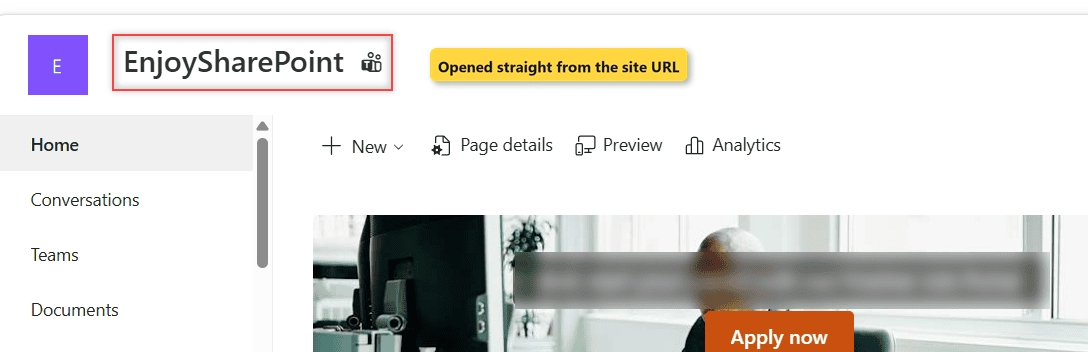
Checkpoint: the site name shows at the top. Signed in to Windows with your work account? It opens with no prompt. Next, try customizing the site home page.
Test the Sign-In
Select your photo in the top-right corner. The card shows the account you’re signed in as, plus Sign out and Sign in with a different account.
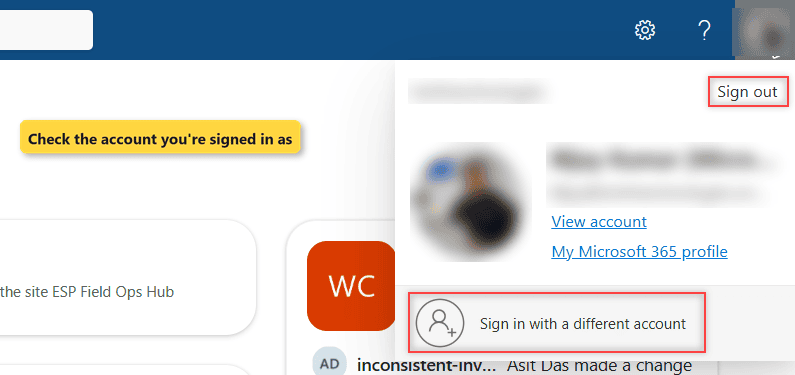
In my test, the card showed the work account, and the EnjoySharePoint site opened with no extra prompt.
Sign In with Two Accounts at Once
Microsoft 365 uses one account per browser profile, so every tab shares it. For a second account, use:
- A private window: InPrivate in Edge, Incognito in Chrome, Private in Firefox and Safari.
- Separate Edge profiles: one per account.
- Sign in with a different account on the account card.
Troubleshooting
- “Your account or password is incorrect”: you probably used a personal email. The sign-in name or password does not match error has the same cause.
- Forgot your password: select Can’t access your account?. It works only if IT turned on self-service password reset.
- Sign-in loops or the page stays blank: try a private window. If it works, clear the SharePoint cache.
- Signed in as the wrong person: Windows or the browser profile uses another account. Sign out, or use a separate profile.
- “You need permission”: sign-in worked; ask the site owner for access.
Where to Take It Next
Once you’re in, learn the difference between OneDrive and SharePoint, then compare SharePoint sync vs Add shortcut to OneDrive to work from File Explorer.
More guides for your first week in SharePoint:
Frequently Asked Questions
What is the SharePoint login URL?
Start at m365.cloud.microsoft and pick SharePoint from the app launcher, or open your site URL and sign in when asked. Microsoft covers both in Sign in to SharePoint.
Can I sign in to SharePoint with a personal Microsoft account?
Not to your company’s SharePoint Online, unless the site owner invited that email as a guest. Use your work or school account.
Why does SharePoint keep asking me to sign in?
You chose No on Stay signed in?, your browser clears cookies on close, or your company limits session length.

I have worked with Microsoft technologies for more than 18 years, including SharePoint, Microsoft 365 and the Power Platform (Power Apps, Power Automate and Power BI), at companies like HP, TCS and KPIT. I started EnjoySharePoint in 2011 to share the solutions I build in real projects with readers in the United States, Canada, the United Kingdom, Australia, New Zealand and beyond. Microsoft has recognized this work with the Microsoft MVP award 13 times since 2014.