
When building business apps in Power Apps, one requirement keeps coming up: sending reports by email.
Sometimes it’s a payroll report, sometimes a leave summary, and sometimes a list of submitted records that managers need to review. In many organizations, finance or HR teams still rely heavily on email reports to track data.
Recently, I worked on a project where the finance team needed a table report of employee working hours for each payroll period. The data was stored in a SharePoint list and displayed inside Power Apps. But the finance manager didn’t want to log into the app every time they needed the report. Instead, they wanted a clean table report sent directly to their inbox.
So we built a simple solution:
- Users select a payroll start date in Power Apps
- The app displays employees’ working hours for that payroll period
- The user clicks Generate Report
- A Power Automate flow runs
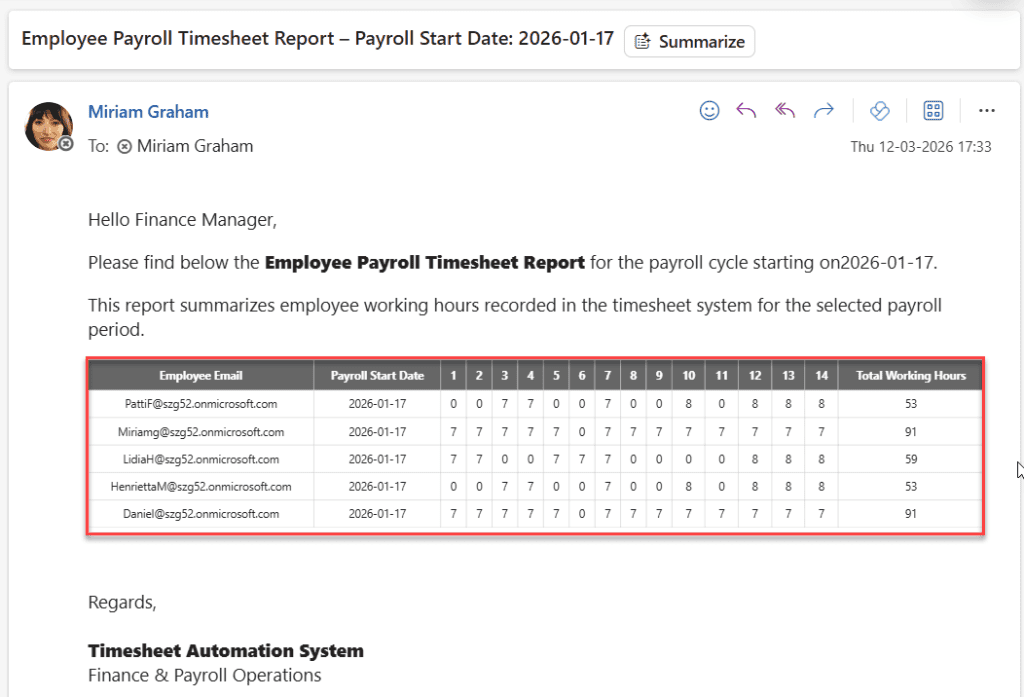
- The flow creates a table report and sends it via email, like below.
In this tutorial, I’ll walk you through exactly how to build this.
Generate Employee Payroll Timesheet Report in Power Apps
Before building the solution, let’s review the scenario I used to generate a report and email it.
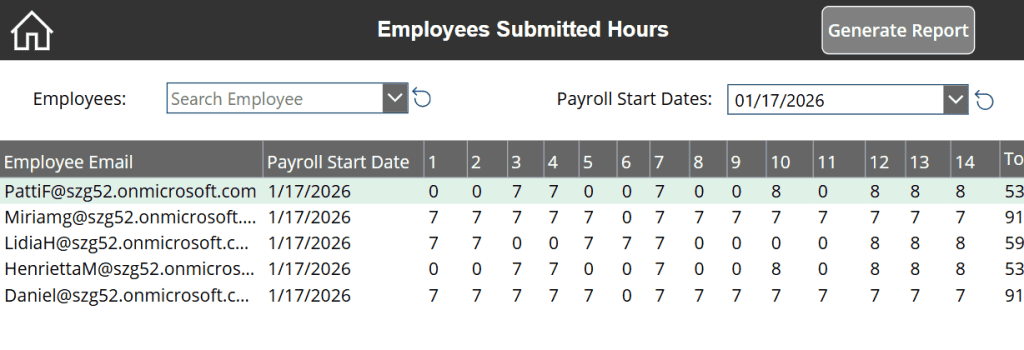
In the Power Apps application, I have:
- A dropdown that contains all payroll start dates
- A data table that shows employee working hours
- A Generate Report button
When a user selects a payroll start date, the app filters the SharePoint list and displays the relevant employee records for that payroll period.
When the user clicks Generate Report Power Apps button, the app sends the data to a Power Automate flow.
The flow then sends an email to the finance manager with a table report like this:
Now let’s start implementing this!
In my example, the employee’s working hours are stored in a SharePoint list. Here are the columns I used:
| Column Name | Data Type |
|---|---|
| Employee Email | Title Default Column |
| Payroll Start Date | Date and Time |
| 1 | Number |
| 2 | Number |
| 3 | Number |
| 4 | Number |
| 5 | Number |
| 6 | Number |
| 7 | Number |
| 8 | Number |
| 9 | Number |
| 10 | Number |
| 11 | Number |
| 12 | Number |
| 13 | Number |
| 14 | Number |
| Total Working Hours | Number |
Your structure may be different depending on your organization’s needs. The key is that each record represents one employee’s working hours for a payroll period. Once the list is ready, we connect it to Power Apps.
Next, we create the user interface inside Power Apps. Follow the steps below:
- In the App OnStart property, provide the code below to generate the payroll start dates dynamically for the entire year.
Set(varPayrollStartDate,"01/17/2026");
ClearCollect(
    colPayrollDates,
    AddColumns(
        Filter(
            ForAll(
                Sequence(RoundUp(365 / 14, 0) + 1),
                DateAdd(
                    varPayrollStartDate,
                    (Value - 1) * 14,
                    TimeUnit.Days
                )
            ),
            Year(Value) = Year(varPayrollStartDate)
        ),
        DisplayDate,
        Text(Value, "mm/dd/yyyy")
    )
);
Here:
- varPayrollStartDate: Global variable containing the payroll start date.
- colPayrollDates: This Power Apps collection contains all payroll start dates for each 14-day period in the current year.
- Add a Power Apps Dropdown control for payroll start date. This allows users to select which payroll period they want. Provide the formula below in the Items property.
colPayrollDates- Add a Combobox control for employee names. This allows admins to check a particular employee’s working hours. Provide the formula below in the Items property.
Office365Users.SearchUser({SearchTerm: ComboBox_SearchEmp.SearchText})Here, I used the Office365Users connector to retrieve the users from my organization.
- Next, add a Data Table control. This table shows employee working hours. The Items property filters records based on payroll dates and the selected employee name.
Filter(
    'Employee Working Hours',

    (IsBlank(ComboBox_SearchEmp.Selected.Email) ||
     Title = ComboBox_SearchEmp.Selected.Email)
    &&

    (IsBlank(drpPayroll.Selected.Value) ||
     'Payroll Start Date' = drpPayroll.Selected.Value)
)
Here, the Power Apps Filter() function displays all employees’ working hours details when ComboBox_SearchEmp and drpPayroll are blank; otherwise, it displays the matched records based on the selection.
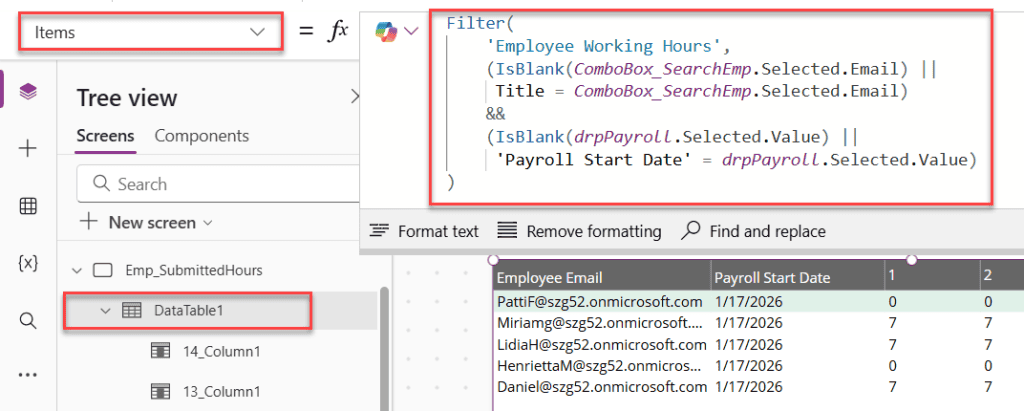
Now, when the user selects a payroll start date, the table automatically shows only the relevant records.
- Finally, add a Power Apps Button control for generating a report. Then add the following formula to the OnSelect property.
SendSelectedTimeSheetReport.Run(
    Text(
        drpPayroll.Selected.Value,
        "yyyy-mm-dd"
    )
);
When this button is clicked, it triggers the Power Automate flow.
Note: Once the Power Automate flow is built completely, add it to the app. After that, only add this formula to the button’s onselect property.
Create the Power Automate Flow to Send a Report
Now let’s build the flow that generates the report and sends the email. In this solution, Power Apps will only send the selected payroll start date to Power Automate. The flow will then use that date to retrieve the relevant employee records from the SharePoint list.
Let’s build the flow.
- Go to Power Automate and create a new flow. Select the trigger: When Power Apps calls a flow(V2). This trigger allows the flow to be started directly from Power Apps.
- Next, we need to capture the Payroll Start Date selected in Power Apps. Add an input parameter to the trigger. Click Add an input → Date. Name it: PayrollStartDate
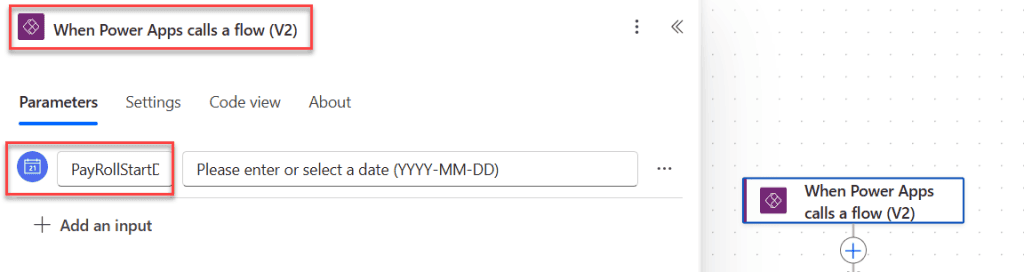
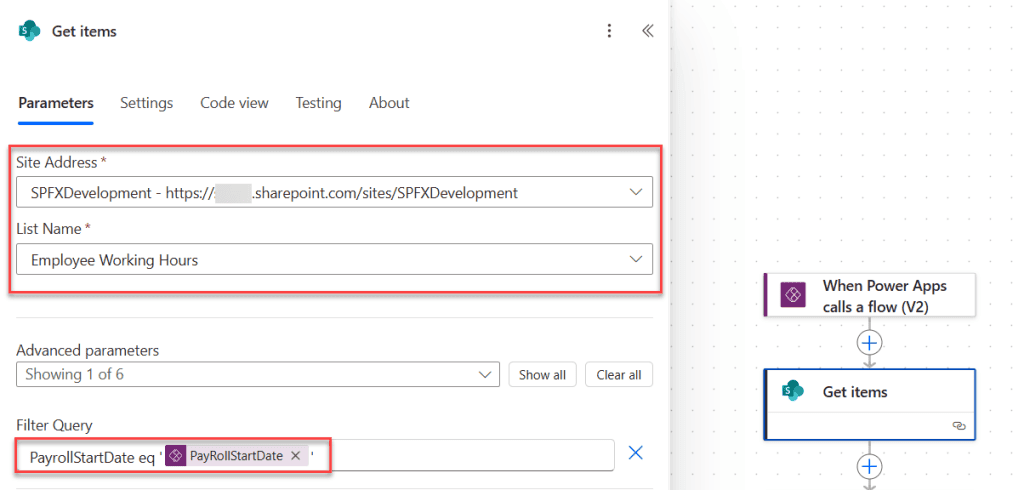
- Next, we retrieve the employee records for the selected payroll period. Add the action: Get Items (SharePoint). Configure:
- Site Address – Your SharePoint site
- List Name – Employee Working Hours
Now we add a Filter Query to return only the records for the selected payroll start date.
PayrollStartDate eq '@{triggerBody()['PayrollStartDate']}'This ensures the flow only retrieves the employee records that belong to the selected payroll period.
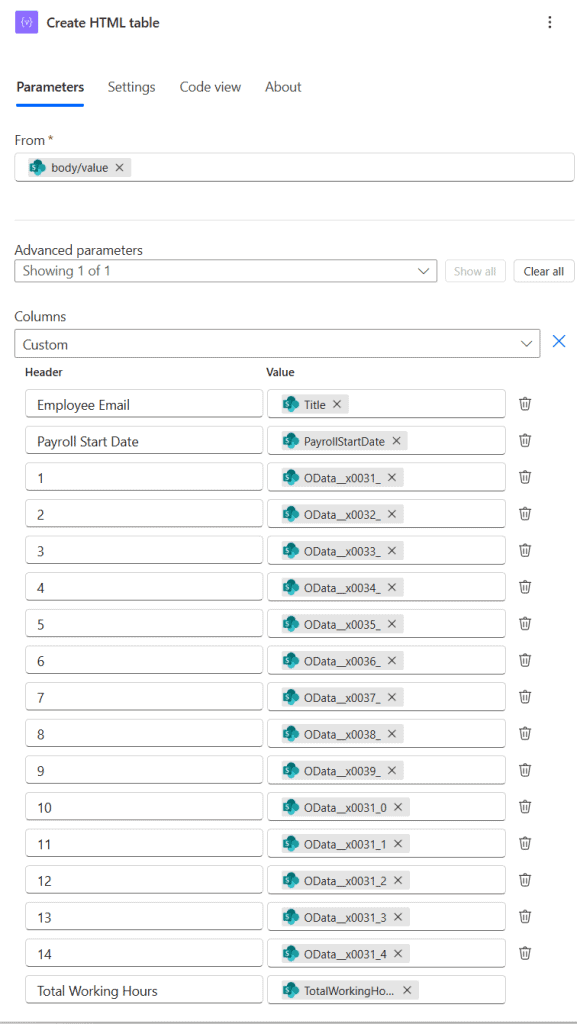
- Now that we have the filtered SharePoint data, we can convert it into a table. Add the action: Create HTML Table. Set:
- From → Value from Get Items
Then choose Custom Columns and define the columns you want in the report. Power Automate will automatically convert these records into a clean HTML table.
- To apply styles for this table, add a Compose action and provide the styles below in the Inputs parameter. In the end, add the output of the Create HTML table output.
<div style="overflow-x:auto; width:100%;">
<style>
table{
border-collapse:collapse;
min-width:1200px;
font-family:Segoe UI;
}

th{
background-color:rgba(102,102,102,1);
color:white;
padding:10px;
border:1px solid #d1d1d1;
text-align:center;
}

td{
padding:8px;
border:1px solid #d1d1d1;
text-align:center;
}

tr:nth-child(even){
background-color:#f5f5f5;
}
</style>


@{body('Create_HTML_table')}
</div>- Finally, we need to send the report to the finance manager. Add the action: Send an Email (V2). Configure it like this:
- To Finance Manager Email
- Subject
- Body: You can write something simple, like in the image.
Insert the Compose action output into the email body.
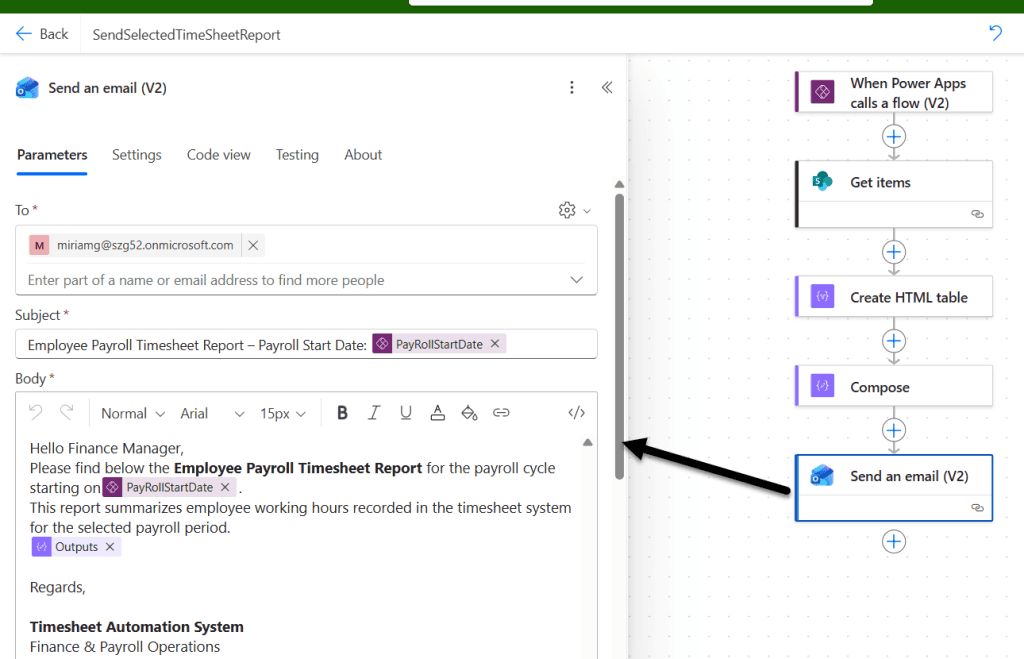
When the flow runs, the email will include the full table report.
Conclusion
I hope you found this article helpful. In this article, we learned how to dynamically generate payroll start dates in Power Apps, filter employee working hours based on the selected payroll period, and then generate a report with a single button click. The report displays the employee working hours in a table format and sends it through email, making it easy for finance or admin teams to review the data.
If you are also looking to generate reports dynamically from Power Apps and send them by email using Power Automate, you can follow the steps explained in this blog post. If you face any issues while implementing this solution, feel free to leave a comment, and I’ll be happy to help.
Also, you may like:
- Create an HTML Table from an Array in Power Automate + Formatting
- Add Excel Table into HTML Email Body using Power Automate Desktop
- Power Automate Send Reminder Emails
- A Best Way to Embed GIFs into Outlook Email & Teams Messages Using Power Automate

Preeti Sahu is an expert in Power Apps and has over six years of experience working with SharePoint Online and the Power Platform. She is the co-author of Microsoft Power Platform: A Deep Dive book. As a Power Platform developer, she has worked on developing various tools using Power Apps and Power Automate. She also makes Microsoft 365 videos and shares them on YouTube.

