
The first budget tracker I built in Power Apps looked fine in testing, until the finance manager opened it. Every amount was a long run of digits, such as 1250000 and 87500.5, and they had to count the zeros to tell a million from a hundred thousand. Their exact words were that it looked like a database, not a finance app.
Power Apps doesn’t add thousand separators or fixed decimal places on its own, but one function fixes it: Text(). In this tutorial, I’ll show you the formats I use most, how to keep them consistent for people in different countries, and how to save the plain number back to SharePoint.
Quick answer: Use the Text() function with a format string, for example Text(1250000, "#,##0.00"), which shows 1,250,000.00. Add a dollar sign with "$#,##0.00". To make the result the same for everyone, whatever their device’s language, start the format with a language tag: Text(ThisItem.Budget, "[$-en-US]$#,##0.00"). Convert text back to a number with Value() before saving it.
How the Text() function formats numbers
Text() turns a number into text, using a format string that describes how it should look. If you’ve used custom number formats in Excel, it will feel familiar. Microsoft’s Text function reference lists all the placeholders, but four of them cover nearly everything:
| Placeholder | What it does |
|---|---|
0 | Always shows a digit, adding zeros if needed. Use it after the decimal point for a fixed number of decimals. |
# | Shows a digit only if it’s significant, so leading and trailing zeros are dropped. |
, | Between digit placeholders, adds a thousands separator every three digits. |
. | Marks the decimal point. |
The difference between 0 and # matters more than it looks. Because # never shows insignificant zeros, a format like "#,###" shows nothing at all for a value of 0. That’s why I end the whole-number part with a zero, as in "#,##0", so zero is displayed as 0.
Format a number with commas (no decimals)
For counts and whole amounts, you only need the thousands separator. This formula shows 1,500,000:
Text(1500000, "#,###")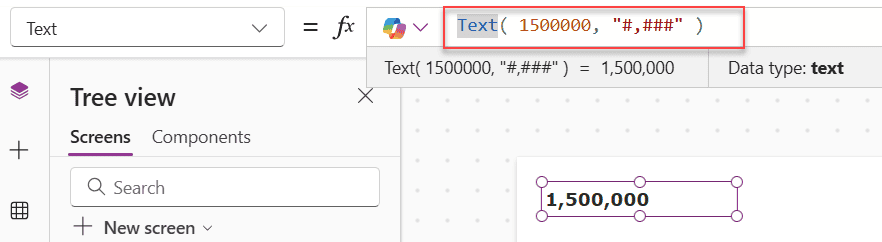
You’d normally use it in a label’s Text property, pointing at a column instead of a fixed number, for example Text(ThisItem.TotalSales, "#,##0") in a gallery.
Format a number with commas and two decimal places
This is the format most finance apps need. Adding .00 forces exactly two decimal places:
Text(1250000, "#,###.00")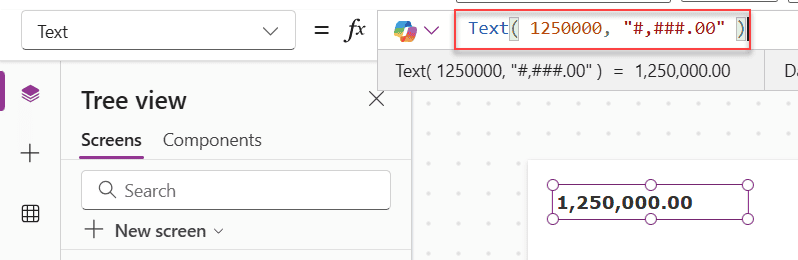
The result is 1,250,000.00, and 1250000.5 becomes 1,250,000.50. If you used # after the decimal point instead, whole numbers would lose their decimals, and a column of amounts wouldn’t line up. Here’s how the common formats compare:
| Formula | Result |
|---|---|
Text(5000, "#,##0.00") | 5,000.00 |
Text(5000.5, "#,##0.00") | 5,000.50 |
Text(1234567.89, "#,##0.00") | 1,234,567.89 |
Text(0, "#,##0.00") | 0.00 |
Add a dollar sign
To show an amount as currency, put the symbol at the start of the format string:
Text(1250, "$#,###.00")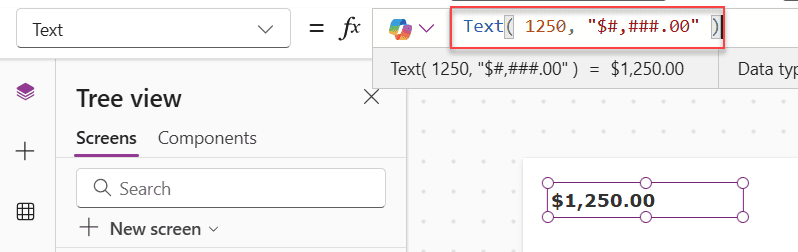
The result is $1,250.00. Keep in mind that the symbol is just text in the format; it doesn’t convert the amount from another currency.
Keep the format the same for every user
This is the part that catches people out once an app is shared across countries. By default, Text() uses the language of the person’s device, and different languages use different separators: 1,250,000.00 in the United States, but 1.250.000,00 in Germany. So the same formula can look different for two people.
To fix the format, put a language tag at the start of the format string. The tag tells Power Apps how to read the separators in your format, and an optional third argument decides the language of the result. This formula always gives the US format, whoever opens the app:
Text(1250000, "[$-en-US]#,##0.00")And if an app really does need the German format, you write the format with German separators, tag it as de-DE, and ask for a German result:
Text(1250000, "[$-de-DE]#.###,00", "de-DE")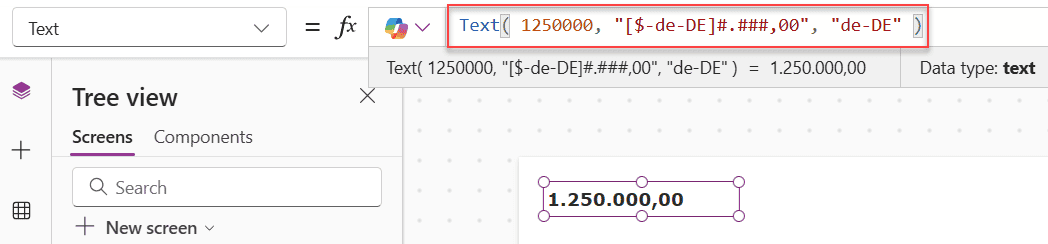
The result is 1.250.000,00. Microsoft’s own example in the Text reference does the same for French. One limit to be aware of is that the thousands separator always groups digits in threes; Text() doesn’t support other grouping patterns.
Show formatted numbers from SharePoint
With SharePoint, I keep the number as a plain Number column in the list and only format it when it’s displayed. In a gallery, set the label’s Text property like this:
Text(ThisItem.Budget, "[$-en-US]$#,##0.00")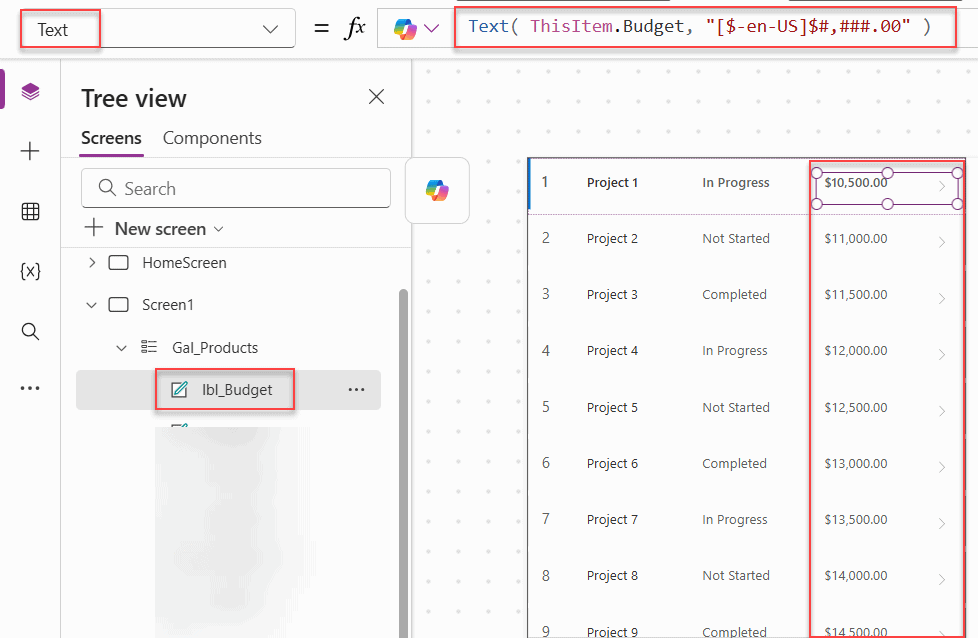
In a display form, the same idea works in the card’s label: Text(Parent.Default, "[$-en-US]$#,##0.00"). Formatting in the app rather than in the data means SharePoint still sorts, filters and totals the values correctly.
Format a number as people type it
Formatting a text input while someone is editing is trickier, because the input holds text, not a number. The approach I use is to store the formatted value in a variable when the person leaves the field, and show that variable in the input. Set the input’s OnChange property to:
Set(
    varBudget,
    Text(Value(txtBudget.Text), "[$-en-US]$#,##0.00")
)
Then set the same input’s Default property to varBudget. When someone types 87500 and moves on, the field shows $87,500.00. Using the variable as the go-between is what avoids a circular reference; don’t point Default at the input’s own text.
If you use the modern Number input control instead, note that it keeps the value as a number and lets you choose up to three decimal places through its Precision property, but it doesn’t display thousand separators or currency symbols (Number input reference). For those, show a formatted label next to it.
Save the number back to SharePoint
Whatever you display, SharePoint’s Number column needs a number, not text such as “$87,500.00”. Value() converts it back, and it understands the currency symbol and separators of the language, so you don’t need to strip the dollar sign first (Value function reference):
Patch(
    Projects,
    galProjects.Selected,
    { ProjectBudget: Value(txtBudget.Text) }
)
If your app uses a language tag in Text(), it’s safest to give Value() the same language as a second argument, for example Value(txtBudget.Text, "en-US"), so it reads the separators the same way.
Quick reference
| What you want | Format string | Example result |
|---|---|---|
| Thousands separator | "#,##0" | 1,250,000 |
| Two decimal places | "#,##0.00" | 1,250,000.00 |
| One decimal place | "#,##0.0" | 1,250,000.5 |
| US dollars | "$#,##0.00" | $1,250.00 |
| US format for every user | "[$-en-US]$#,##0.00" | $1,250.00 |
| Three decimal places | "#,##0.000" | 1,250.500 |
| Leading zero for small values | "0.00" | 0.75 |
Common mistakes
The most common one is doing maths on the output of Text(). Text() returns text, so adding two formatted values fails or gives odd results; do the calculation on the numbers first and format the final result.
The second is forgetting the language tag in an app used in several countries, and then getting reports that amounts look wrong for some people. And the third is using # where you need 0: it drops the zeros you wanted to show, including a plain 0.
These Power Apps tutorials go well with number formatting:
- Auto Format Phone Number in Power Apps Form [###-###-####]
- Power Apps Form field validation on submit [Email, Phone Number, Date & Text]
- 2 Best Methods to Create a Simple Form in Power Apps [Step-by-Step]
- How to set default value in Power Apps data card?
- How to Update SharePoint List Item Using Power Apps Patch Function?
- Power Apps Display Mode: A Complete Guide (With Real Examples)
Frequently Asked Questions
How do I format a number with commas in Power Apps?
Use the Text function with a thousands separator in the format, for example Text(1500000, “#,##0”), which shows 1,500,000.
How do I show two decimal places in Power Apps?
Use 0 after the decimal point in the format, for example Text(ThisItem.Budget, “#,##0.00”). The 0 placeholders force two decimals, even for whole numbers.
How do I format a number as dollars in Power Apps?
Add the dollar sign to the format string: Text(1250, “$#,##0.00”) shows $1,250.00. Add [$-en-US] at the start to keep the format the same for every user.
Why does my number format look different for some users?
Text uses the language of each person’s device by default, and languages use different separators. Start the format with a language tag such as [$-en-US] to fix it.
How do I convert a formatted number back to a number in Power Apps?
Use Value, for example Value(“$87,500.00”). It understands the currency symbol and separators of the language, so you can save the result to a SharePoint Number column.

Preeti Sahu is a Microsoft MVP for Power Apps with over six years of experience working with SharePoint Online and the Power Platform. She is the co-author of the book Microsoft Power Platform: A Deep Dive. As a Power Platform developer, she has built various tools with Power Apps and Power Automate, and she makes Microsoft 365 videos for YouTube.