
Here’s something that catches almost every Power Apps beginner off guard: there’s no single, clean button that says “get the last item.” You have to build the logic yourself — and once you understand why, it actually makes a lot of sense.
In this tutorial, I’ll walk you through every practical method to get the last item from a SharePoint list in Power Apps. Whether you want the most recently added record, the last item submitted by the current user, or the last ID after a Patch operation, I’ve got you covered.
Why You Can’t Just Use Power Apps Last()
Let me start with the most common mistake people make.
Power Apps does have a Last() function. It exists. You can write Last('Your List') and it will appear to work. But here’s the catch — and this is important — Last() is a non-delegable function when working with SharePoint as your data source.
What does that mean? Power Apps loads only the first 500 (or up to 2000) records from a SharePoint list at a time. The Last() function then runs on that local chunk — not on the full list. So if your SharePoint list has 3,000 items, Last('Your List') returns the last item from the first 500 that were loaded, not the actual last item in the list.
You’ll even get a delegation warning (that little yellow triangle) in the formula bar telling you something’s off.
Get the Last Item in a SharePoint List Using Power Apps
So what do we do instead? You’ll see in the 5 methods below.
Method 1: Power Apps First() + SortByColumns() — The Recommended Way
This is the cleanest, most reliable method. The idea is simple: instead of asking for the last item, you flip the list upside down and ask for the first item.
Here’s the formula:
First(
    SortByColumns(
        'Your SharePoint List',
        "ID",
        SortOrder.Descending
    )
)
How it works:
SortByColumnssorts your SharePoint list by the ID column in descending order — so the newest item (highest ID) sits at the topFirst()grabs that top record- Because
SortByColumnsis delegable with SharePoint, and this works correctly even on lists with tens of thousands of items
Practical example: Say you want to show the title of the most recently added item in a label. Set the label’s Text property to:
First(
    SortByColumns(
        'Leave Requests',
        "ID",
        SortOrder.Descending
    )
).Title
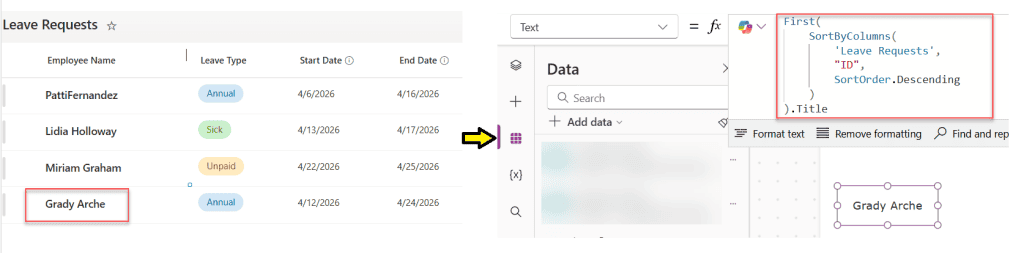
Done. That label will always show the title of the last item in your list.
Check out Power Apps Nested IF Examples
Method 2: Using LastSubmit After a Patch or SubmitForm in Power Apps
This one is specifically for when you (or a user) just added a new record, and you immediately want to reference it — for example, to pass the new item’s ID to the next screen.
When a user submits a form using SubmitForm(), Power Apps stores the last submitted record in a built-in property called LastSubmit. You can access it like this:
Form1.LastSubmit.ID
Or if you used the Patch() function directly, you can capture the result in a variable:
Set(
    varLastPatch,
    Patch(
        'Project Requests',
        Defaults('Project Requests'),
        {Title: "New Request"}
    )
)
After this run, varLastPatch.ID gives you the ID of the record that was just created.
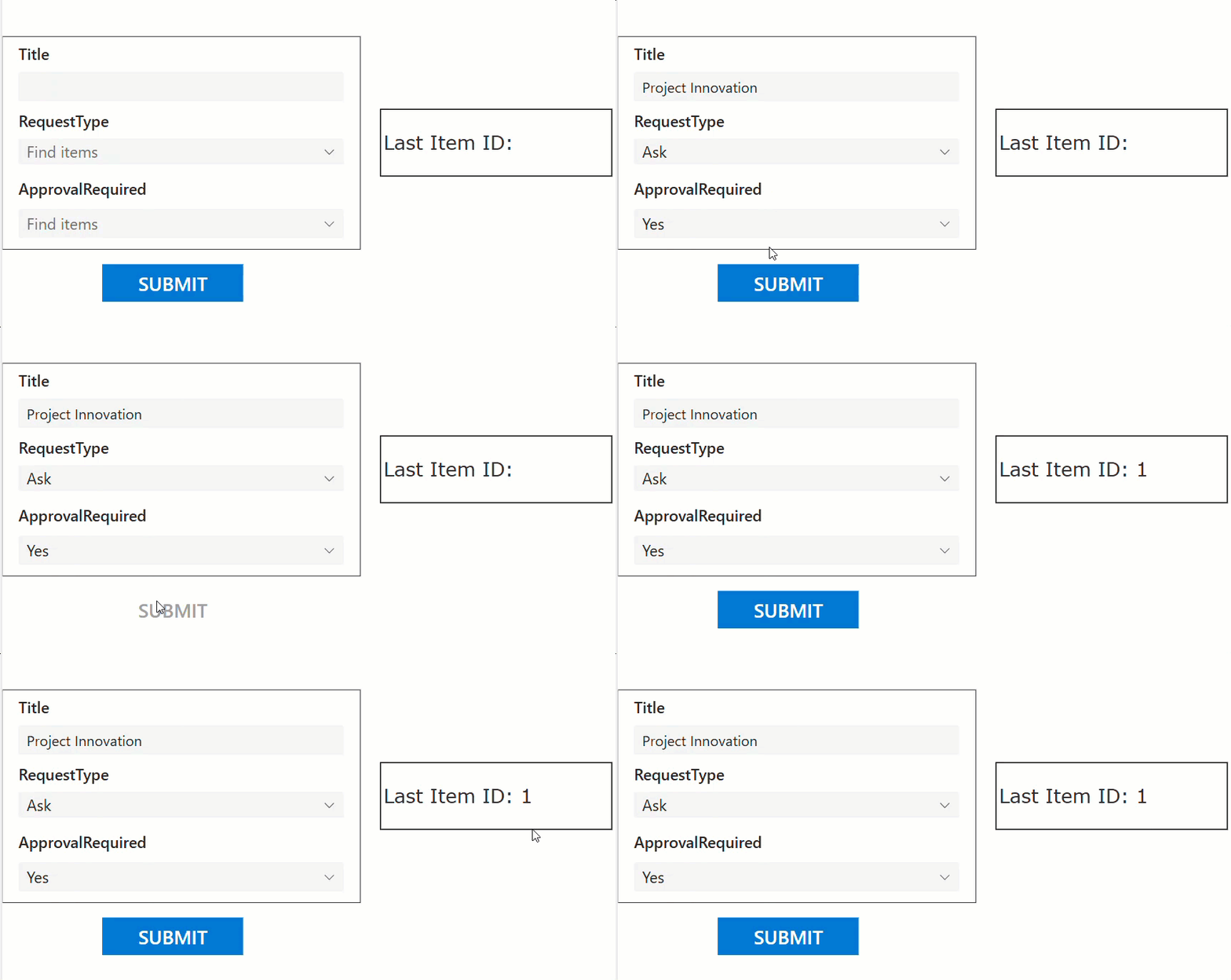
When to use this:
- You want to navigate to a detail screen right after submission and display that new record
- You need to create a parent-child relationship where the parent ID is needed immediately
- You want to show a confirmation message with the record number
This is great because it doesn’t rely on sorting — it captures the reference at the moment of creation, so it’s always accurate.
Method 3: Get Last Item for the Current User in Power Apps
Now let’s level things up. What if your SharePoint list contains records from many users, and you only want to retrieve the most recent item submitted by the currently logged-in user?
The LastSubmit function won’t help here because it only tracks the most recent submission from the current session, not historical data from previous logins.
Here’s the approach that works. First, in your App’s OnStart property, load the list into a collection, and capture the current user’s name:
OnStart =
    ClearCollect(colListData, 'IT Service Ticket');
    Set(varCurrentUser, User().FullName)
Then, wherever you want to display that user’s last item (for example, on the Item property of a Display Form), use:
First(
    Sort(
        Filter(
            colListData,
            Title = varCurrentUser
        ),
        ID,
        SortOrder.Descending
    )
)
Breaking this down step by step:
Filter()narrows the collection to only the rows where the title matches the current userSort()orders those filtered results by ID, newest firstFirst()picks the top record — which is the current user’s most recent submission
This pattern is incredibly useful in request management apps, IT ticketing systems, leave applications, or any scenario where each person has their own history of submissions.
Method 4: Get the Last Item with a Condition in Power Apps
Sometimes you need the last item that meets a specific condition — say, the most recent record with a status of “Pending” or “Approved.”
You can combine Filter() and SortByColumns() to handle this:
First(
    SortByColumns(
        Filter(
            'Project Requests',
            Status.Value = "Pending"
        ),
        "ID",
        SortOrder.Descending
    )
)
This filters the list to only “Pending” records, sorts them by ID in descending order, then picks the first one — effectively giving you the most recent pending item.
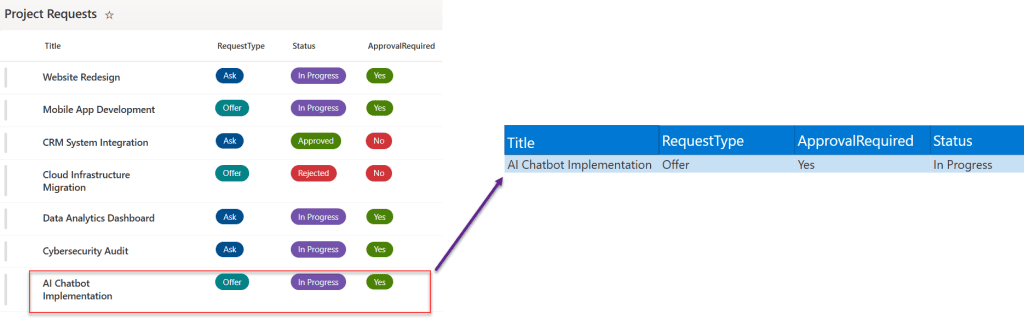
A practical use case: imagine a manager’s dashboard where you want to highlight the latest unresolved ticket. This formula drops right into a display form or label to automatically pull that record.
Method 5: Get the Next Available ID in Power Apps
This is a popular use case — you want to auto-generate a sequential reference number (like a ticket number) by finding the highest existing ID and adding 1.
Here’s the formula:
Sum(
    First(
        SortByColumns(
            'Project Requests',
            "ID",
            SortOrder.Descending
        )
    ).ID,
    1
)
This gets the ID of the last item and adds 1 to it. You can store this in a variable or display it directly in a label as a “Next Ticket Number.”
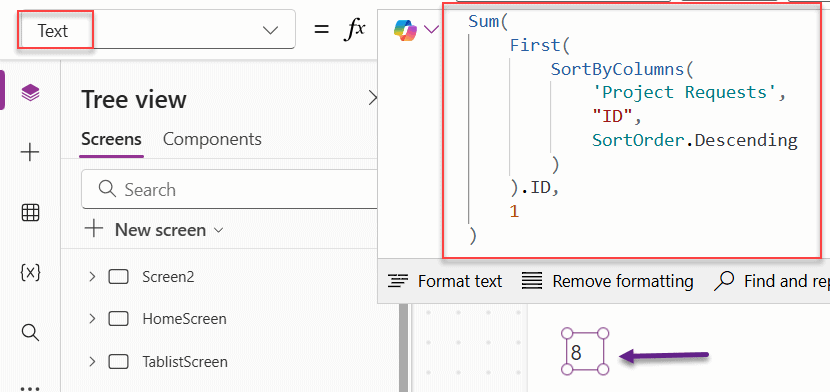
One small note: SharePoint IDs are auto-incremented and they don’t recycle deleted IDs. So if item 50 was deleted, the next new item might be 51, not 50. Keep this in mind if you’re using IDs for external reference numbers — you may want a separate custom column instead.
Quick Formula Reference
Here’s a cheat sheet of all the formulas covered:
| Goal | Formula |
|---|---|
| Get the last item (entire list) | First(SortByColumns('List', "ID", SortOrder.Descending)) |
| Get a specific field from last item | First(SortByColumns('List', "ID", SortOrder.Descending)).FieldName |
| Get last item just submitted | Form1.LastSubmit or store Patch result in a variable |
| Get last item for current user | First(Sort(Filter(colData, Title = varCurrentUser), ID, SortOrder.Descending)) |
| Get last item matching a condition | First(SortByColumns(Filter('List', Column = "Value"), "ID", SortOrder.Descending)) |
| Calculate next ID | Sum(First(SortByColumns('List', "ID", SortOrder.Descending)).ID, 1) |
A Few Things to Keep in Mind
- Always prefer SortByColumns over Sort when working directly with SharePoint as your data source —
SortByColumnsis delegable,Sortis not. If your list is large and you useSortdirectly on the data source, you may get wrong results. - Use collections for complex filtering — if you’re running multiple filters and sorts on the same data, load the list into a collection with
ClearCollect()inOnStartfirst. This avoids multiple delegation issues and improves performance. - Test with a large list — your formula might look right with 10 items, but always test with more data to make sure delegation isn’t silently cutting off records.
Conclusion
I hope you found this article helpful. In this post, I explained how to get the last item from a SharePoint list in Power Apps using simple methods.
At first, it might feel a bit tricky to figure out the right approach, especially when it comes to sorting and filtering. But once you understand how it works, it becomes pretty straightforward.
You can use functions like sorting and selecting the last record based on your requirement. Just make sure your data is sorted correctly so you always get the right item.
Try this in your own app and see how it works. Once you use it a few times, it will become very easy to handle.
Also, you may like:
- Last Function in Power Apps
- Environment Variables in Power Apps
- Power Apps Nested IF Examples
- Concurrent Function in Power Apps – Load Data Faster with Parallel Execution
- Power Apps Month() Function

After working for more than 18 years in Microsoft technologies like SharePoint, Microsoft 365, and Power Platform (Power Apps, Power Automate, and Power BI), I thought will share my SharePoint expertise knowledge with the world. Our audiences are from the United States, Canada, the United Kingdom, Australia, New Zealand, etc. For my expertise knowledge and SharePoint tutorials, Microsoft has been awarded a Microsoft SharePoint MVP (12 times). I have also worked in companies like HP, TCS, KPIT, etc.

