
Someone recently asked me how to get a month from a specific selected date in Power Apps. I searched for information about this and found that Power Apps provides a valuable function called the Month() function.
In this article, I will explain the Power Apps Month() function, how to use Month() function in the canvas app, and many more like:
- Power Apps calculate the number of days in a month
- Get the current and previous N month names in Power Apps
- Get the first day of the month in Power Apps
- Power Apps add months from start date to get the end date
Power Apps Month() Function
Power Apps Month() function allows you to work efficiently with dates and extract the month from a specific date.
This function typically falls within the range of 1 to 12, representing the number of the month like Jan=1, Feb=2, Mar=3, etc. The syntax of the Month function is mentioned below:
Month( DateTime )Now, let us check how to utilize this function in different scenarios:
Get Month from Selected date in PowerApps
Let’s check how to display the month number from a selected date in Power Apps.
Example:
The Power Apps screen has a Date-picker control and a Text label control. When the user selects a date from the date-picker as “03/28/2025,” the text label will display only the month number as 3 [from the user-provided date], as shown below:
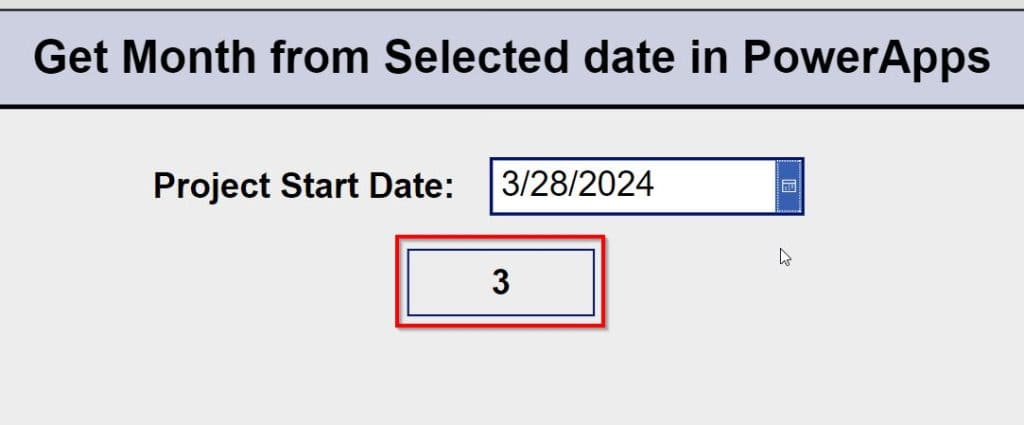
Follow the below steps to achieve this:
- Select the Text label and set its Text property as:
Month(dte_ProjectStartDate.SelectedDate)Where,
- dte_ProjectStartDate = Date-picker control name

- Once the app is ready, Save, Publish, and Preview it. The text label will display the month from the date selected in the date picker.

This is how we can get the month from the selected date in Power Apps.
Power Apps calculate the number of days in a month
Here, let us check how to calculate the number of days in a month in Power Apps.
Example:
The Power Apps screen has a Date picker control and Text label. Whenever the user selects a date from the date-picker, the text label displays the remaining days of the month except for Sundays.

Let me show you how to achieve it:
- Select the Text label -> Set its Text property to:
With(
    {
        StartDate: Date(
            Year(dte_CalMonthDays.SelectedDate),
            Month(dte_CalMonthDays.SelectedDate),
            1
        ),
        LastDate: DateAdd(
            DateAdd(
                Date(
                    Year(dte_CalMonthDays.SelectedDate),
                    Month(dte_CalMonthDays.SelectedDate),
                    1
                ),
                1,
                TimeUnit.Months
            ),
            -1,
            TimeUnit.Days
        )
    },
    If(
        StartDate = LastDate,
        Sum(
            If(
                Weekday(StartDate) = 1,
                0,
                1
            )
        ),
        Sum(
            ForAll(
                Sequence(
                    DateDiff(
                        StartDate,
                        LastDate,
                        TimeUnit.Days
                    ),
                    0,
                    1
                ),
                If(
                    Weekday(
                        DateAdd(
                            StartDate,
                            Value
                        )
                    ) = 1,
                    {DayCount: 0},
                    {DayCount: 1}
                )
            ),
            DayCount
        )
    )
)
Where,
- dte_CalMonthDays = Date-picker control name

- Save, Publish, and Preview the app. The text label will display the number of days in a month from the date selected in the date picker.

Power Apps Get Current and Previous N Month Names
In this section, let us check how to get the current and previous month’s names in Power Apps.
Example:
I have a scenario where I need to add the dropdown values as the current month’s name and the last month’s name, as shown below:

Follow the below steps to achieve this:
- On the Power Apps screen, insert a Dropdown control -> Set its Items property to:
ForAll([Today(),DateAdd(Today(),1,TimeUnit.Months)],
    {
        MonthNumber: Month(Value),
        MonthName: Text(Value,"mmmm")
    }
)
- Save, Publish, and Preview the app. Now, the dropdown values will be bound to the current month’s name and the previous month’s name, as shown below:

Power Apps get the first day of the month
Let us check how to get the first day of the month in Power Apps.
Example:
I have added a date picker control to the Power Apps screen that displays the month’s first day as the default date.

Follow the below steps to achieve this:
- On the Power Apps screen, insert a Date-picker control -> Set its DefaultDate property to:
Date(Year(Now()),Month(Now()),1)
- Save, Publish, and Reload the app. The date-picker will display the first day of the month as a default date, as shown below:

Add months from start date to get the end date in Power Apps
Let us check how to add months from the start date to get the end date in Power Apps.
Example:
I needed to create a Power Apps form for tracking Project information. When the user completes the form and specifies the month of the project, the end date will automatically populate based on the start date and project period provided.

For that, I have created a SharePoint list [ACGH Project Details] with various columns like:
| Column Name | Data type |
|---|---|
| Project ID | Title |
| Project Name | Single line of text |
| Manager/ Team Lead | Person or group |
| Project Period | Choice [“3,” “6,” “9,” “12,” “18”] |
| Project Start Date | Date and time |
| Project End Date | Date and time |

I have added an Edit form connected to the above SharePoint list on the Power Apps screen. Upon entering the project period and start date, the project end date will be automatically determined based on the start date and the provided project period.

Follow the below steps to achieve this:
- On the Power Apps screen, insert an Edit form -> Set its DataSource property to:
'ACGH Project Details'Where,
- ‘ACGH Project Details‘ = SharePoint list name

- Select the Project Period combo box -> Set its OnSelect property to:
Set(
    varEndDate,
    DateAdd(
        DataCardValue12.SelectedDate,
        Value(DataCardValue11.Selected.Value),
        TimeUnit.Months
    )
)
Where,
- varEndDate = Provide the variable name.
- DataCardValue12 = Date-picker control name [Project Start Date.]
- DataCardValue11 = Combo box control name [Project Period.]

- Select the Date picker [Project End Date] -> Set its DefaultDate property to:
varEndDate 
- Once the app is ready, save, publish, and preview it. When the user provides the project period and project start date, the project end date will be automatically selected based on the start date and the provided project period, as shown below:

I completed my requirement by adding months from the project start date to get the end date in Power Apps.
Conclusion
This Power Apps tutorial helped you understand the Power Apps Month Function, its syntax, and different scenarios, such as getting a month from a selected date in Power Apps, calculating the number of days in a month, and more.
Some more Power Apps article you may also like:
- Power Apps Year() Function
- Power Apps Lower, Upper, and Proper Function
- Set Combo Box Default Value in Power Apps
- Bind Power Apps Text Input Values to a Dropdown Control

Preeti Sahu is an expert in Power Apps and has over six years of experience working with SharePoint Online and the Power Platform. She is the co-author of Microsoft Power Platform: A Deep Dive book. As a Power Platform developer, she has worked on developing various tools using Power Apps and Power Automate. She also makes Microsoft 365 videos and shares them on YouTube.

