
Kevin Brooks from our Denver office sent me a screenshot last Tuesday with one line of text: “SharePoint broke again, can you look?” The picture showed an error page, cropped right above the long string of letters and numbers that mattered.
Most people treat that string as an error code and search for it. That never works, because it’s unique to one request at one moment.
In this tutorial, I’ll explain what a sharepoint correlation id is, where to find it on error pages, in the browser and in Power Automate, and what to send so the problem can be traced.
Quick answer: A correlation ID is a GUID that SharePoint gives every request. On a Sorry, something went wrong page, select Technical Details and copy the Correlation ID and Date and Time. With no error page, open the browser’s developer tools (F12), select Network, reload, pick the page request and read SPRequestGuid under Response Headers. Send the ID and time to your SharePoint admin.
What is a SharePoint correlation ID?
A correlation ID is a GUID (a 32-character globally unique identifier) that SharePoint creates automatically for every request it receives. It’s not an error code; successful requests get one too.
Think of it as a tracking number. It doesn’t say what went wrong, but it ties together every log line written for your request, so someone with log access can find it among thousands.
That’s also why searching the web for it is pointless: nobody else has your ID. If you’re stuck on the error page itself, my guide to the Sorry, something went wrong error in SharePoint covers the usual fixes.
Where to find the correlation ID on an error page
When SharePoint hits an error it can’t explain, it shows Sorry, something went wrong with a short message, such as List does not exist, and a collapsed Technical Details link.
- Select Technical Details under the message.
- Copy the Correlation ID line.
- Copy the Date and Time line right under it.
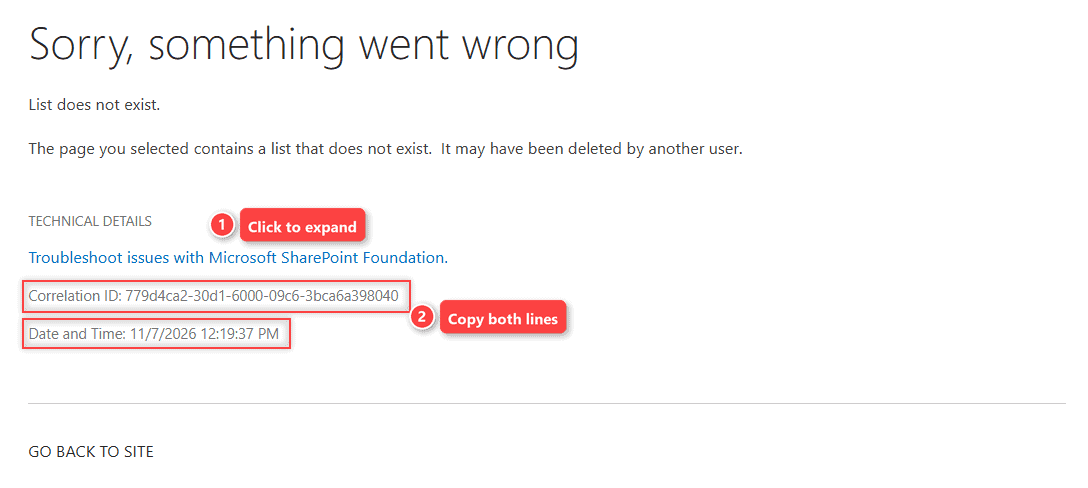
Read the short message first; it often names the cause. A view that returns too many items, for example, points to one of the SharePoint limits and boundaries.
Important: the time on that page follows the site’s regional time zone, not yours. My site uses Pacific Time, so the error above, which I hit at 2:19 PM in Chicago, shows 12:19:37 PM. Name the time zone when you pass it on.
How to find the correlation ID when there’s no error page
Some problems never show an error: a page loads slowly or a web part stays blank. The ID still exists, because SharePoint sends it back in a response header with every request.
- In Edge or Chrome, press F12 (or Ctrl+Shift+I).
- Select the Network tab and reload the page.
- Select the first request in the list, the page itself (for example Home.aspx or AllItems.aspx).
- Under Headers, scroll to Response Headers and copy the SPRequestGuid value.
On our EnjoySharePoint site, every response carried SPRequestGuid and request-id with the same value; either one is the ID. A successful and a failed request, one second apart:
GET /_api/web                                  -> 200 OK
SPRequestGuid: b0994ca2-20f8-6000-046b-f13784ea9b1a
request-id:    b0994ca2-20f8-6000-046b-f13784ea9b1a

GET /_api/web/lists/getbytitle('ESP Missing List') -> 404 Not Found
SPRequestGuid: b1994ca2-f002-6000-09c6-36619b3c698c
request-id:    b1994ca2-f002-6000-09c6-36619b3c698c
How to get the correlation ID from a failed Power Automate flow
In a flow, the ID is right in the failure message. My demo flow, ESP Correlation ID Demo, reads a list that doesn’t exist.
- Open the flow’s run history and select the failed run.
- Select the failed SharePoint action, here Send an HTTP request to SharePoint.
- Copy the serviceRequestId at the end of the red error message. That’s SharePoint’s correlation ID; clientRequestId is Power Automate’s own ID.
- To double-check, scroll the action’s outputs to headers: x-ms-request-id holds the same value.
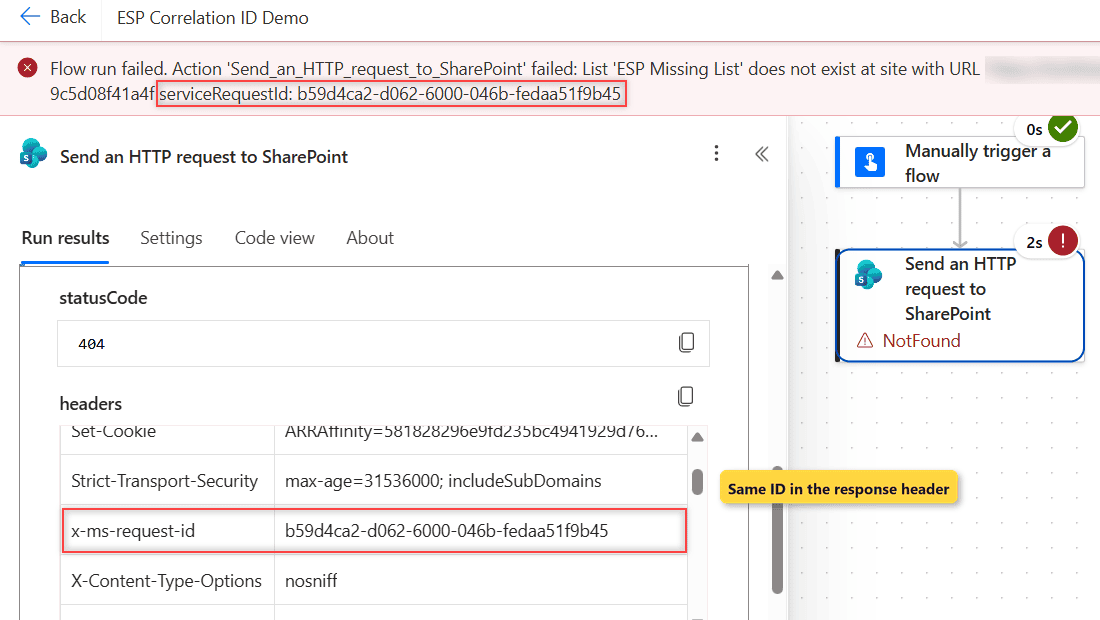
To capture it automatically, add a Scope with a has failed run-after branch, as I explain in my guide to error handling in Power Automate, and log the error message to a list.
What to send along with the correlation ID
An ID on its own isn’t enough; the person reading the logs needs to know when and where to look. I send these together:
Correlation ID: b1994ca2-f002-6000-09c6-36619b3c698c
Date and time:  11/7/2026 11:13 AM Pacific (site time zone)
Page or flow:   https://<tenant>.sharepoint.com/sites/EnjoySharePoint/Lists/...
What I did:     Opened the ESP Missing List view from the site navigation
If only one person sees the error, it’s often a permission issue, and checking the SharePoint list permissions for that user can solve it before anyone opens a ticket.
Who can actually use the correlation ID?
In SharePoint Online, nobody in your organization can read the logs the ID points to, not even a global admin. Microsoft keeps them:
| Environment | Who looks it up | How |
|---|---|---|
| SharePoint Online (Microsoft 365) | Microsoft support engineers | Your admin opens a support request and pastes the ID and time |
| SharePoint Server 2016, 2019, Subscription Edition | Your farm admin | Searches the ULS (Unified Logging System) logs, for example with ULSViewer |
For SharePoint Online, a Microsoft 365 admin goes to the admin center, selects Help & support, describes the issue, and then selects Contact Support to request a call or email. Check Health > Service health first; an active incident explains more than any ID.
On SharePoint Server, each server keeps its own logs, so the admin may search several web front ends. Intermittent errors, like the Server is Busy Now error, often need that.
Common mistakes with correlation IDs and how to fix them
- Sending only a screenshot. Support can’t copy text from an image. Paste the ID as text and attach the shot as extra proof.
- Sending an ID from a later attempt. Every retry creates a new ID. Send the one from the attempt you describe, with its own time.
- Waiting a week. Logs aren’t kept forever. Report the ID the same day you see it.
- No Technical Details link at all. Some modern pages show a friendly error without one. Use the developer tools method to read SPRequestGuid instead.
Kevin now sends the ID, time and page link as text, and our last ticket closed the same afternoon.
If you’re chasing other SharePoint errors, these guides help:
Frequently Asked Questions
What is a correlation ID in SharePoint?
A unique GUID SharePoint assigns to every request. It doesn’t describe the error; it lets someone with log access find that request’s log entries. Microsoft explains it in SharePoint Correlation ID in error messages.
Can I look up a SharePoint Online correlation ID myself?
No. Tenants can’t read SharePoint Online’s server logs. Your admin sends the ID and time to Microsoft support.
Is SPRequestGuid the same as the correlation ID?
Yes. SPRequestGuid is the response header that carries the correlation ID. In SharePoint Online, the request-id header holds the same value, and Power Automate shows it as serviceRequestId.
How do I find a correlation ID in SharePoint Server logs?
Farm admins search the ULS logs on each web front end for the time of the error, using ULSViewer or the Merge-SPLogFile cmdlet, for example:Merge-SPLogFile -Path "D:\Logs\Error.log" -Correlation "<id>" -StartTime "11/7/2026 11:00" -EndTime "11/7/2026 11:30"

I have worked with Microsoft technologies for more than 18 years, including SharePoint, Microsoft 365 and the Power Platform (Power Apps, Power Automate and Power BI), at companies like HP, TCS and KPIT. I started EnjoySharePoint in 2011 to share the solutions I build in real projects with readers in the United States, Canada, the United Kingdom, Australia, New Zealand and beyond. Microsoft has recognized this work with the Microsoft MVP award 13 times since 2014.