
In this Power Automate tutorial, I have explained how to initialize a variable in Power Automate and how to initialize a float variable in Power Automate. While working with Power Automate, you need to work with variables in Power Automate, and we need to initialize different types of variables.
Variable in Power Automate
A variable in Power Automate temporarily stores the data with different data types such as String, Integer, Boolean, float, array, or object.
When we initialize a new variable in Power Automate, we can see the three parameters as explained below:
| Name | Variable Name |
| Type | Variable Data Type like Sting, Integer, Float, Array, etc. |
| Value | Variable Value |
Variable types in Power Automate
Here is a summary of the variable types in Power Automate.
| Boolean | Boolean data type accepts the true or false values. |
| Integer | Integer data type accepts only the numerical data type i.e. 1,2,3 etc |
| Float | Float data type accepts decimal numerical values like i.e. 75.25, 77.13, etc. |
| String | String data type accepts text values like Power Platforms, Power Automate, etc. |
| Object | Object type includes the pair of properties and values in JSON format. |
| Array | The array type contains the list of objects with the same data type. |
In the screenshot below, you can see that the Power Automate different variable types are highlighted.

The following will discuss how to initialize variables in a Power Automate flow. In particular, we will see an example of a string variable in Power Automate.
How to Initialize A Variable in Power Automate
Let us see how to initialize a string variable in a Power Automate flow.
In this example, we will create an instant cloud flow that will trigger manually. In that flow, we will then initialize a variable and assign value to the initialized variable.
- Select the + create flow and click on the Instant cloud flow. Enter the flow name, choose the trigger as Manually trigger a flow, and click on the create option as displayed below:

- Once the flow has been created, click the + Add step to add action and initialize the variable in Power Automate. Then, enter the variable name, variable type (I have chosen as String), and variable value as highlighted below:

- Now, we will add another step to add a compose action to get the output from the initialized input variable value. In the compose action input value, we cannot change the value assigned to the variable.

- Save the flow, then Select Test-> Manualluy and choose Run Flow as below:

- Once the Flow has been run, we can see the expected output in the compose action with the initialized input variable value.

This is how to initialize a variable manually by entering the Value of the String data type.
How to initialize a variable in apply to each in Power Automate
I will show how to initialize a variable in apply to each in Power Automate.
Now, we will create a list of arrays in power Automate and then add apply to each control action to loop through the array, and we will store the array items to a SharePoint list.
Create an instant cloud flow or create a Manually triggered Flow. Then click on the Next step and Select the Initialize variable, set the variable name, choose the type as an array, and add the array values like the below array.

- Select Apply to each action to loop each array item. Then, in the value set, the varArray from the dynamic content.
- Add an action inside the loop and select Create an item to add an array of items in the SharePoint List
- Add the site address and SharePoint list name, and in the title, select the current item of the Apply to each from the dynamic content.

- Next, click on Save and run the Flow manually; once your flow runs successfully
- After the flow ran successfully, we can see that the SharePoint list creates a list item from the array to the list.

Initialize a String Variable in Power Automate
Let us see how to initialize a String Variable in Power Automate with an example.
I had a requirement to display data from the SharePoint list, which is of String data type. So here, we will initialize the String Variable type and then display the data from the SharePoint list in Power Automate.
So here I have created a SharePoint list called EmployeeList, shown below, consisting of different columns called,
- FirstName
- Last Name
- Employee Code
- Designation

To achieve this, follow the below steps:
- Login into the Power Automate flow, select the + create flow, and click on the Automated cloud flow.
- Enter the flow name and choose the trigger as When an item is created or modified and click on the create option as highlighted below:

- Then, we will add an action to initialize the variable, i.e., initialize the variable.
- Once initialized, we will enter the variable name, choose the string variable type, and add the dynamic content value in the value section.
- Name– Variable Name (VarName)
- Type– Variable Data type (String)
- Value– Add the dynamic content Variable Value (Title, LastName)
Here Title value contains the FirstName value. We have renamed the Title column name to FirstName in the SharePoint List. So, while passing the dynamic content value, we must add the default Site column name, Title, and LastName.

We will add a compose action to get the output from the input of the initialized variable, which consists of the title value and last name.

- Save the flow, select the Test option, then choose Manually, and click Test.
- I have created a new list item in the SharePoint list, as highlighted below so that the Power Automate flow will trigger.

- Once the Power Automate flow has been triggered, we can see the expected output from the SharePoint List as below:

This is how to initialize a String Variable in Power Automate flow with an example.
Power Automate Initializes String Variable – Another Example
Initializing a string variable means creating a string variable and assigning an initial or empty value to it. Here, I have taken a SharePoint List, which consists of different columns of different data types, as shown below.
| Column | Data Type |
| Title -> Employee Name | Single line of text |
| EMP ID | Single line of text |
| Employee Joining Date | Date and Time |
| Employee Email ID | Single line of text |
Here, I wanted to send an email to the employee who recently joined the organization. For this, I have created a Power Automate automated cloud flow that gets triggered whenever a new employee detail is added to the SharePoint list.
So, I have added an action (Initialize variable) to initialize a string variable named “EmailContent” with a welcome message. Then, I will add an action (Send an email) and construct the email message by combining the initialized variable with dynamic content. And then add an action (Send an email) to send an email to the new employee.
Let’s see how to initialize the string variable in Power Automate. To achieve this, follow the steps below.
- Navigate to the Power Automate home page and click + Create -> Select the Automated cloud flow under Start from blank.
- Then, provide the flow name and choose the flow’s trigger inside the Build an automated cloud flow tab -> Click on the Create button.

- Once the trigger (when an item is created or modified) is added, enter the required fields such as.
- Site Address: Provide or select the Site Address you are using.
- List Name: Select the SharePoint list where you want to implement.
- Limit Columns by View: Set the limit to the columns by viewing -> Click on + New step.

- Now, add an action (Initialize variable) then enter the values for the required fields.
- Name: Here, provide the variable name.
- Type: Select the type of variable based on the example.
- Value: Enter the value to initialize the string variable. I have entered the value ‘Welcome to Pinnacle Trust Group family! We are excited to have you on board.’ -> Click on + New step.

- Similarly, add an action (Send an email V2). Configure the email by inserting the required value, as shown below.
- To: Insert the recipient’s email address to whom you want to send an email.
- Subject: Enter the subject of why you sent this email or what is the purpose of this email.
- Body: Enter the message about the subject briefly -> Click on the Save button.

- A message is displayed once the flow is saved: “Your flow is ready to go. We recommend you test it” -> Click on Test, then inside the Test flow tab, select Manually. Now click on the Test button -> Open a SharePoint list and add a new employee detail to whom you want to send an email.

- Then a message is displayed that “Your flow ran successfully”. Now you can see the person I have sent the email to received the email containing the Initialized string variable’s value.

This is how to initialize string variables in Power Automate.
Reset A String Variable in Power Automate
Set Variable action is used to create or update a variable within the workflow. Variables are temporary storage containers that allow you to store and manipulate data.
Here, I will use a SharePoint list that consists of different columns of different data types as listed below. To do this, I will combine the Employee Name with the EMP Unique ID to get the Employee User Name in the SharePoint list.
| Column | Data Type |
| Title -> Employee Name | Single line of text |
| EMP ID | Single line of text |
| Employee User Name | Single line of text |
| Employee Joining Date | Date and Time |
In this section, I will show you how to ensure each employee gets a unique username when joining the company. To do this, we are going to reset a string variable.
For this, I have created a Power Automate automated cloud flow that gets triggered when an item is created in SharePoint. Then, add an action (Set a Variable) and enter the required fields’ value.
- Name: Select the name from the dropdown, same as the Initialized string variable name.
- Value: I have inserted values by combining two Dynamic content to get the Employee User Name.
After the string variable is reset, add an action Update item to update the Employee User Name using the output of the Set variable action.
Let’s see how to reset the string variable in Power Automate.
- Add an action (Initialize variable) by following the steps from the previous section. Then, provide values for all the required fields, such as.
- Name: Enter the name for the initialized variable.
- Type: Select the type for the initialized variable.
- Value: Select the value for the initialized variable. Here, I have used Dynamic content to insert Employee Name as value (i.e.Title column renamed as Employee Name in SharePoint list). Then click on + New step.

- Similarly, add an action (Set Variable) to reset the EmployeeUserName string variable’s value by combining two Dynamic content values (EMP Unique ID and Title (i.e. Employee Name)). Then click on the Save button as shown below.

- Now add an action Update item in SharePoint using the output of the set variable action and enter the value for the required fields as shown below.
- Site Address: Here, provide the site address of your SharePoint Site.
- List Name: Select the SharePoint list where it will be implemented.
- Id: Provide list item Id. Use this value for specifying the item to act on in other list-related action
- Title: Select the title of the SharePoint list.
- Employee User Name: Here, I have used the output of the set variable action to update the SharePoint column using Power Automate automated cloud flow -> Click on the Save button.

- Once the flow gets saved message is displayed “Your flow is ready to go. We recommend you test it”. Then click on Test and inside the Test flow tab, select Manually -> Click on Test -> Then open a SharePoint list and add a new employee detail in the SharePoint list.

- Now you can see a message is displayed: “Your flow ran successfully”. Then click and expand Initialize variable action and Set variable action to see the Initialized variable value and Set variable value as shown below.

- Then open your SharePoint list, and you can see that the SharePoint Employee User Name column gets updated as shown below.

This is how to reset a string variable in Power Automate.
Clear String Variable using Null in Power Automate
In Power Automate, Clear String Variable using Null action is used to reset or clear the value of a string variable to ensure that it contains no text or data.
For this, I am using a SharePoint list consisting of columns of different data types as shown below.
| Column | Data Type |
| Title -> Employee Name | Single line of text |
| Reason | Multiple lines of text |
| Start Date | Date and Time |
| End Date | Date and Time |
I wanted to set the variable value to null if the employee mistakenly left the Reason column in the SharePoint list blank. For this, I will create a Power Automate automated cloud flow that gets triggered when an item is created in SharePoint.
Then, add an action (Initialize variable), and initially, the value of the Initialized variable is kept as On hold. Now, add an action (Condition) to check if the Reason column is equal to null. Similarly, add an action (Set variable) and set the other parameter as null to see the Output as null.
Let’s see how to clear a string variable using null in Power Automate. To do this, follow the steps below.
- Go to Build an Automated Cloud Flow using the previous section steps, enter the Flow name, and Choose the flow’s trigger (When an item is created). Once the trigger is added, enter all the required fields as shown below.

- Add an action (Initialize variable) and enter all the fields such as
- Name: Provide the name of the Initialize variable.
- Type: Here, select the type of the initialized variable.
- Value: Enter the value based on your scenario -> Then click on + New step as shown below.

- Then, add an action (Condition) to check if the Reason column in SharePoint is equal to null. If yes then add an action (Set variable) and enter the required fields, such as
- Name: Provide the same name as the Initialize variable action.
- Value: Here, I have entered an expression for null -> Then click on the Save button.
null
- Once the flow gets saved, then a message is displayed, “Your flow is ready to go. We recommend you test it” -> Click on Test, and inside the Test flow tab, select Manually -> Click on the Test button.
- Open a SharePoint list and add a new item. Then, you can see the item added to the SharePoint list. The Reason column is left blank as shown below.

- After the item is added to a SharePoint list, you can see a message displayed “Your flow ran successfully”. Then click Condition -> Click on the If yes part to see the output below.

This is how to clear a string variable in Power Automate using null.
Initialize String Variable to empty in Power Automate
Let us see how to initialize a string variable to empty in Power Automate.
In this example, we will create an instant cloud flow to trigger a flow manually and then initialize the variable type string empty.
- Select the + Create flow and click on the Instant cloud flow.
- Enter the flow name, choose the trigger as Manually trigger a flow, and click on the create option as displayed below:

- Once the flow has been created, click the + Add step to add action and initialize the variable in the Power Automate flow.
- Then enter the variable name, choose the variable type as String, and the variable as null value as displayed below:

- Now, we will add another step to add a compose action to get the output from the initialized input variable value.

- In the compose action input value, we cannot change the value assigned to the variable.
- Save and Test the Power Automate flow and Run flow.
The screenshot below shows that the value is empty and the variable type is a string, as expected.

This is how to initialize a String Variable to empty in Power Automate.
Initialize String Variable Array in Power Automate
Here, we will see how to initialize the variable with the string Array type in Power Automate.
In this example, we will initialize the string array to display the first name and last name values in the array format of string data type in the SharePoint list. For example, If it is of string array, then the array looks like [a,b,c..]
Step:1
- Once the Power Automated flow has been created, select an action to initialize the variable with the string data type in an array format as displayed below:
- Enter the name and type of the variable as a string, and in the values field, add the dynamic content values to get values from the SharePoint List.

After initializing the String variable in an array format, add a compose action to retrieve string values in an array data values from the SharePoint list on Power Automate.

- To run the Power Automate flow, select the Test option, choose Manually, and click the Save & Test option.
- Here, I will modify the existing SharePoint list item as shown below so that the Power Automate flow will trigger.

- Once the Power automation flow is triggered and runs, we can see the string values in the array format from the SharePoint list in the compose output section as below:

This is how to initialize the variable with the string Array type in Power Automate.
Initialize Float Variable in Power Automate
To initialize a float variable in Power Automate, I will take an instant cloud flow that is triggered manually by the user. Once the flow triggers, users can enter values, and then inside the flow, I will show you how to initialize a float variable.
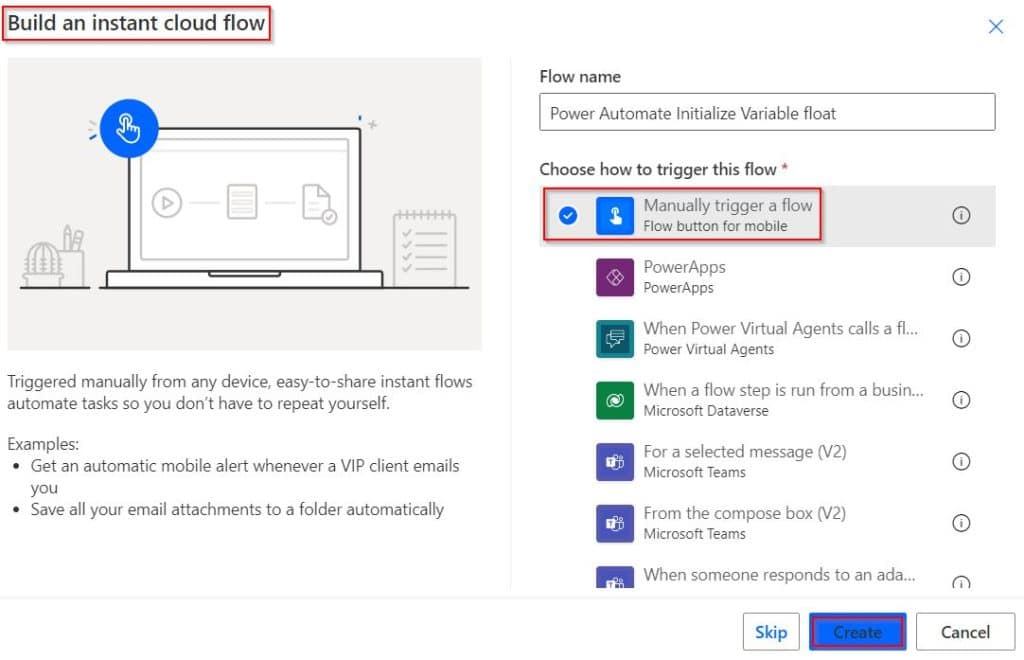
1. Open the https://make.powerautomate.com and sign in with your credentials. Then from the home page, click on + Create from the left navigation. The choose “Instant cloud flow” template. Then enter a flow name and also choose the trigger as “Manually trigger a flow” like below:
2. Next, add the “Initialize variable” flow action to it and provide the details below:
- Name: VarFloat
- Type: Float
- Value: 78.235

3. This is how to initialize a float variable in Power Automate. And now if you try to get the value of the variable, then you can add a Compose action and assign the variable name as Inputs like below:

4. Now, when you Save the flow and run the flow, you can see the float value is displaying from the variable in the compose action.

This is one way of initializing a flow data type by providing a float value to a variable in Power Automate.
We can also assign a dynamic float value to a variable in Power Automate. See the example below:
1. Here, after I created the instant cloud flow, I added an input box. Choose the type of user input by selecting +Add an input and then select the Number variable type.

2. Now add the +new step and select the initialized variable to enter the variable name, choose the variable type as Float, and in the value section, pass a dynamic value.

3. Now, we will add the Compose action to see the output value from the initialized variable. Click on the Save button to save the flow:

4. Select the Test-> Manually test-> Run flow as below:

The Screenshot below displays the expected output value in the compose action as highlighted:

Initialize Integer Variable in Power Automate
- One of the variable datatypes in Power Automate flow is an Integer data type. When we initialize a variable with an integer variable type, it accepts the Whole number value that can be positive, negative, or zero.
- When we initialize a variable with integer type, it accepts only the Single Parameter in the value section. It will not accept multiple values.
In the following example, we will see how to initialize a variable Integer in Power Automate flow.
Let us see how we can initialize a variable Integer in the Power Automate flow.
Example-1:
In this example, we will use two integer values as input values to calculate the previous month and current month sales values, and add then we will initialize a variable to add the previous month’s and current month’s sales values.
Create an instant cloud flow, select the trigger as manually trigger a flow, and click on the create option.

- Expand the Manually trigger flow, and choose the type of user input by selecting +Add an input and select the Number variable type.

- Now add the +new step, select the initialized variable to enter the variable name, choose the variable type as Integer, and in the value section, pass the dynamic value.
- In this example, I have added a Current Month’s sales value. In the same way, initialize another variable to get the Previous Month’s Salesvalue as below:

Now, we will add the compose action, to add the two sale values using the add function from the initialized variable to get output.
add(variables('VarInt1'),variables('VarInt2'))Where,
- add -> Function name
- VarInt1,VarInt2 -> Initialized Variables names

- Save and Test the Power Automate flow and then Run the flow automatically.
- In the screenshot below, in the compose action, you can see it displays the addition of the current month sales value and the previous month’s sales value, as highlighted below:

This is how to initialize the variable Integer in Power Automate flow.
Example:2
In the same way, in this example, we will subtract the initialized variable’s values with the type of Integer in Power Automate flow.
- Select the created Power Automate instant cloud flow, expand the trigger action, select Add an input ->, and then choose the input type as a Number.
- Enter the Name and pass the numeric value in the value section as highlighted below:

- Now add the +new step and select the initialize variable, then enter the variable name and choose the variable type as Integer. In the value section, pass the dynamic value for the Generator age.
- Similarly, add the dynamic value for the Generator Warranty Period with the variable type as an Integer.

- Select the compose action to calculate the remaining generator warranty period in years, enter the below expression click update or ok option.
sub(variables('Generator Warranty Period'),variables('Generator Age'))Where,
- sub -> Function name
- Generator Warranty Period,Generator Age -> Initialized Variables names

- In the below screenshot, we can see that the compose action displays the remaining generator warranty period as below:

This is another example of initializing an integer variable in Power Automate flow.
Power Automate Boolean Variable
The boolean variable type in Power Automate has two possible results: true or false. It produces a boolean value that is either true or false depending on the condition that was applied.
How to initialize boolean variable using Power Automate
Let us see how to initialize a Boolean Variable in Power Automate with an example.
- In this example, I have created a Yes/No column in the SharePoint list (Task List)as below.
- And if the initialized variable is equal to the true value, it returns the true else it returns the false value.

- When the Power Automate flow has been created, select an action to initialize the variable in a Boolean format as displayed below:
- Fill in the variable name (VarBool) and choose the type of the variable as Boolean.
- Add the dynamic content value for the newly added column from the SharePoint list in the Value field.

- Now we will implement the action flow logic by selecting the plus sign (+New Step). Search and select the Condition action from the list of actions and apply the condition.
- If the initialized variable is equal to True then it executes to the “If Yes” action, else it executes to the “IF No” action.
VarBool is equal to TrueWhere,
- VarBool is an initialized variable name
- is equal to an operator name
- True is a function name.

- Test and Run the Power Automate flow, If the created item or a modified item consists of a yes value, it returns true or false.
- So here, I have modified the highlighted list item, which consists of the Yes value.

- Once the Power Automate flow has run, we can see that it returns the true expression because the modified item consists of a yes value in the Screenshot below:

This is how to initialize a Boolean Variable in Power Automate flow.
Power Automate initialize Boolean Variable false
Here, we will see how to initialize a Boolean Variable false in Power Automate.
In this example, we will choose the variable type as boolean and modify the SharePoint list item consisting of No value. And if the initialized variable is equal to the true value, it returns the true; else, it returns the false value.
- Select Power Automate flow has been created to select an action to initialize the variable in a Boolean format, as displayed below:
- Enter the variable name and choose the variable type as boolean, and in the values field, add the dynamic content value for the newly added (Yes/No) column.
Select the (+New Step) to add the condition action, If the initialized variable is equal to False, then it executes the “If NO” action, it executes the “IFYes” action.
VarBool is equal to falseWhere,
- VarBool is an initialized variable name
- is equal to an operator name
- False is a function name.

- Test and Run the Power Automate flow; if the created or modified item consists of a yes value, it returns true or false.
- So, I have modified the highlighted list item, which consists of the No value.

- The screenshot below shows that it returns the boolean type as a true value and the expression as a false value based on the condition value because the modified item consists of a No value.

This is how to initialize Boolean Variable false in Power Automate.
In this Power Automate tutorial, we discussed what variables are in Power Automate and how to initialize a string variable in Power Automate. And also we saw how to initialize a variable in apply to each in Power Automate.
You may also like:

Preeti Sahu is an expert in Power Apps and has over six years of experience working with SharePoint Online and the Power Platform. She is the co-author of Microsoft Power Platform: A Deep Dive book. As a Power Platform developer, she has worked on developing various tools using Power Apps and Power Automate. She also makes Microsoft 365 videos and shares them on YouTube.

