
In this tutorial, I will show you how to create dynamic hyperlinks in Power Automate to make your workflows more efficient and interactive. We’ll cover two examples: first, sending an email notification with a hyperlink to a SharePoint list item, and second, generating a dynamic link to a blog post based on its title.
Create Hyperlink using Dynamic Content in Power Automate
Now follow the two examples to create hyperlinks using dynamic content in Power Automate:
Example -1: [SharePoint List Item Update Notification with a Hyperlink]
Imagine you have a SharePoint list called Project Tracker, where you track the progress of various projects. The list includes the below column with data types.
| Column | Data Types |
|---|---|
| Project ID | Single line of text |
| Project Name | Single line of text |
| Description | Multiple lines of text |
| Project Manager | Person or Group |
| Start Date | Date and time |
| End Date | Date and time |
| Status | Choice |
| Priority | Choice |
| Budget | Currency |
| Attachments | Hyperlink |

I want to send an email notification to the project manager whenever the status of a project is updated. The email should include the updated status and a hyperlink to the specific project item in the SharePoint list.
To do this, follow the below steps:
1. Create an automated cloud flow. Give the flow name and select the trigger When an item is created or modified. Also, provide the Site Address and Library Name.

2. Add an Initialize Variable action and provide the below parameters:
- Name: Provide name as varLink.
- Type: Select the type as String.
- Value: Provide below HTML code:
<a href='@{triggerBody()?['{Link}']}'>View Project</a>Replace @{triggerBody()?[‘{Link}’]} with the dynamic content that provides the URL of the specific list item (usually called Link to item in Power Automate).

3. Next, add a Send an email (V2) action and Provide below parameters to send the email to the project manager:
- To: Provide the manager’s email address from dynamic content.
- Subject: Provide the below:
Status Update: Project @{triggerBody()?['ProjectName']} is now @{triggerBody()?['Status/Value']}- Body: Set the Email Body to HTML mode and provide below:
<p class="editor-paragraph">Hello,</p><br>
<p class="editor-paragraph">The status of the project "@{triggerBody()?['ProjectName']}" has been updated to
    "@{triggerBody()?['Status/Value']}".</p><br>
<p class="editor-paragraph">Click the link below to view the project details:<br>@{variables('varLink')}<br></p><br>
<p class="editor-paragraph">Best regards,<br>Your Team</p><br>
Save the flow and run it manually. Once the flow starts, go to the SharePoint list, add an item, or update the status column.

After the flow runs successfully, the project manager will receive an email notification.

Example – 2: [Share a Dynamic Link to the Article “Create Hyperlink Dynamic Content in Power Automate”]
Imagine you want to send an email with a dynamic hyperlink to the specific blog post titled Create Hyperlink Dynamic Content in Power Automate on EnjoySharePoint. Instead of hardcoding the link, you’ll dynamically generate it using the blog title.
The article’s format will follow:
https://www.enjoysharepoint.com/<formatted-title>/For example, if the blog title is Create Hyperlink Dynamic Content in Power Automate, the final URL will be:
https://www.enjoysharepoint.com/create-hyperlink-dynamic-content-in-power-automate/To do this, follow the below steps:
1. In the Power Automate, click the Instant Cloud flow, enter the Flow name, and choose the trigger flow (i.e., manually trigger a flow).
Next, Add a Text Input field to capture the blog title.

2. Add an Initialize Variable action and provide the below parameters:
- Name: varFormattedTitle.
- Type: Select String.
- Value: Provide the below expression to format the blog title:
toLower(replace(replace(triggerBody()['text'], ' ', '-'), ',', ''))This expression will Convert the title to lowercase and Replace spaces with hyphens (-) for URL formatting, then Remove commas or special characters for a clean URL.

3. Add a Compose action and provide the below formula in the Inputs field to create the full URL:
https://www.enjoysharepoint.com/@{variables('varFormattedTitle')}/
4. Add the Send an Email (V2) action from Outlook and provide below parameters:
- To: Recipient’s email address.
- Subject: Check Out This Article: @{triggerBody()?[‘text’]}
- Body: Switch to HTML mode using the toggle button and use the below template:
<p class="editor-paragraph">Hello,</p><br><p class="editor-paragraph">We’ve published a new blog post titled "@{triggerBody()?['text']}".</p><p class="editor-paragraph">Click the link below to read it:</p><p class="editor-paragraph"><a href="@{outputs('Compose')}" class="editor-link">Read Now</a></p><br><p class="editor-paragraph">Best regards,</p><p class="editor-paragraph">The EnjoySharePoint Team</p>
Save and Test the flow. Enter the Blog title, then click on the Run flow:

Once the flow runs successfully, check the Recipient’s email address, then you will see the email:
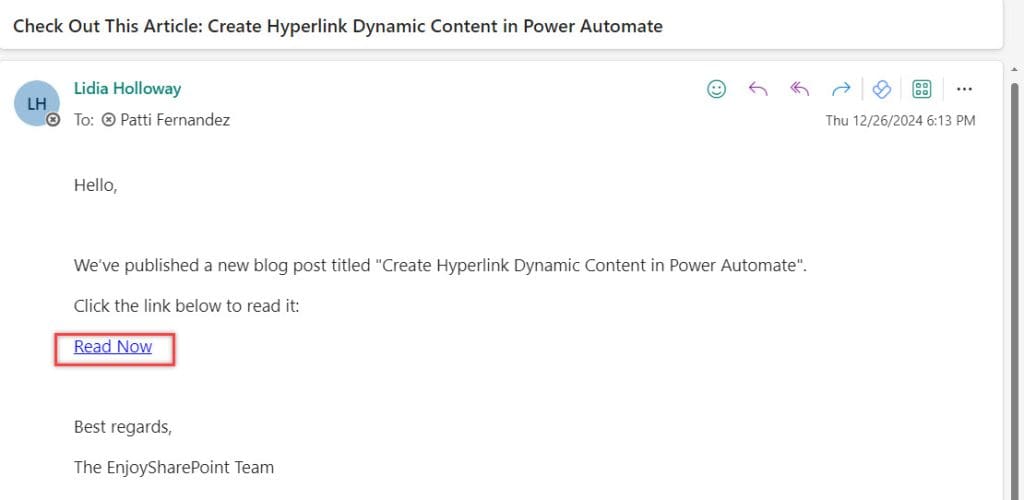
When you click that link, the blog post will open.
Conclusion
This tutorial explored two practical examples of creating hyperlinks using dynamic content in Power Automate. First, we learned how to send an email notification with a hyperlink to a SharePoint list item, specifically for a “Project Tracker” list, whenever the status is updated. Second, we showed how to generate a dynamic hyperlink for a blog post by formatting the title and sending it via email, linking directly to the article on EnjoySharePoint.
You may also like:
- Merge Arrays in Power Automate
- Check if an Item Exists in a SharePoint list Using Power Automate
- Use Append to String Variable Action in Power Automate
- Best Ways to Add Hyperlinks to SharePoint List Items Using Power Automate
- Send Emails to Multiple Recipients from a SharePoint List Using Power Automate

After working for more than 18 years in Microsoft technologies like SharePoint, Microsoft 365, and Power Platform (Power Apps, Power Automate, and Power BI), I thought will share my SharePoint expertise knowledge with the world. Our audiences are from the United States, Canada, the United Kingdom, Australia, New Zealand, etc. For my expertise knowledge and SharePoint tutorials, Microsoft has been awarded a Microsoft SharePoint MVP (12 times). I have also worked in companies like HP, TCS, KPIT, etc.

