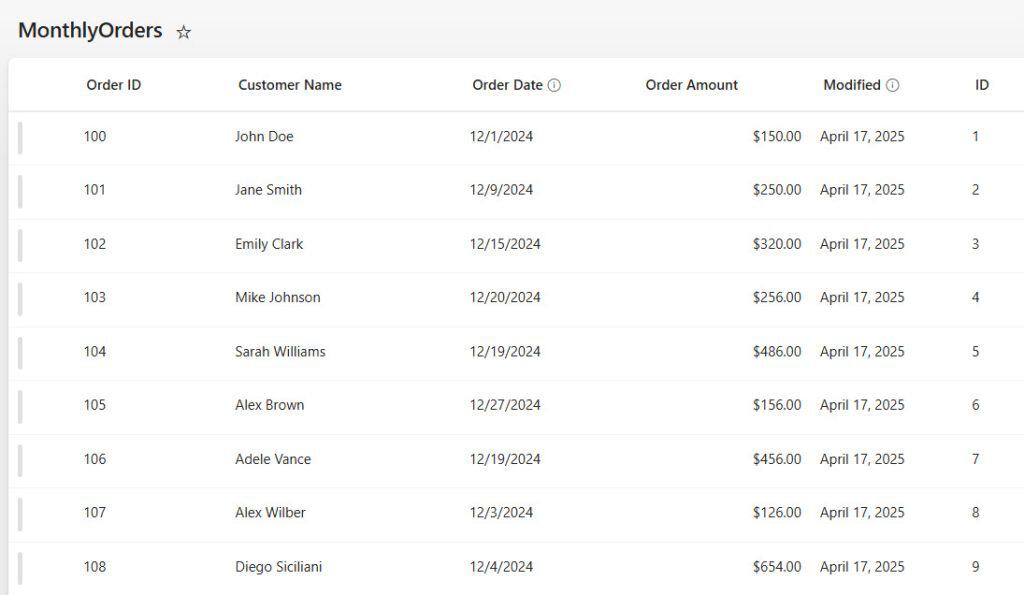
You’ve built a SharePoint list, it’s grown to a few hundred rows, and now you need to pull that row count inside a Power Automate flow — maybe to send a daily summary, trigger logic based on how many items exist, or just track how full a list is getting.
The good news: there are two solid ways to do this. The not-so-obvious news: one of them silently gives you the wrong answer if your list has more than 5,000 items. I’ll show you both methods, tell you exactly when to use which, and point out the gotcha before it bites you.
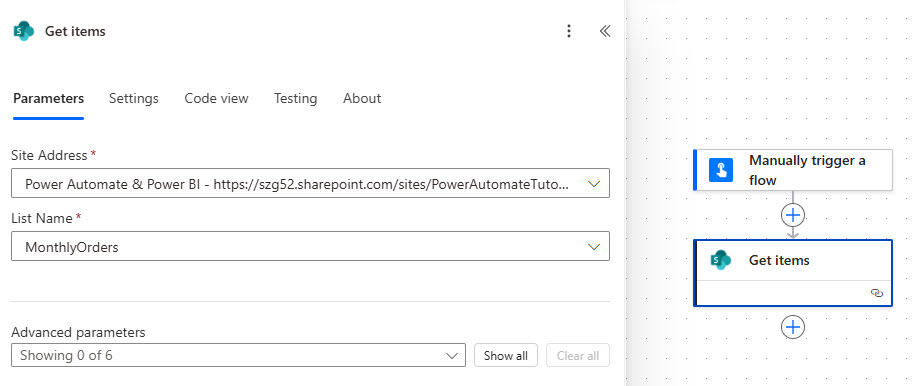
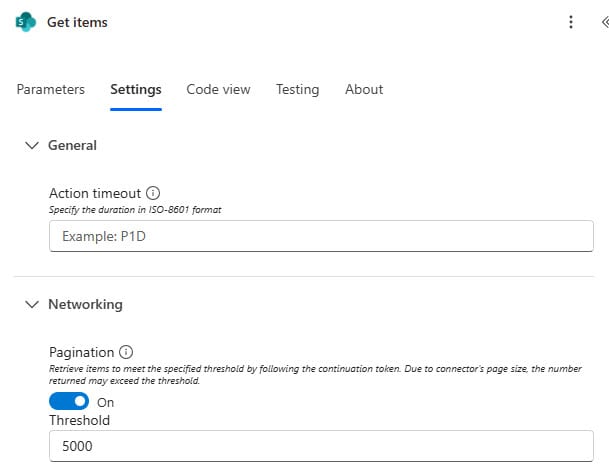
Important — read this before you move on: By default, Get Items only returns 100 rows, even if your list has 500. To count all rows accurately with this method, go into the action’s Settings (click the three dots → Settings), turn on Pagination, and set the Threshold to 5000. This tells Power Automate to keep fetching until it has up to 5,000 items.
If your list has more than 5,000 rows, stop here and use Method 2 instead. The length() approach cannot go beyond 5,000 — even with pagination enabled. You won’t get an error; you’ll just get a count of 5,000 when the real number might be 8,000. Method 2 handles this correctly.
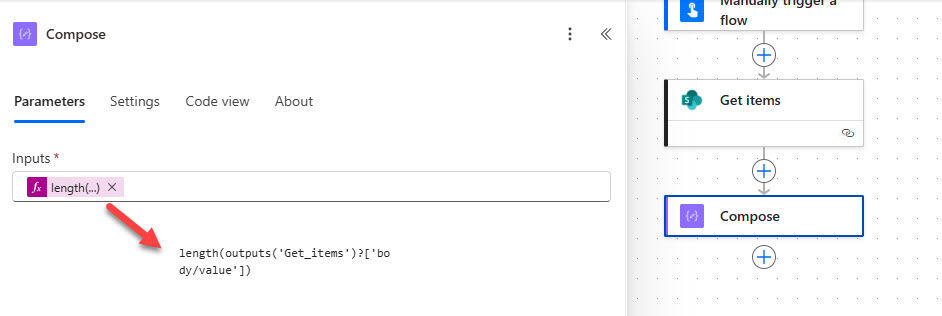
In the Inputs field, click in the box, go to the Expression tab, and enter:
length(outputs('Get_items')?['body/value'])
Click OK
This expression counts the number of items returned by the Get Items action. The output will be a plain number — like 47.
Step 4: Use the Count in Your Flow
Now you can use the output of that Compose action anywhere in your flow. A few practical examples:
Send an email: Add a Send an email (V2) action. In the body, insert the Compose action’s output from dynamic content. Your subject could be something like “EmployeeList currently has X rows.”
Store it in a variable: Add an Initialize variable action before Get Items, set type to Integer, then use Set variable after the Compose to store the count for use later in the flow.
Step 5: Save and Test
Click Save, then Test → Manually → Run flow.
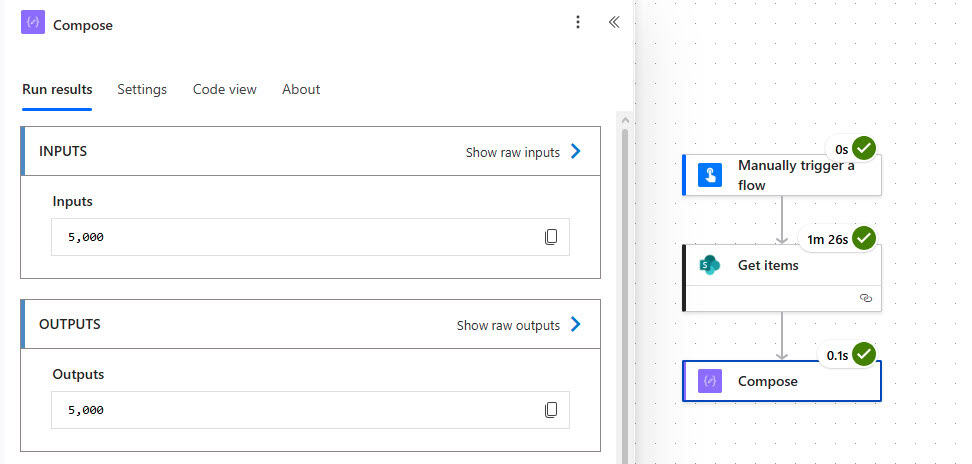
Check the flow run history. Expand the Compose action — you’ll see the row count in the Outputs section.
That means this list has 5000 or more; let’s see the next method.
Method 2: SharePoint REST API (ItemCount)
This is the method I’d recommend for most people, especially if your lists might ever grow beyond 5,000 rows. It’s faster, lighter, and doesn’t pull all the items into memory — it just asks SharePoint for the count directly from its metadata.
The trade-off: this always gives you the total count of the list. It can’t be filtered (you can’t use it to count only “Active” items, for example). For filtered counts, see the section below.
Step 1: Create an Instant Cloud Flow
Same as before — create an Instant cloud flow triggered manually (or whatever trigger fits your scenario).
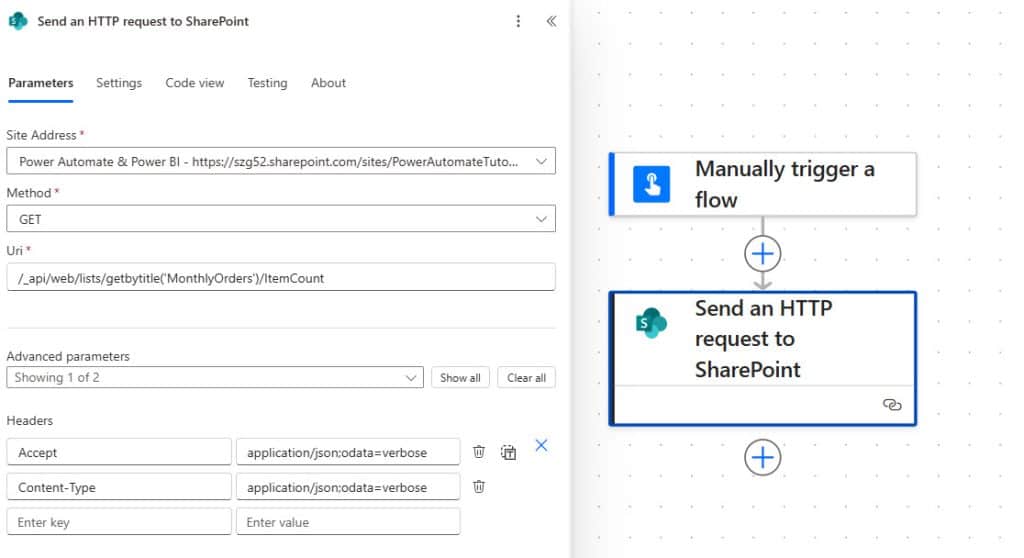
Step 2: Add the Send an HTTP Request to SharePoint Action
Click + New step
Search for Send an HTTP request to SharePoint and select it
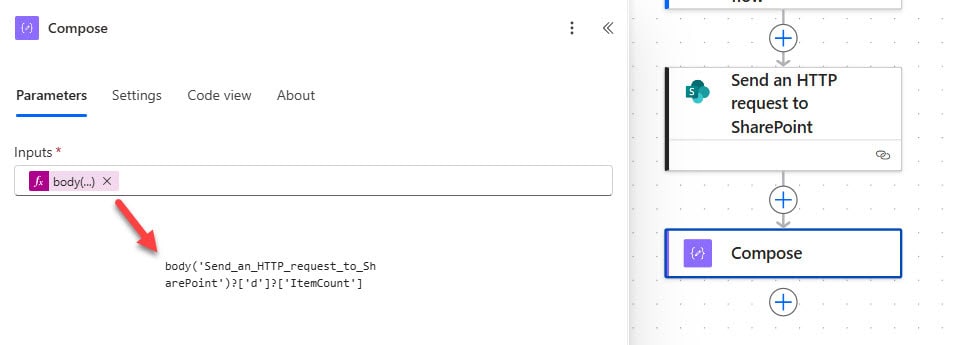
This pulls the ItemCount value from the REST API response. The output is a number you can use anywhere in your flow.
Step 4: Use the Count
Same as Method 1 — pass the Compose output into an email, a Teams message, a condition, whatever you need.
Step 5: Save and Test
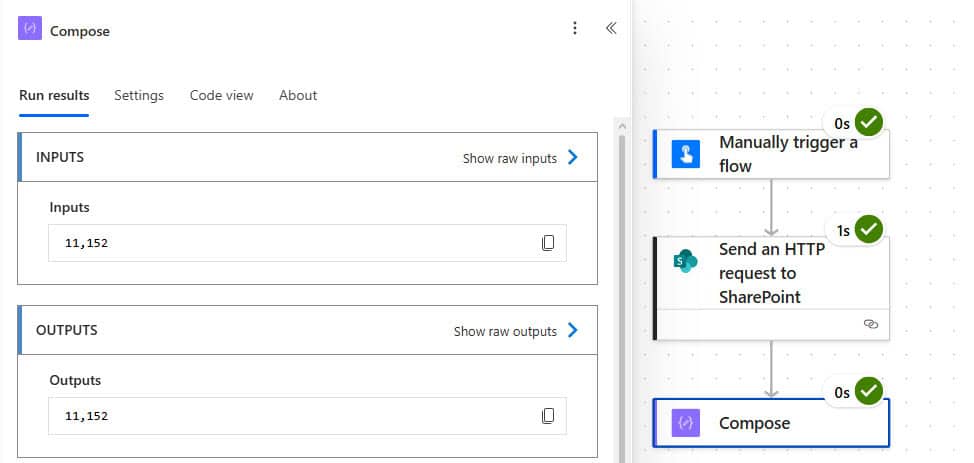
Run the flow and check the Compose action output. You’ll see the total item count for the list.
Which Method Should You Use?
Here’s the honest breakdown:
Method 1: Get Items + length()
Method 2: REST API (ItemCount)
Works for lists under 5,000 rows
✅ Yes
✅ Yes
Works for lists over 5,000 rows
❌ No — returns wrong count
✅ Yes — always accurate
Can count only filtered rows (e.g., Status = “Active”)
✅ Yes (with OData filter)
❌ No — total count only
Speed
Slower (loads all items)
Fast (metadata call only)
Setup complexity
Low
Low-medium
Needs premium connector
No
No (standard connector)
My recommendation:
Use Method 2 (REST API) if you just need a total count, especially for larger lists.
Use Method 1 (Get Items) if you need to count rows that match a specific condition.
Bonus: Count Only Filtered Rows (e.g., Status = “Active”)
Sometimes you don’t want a total count — you want to know how many rows match a condition. For example, how many tasks are still “In Progress”? How many employees joined this year?
For this, Method 1 is your only option, but you need to add an OData Filter Query.
In the Get Items action, expand Show advanced options and find the Filter Query field. Here are some common examples:
Count items where Status equals “Active”:
Status eq 'Active'
Count items where a date column is after Jan 1, 2026:
Created ge '2026-01-01T00:00:00Z'
Count items where a number column is greater than 100:
Quantity gt 100
Count items where two conditions must both be true:
Status eq 'Active' and Department eq 'Sales'
After adding the filter, the length() expression in your Compose action will count only the matching rows.
Tip: OData filter queries use the internal column name, not the display name. If your column is called “Start Date” in SharePoint, its internal name might be Start_x0020_Date. To find the internal name, go to your list → List Settings → click the column name — the internal name appears in the URL.
Practical Use Cases
Here are a few real scenarios where I’ve seen this pattern come in handy:
Daily summary report: Set up a scheduled flow that runs every morning, counts rows in your project tracker list, and emails the team: “You have 23 open tasks today.”
Approval gate: Use a Condition action after the count. If the list has more than 50 pending items, send a high-priority alert to the manager. If it’s under 10, send a routine digest.
Onboarding tracker: Count new employee records added in the last 7 days using an OData date filter, and post the weekly summary to a Teams channel automatically.
List health check: Run a flow weekly that counts rows in a large master data list using the REST API method. If the count drops unexpectedly (someone may have deleted items in bulk), trigger a notification.
Troubleshooting
The flow returns 0 rows
Double-check the List Name is spelled exactly as it appears in SharePoint (it’s case-sensitive in some contexts)
Make sure the account running the flow has at least Read access to the list
Check that the Site Address matches your SharePoint site URL — a trailing slash or incorrect subdomain can cause this
Get Items only returns 100 items
This is the default behavior. Go to the Get Items action → three dots → Settings → turn on Pagination and set Threshold to 5000
The REST API returns an error: “list does not exist”
Your list name in the URI may not match exactly. Check for spaces, special characters, or a different display name. Try navigating to /_api/web/lists in your browser (appended to your SharePoint site URL) to see the exact list names available.
ItemCount is higher than the number of items I can see
SharePoint’s ItemCount includes items in the list’s Recycle Bin in certain configurations, and it counts folders as items too. If you need to exclude folders, use Method 1 with a filter like FSObjType eq 0 (which returns only files/items, not folders).
The Compose expression throws an error
If the action name in your flow has spaces or special characters, the expression reference changes. For example, if your action is called “Get items 2”, the expression becomes outputs('Get_items_2')?['body/value']. Check the action name and update accordingly.
Summary
To count rows in a SharePoint list using Power Automate:
For most scenarios (especially large lists): Use the Send an HTTP request to SharePoint action with the /_api/web/lists/getbytitle('ListName')/ItemCount URI. It’s fast and accurate for any list size.
For filtered counts: Use Get Items with an OData Filter Query, then wrap the output in a length() expression inside a Compose action. Enable pagination and set the threshold to 5,000.
Always be aware of the 5,000-row default limit — it’s the most common source of wrong results in this scenario.
After working for more than 18 years in Microsoft technologies like SharePoint, Microsoft 365, and Power Platform (Power Apps, Power Automate, and Power BI), I thought will share my SharePoint expertise knowledge with the world. Our audiences are from the United States, Canada, the United Kingdom, Australia, New Zealand, etc. For my expertise knowledge and SharePoint tutorials, Microsoft has been awarded a Microsoft SharePoint MVP (12 times). I have also worked in companies like HP, TCS, KPIT, etc.
Session expired
Please log in again.
The login page will open in a new tab. After logging in you can close it and return to this page.
SPGUIDES.ACADEMY
LEARN. BUILD. TRANSFORM.
▶
Live FREE Webinar
Build an
AI-Powered
Invoice Processing
App
Learn how to build an intelligent invoice processing solution using:
SharePoint Integration Power Apps Form With Repeating Table [Invoice Management System]
Learn how to build a real-world Invoice Management System using a SharePoint Integration Power Apps Form with a repeating table—supporting multiple invoice line items.