
If you’ve ever copied rows from Excel into a SharePoint list by hand, you already know how frustrating that gets — especially when you have hundreds of rows, and you’re one paste error away from a mess. I’ve been there.
In this tutorial, I’ll show you two ways to import Excel data into a SharePoint list using Power Automate:
- Method 1 — The Excel Table Method (recommended for most people — simpler, faster, less error-prone)
- Method 2 — The CSV Parsing Method (for when your file is a raw CSV and you can’t reformat it)
I’ve used both in real client projects. Method 1 will save you a lot of headaches if your file is an .xlsx. Method 2 is still useful for legacy exports from older systems that spit out raw CSV files.
Before You Start — Pick the Right Method
Not sure which method fits your situation? Use this quick decision guide:
Is your Excel file saved as .xlsx (not .csv)?
  └── YES → Is your data formatted as an Excel Table (Insert > Table)?
               ├── YES → Use Method 1 (List rows present in a table) ✅
               └── NO  → Format it as a table first, then use Method 1 ✅
  └── NO (it's a raw .csv file) → Use Method 2 (CSV Parsing) ✅
If you’re working with a file you control, I’d always recommend Method 1. It’s far more reliable.
Pre-Flight Checklist
Go through this before you build either flow. Missing one of these is the #1 reason flows run successfully, but nothing shows up in the list.
- Your file is saved in a SharePoint Document Library or OneDrive for Business (not on your desktop)
- Your SharePoint list already exists with the correct columns created
- Column names in your Excel file match the SharePoint list columns (internal names matter — more on this below)
- You have Edit permissions on both the document library and the SharePoint list
- For Method 1: your Excel data is formatted as a proper Excel Table (not just a range)
- For Method 2: your CSV uses a single consistent delimiter (comma) with no commas inside field values
Import Data from Excel to a SharePoint List Using Power Automate
Let’s look at two real-time methods for importing data from Excel/CSV into a SharePoint list using Power Automate.
Method 1: Import Excel Data Using “List Rows Present in a Table” in Power Automate (Recommended)
This is the clean, modern way to do it. The Excel Online connector in Power Automate has a built-in action called “List rows present in a table“ that reads every row from a formatted Excel table and hands it to you as structured data — no parsing, no expressions, no drama.
What You’ll Need
- An Excel .xlsx file stored in SharePoint or OneDrive
- Data formatted as an Excel Table (click any cell in your data → Insert → Table)
- A SharePoint list with matching columns
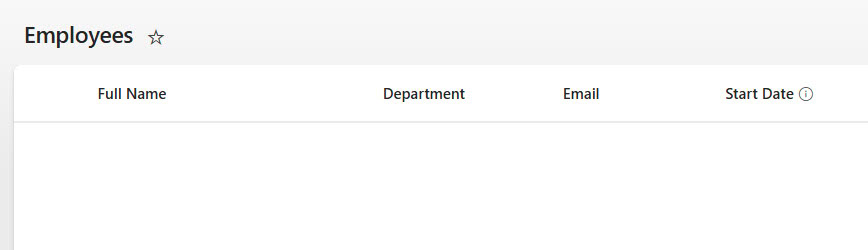
For this walkthrough, I’ll use an example file called Employees.xlsx with four columns: FullName, Department, Email, and StartDate. The SharePoint list has the same columns.
Step 1: Create a New Flow
- Go to make.powerautomate.com and sign in
- Click + Create → Instant cloud flow
- Give your flow a name like “Import Employees from Excel”
- Select Manually trigger a flow as the trigger
- Click Create
💡 My Tip: Start with a manual trigger while you’re testing. Once it works perfectly, you can swap it out for a Recurrence trigger to run it on a schedule — daily, weekly, whatever you need.
Step 2: Add the “List Rows Present in a Table” Action
- Click + New step
- Search for “List rows present in a table” and select the Excel Online (Business) version
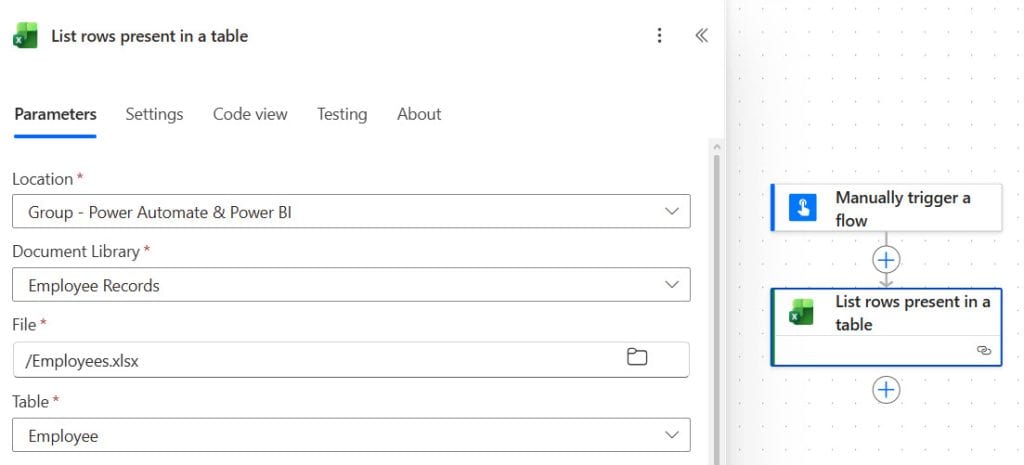
- Fill in:
- Location: Select your SharePoint site or OneDrive
- Document Library: Choose the library where your Excel file lives
- File: Pick your Excel file
- Table: Select the table name (if you didn’t rename it, Excel calls it “Table1” by default)
💡 My Tip: If you have more than 256 rows in your Excel file, Power Automate will stop at 256 by default. Go into Settings on this action and turn on Pagination, then set the threshold to however many rows you actually have — up to 100,000. I learned this the hard way on a 2,000-row import that silently cut off at row 256.
Step 3: Add “Apply to Each” + “Create Item”
- Click + New step → search for “Apply to each“
- In the Select an output from previous steps field, select value from the “List rows present in a table” dynamic content
- Inside the Apply to each loop, click Add an action
- Search for “Create item” and select the SharePoint version
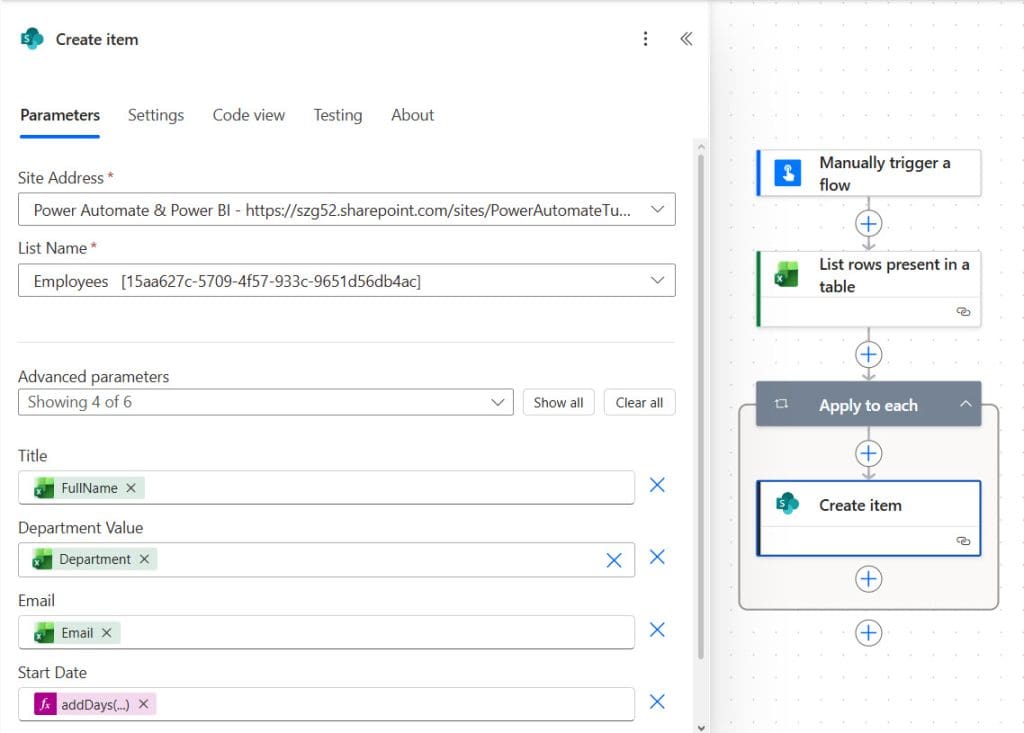
- Fill in:
- Site Address: Your SharePoint site URL
- List Name: Your target list
- Map each column — Power Automate will show all your list fields. Select the matching dynamic content from the Excel row for each one.
For my Employees example, it looks like this:
| SharePoint Column | Dynamic Content from Excel |
|---|---|
| Title (FullName) | items(‘Apply_to_each’)?[‘FullName’] |
| Department | items(‘Apply_to_each’)?[‘Department’] |
| items(‘Apply_to_each’)?[‘Email’] | |
| StartDate | addDays(‘1899-12-30’, int(items(‘Apply_to_each’)?[‘StartDate’]), ‘yyyy-MM-dd’) |
Step 4: Save and Test
- Click Save
- Click the Test icon → Manually → Test
- Click Run flow → Done
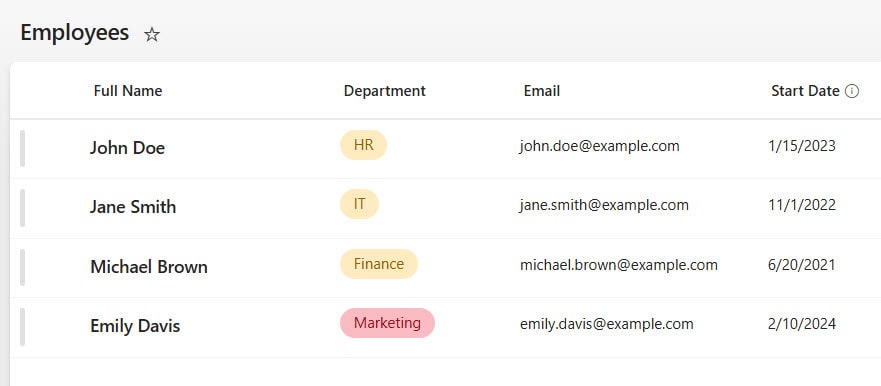
Give it a few seconds, then open your SharePoint list. Your rows should all be there.
Method 2: Import CSV Data Using Compose Parsing in Power Automate
Use this method when you’re working with a raw .csv file — for example, a report export from an HR system, an ERP, or a CRM that gives you CSV files you can’t easily convert.
The idea here is: we read the file as a string, split it by line breaks to get rows, then split each row by commas to get individual values, and finally loop through them to create SharePoint list items.
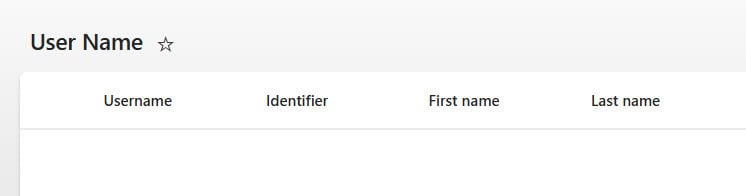
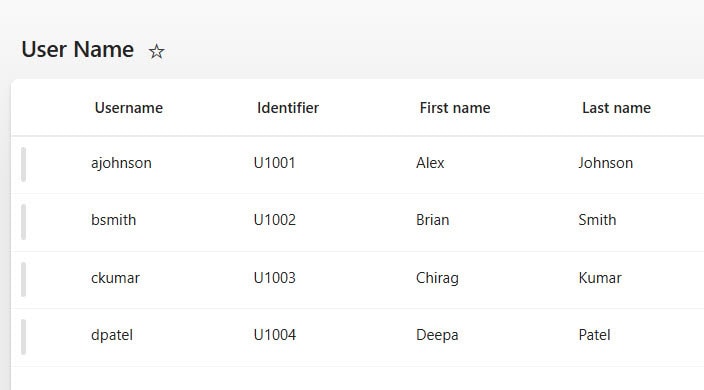
For this walkthrough, I’ll use a CSV file called Username.csv stored in a SharePoint document library, with columns: Username, Identifier, First name, Last name.
Step 1: Create the Flow
- Go to Power Automate → + Create → Instant cloud flow
- Name it “Import CSV to SharePoint”
- Trigger: Manually trigger a flow
- Click Create
Step 2: Get the CSV File Content
- Click + New step
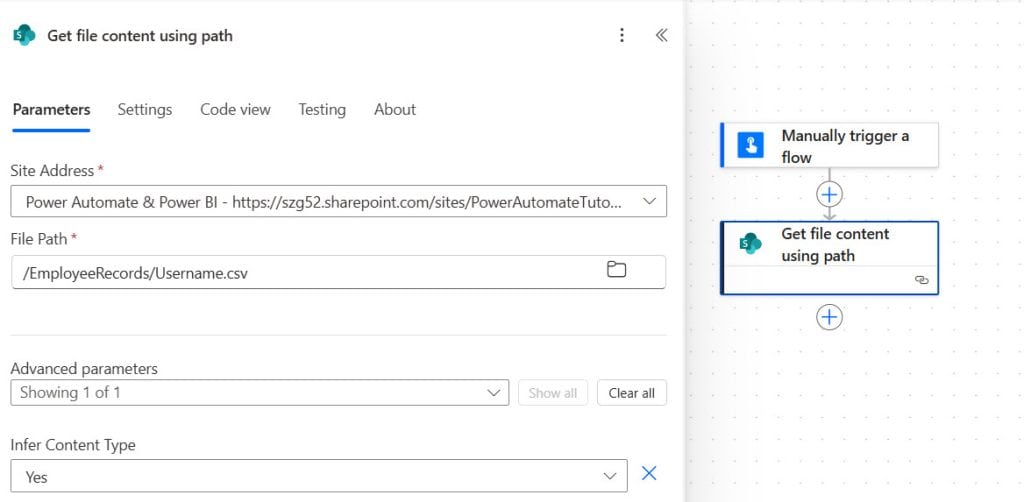
- Search for “Get file content using path” (SharePoint action)
- Fill in:
- Site Address: Your SharePoint site
- File Path: Path to your CSV file (e.g., /EmployeeRecords/Username.csv)
Step 3: Convert File Content to String
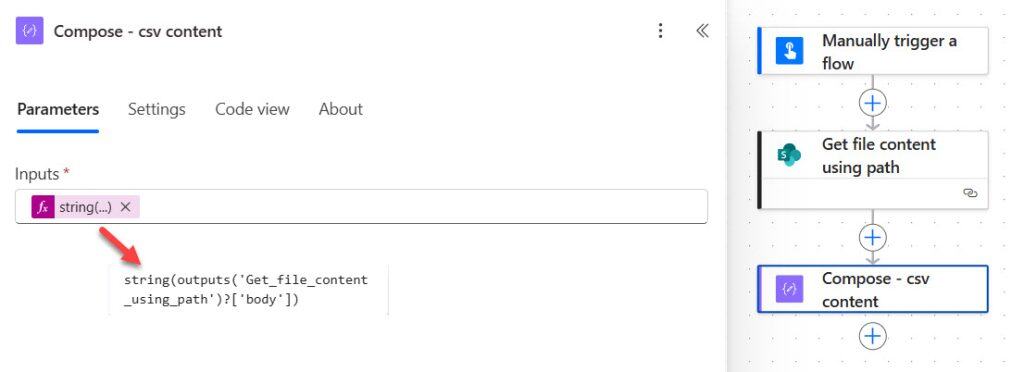
- Add a Compose action
- In Inputs, paste this expression:
string(outputs('Get_file_content_using_path')?['body'])Rename this action “Compose – csv content” so it’s easy to reference later.
Step 4: Create a New Line Separator
- Add another Compose action
- In Inputs, press Enter once to insert a new line character (literally just hit Enter inside the field — don’t type anything)
- Rename it “Compose – new line”
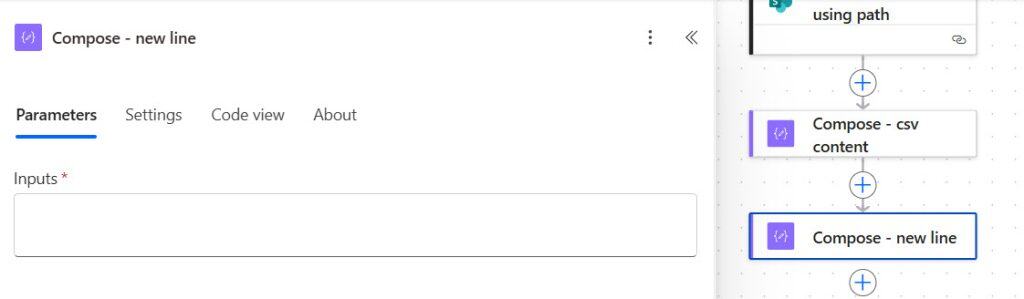
This might feel strange, but this is how Power Automate captures the line break character. You’ll use it to split the CSV into rows.
💡 My Tip: If your CSV was exported from a Windows machine, it likely uses CRLF line endings (
\r\n) instead of just\n. If your flow runs but your SharePoint list stays empty, this is almost always why. Add areplace()expression in your csv content Compose step to strip the\rcharacter:
replace(string(outputs(‘Get_file_content_using_path’)?[‘body’]),decodeUriComponent(‘%0D’),”)
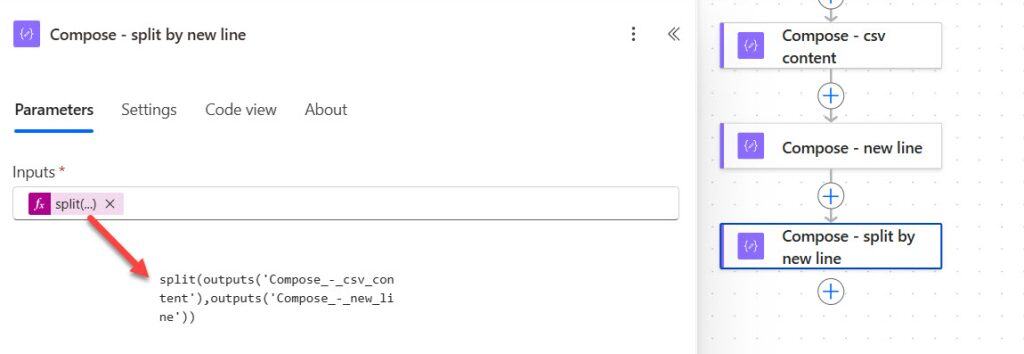
Step 5: Split the CSV into Rows
- Add a Compose action
- In Inputs, enter:
split(outputs('Compose_-_csv_content'),outputs('Compose_-_new_line'))Rename it “Compose – split by new line”
Step 6: Get the Column Headers
- Add another Compose action
- In Inputs, enter:
split(first(outputs('Compose_-_split_by_new_line')),',')Rename it “Compose – get field names”
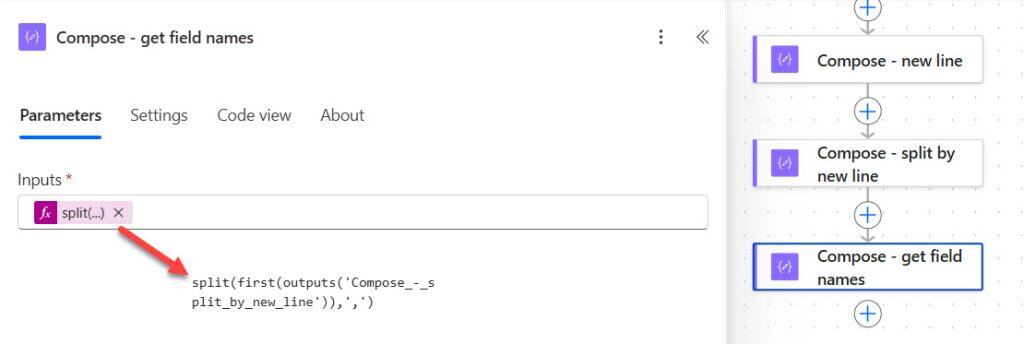
This grabs the first row (your CSV header row) and splits it into an array of column names.
Step 7: Map Each Row to Its Values (Select Action)
- Add a Select action
- From: Enter this expression:
skip(outputs('Compose_-_split_by_new_line'),1)This skips the header row, so you’re only working with data rows.
- Map: Build your key-value pairs like this:
| Key | Value |
|---|---|
| outputs(‘Compose_-_get_field_names’)[0] | split(item(),’,’)?[0] |
| outputs(‘Compose_-_get_field_names’)[1] | split(item(),’,’)?[1] |
| outputs(‘Compose_-_get_field_names’)[2] | split(item(),’,’)?[2] |
| outputs(‘Compose_-_get_field_names’)[3] | split(item(),’,’)?[3] |
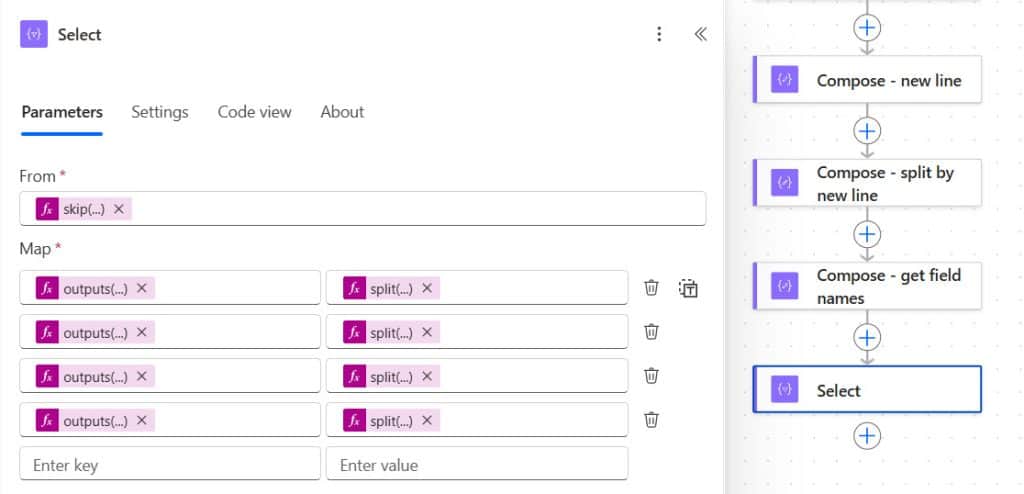
Add one row per column in your CSV.
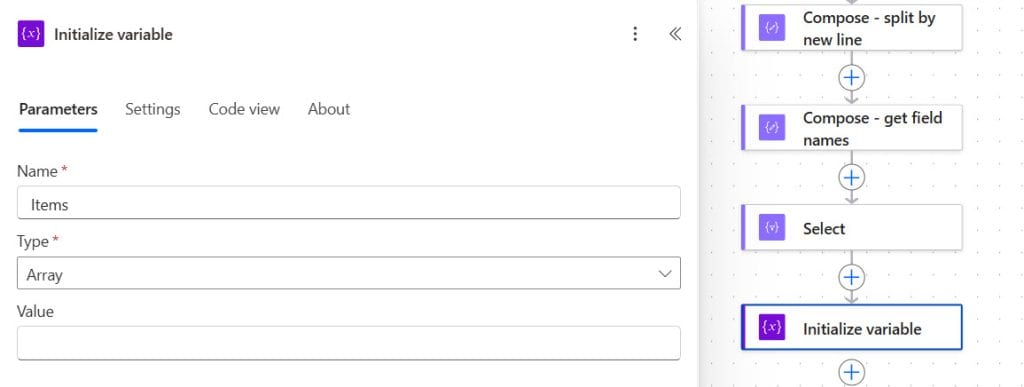
Step 8: Initialize an Array Variable
- Add Initialize variable
- Name: Items
- Type: Array
- Value: Leave empty
Step 9: Loop Through Rows and Build the Array
- Add Apply to each
- Select output from previous steps: Enter this expression:
take(body('Select'), sub(length(body('Select')),1))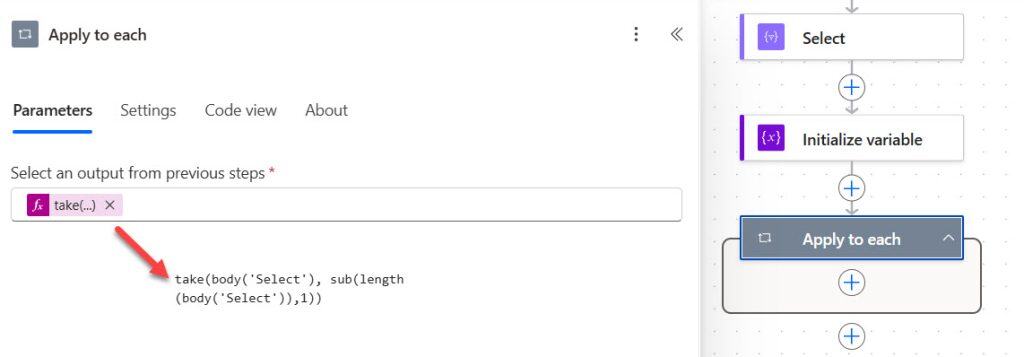
The take with sub is important — it drops the last empty row that appears when a CSV ends with a trailing newline. Without this, you’ll get a blank item at the bottom of your SharePoint list.
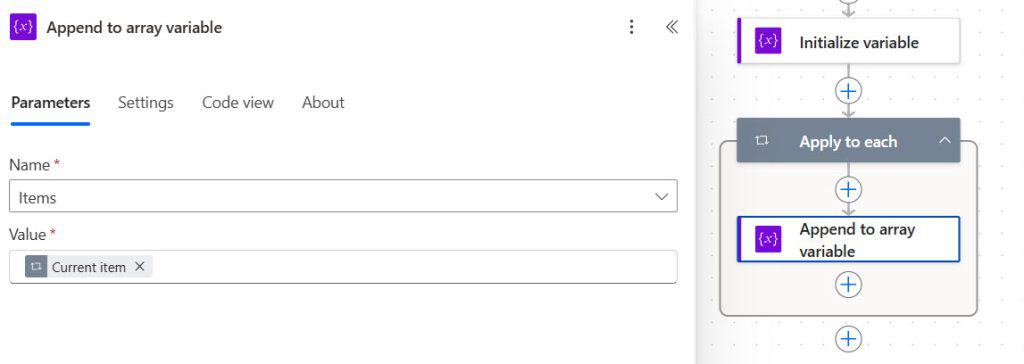
- Inside the loop, add Append to array variable:
- Name: Items
- Value: Current item (from dynamic content)
Step 10: Parse the JSON
- Add Parse JSON
- Content: Select the Items variable
- Schema: Click Generate from sample, paste in a sample row from your CSV in JSON format, then click Done
Example sample for the Username CSV:
[{"Username":"jsmith","Identifier":"1","First name":"John","Last name":"Smith"}]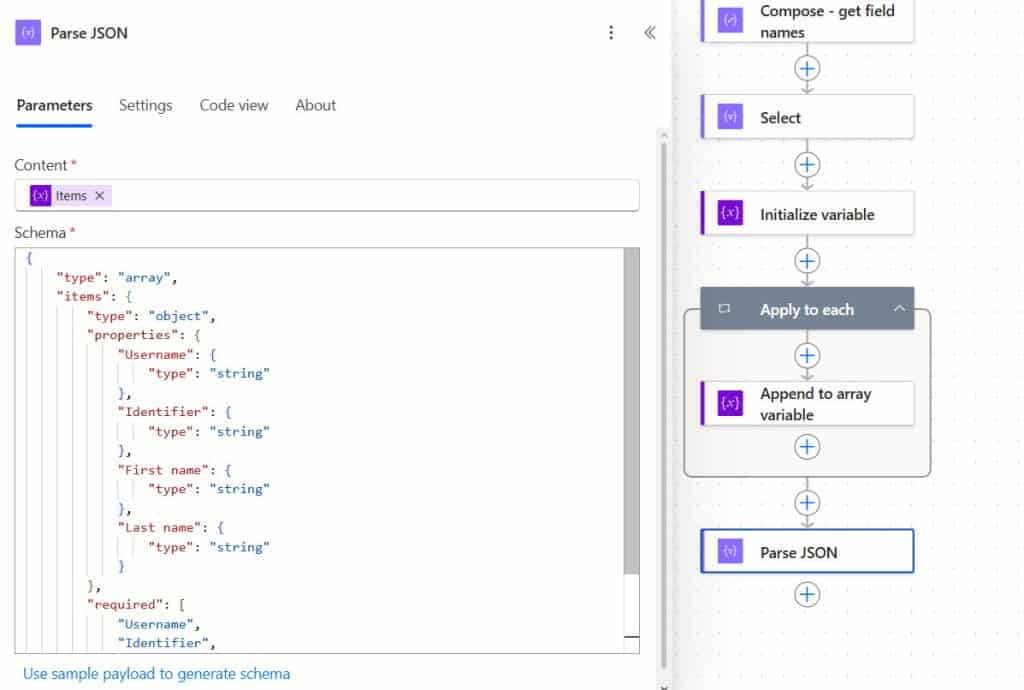
Step 11: Create Items in SharePoint
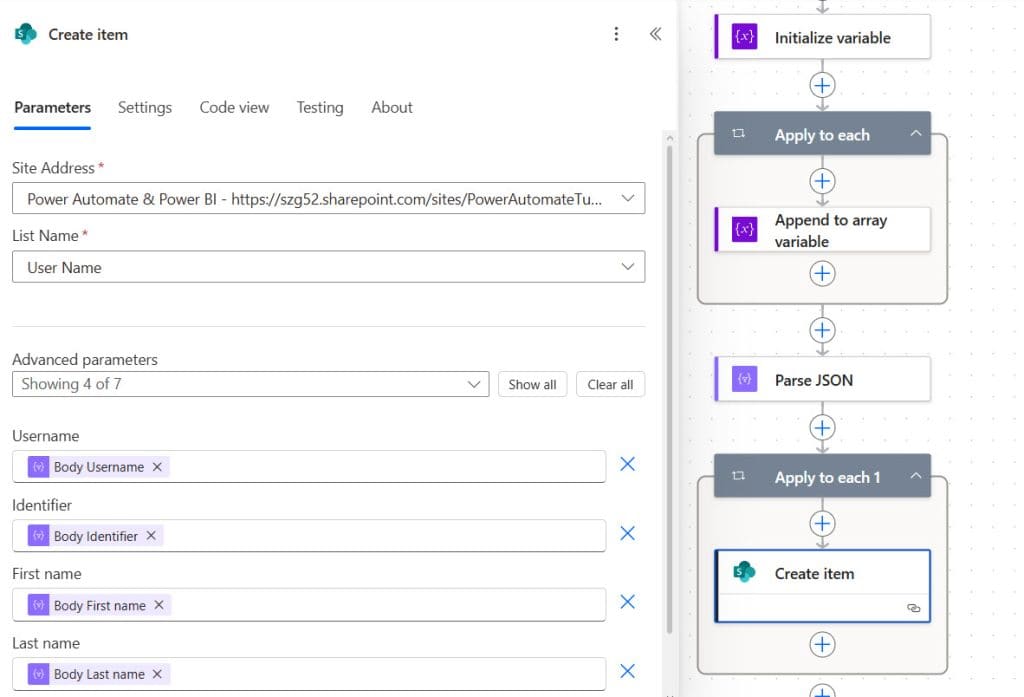
- Add Apply to each (a new one, outside the previous loop)
- Output from previous steps: Select the body from the Parse JSON step
- Inside this loop, add Create item (SharePoint):
- Site Address: Your SharePoint site
- List Name: Your list
- Map each field from the dynamic content:
- Title: Username
- Identifier: items(‘Apply_to_each_2’)[‘Identifier’]
- First name: First name (dynamic content)
- Last name: Last name (dynamic content)
Step 12: Save and Test
Save the flow, run a test manually, and check your SharePoint list.
Common Errors and How to Fix Them
This section will save you hours of debugging. These are the issues I see most often.
1. Flow runs successfully but nothing appears in the SharePoint list
Most likely causes:
- CRLF line endings in your CSV (see my Tip in Step 4 of Method 2)
- Column internal names don’t match — SharePoint internal names are different from display names. Go to your list → List Settings → click the column name → check the URL for the real internal name
- The Excel file isn’t formatted as a Table (Method 1 only)
2. Duplicate items appear after each flow run
This happens when the flow is triggered more than once, or when you run it again without clearing old data. To prevent duplicates, add a “Get items” step before creating each item, filter by a unique field (like an employee ID or email), and use a Condition: if the item already exists → Update item, if not → Create item.
3. The last row is always blank or duplicated
In Method 2, this is caused by a trailing newline at the end of the CSV. The take(body(‘Select’), sub(length(body(‘Select’)),1)) expression in Step 9 handles this — make sure you have it in place.
4. Only 256 rows imported out of 2,000
This is a known limit on the “List rows present in a table” action. Open the action’s Settings, enable Pagination, and set the threshold to match your row count (up to 100,000).
5. Date fields import as numbers or wrong format
Excel stores dates as serial numbers internally. In the “List rows present in a table” action, open Show advanced options and set DateTime Format to ISO 8601. This forces dates into a format SharePoint understands.
6. Commas inside field values break the CSV parsing
If any of your fields contain a comma (like a name field with “Smith, John” or an address), Method 2 will split those fields incorrectly. This is a fundamental limitation of comma-splitting. Your options: switch to Method 1 (Excel table format handles this correctly), or change your CSV delimiter to a pipe | and update all your split() expressions accordingly.
Real-World Scenarios Where This Helps
- HR Onboarding: Your HR system exports a weekly CSV of new hires. Set up a scheduled Power Automate flow to run every Monday and automatically import that file into a SharePoint “New Employees” list. No more manual copy-paste before the IT provisioning process starts.
- Project Task Import: A project manager maintains tasks in Excel and needs them synced into a SharePoint project list for wider team visibility. Method 1 with a Recurrence trigger handles this cleanly.
- Inventory Management: Warehouse teams often get nightly CSV exports from ERP systems like SAP. Method 2 is perfect here — set up a flow triggered by file creation in a shared document library to auto-import stock levels every morning.
- Training Records: HR teams tracking compliance training often manage Excel spreadsheets. Use this flow to push those records into a SharePoint list and then build a Power BI dashboard on top of it.
Method 1 vs Method 2 — Quick Reference
| Factor | Method 1 (Excel Table) | Method 2 (CSV Parsing) |
|---|---|---|
| Skill level required | Beginner | Intermediate |
| File format | .xlsx with Table formatting | .csv |
| Setup time | ~10 minutes | ~25 minutes |
| Handles commas in field values | ✅ Yes | ❌ No |
| Works with scheduled trigger | ✅ Yes | ✅ Yes |
| Risk of silent failures | Low | Medium (CRLF, trailing rows) |
| Best for | Regular, ongoing imports | Legacy system exports |
| Row limit | 100,000 (with Pagination on) | Limited by flow timeout (~5,000 practical) |
You may also like:
- Merge Word Documents in Power Automate
- Convert HTML to Text in Power Automate
- Remove an item from an array in Power Automate
- Add Attachments to SharePoint List Items using Power Automate
FAQs
Can I import an .xlsx file directly, or does it need to be CSV?
Yes, .xlsx files work perfectly — that’s actually what Method 1 is designed for. Just make sure your data is formatted as an Excel Table, not just a plain range of cells.
How do I stop duplicate items from being created when I run the flow again?
Before the “Create item” action, add a “Get items” action with a filter query on a unique column (like email or employee ID). Then add a Condition — if the filtered result count is 0, create the item; otherwise update it.
What is the row limit for this approach?
The SharePoint list itself can hold up to 30 million items. The practical limit for the “List rows present in a table” action is 100,000 rows with Pagination turned on. For larger datasets, you’ll need to split the file or use a different approach like a Dataflow.
Does this work with SharePoint On-Premises?
No. The Power Automate connectors used here (SharePoint, Excel Online) require SharePoint Online (Microsoft 365). On-Premises SharePoint uses the on-premises data gateway, which has different limitations.
Can I schedule this flow to run automatically instead of manually?
Absolutely. Just replace the “Manually trigger a flow” trigger with a Recurrence trigger and set your preferred schedule. Or use a “When a file is created” SharePoint trigger if you want the import to kick off automatically whenever a new CSV lands in a document library.
Can I update existing list items instead of creating new ones?
Yes. Replace “Create item” with “Update item” and provide the item ID. The practical pattern is: Get items → filter by a unique key → Condition (exists? → Update : Create).
What if my CSV has more than 4 columns?
In Method 2, just add more rows to the Select Map (Steps 6 and 7) with [4], [5], [6] etc. There’s no hard limit — just add one map entry per column.

After working for more than 18 years in Microsoft technologies like SharePoint, Microsoft 365, and Power Platform (Power Apps, Power Automate, and Power BI), I thought will share my SharePoint expertise knowledge with the world. Our audiences are from the United States, Canada, the United Kingdom, Australia, New Zealand, etc. For my expertise knowledge and SharePoint tutorials, Microsoft has been awarded a Microsoft SharePoint MVP (12 times). I have also worked in companies like HP, TCS, KPIT, etc.

