
You’ve built a Power Automate flow that looks perfect — until it hits an API, an Excel table, or a SharePoint connector and throws a cryptic error about date formats. Nine times out of ten, the problem is ISO 8601.
I’ve run into this more times than I can count, and it’s almost always one of three things: a SharePoint date that needs to be reformatted before sending to a REST API, an Excel file with separate date and time columns that Power Automate can’t auto-combine, or a manually triggered flow where the user’s time input doesn’t match what formatDateTime() expects.
In this tutorial, I’ll walk you through all three scenarios step by step, show you the exact expressions to copy, and cover the errors you’re most likely to hit along the way.
What Is ISO 8601 (and Why Does Power Automate Care)?
ISO 8601 is an international date/time standard. The format looks like this:
2024-06-22T14:30:00.000Z
Breaking it down:
2024-06-22— the date (year-month-day)T— a separator between date and time14:30:00.000— the time (hours:minutes:seconds.milliseconds)Z— means UTC (Coordinated Universal Time)
Power Automate’s formatDateTime() function expects your input to already be in ISO 8601 format. If it isn’t, you’ll get an error. That’s the root cause of most date-related failures in flows.
Important timezone note: The Z at the end of a timestamp means the time is in UTC. If you’re in IST (UTC+5:30) and you see Z in your output, the time has been stored as UTC — not your local time. Keep this in mind when your flow sends or receives dates that need to match a specific timezone.
Expression Quick-Reference Table
Before we get into the step-by-step walkthroughs, here are the three core expressions you’ll use. Bookmark this table — it’s what most people come here for.
| Scenario | Expression |
|---|---|
| SharePoint date → ISO 8601 | formatDateTime(triggerOutputs()?['body/MeetingDate'], 'yyyy-MM-ddTHH:mm:ssZ') |
| Excel separate date + time columns → ISO 8601 | formatDateTime(concat(formatDateTime(outputs('Even_date_from_excel'), 'yyyy-MM-dd'), 'T', formatDateTime(outputs('Event_time_from_excel'), 'HH:mm:ss.000Z')), 'yyyy-MM-ddTHH:mm:ss.000Z') |
| Manual trigger date + text input → ISO 8601 | formatDateTime(concat(formatDateTime(triggerBody()['date'], 'yyyy-MM-dd'), 'T', formatDateTime(triggerBody()['text'], 'HH:mm:ss.000Z')), 'yyyy-MM-ddTHH:mm:ss.000Z') |
Replace the dynamic content references (like outputs('Even_date_from_excel')) with your own action names from your flow.
Prerequisites
Before you start, make sure you have:
- Access to Power Automate (make.powerautomate.com)
- A SharePoint list with a DateTime column (for Scenario 1)
- An Excel file stored in OneDrive or SharePoint with separate date and time columns in a formatted Table (for Scenario 2)
- Basic familiarity with adding actions and expressions in Power Automate
Power Automate Format Dates to ISO 8601
Here, I will show how to format dates to ISO 8601 in Power Automate with 3 different scenarios.
Scenario 1: Format a SharePoint List Date to ISO 8601
When you’d use this: Your flow reads a meeting date from a SharePoint list and sends it to an external REST API or Teams notification that requires ISO 8601 format.
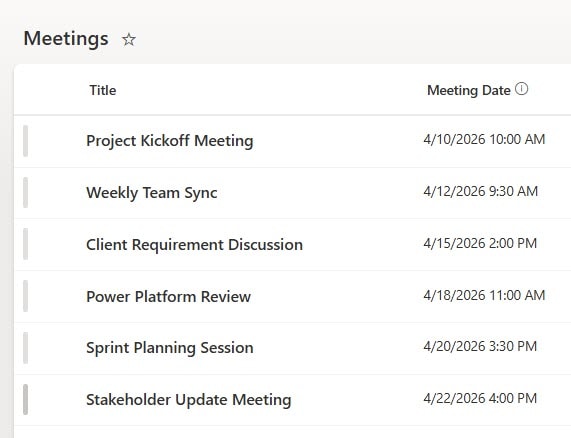
I’ll use a SharePoint list called Meetings with two columns:
- Title — Single line of text
- Meeting Date — Date and Time column
Step 1: Create an Automated Cloud Flow
- Go to make.powerautomate.com, click + Create, and select Automated Cloud Flow
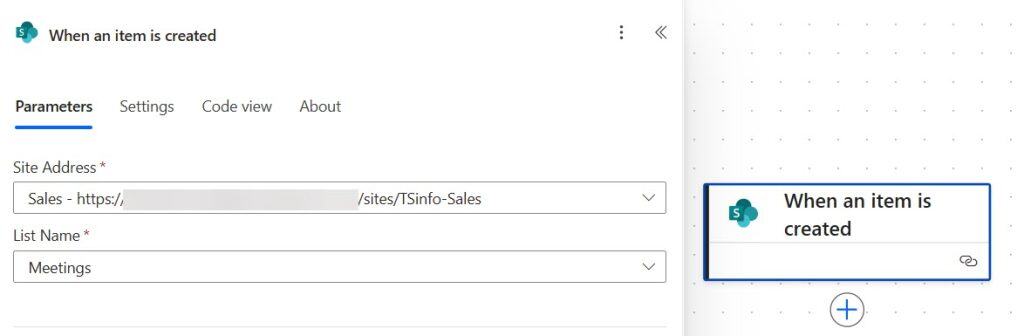
- Give your flow a name, select “When an item is created“ as the trigger
- Click Create
- In the trigger settings, set your Site Address and List Name to point to your Meetings list
Step 2: Add a Compose Action to Format the Date
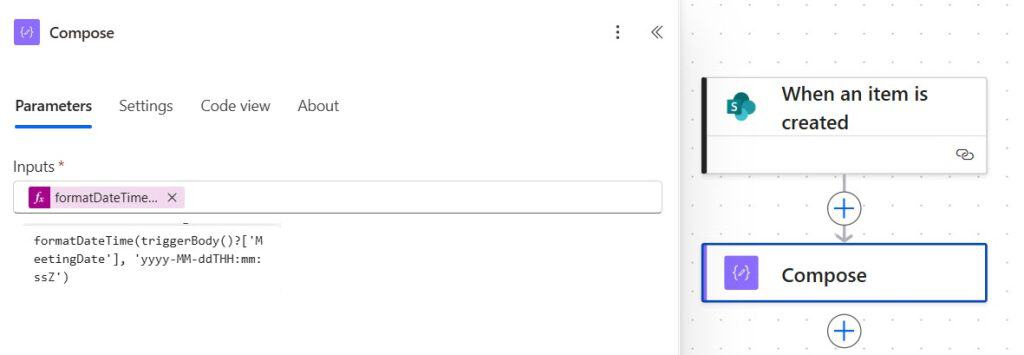
- Click + New step and search for Compose
- In the Inputs field, click the expression tab and enter this:
formatDateTime(triggerOutputs()?['body/MeetingDate'], 'yyyy-MM-ddTHH:mm:ssZ')
- Click OK, then Save your flow
Step 3: Test It
Create a new item in your SharePoint list. In the run history, click on the Compose action — the output will show your date reformatted to ISO 8601, like this:
2026-04-25T07:00:00Z
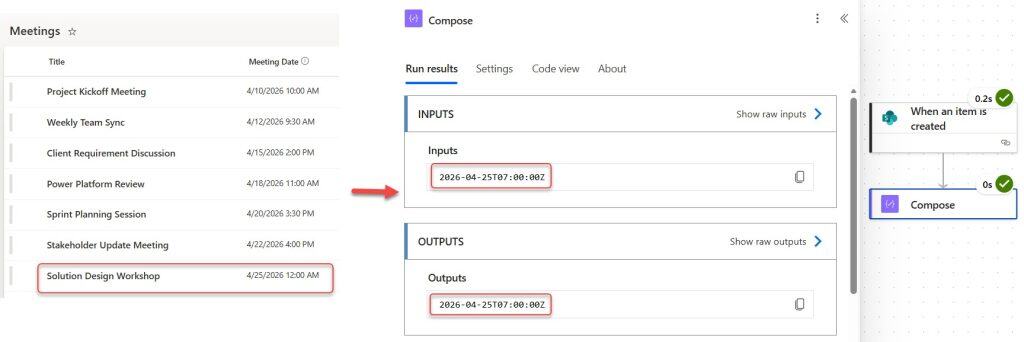
That ISO 8601 value is now ready to pass into any subsequent action — an HTTP request, a Teams adaptive card, or a Dataverse record.
Scenario 2: Power Automate Convert Excel Date and Time (Separate Columns) to ISO 8601
When you’d use this: Your Excel file stores dates and times in two separate columns, and you need to combine and format them as a single ISO 8601 timestamp before writing them somewhere or calling an API.
This is the trickiest scenario because Power Automate returns Excel dates as ISO 8601 automatically when you select that option in the “List rows” action — but only for single date/time columns. When your date and time are split across two columns, you get values like:
- Event Date: 2024-06-22T00:00:00.000Z
- Event Time: 1899-12-30T14:30:00.000Z
That weird 1899 date for the time column is normal — Excel stores time-only values relative to a base date of December 30, 1899. You need to extract just the time portion and combine it with the actual date.
Step 1: Set Up Your Excel File
Your Excel table should have at least these columns:
- Event Name
- Event Date (date-only values)
- Event Time (time-only values)
- Event Date in ISO Format (the column you’ll write the result to)
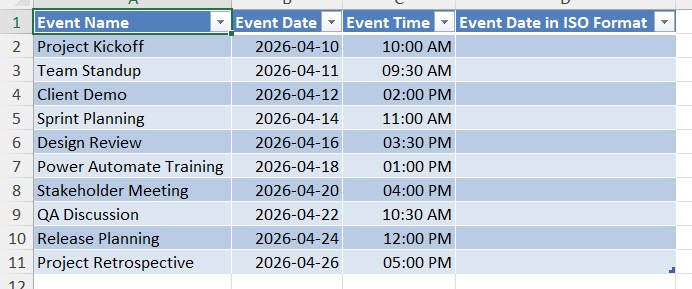
Make sure the data is inside an Excel Table (not just a plain range). Format → Table in Excel.
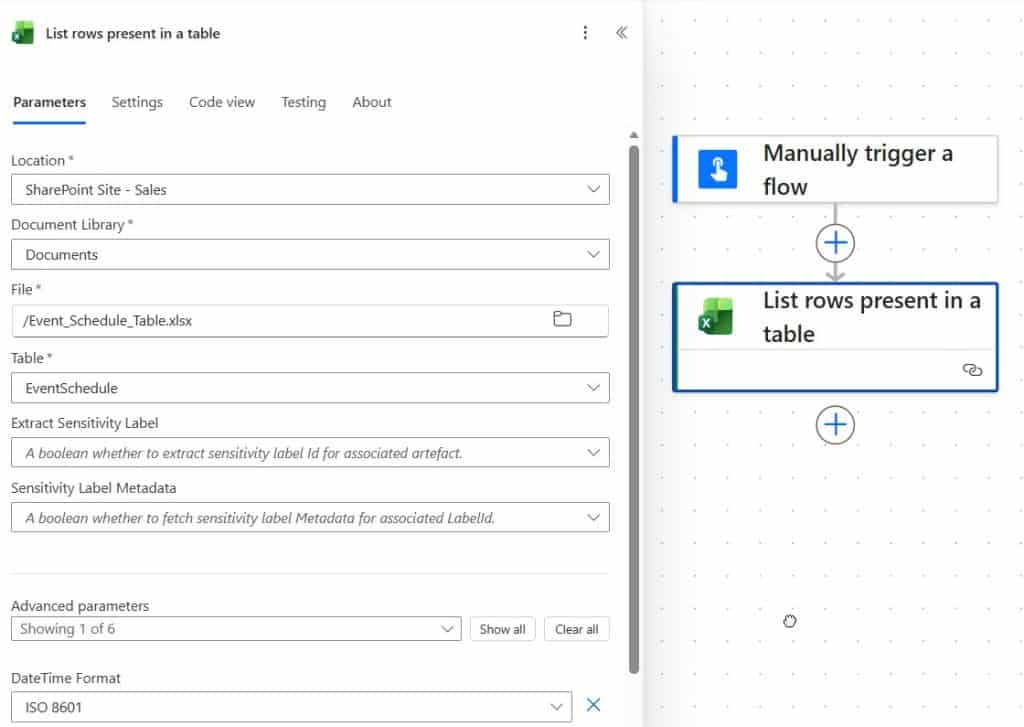
Step 2: Create a Flow with “List rows present in a table”
- Create a new Instant Cloud Flow with “Manually trigger a flow” as the trigger
- Add the action “List rows present in a table“ and configure:
- Location: Your OneDrive or SharePoint
- Document Library: The library where your file lives
- File: Your Excel file
- Table: Your table name
- Click Show advanced options and set Date Time Format to ISO 8601
Step 3: Extract Date and Time with Compose Actions
Add an Apply to each loop (Power Automate usually adds this automatically when you select row-level dynamic content).
Inside the loop:
- Compose 1 — Get Event Date: Set Inputs to the Event Date dynamic content field
- Compose 2 — Get Event Time: Set Inputs to the Event Time dynamic content field
- Compose 3 — Merge and Format: In the Inputs field, paste this expression (replace the action names with your own Compose action names):
formatDateTime(concat(formatDateTime(outputs('Even_date_from_excel'), 'yyyy-MM-dd'), 'T', formatDateTime(outputs('Event_time_from_excel'), 'HH:mm:ss.000Z')), 'yyyy-MM-ddTHH:mm:ss.000Z')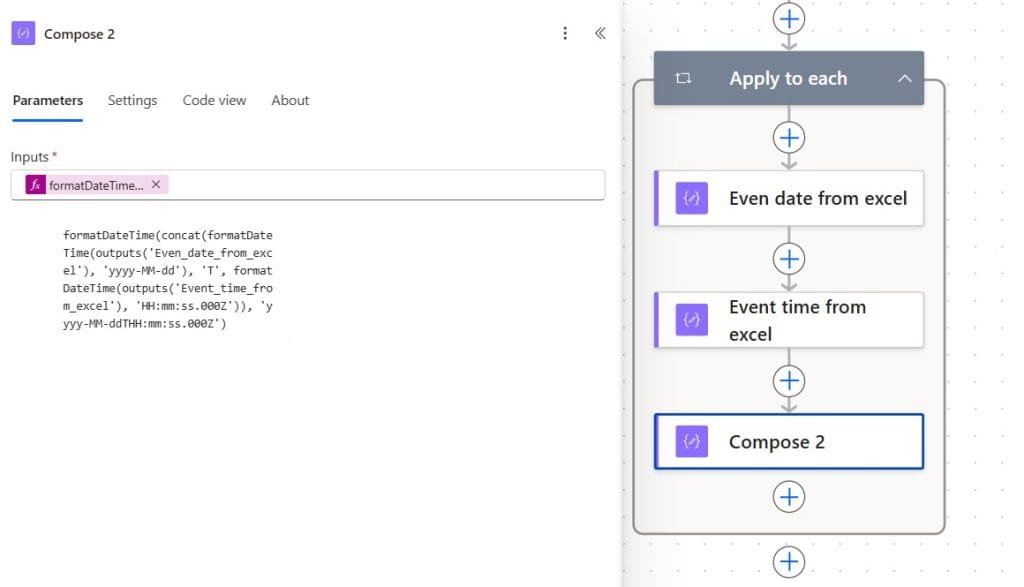
What this expression does:
- Takes the date value and strips it down to
yyyy-MM-dd - Takes the time value and strips it down to
HH:mm:ss.000Z - Concatenates them with a
Tin the middle - Wraps the whole thing in
formatDateTime()to produce a clean ISO 8601 output
Step 4: Write the Result Back to Excel
Add the “Update a row” action and configure:
- Location / Document Library / File / Table: Same as before
- Key Column: Event Name
- Key Value: Event Name dynamic content from the loop
- Event Date in ISO Format: Select the output from Compose 3
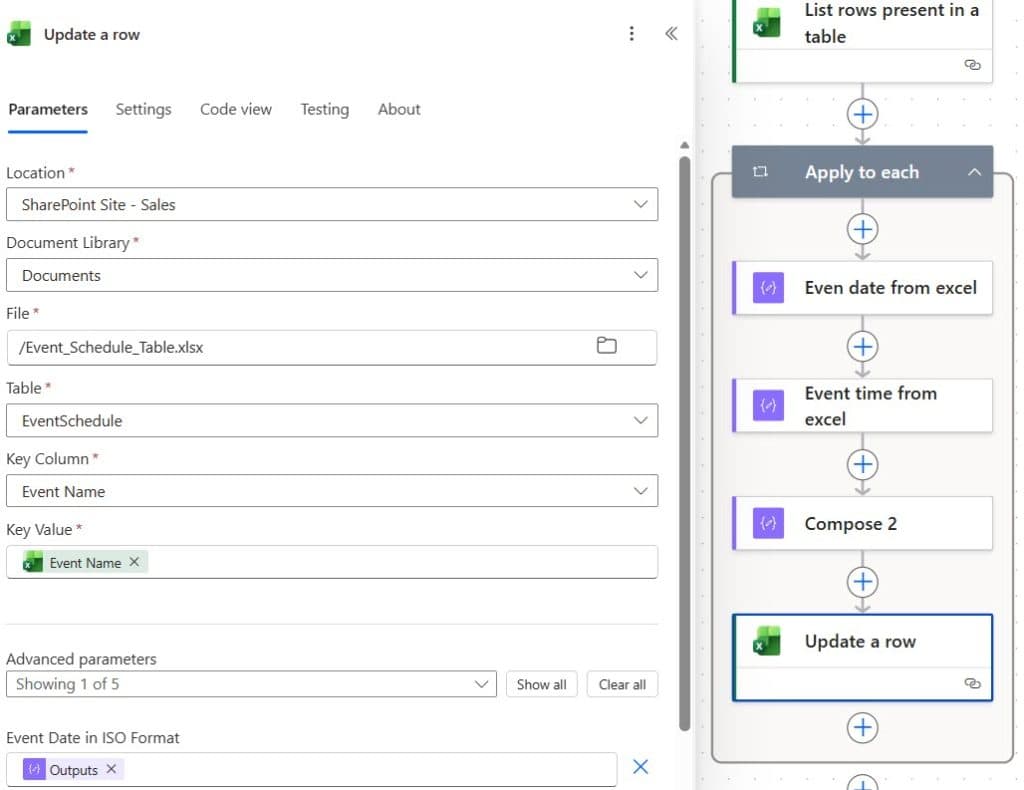
Save and run the flow. When it finishes, open your Excel file — the ISO format column should now be populated with values like 2024-06-22T14:30:00.000Z.
Scenario 3: Format a Manually Entered Date and Time to ISO 8601 in Power Automate
When you’d use this: You’re building a flow where a user manually enters a date and a time, and you need to combine them into a single ISO 8601 timestamp — for example, before creating a calendar event or posting to an API.
Step 1: Create an Instant Cloud Flow
- Create a new Instant Cloud Flow with “Manually trigger a flow” as the trigger
- Inside the trigger, click Add an input:
- Add a Date type input — name it something like “Enter date”
- Add a Text type input — name it “Enter time” (Power Automate doesn’t have a standalone Time input type, so we use Text)
Step 2: Add a Compose Action to Combine and Format
Add a Compose action. In the Inputs field, paste this expression:
formatDateTime(concat(formatDateTime(triggerBody()?['date'], 'yyyy-MM-dd'), 'T', formatDateTime(triggerBody()?['text'], 'HH:mm:ss.000Z')), 'yyyy-MM-ddTHH:mm:ss.000Z')
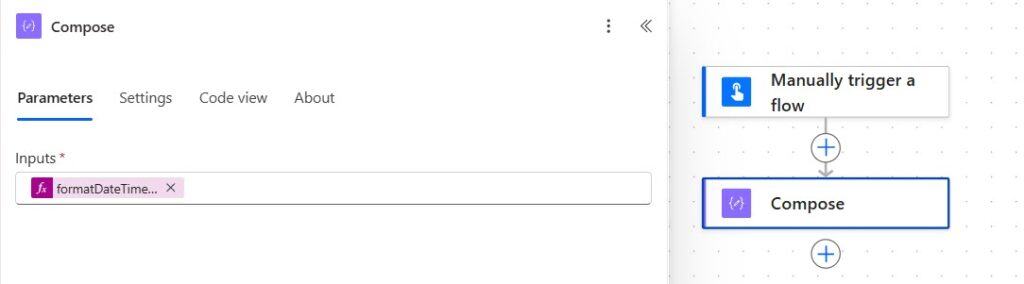
When a user enters the date 2024-06-22 and the time as 14:30:00, this expression will output:
2024-06-22T14:30:00.000Z
Step 3: Run the Flow
Click Test → Manually, then enter a date and time when prompted. Check the Compose action output in the run history — you’ll see your ISO 8601 formatted timestamp.
Common Errors and How to Fix Them
This is the section most tutorials skip — and it’s usually the most useful part.
Error: “The datetime string must match ISO 8601 format”
What it means: You passed a date value into formatDateTime() that isn’t already in ISO 8601 format. Power Automate’s formatDateTime() function expects the input timestamp to already be ISO 8601 — it just changes the display format.
Common causes:
- Your date string comes from a text field and looks like
28/09/2024 19:00:00— the slashes are the problem - Your MS Forms response passed through as an empty string (blank date field)
- A date from a third-party connector returning
dd-MM-yyyyinstead ofyyyy-MM-dd
Fix: Use split() and concat() to restructure the string into ISO format before passing it to formatDateTime(). For a date like 28/09/2024:
concat(split('28/09/2024', '/')[2], '-', split('28/09/2024', '/')[1], '-', split('28/09/2024', '/')[0])This reorders the parts into 2024-09-28 which formatDateTime() will accept.
Error: Excel Returning Serial Numbers Instead of Dates
What it means: You forgot to set the Date Time Format to ISO 8601 in the “List rows present in a table” action’s advanced options. Without it, Excel returns dates as serial numbers (e.g., 45465).
Fix: Go back to your “List rows” action, click Show advanced options, and switch Date Time Format to ISO 8601.
Issue: My Timestamps Are Off by 5 Hours 30 Minutes (IST Issue)
What’s happening: Power Automate stores and processes times in UTC by default. If you’re in India (IST = UTC+5:30) and your SharePoint column is storing local time, the output after formatting with Z will appear 5 hours and 30 minutes behind your expected time.
Fix: Use the “Convert time zone” action before you format the date:
- Add the Convert time zone action
- Set Base time to your date/time dynamic content
- Set Source time zone to your local zone (e.g., India Standard Time)
- Set Destination time zone to UTC
- Use the output of this action in your
formatDateTime()expression
If you want to keep the local time offset in the output (instead of converting to UTC), use +05:30 instead of Z in your format string:
formatDateTime(triggerOutputs()?['body/MeetingDate'], 'yyyy-MM-ddTHH:mm:ss+05:30')
Note: This hardcodes the IST offset. If your flows run across regions or need to be portable, the Convert time zone approach is cleaner.
Issue: Blank Date Input Causing Flow to Fail
What’s happening: A date field from an MS Form or user input is optional and sometimes comes through empty. Passing an empty string to formatDateTime() throws the ISO 8601 error immediately.
Fix: Wrap your expression in a condition or use if(empty(...)) to check before formatting:
if(empty(triggerBody()['date']), '', formatDateTime(triggerBody()['date'], 'yyyy-MM-ddTHH:mm:ss.000Z'))
This returns an empty string if the date is blank, rather than crashing the flow.
Frequently Asked Questions
What format does Power Automate use for dates by default?
Power Automate stores and outputs dates internally in ISO 8601 format (yyyy-MM-ddTHH:mm:ssZ), based on UTC. This is why dates often look different from what you see in SharePoint’s local display format.
What does the Z at the end of a timestamp mean?
Z stands for “Zulu time,” which is another name for UTC (Coordinated Universal Time). If you see 2024-06-22T09:00:00Z, that time is in UTC — not your local time zone. Use the Convert time zone action if you need local time.
Why does my Excel time column show 1899 as the year?
Excel stores time-only values using December 30, 1899 as a base date. When Power Automate reads a time-only cell, it returns the full ISO timestamp with that base date. This is expected behavior — just extract the time portion using formatDateTime(…, ‘HH:mm:ss.000Z’) and ignore the date part.
Can I use formatDateTime() to output dates in other formats, not just ISO 8601?
Yes. The second parameter of formatDateTime() accepts any .NET standard or custom date format string. For example, ‘dd MMM yyyy’ gives you 22 Jun 2024. ISO 8601 just happens to be the most commonly required format for APIs.
Why do I need the concat() function when I have both date and time fields?
Because formatDateTime() takes a single datetime value. When your date and time come from separate columns or inputs, you first need to build a single combined string using concat(), and then format the result. Without concat(), there’s no way to merge them.
I hope this saves you the debugging time I’ve spent on these date format issues. If you run into a scenario not covered here, drop a comment below — I’ll add it to the troubleshooting section.
Also, you may like:
- Power Automate Send Reminder Emails
- Create an HTML Table from an Array in Power Automate
- Add Excel Table into HTML Email Body using Power Automate Desktop

After working for more than 18 years in Microsoft technologies like SharePoint, Microsoft 365, and Power Platform (Power Apps, Power Automate, and Power BI), I thought will share my SharePoint expertise knowledge with the world. Our audiences are from the United States, Canada, the United Kingdom, Australia, New Zealand, etc. For my expertise knowledge and SharePoint tutorials, Microsoft has been awarded a Microsoft SharePoint MVP (12 times). I have also worked in companies like HP, TCS, KPIT, etc.

