
If you’ve ever pulled data from an API, a SharePoint list, or an HTTP request in Power Automate, you’ve probably stared at a blob of JSON and wondered: “How do I actually work with this?” That’s exactly what this tutorial is about.
I’m going to walk you through how to parse a JSON object into an array in Power Automate — from the basics all the way to a few different methods you can use depending on your situation. No fluff, no jargon. Just practical steps you can follow and apply right away.
What Is JSON and Why Does It Matter in Power Automate?
JSON stands for JavaScript Object Notation. It’s just a structured way of storing and exchanging data. When Power Automate receives data from connectors like SharePoint, Microsoft Graph, or external APIs, it almost always comes back as JSON.
Here’s a simple example of a JSON object:
{
  "Employees": [
    { "Name": "Alice", "Role": "Developer" },
    { "Name": "Bob", "Role": "Designer" },
    { "Name": "Carol", "Role": "Manager" }
  ]
}
The square brackets [ ] represent an array — a list of items. The curly brackets { } represent an object — a single item with named properties.
The problem you’ll often run into is this: Power Automate receives the data as a raw string or a generic object, and it has no idea what’s inside. It can’t surface the individual fields like Name or Role as dynamic content unless you explicitly tell it the structure. That’s where the Parse JSON action comes in.
Parse JSON Object to Array in Power Automate
Here, I will show you five different methods for parsing a JSON object into an array in Power Automate.
Method 1: Parse JSON Object to Array using the Parse JSON Action (The Standard Way)
This is the most common approach and the one I’d recommend starting with. The Parse JSON action reads a JSON string, validates it against a schema you provide, and then unlocks all the individual fields as dynamic content in your flow.
Step 1 – Set Up Your Trigger
For this walkthrough, I’m using an Instant cloud flow with a manual trigger. But the same steps work whether you’re triggered by an HTTP request, a SharePoint item, or anything else.
Step 2 – Get or Compose Your JSON
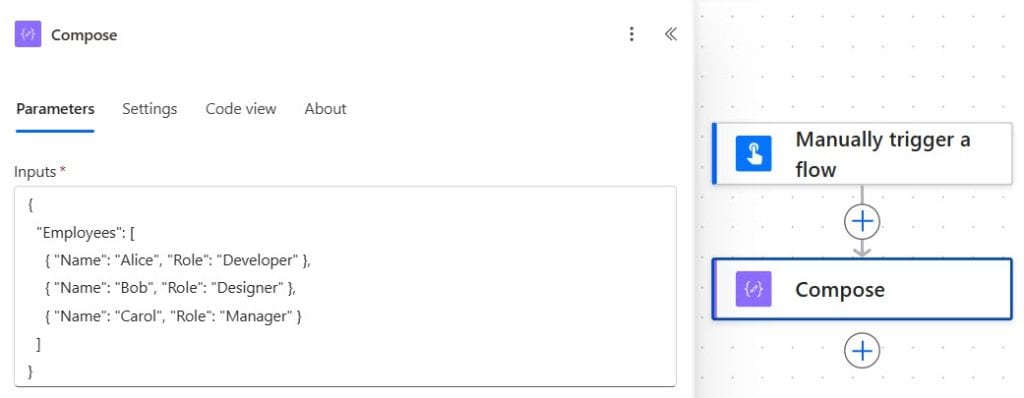
You need to have the JSON somewhere in your flow before you can parse it. Let’s say you’ve retrieved items from a SharePoint list or received a response from an HTTP action. For testing purposes, you can use a Compose action and paste your JSON directly into it.
Here’s the sample JSON I’ll use throughout this tutorial:
{
  "Employees": [
    { "Name": "Alice", "Role": "Developer" },
    { "Name": "Bob", "Role": "Designer" },
    { "Name": "Carol", "Role": "Manager" }
  ]
}
Step 3 – Add the Parse JSON Action
- Click + New step
- Search for Parse JSON
- Select it from the Data Operations category
In the Content field, pass in the output from your previous step — for example, the output of your Compose action or the body of your HTTP response.
Step 4 – Generate the Schema
This is the part that trips most people up, but it’s actually really easy. Instead of writing the schema by hand, you can generate it automatically:
- Click Generate from sample
- Paste your JSON into the box that appears
- Click Done
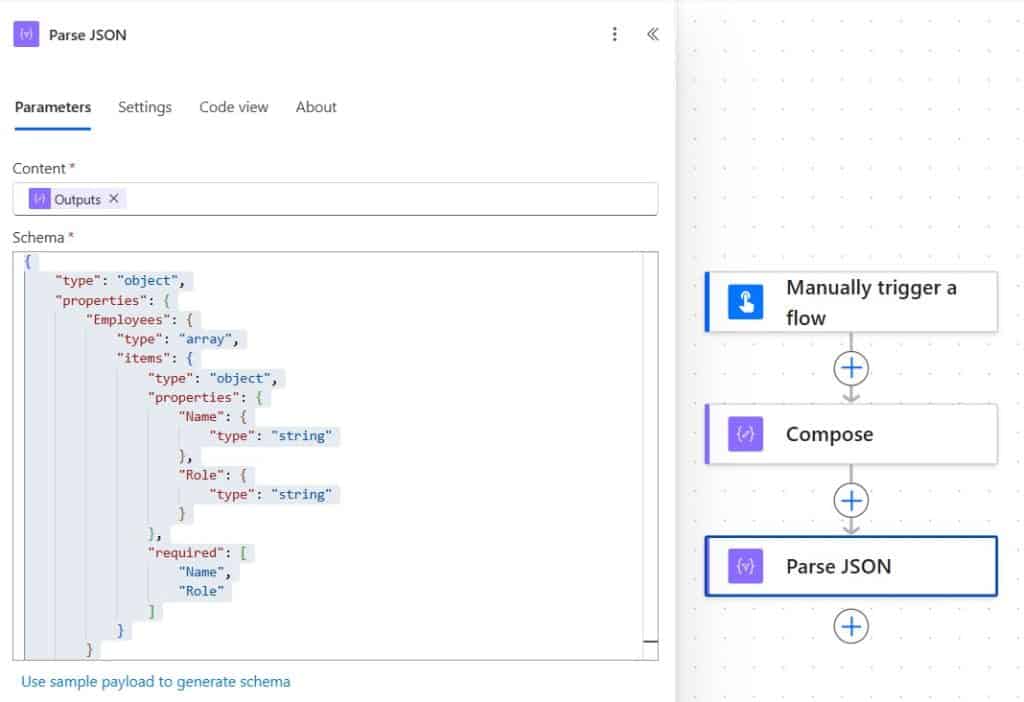
Power Automate will automatically generate a schema that looks something like this:
{
    "type": "object",
    "properties": {
        "Employees": {
            "type": "array",
            "items": {
                "type": "object",
                "properties": {
                    "Name": {
                        "type": "string"
                    },
                    "Role": {
                        "type": "string"
                    }
                },
                "required": [
                    "Name",
                    "Role"
                ]
            }
        }
    }
}
Step 5 – Loop Through the Array
Once the JSON is parsed, the Employees array will appear as dynamic content. Now you can use an Apply to Each action to loop through every item:
- Add a new step → Apply to each
- In the “Select an output from previous steps” field, select Employees from the Parse JSON dynamic content
- Inside the loop, add a Compose action
- In the Compose inputs, you can now select
NameorRoledirectly from dynamic content — no expressions needed
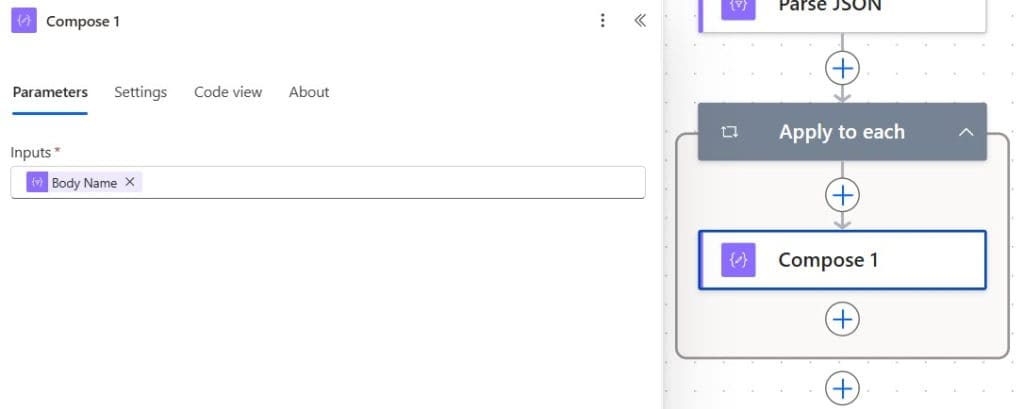
That’s it. You’ve turned a raw JSON object into a usable array that you can iterate over, filter, or send somewhere else.
Method 2: Access Array Properties Without Parse JSON in Power Automate
Sometimes you don’t want to go through the full Parse JSON setup — especially if the structure is simple and you just need one or two values. You can skip Parse JSON entirely and access array properties using expressions.
Let’s say your array is stored in a variable called EmployeeArray. Here’s how you’d read individual properties inside an Apply to Each loop:
To get the Name of the current item:
item()?['Name']
To get the Role of the current item:
item()?['Role']
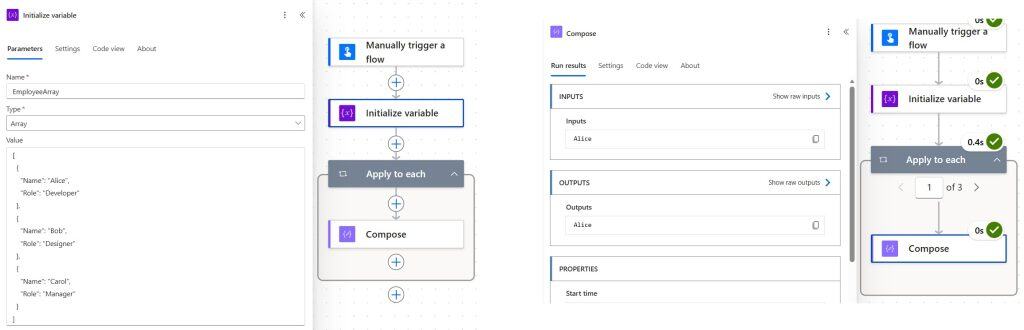
The item() function refers to the current object in the loop. The ?['PropertyName'] syntax safely accesses the property without throwing an error if it doesn’t exist.
This approach is fast and clean when you know the structure ahead of time and don’t need Parse JSON to expose dynamic content.
Method 3: Store JSON as an Array Variable in Power Automate
Here’s a scenario I run into all the time: you get a JSON response, parse it, and want to store only specific records into a clean array variable for further processing. Here’s how to do it step by step.
Step 1 – Initialize the Array Variable
Before your loop, add an Initialize variable action:
- Name:
ResultArray - Type: Array
- Value: leave it empty (or put
[])
Step 2 – Parse the JSON (as in Method 1)
Follow the same steps from Method 1 to parse your JSON and expose the Employees array.
Step 3 – Loop and Append
Inside your Apply to Each loop over the Employees array:
- Add an Append to array variable action
- Name: select
ResultArray - Value: Use an expression or dynamic content to pass in just what you need
For example, to append a simple object with just the Name field:
{"Name": item()?['Name']}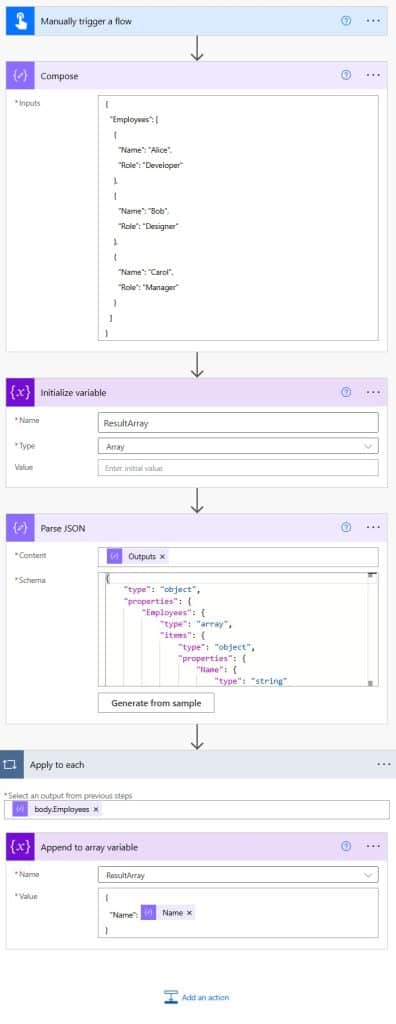
Or to append the whole item as-is, you can just select the current item from dynamic content.
After the loop, your ResultArray variable will hold a clean array of the items you care about.
Method 4: Dynamically Parse JSON from a SharePoint List in Power Automate
This is probably the most real-world use case. You have a SharePoint list, filter it, and want the data as a clean array.
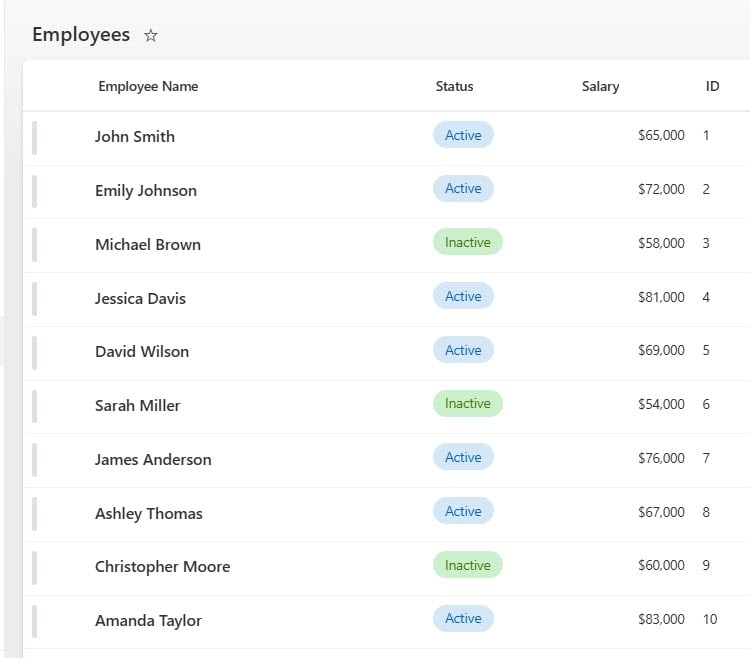
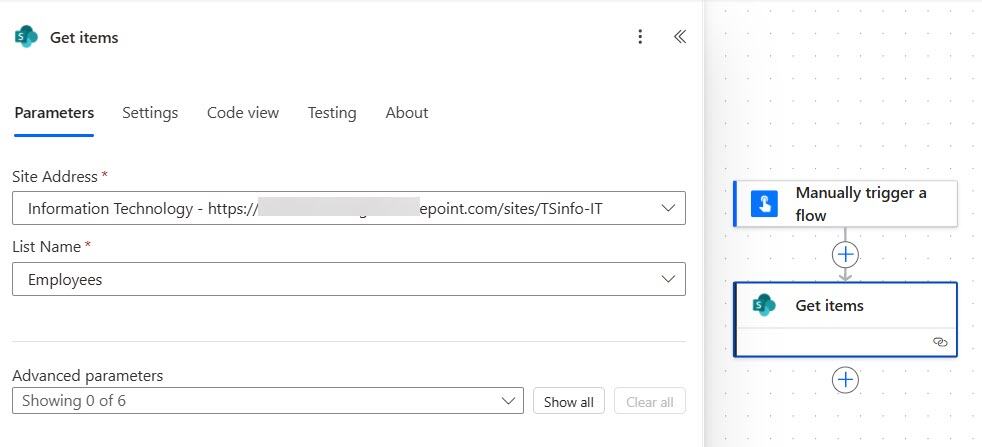
Step 1 – Get Items from SharePoint
Add the Get items action:
- Site Address: your SharePoint site
- List Name: your list
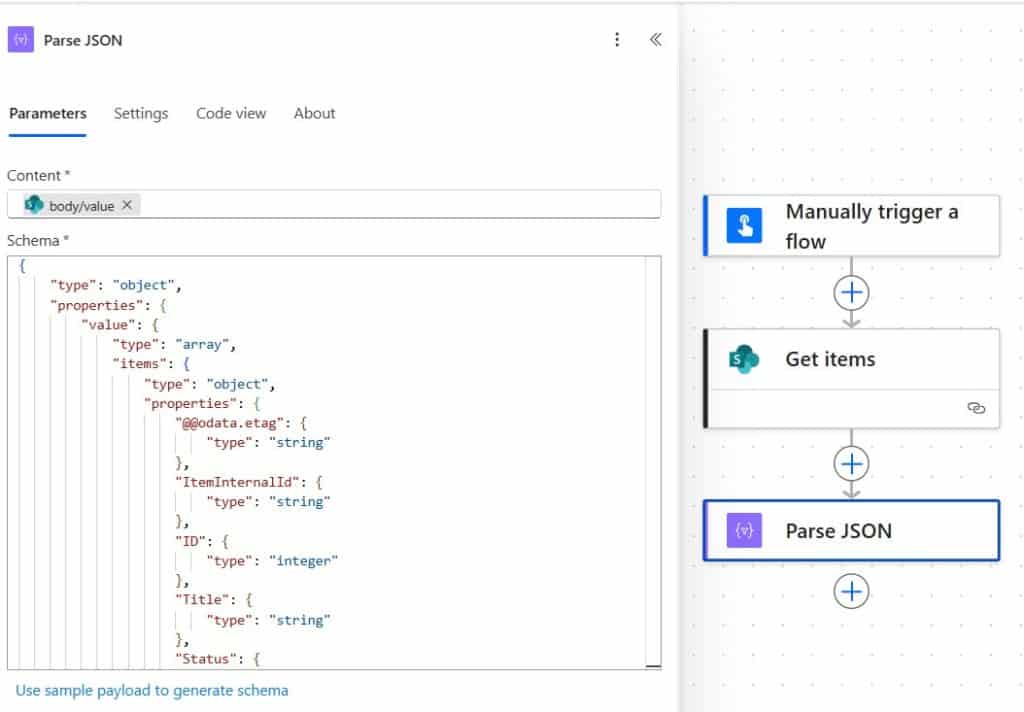
Step 2 – Parse the Response Body
The Get items action returns a JSON object. The actual array of items lives inside the value property. You can access it like this:
Use the Parse JSON action and pass in the body of the Get items action. Generate the schema from a sample run — just run the flow once, copy the output from the Get items step, and paste it into the “Generate from sample” box.
Step 3 – Initialize an Array Variable
Same as before — initialize an empty array variable called something like SPItemsArray.
Step 4 – Loop and Append
Use Apply to Each on the parsed body’s value array. Inside the loop, use Append to array variable to add each item to your SPItemsArray.
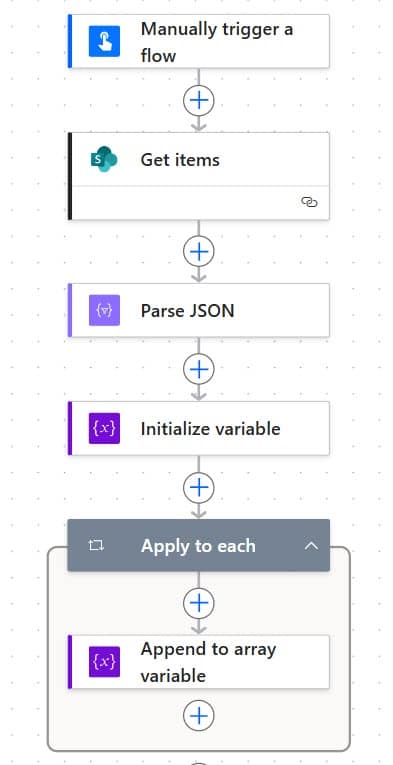
When the flow finishes, you’ll have a neat array of SharePoint items ready to send to another system, write to a file, or process further.
Method 5: Get the First Item from a JSON Array in Power Automate
Sometimes you don’t need to loop through everything — you just want the first item. Instead of using Apply to Each, you can use the first() expression.
Let’s say you’ve already parsed your JSON and have an Employees array in your dynamic content. To grab just the first employee’s name, use this in a Compose action:
first(body('Parse_JSON')?['Employees'])?['Name']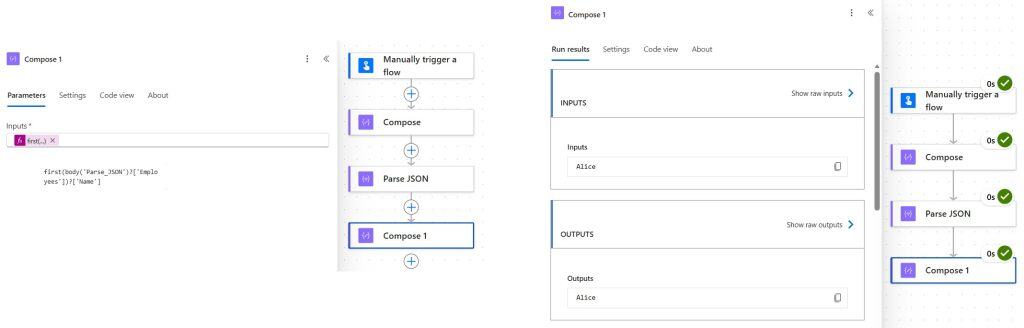
This pulls the first item from the array and then accesses its Name property. Clean, fast, no loop needed.
If you want the last item, use:
last(body('Parse_JSON')?['Employees'])?['Name']And if you want a specific item by index (say, the second one), use:
body('Parse_JSON')?['Employees'][1]?['Name']Remember — arrays are zero-indexed in Power Automate. So index 0 is the first item, 1 is the second, and so on.
Common Errors and How to Fix Them
Here are a few things that catch people out when parsing JSON in Power Automate:
- “Invalid type. Expected Array but got Object” — This usually means you’re passing an object where an array is expected. Double-check your schema and make sure you’re pointing to the right property (like
Employees, not the whole JSON blob). - Schema mismatch errors — If your JSON structure changes at runtime (e.g., a field is sometimes missing), your Parse JSON action can fail. Fix this by making fields optional in your schema — change
"required": ["Name"]to just remove therequiredblock. - Dynamic content not showing up after Parse JSON — Make sure you’re referencing the correct Parse JSON action name. If you renamed the action or have multiple Parse JSON steps, Power Automate can get confused. Check the dynamic content panel carefully.
- Escaped JSON string (looks like a string, not an object) — Sometimes API responses return JSON as a string with escaped quotes. Before passing it to Parse JSON, wrap it in a
json()expression inside a Compose step:json(body('HTTP'))— then use that Compose output as the content for Parse JSON.
Quick Method Comparison
Here’s a one-look summary of when to use which method:
| Method | Best When |
|---|---|
| Parse JSON action | You need dynamic content in subsequent steps |
item()?['Property'] expression | Simple loops where structure is already known |
| Array variable + Append | You want to build a filtered or transformed list |
| SharePoint Get Items + Parse | Real-world list data from SharePoint |
first() / last() expressions | You only need one specific item, not the whole list |
Final Thoughts
Parse JSON in Power Automate isn’t complicated once you understand what’s happening. At its core, you’re just telling Power Automate: “Hey, here’s what this data looks like — now let me work with it.”
The Parse JSON action is your best friend for most situations. But once you’re comfortable with that, using expressions like item()?['Property'], first(), and direct array indexing will save you a lot of unnecessary steps.
The key thing to remember is this: JSON objects use { } and arrays use [ ]. If your data is inside square brackets, you’re working with an array. Use Apply to Each or one of the expression methods to access individual items. If it’s in curly brackets only, you’re working with an object — access properties directly by name.
Also, you may like:
- Power Automate skip() Function
- Creating SharePoint Site Columns Manually
- Power Automate: Format Dates to ISO 8601
- Create a SharePoint Folder in Power Automate

After working for more than 18 years in Microsoft technologies like SharePoint, Microsoft 365, and Power Platform (Power Apps, Power Automate, and Power BI), I thought will share my SharePoint expertise knowledge with the world. Our audiences are from the United States, Canada, the United Kingdom, Australia, New Zealand, etc. For my expertise knowledge and SharePoint tutorials, Microsoft has been awarded a Microsoft SharePoint MVP (12 times). I have also worked in companies like HP, TCS, KPIT, etc.

