
Updating hundreds of Dataverse rows one by one is one of the most common time-wasters in Power Automate projects — and there are three different ways to do it, each with trade-offs. This step-by-step guide shows you the most practical approach for bulk conditional updates, plus the mistakes most people make that silently cause flows to fail on large datasets.
By the end of this tutorial, you will know exactly how to trigger a flow that loops through every row in a Dataverse table and updates a field value based on a condition — without touching a single record manually.
Which Method Should You Use?
Before you build, choose the right approach based on your dataset’s size and complexity. Using the wrong method is the #1 reason flows appear to succeed but only partially update records.
| Scenario | Recommended Method | Complexity |
|---|---|---|
| Under 5,000 rows, simple condition | List Rows + Apply to Each + Condition (this tutorial) | Low |
| Over 5,000 rows, simple condition | List Rows + Pagination enabled | Medium |
| Complex cross-table filter | Search Rows (Preview) action | Medium |
| Very large datasets, performance-critical | Dataverse Batch API via HTTP action | High |
| Updating from a Power Apps canvas app | Patch() function inside Power Apps | Low |
If your table has more than 5,000 rows and you proceed with the basic List Rows action without enabling pagination, your flow will succeed silently but only update the first page of records. This is the most commonly reported silent failure I have seen — and the fix takes 10 seconds (covered in the Mistakes section below).
Pre-Flight Checklist
Before you begin, confirm the following:
- You have a Power Automate Premium license (Dataverse connector is premium-only)
- Your Dataverse table has a clear unique identifier column (auto-generated by Dataverse)
- You know the filter condition you want to apply in advance
- Your table has fewer than 5,000 rows, OR you plan to enable pagination
- You are working in a development or sandbox environment before pushing to production
Real-World Scenarios
This tutorial uses a Voter Application Form, but this exact flow pattern applies to many real-world business cases:
- HR use case: Bulk-set all employees’ Annual Review Status to “Pending” at the start of each fiscal year
- Sales use case: Update all open Opportunities older than 90 days to a “Stale” status for pipeline hygiene
- IT asset use case: Mark all equipment records as “Needs Audit” when a compliance policy change triggers
- Education use case: Set all student enrollment records to “Inactive” after a term ends
Scenario
The Dataverse table used in this tutorial is named Voter Application Forms. It contains the following columns:
- Applicant Name — Primary column, Text data type
- Date of Birth — Date data type
- Gender — Choice (Single value): Male, Female, Others
- Age — Number data type
- Parent/Spouse Name — Single line of text
- District — Choice: Alabama, Alaska, Florida, etc.
- State — Choice: various state values
- Is Eligible — Single line of text (currently blank — this is the field we will bulk-update)
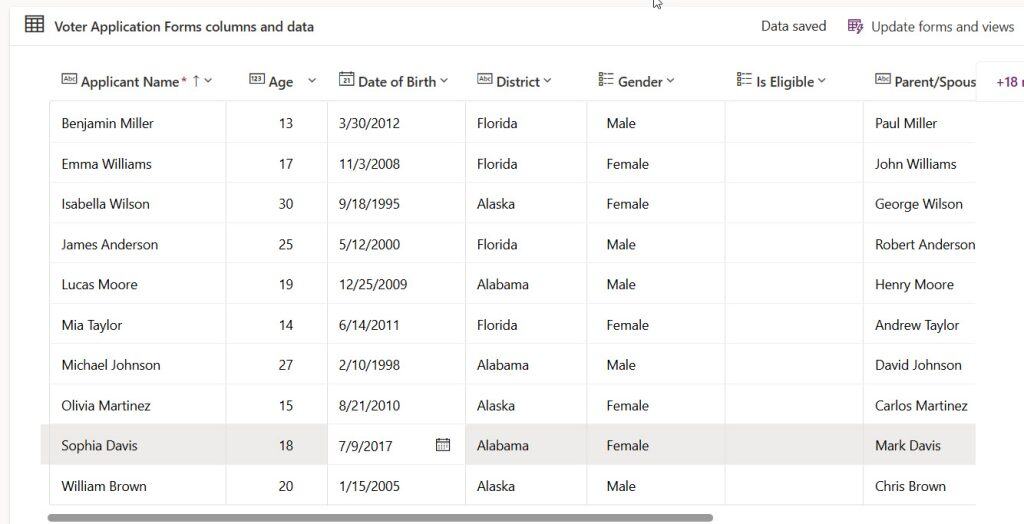
Goal: When a user manually triggers the flow, it should loop through every row and:
- Set Is Eligible = “Eligible” if the applicant’s Age is 18 or above
- Set Is Eligible = “Not Eligible” if the applicant’s Age is below 18
Update Multiple Rows in Dataverse Using Power Automate
Here, I will explain how to Update Multiple Rows in Dataverse using Power Automate.
Step 1 — Create a New Instant Cloud Flow
- Open Power Automate and sign in with your Microsoft credentials.
- From the left navigation, click + Create.
- Under the Start from blank section, select Instant cloud flow.
Step 2 — Name Your Flow and Choose the Trigger
- In the dialog that appears, enter a descriptive flow name — for example: Dataverse Bulk Update – Voter Eligibility.
- Under Choose your flow’s trigger, select Manually trigger a flow from the list.
- Click Create.
Why a manual trigger? This is ideal for one-time or scheduled bulk operations. For automated bulk updates (e.g., triggered nightly), swap this for a Recurrence trigger or a Dataverse row-change trigger without changing any other step.
Step 3 — Add the Dataverse “List Rows” Action
This action fetches all existing rows from your Dataverse table so the flow can loop through them.
- Below the trigger, click the + icon and select Add an action.
- In the search bar, type List rows.
- Select Microsoft Dataverse, then click List rows (PREMIUM) under the Actions tab.
- In the Table name dropdown, select your table — in this case, Voter Application Forms.
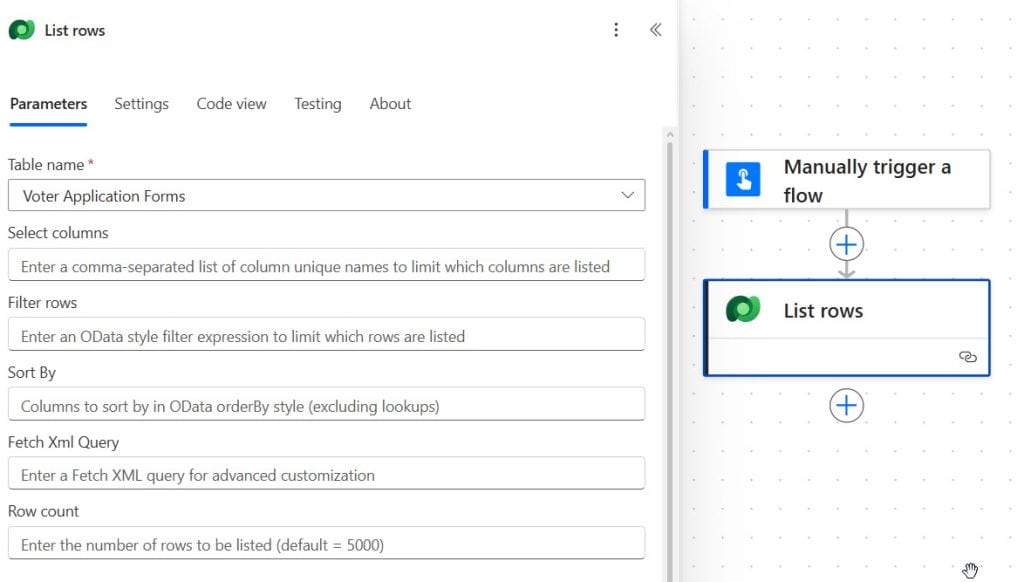
Do not skip this: Click the Settings → toggle on Pagination and set the threshold to 100,000. Without this, the action silently returns only the first 5,000 rows regardless of how many records your table contains.
Step 4 — Add a Condition Control — Here’s What Most Tutorials Miss
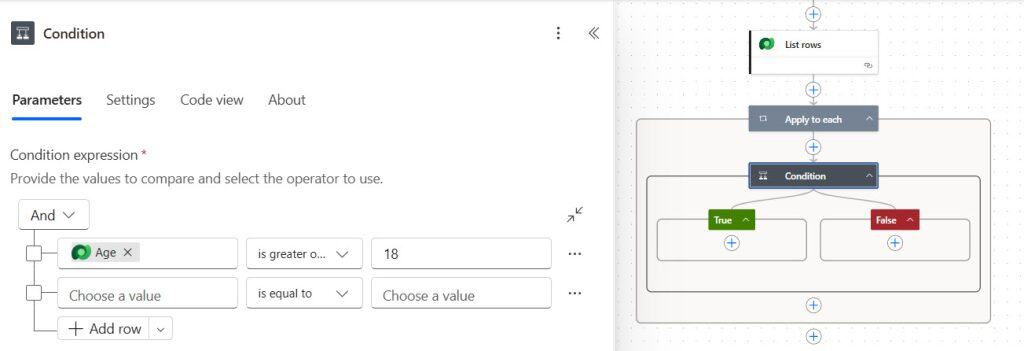
When you add a Condition and reference a field from List Rows, Power Automate will automatically wrap it in an Apply to Each loop. This is expected behavior — not a bug. Many first-time users delete the Apply to Each loop thinking it appeared by mistake, which breaks the entire flow.
- Click + below the List Rows action → Add an action.
- Search for Condition and select it from the Control group.
- In the Condition’s first block, click inside it → open Dynamic content → select Age from the List Rows group. Power Automate will automatically create an Apply to Each loop around the Condition — leave it as-is.
- In the middle block (operator), select is greater than or equal to from the dropdown.
- In the third block (value), type 18.
Step 5 — Update Rows in the “If Yes” Branch (Eligible)
This branch runs when the applicant’s age is 18 or above.
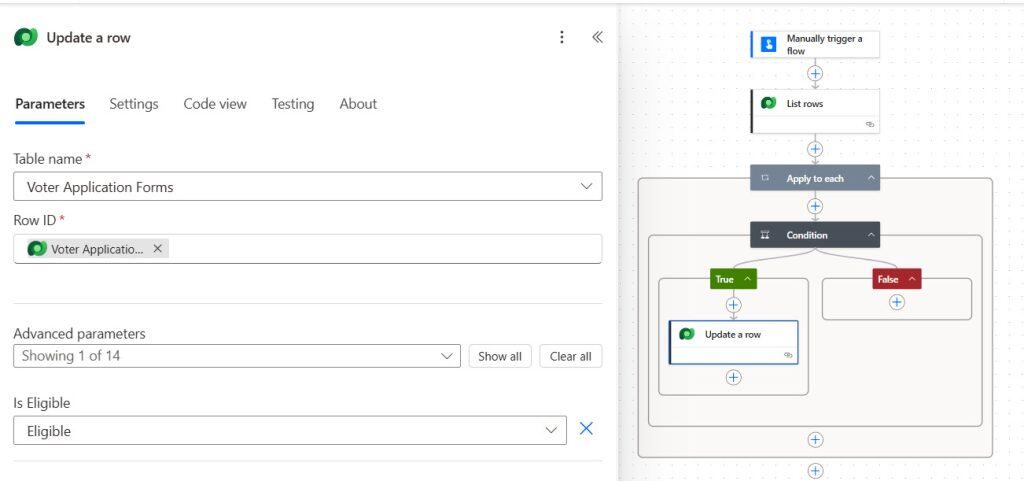
- Inside the If yes branch, click Add an action.
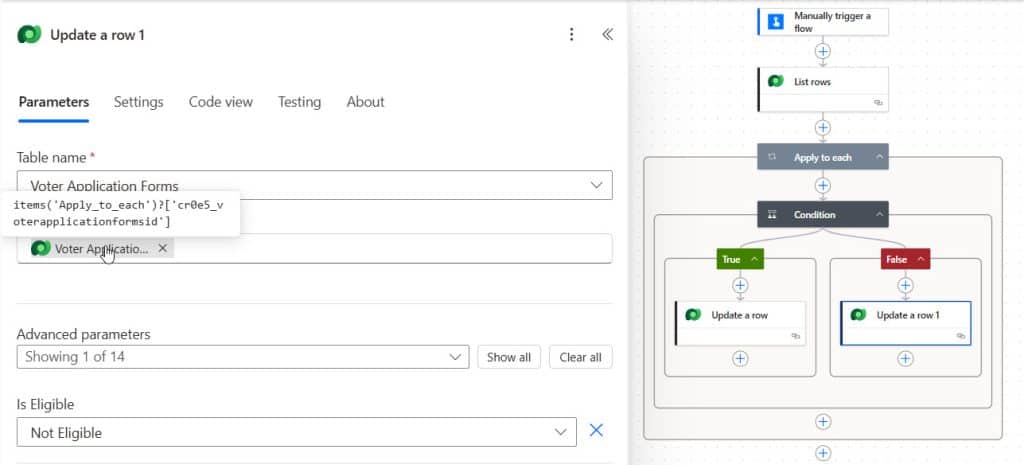
- Search for Update a row, select Microsoft Dataverse, and click Update a row (PREMIUM).
- Rename the action to Update Row – Eligible for clarity.
- Configure the action fields:
- Table name: Voter Application Forms
- Row ID: Click into the field → Dynamic content → select Voter Application Form (labeled Unique identifier for entity instances). ⚠️ This is the most critical mapping step — selecting the wrong ID field causes a “Record not found” error with no clear error message.
- Applicant Name, Age, Date of Birth, etc.: Map each from Dynamic content under the List rows group
- Is Eligible: Type the static value Eligible
Step 6 — Update Rows in the “If No” Branch (Not Eligible)
This branch runs when the applicant’s age is below 18.
- Inside the If no branch, click Add an action.
- Search for Update a row, select Microsoft Dataverse, and click Update a row (PREMIUM).
- Rename the action to Update Row – Not Eligible.
- Configure the same fields as Step 5, but set Is Eligible to the static value Not Eligible.
Step 7 — Save and Test the Flow
- Click Save in the top-right corner.
- Click Flow checker to scan for errors. Resolve any warnings before proceeding.
- Click Test → select Manually → click Test.
- In the Run flow pane, click Run flow, then click Done.
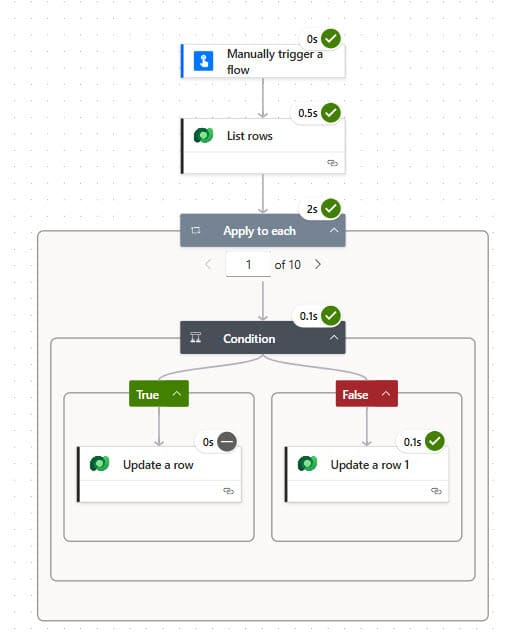
- Watch the flow run. Each action should show a green checkmark. If any step shows a red X, expand it to read the error detail.
Step 8 — Verify Results in the Dataverse Table
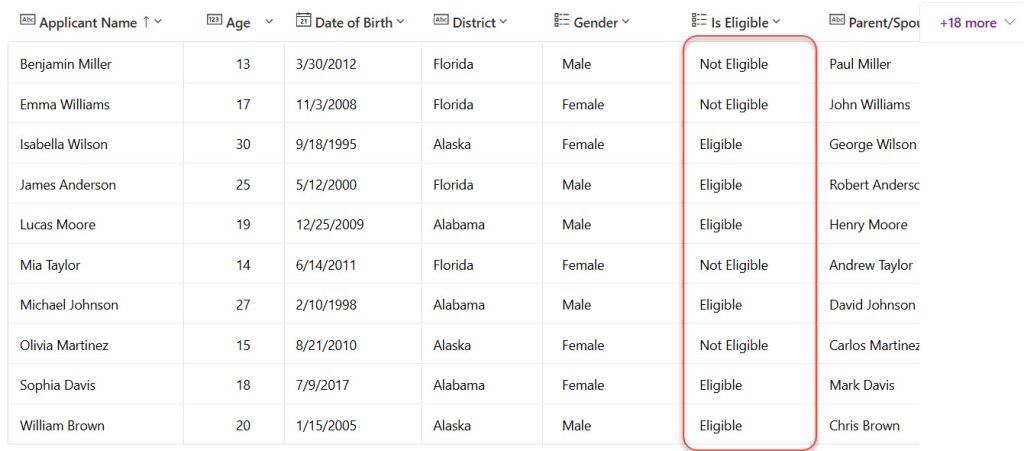
- Navigate back to your Dataverse table (Voter Application Forms) in make.powerapps.com.
- Refresh the table view.
- Confirm that every row now has a value in the Is Eligible column — “Eligible” for age ≥ 18, and “Not Eligible” for age < 18.
Common Mistakes and How to Fix Them
These are issues I have personally encountered and debugged across multiple production environments:
❌ Mistake 1: Flow updates only some records, not all
- Cause: Pagination is not enabled on the List Rows action.
- Fix: Go to List Rows →
...→ Settings → Enable Pagination → set threshold to 100,000.
❌ Mistake 2: “Record not found” error on Update a Row
- Cause: The Row ID field is mapped to a display name column (like Applicant Name) instead of the unique identifier.
- Fix: In the Row ID field, select the Dynamic content value labeled [Table Name] (Unique identifier for entity instances) — it is usually listed at the bottom of the List rows group.
❌ Mistake 3: Apply to Each loop appeared automatically and you deleted it
- Cause: Power Automate adds Apply to Each whenever you reference a list output inside a single-item action. This is required behavior.
- Fix: Re-add the Condition inside a new Apply to Each block, using the value output from List Rows as the input to Apply to Each.
❌ Mistake 4: Flow times out on large tables
- Cause: Apply to Each processes rows sequentially by default (one at a time), which is slow at scale.
- Fix: Inside Apply to Each → Settings → enable Concurrency Control and set the degree of parallelism to 10–20. Be cautious with Dataverse throttling limits when pushing this high.
❌ Mistake 5: Updated rows are missing optional field values after the flow runs
- Cause: You only mapped the “Is Eligible” field in Update a Row and left all other fields blank, which overwrites them with null.
- Fix: Always map every required and currently-populated column from Dynamic content in the Update a Row action, not just the field you want to change.
Method Comparison: Choosing the Right Approach
| Method | Max Rows (Default) | Speed | Premium Required | Best For |
|---|---|---|---|---|
| List Rows + Apply to Each | 5,000 | Slow (sequential) | Yes | Simple conditional updates |
| List Rows + Pagination | 100,000+ | Slow (sequential) | Yes | Large tables, same logic |
| Apply to Each + Concurrency | 100,000+ | Fast (parallel) | Yes | Large tables, speed priority |
| Dataverse Batch API (HTTP) | Unlimited | Very fast | Yes | Enterprise-scale operations |
| Power Apps Patch() | ~500 | Instant (user-driven) | No | Small on-demand updates |
Also, you may like some more Power Automate tutorials:
- Import Data From Excel to a SharePoint List Using Power Automate
- Power Apps Concatenate Two Fields
- Power Automate Excel to PDF
- Loop Through SharePoint List Items in Power Automate
Frequently Asked Questions
Can I update Dataverse rows without a Premium license?
No. The Dataverse connector’s “List Rows” and “Update a Row” actions are both classified as Premium in Power Automate. You need either a Power Automate Premium standalone plan or a Microsoft 365 plan that includes premium connector access (such as certain Dynamics 365 licenses).
What happens if my flow updates more than 5,000 rows without pagination?
The flow will appear to run successfully and show green checkmarks, but only the first 5,000 rows (the first page) will be updated. The remaining rows will be silently skipped. This is the most dangerous silent failure pattern in Power Automate Dataverse flows.
How do I filter which rows to update instead of updating all rows?
In the List Rows action, expand Show advanced options and use the Filter rows field with an OData filter expression. For example, to only fetch rows where Age is 18 or above, enter: age ge 18. This reduces the loop size and improves performance.
How do I update rows based on a value in a related (lookup) table?
Use the Filter rows field in List Rows with an OData $expand expression to join related tables. For example: $expand=account($select=name)&$filter=account/name eq ‘Contoso’. This allows cross-table conditional logic without needing a separate List Rows call.
Is there a way to bulk update rows without using Apply to Each?
Yes — the Dataverse Batch API allows you to send multiple update requests in a single HTTP call using the HTTP with Azure AD action and the Dataverse $batch endpoint. This is more complex to set up but dramatically faster for thousands of rows.
Why does Apply to Each appear automatically when I add a Condition?
Power Automate recognizes that the List Rows output is an array (a collection of multiple rows), not a single item. Any action that references an array output is automatically wrapped in Apply to Each so it iterates over each item individually. This is the correct and expected behavior.
Can I schedule this bulk update to run automatically every day?
Yes. Replace the Manually trigger a flow trigger with a Recurrence trigger. Set the frequency (daily, weekly, etc.) and the time. Everything else in the flow stays exactly the same.

Preeti Sahu is an expert in Power Apps and has over six years of experience working with SharePoint Online and the Power Platform. She is the co-author of Microsoft Power Platform: A Deep Dive book. As a Power Platform developer, she has worked on developing various tools using Power Apps and Power Automate. She also makes Microsoft 365 videos and shares them on YouTube.

