
Last week, one of my colleagues asked me how to create a PDF from Microsoft Forms responses. They wanted a way to automatically generate a PDF with the submitted data for easy sharing and record-keeping. I explained that with Power Automate Microsoft Forms and OneDrive connectors, you can quickly collect form responses and convert them into PDFs without manual work.
In this tutorial, l will explain how to create PDF from Microsoft Forms using Power Automate.
Create PDF From Microsoft Forms Using Power Automate
Imagine your team is working on a Power Apps Feedback Collection App that allows users to provide feedback on an internal app or feature. The app uses Microsoft Forms to gather responses, and once the feedback is submitted, you want to generate a PDF of the responses for documentation purposes.
Before I tell you how to create a PDF, you need to make a Microsoft Form for this example I have already created:

Now follow the below steps:
1. Create an automated cloud flow. Give the flow name and select the trigger When a new response is submitted. Also, provide the Form ID, which, in my case, is the Power Apps Feedback Collection App.

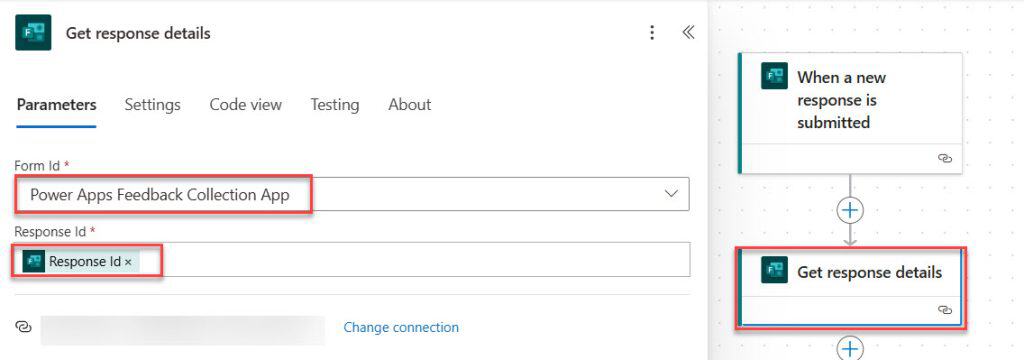
2. To retrieve the response, add the Get response details action from the Microsoft Forms connector. Then, provide the Form ID from the dropdown menu and select the Response ID from the dynamic content of the When a new response is submitted trigger.
3. Add the Compose action to format the data into an HTML structure for the PDF. Provide the below HTML code:
<h2>Power Apps Feedback</h2>
<table border="1" cellpadding="5" cellspacing="0" style="border-collapse: collapse; width: 100%; font-family: Arial, sans-serif;">
    <tr>
        <td style="width: 30%;"><strong>User Name:</strong></td>
        <td>@{outputs('Get_response_details')?['body/r62d5746f8a3344a1b70853f526c1b109']}</td>
    </tr>
    <tr>
        <td><strong>Email Address:</strong></td>
        <td>@{outputs('Get_response_details')?['body/responder']}</td>
    </tr>
    <tr>
        <td><strong>App Name:</strong></td>
        <td>@{outputs('Get_response_details')?['body/re3add53084c64ecf9609559dfc72c908']}</td>
    </tr>
    <tr>
        <td><strong>Feedback Type:</strong></td>
        <td>@{outputs('Get_response_details')?['body/r1c83354b122f4a179d59ebcdd75d3f96']}</td>
    </tr>
    <tr>
        <td><strong>Detailed Feedback:</strong></td>
        <td>@{outputs('Get_response_details')?['body/rfb309581c4f846b29f74fb3c314ef326']}</td>
    </tr>
    <tr>
        <td><strong>Priority:</strong></td>
        <td>@{outputs('Get_response_details')?['body/r2aad1d9cd54345d6b887818fcbb7086d']}</td>
    </tr>
    <tr>
        <td><strong>Submission Date:</strong></td>
        <td>@{formatDateTime(utcNow(),'dd/MM/yyyy')}</td>
    </tr>
</table>
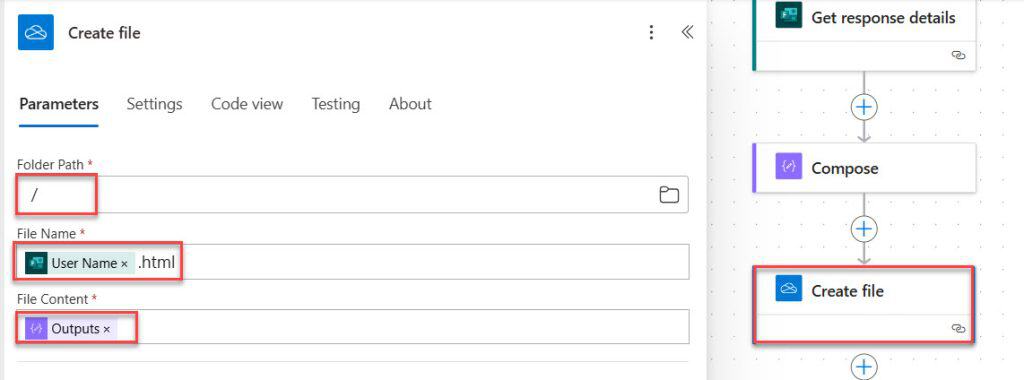
4. Add a create file action in OneDrive for business. Then, provide the below parameter:
- Folder Path: Give a folder path where you need to create the file.
- File Name: Select the User Name from the dynamic content with an HTML extension.
- File Content: Choose output from the compose action
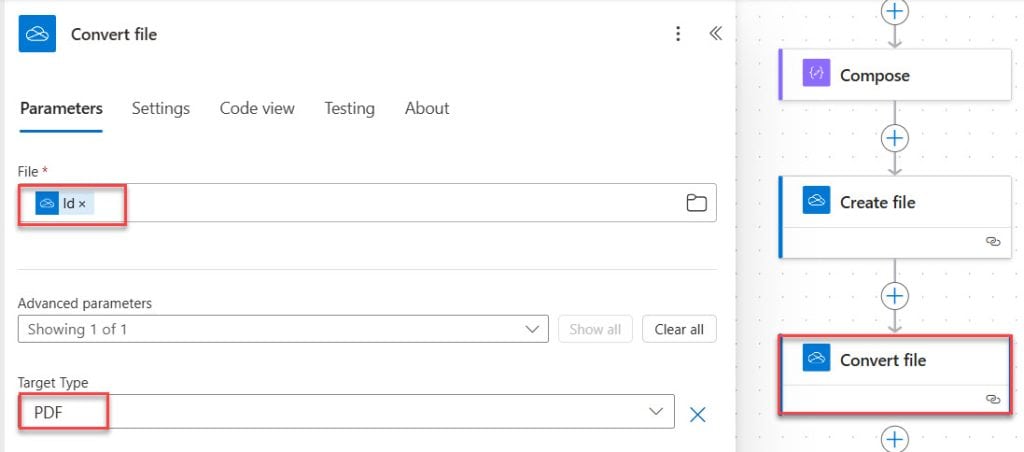
5. Now, we need to convert that HTML file to pdf. For this, I add a convert file action and provide the parameters below
- File: Provide Id from the create file dynamic content.
- Target Type: Select the PDF from the drop-down.
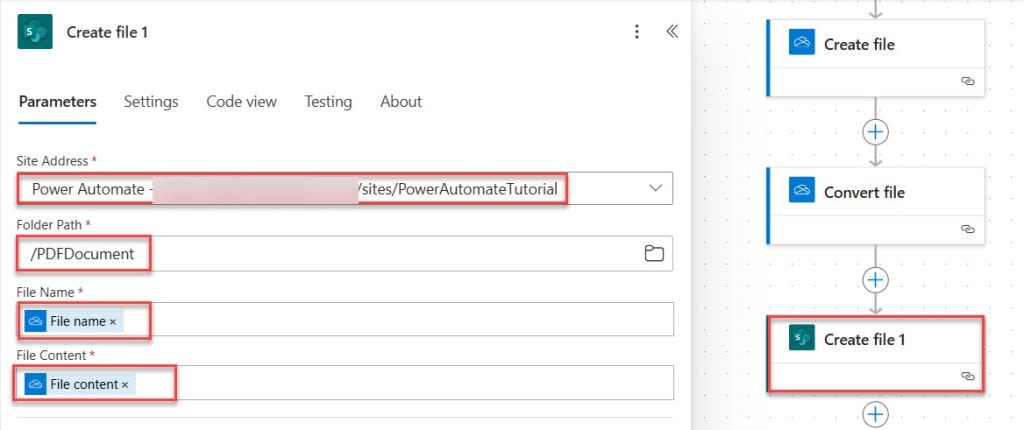
6. Now, our PDF file is created in OneDrive. Where you store it depends on your preference. In my case, I want to store it in a SharePoint library. So, I added a create file action from the SharePoint connector using the below parameter:
- Site Address: Provide which site you want to store.
- Folder Path: Provide Where you wish to store.
- File Content: Provide the File content from dynamic content.
- File Name: Provide file name. You can give a different name, but I want the same name as onedrive.
7. Next, add an action that deletes the onedrive pdf file. To do this, add a delete file action from OneDrive for business. Then, provide an ID from dynamic content.

Run the Flow to Create PDF From Microsoft Forms Using Power Automate
Let’s save the flow and test it manually. Then, add a response to the Microsoft Form.

When the flow runs successfully, you can check that the file has been created in PDF format in the SharePoint document library.

Then, you can open the PDF and see the result.

Conclusion
In this tutorial, I covered creating a PDF from Microsoft Forms responses using Power Automate. We started by setting up a flow triggered when a new form response is submitted, retrieved the response details, and formatted the data into an HTML structure using the Compose action. Then, we created an HTML file in OneDrive, converted it to a PDF, and stored it in a SharePoint library. Finally, we cleaned up by deleting the temporary HTML file from OneDrive.
You may also like the following Power Automate tutorials:
- Convert HTML to PDF Using Power Automate
- Create PDF from Excel using Power Automate
- Create a SharePoint Document Library in Power Automate
- Convert PDF to Base64 Using Power Automate
- Convert Word Files to PDF Using Power Automate
- Convert SharePoint List Item to PDF Using Power Automate

After working for more than 18 years in Microsoft technologies like SharePoint, Microsoft 365, and Power Platform (Power Apps, Power Automate, and Power BI), I thought will share my SharePoint expertise knowledge with the world. Our audiences are from the United States, Canada, the United Kingdom, Australia, New Zealand, etc. For my expertise knowledge and SharePoint tutorials, Microsoft has been awarded a Microsoft SharePoint MVP (12 times). I have also worked in companies like HP, TCS, KPIT, etc.


How to change the orientation of PDF.
Hi! I have the same question. How I change the orientation of the table displayed in PDF?
How can I change the orientation of the result? and what if I have photos in the answers? How can I convert those into PDF file.
Did you ever figure this out?
This is great, but like others I’d like to know how you would change the orientation. My form has over 150 questions… 🙂
This is awesome!
How do I attach this pdf that was created, to an email? I created a feedback form, and each response would need to be attached to an email, and get emailed to 3 different people.