
A regional manager asked me for a sales page where the chart title says which regions they picked, and a second slicer to switch the chart between revenue, cost and profit. Both requests come down to the same skill: reading what’s selected in a slicer and using it in a measure.
In this tutorial, I’ll show you how to get the selected value from a slicer in Power BI with SELECTEDVALUE, handle multiple selections, use the selection in a dynamic title, and build a measure that changes based on a slicer. Everything is shown in Power BI Desktop with a real sales report.
Quick answer: Use SELECTEDVALUE(Table[Column], "default") in a measure, for example Selected Region = SELECTEDVALUE(Sales[Region], "All regions"). It returns the value when exactly one item is selected, and the default otherwise. For several selections, use CONCATENATEX(VALUES(Sales[Region]), Sales[Region], ", "). To switch a measure with a slicer, put the options in a separate table and use SWITCH on its SELECTEDVALUE.
How slicer selections reach a measure
A slicer doesn’t pass a value to your measure directly. It filters the column, and the measure reads that filter. So the functions below all ask the same question: which values of this column are visible right now? If you’re new to slicers, start with how to add and configure slicers in Power BI.
| You want | Use | Returns |
|---|---|---|
| The single selected value | SELECTEDVALUE(col, default) | The value, or the default if 0 or 2+ are selected |
| All selected values as text | CONCATENATEX(VALUES(col), col, ", ") | “East, West” |
| How many are selected | COUNTROWS(VALUES(col)) | 2 |
| Whether the user selected anything | ISFILTERED(col) | TRUE or FALSE |
| The first or last selected (sorted) | MIN(col) / MAX(col) | “East” / “West” |
| Exactly one value selected? | HASONEVALUE(col) | TRUE or FALSE |
Get the single selected value with SELECTEDVALUE
Create a measure with Home > New measure:
Selected Region = SELECTEDVALUE ( SalesData[Region], "All regions" )Put it on a card. When the user picks West, the card shows West. With nothing selected, or with two or more regions selected, it shows the second argument, “All regions”. Without that argument, SELECTEDVALUE returns blank in those cases.
SELECTEDVALUE is a shortcut for IF(HASONEVALUE(col), VALUES(col), default). If the slicer should only allow one value, turn on Single select in the slicer’s selection settings; see how to control multiple selections in a slicer.
Get multiple selected values from a slicer
When users hold Ctrl and pick several regions, SELECTEDVALUE falls back to its default. To list every selected value, join them with CONCATENATEX:
Selected Regions List =
IF (
    ISFILTERED ( SalesData[Region] ),
    CONCATENATEX ( VALUES ( SalesData[Region] ), SalesData[Region], ", ", SalesData[Region], ASC ),
    "All regions"
)![Power BI formula bar with Selected Regions List = IF(ISFILTERED(SalesData[Region]), CONCATENATEX(VALUES(SalesData[Region]), ...),](https://www.enjoysharepoint.com/wp-content/uploads/2026/10/power-bi-concatenatex-selected-slicer-values-formula.png "power bi concatenatex selected slicer values formula")
With East and West selected, it returns “East, West”. The ISFILTERED check matters: with nothing selected, every region is visible, and you’d otherwise get a long list of all of them instead of “All regions”. The fourth and fifth arguments of CONCATENATEX sort the list alphabetically.
To show the count instead, for example “2 regions selected”:
Regions Selected = COUNTROWS ( VALUES ( SalesData[Region] ) )Use the selection in a dynamic title
A title that says what’s on screen saves readers from checking every slicer. Build the text in a measure:
Report Title = [Selected Metric Name] & " by product: " & [Selected Regions List]Then select the chart, open Format visual > General > Title, select the fx button next to Text, keep Format style as Field value and choose the Report Title measure.
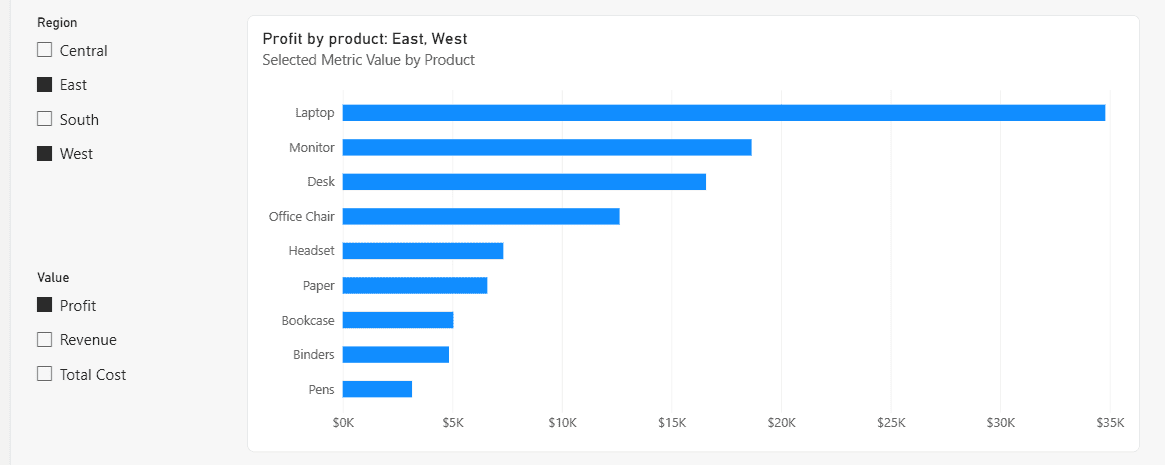
The title now updates with every slicer change. The same fx option works for colors and other text properties; see Power BI visual formatting for more ways to style reports.
Create a measure based on slicer selection
The second request was a slicer that switches the chart between Revenue, Total Cost and Profit. The trick is a small table that isn’t related to anything, used only to drive the slicer.
Step 1: Create a table of options
Select Table tools (or Modeling) > New table and enter:
Metric = { "Revenue", "Total Cost", "Profit" }Power BI creates a one-column table with a column called Value. Add a slicer with Metric[Value].
Step 2: Read the selection and switch measures
Selected Metric Name = SELECTEDVALUE ( Metric[Value], "Revenue" )

Selected Metric Value =
SWITCH (
    [Selected Metric Name],
    "Revenue", [Revenue],
    "Total Cost", [Total Cost],
    "Profit", [Profit]
)
Use Selected Metric Value in the chart. When the user picks Profit, the bars show profit; with nothing selected, they show revenue, the default. The Revenue, Total Cost and Profit measures are the SUMX examples from SUM vs SUMX in Power BI, and SWITCH itself is explained in the Power BI SWITCH measure.
Set the slicer to single select so users can’t pick two metrics at once. Also format the Selected Metric Value measure (currency here), since a measure has only one format for all the options.
Alternative: field parameters
Power BI also has field parameters: Modeling > New parameter > Fields. You pick the measures, and Power BI creates the table and slicer for you, and keeps each measure’s own format. Use field parameters for simple switching, and the SWITCH pattern when you need custom logic, such as different calculations per option.
Get the selected value from a date slicer
A date range slicer filters a range rather than picking one value, so use MIN and MAX:
Start Date Selected = MIN ( SalesData[Order Date] )
End Date Selected = MAX ( SalesData[Order Date] )

Period Label =
FORMAT ( [Start Date Selected], "MM/DD/YYYY" ) & " - " & FORMAT ( [End Date Selected], "MM/DD/YYYY" )
These return the first and last dates in the data within the selected range, not the exact slicer handles, which is usually what you want in a label. Here’s how to create a date range slicer.
For a numeric “what if” input, such as a discount percentage, use Modeling > New parameter > Numeric range. Power BI creates the slicer and a measure that returns the selected value, built on SELECTEDVALUE.
Problems getting the selected value
- The measure returns the default even though one item is selected: another filter (a second slicer or a cross-highlight) may leave more than one value visible. Check with COUNTROWS(VALUES(col)).
- The result ignores the slicer: the slicer is on a different table than the column in your measure, with no relationship between them. Read the column the slicer uses.
- A disconnected table filters nothing: that’s expected. It only drives SELECTEDVALUE; the measure does the work.
- The selection should apply on other pages too: sync the slicer; see how to sync slicers across pages.
- You want a starting selection: see how to set a default value in a slicer.
These slicer tutorials go well with this one:
Frequently Asked Questions
How do I get the selected value of a slicer in a Power BI measure?
Use SELECTEDVALUE(Table[Column], “default text”). It returns the selected value when exactly one item is selected. See Microsoft’s SELECTEDVALUE reference for details.
How do I show multiple selected slicer values?
Use CONCATENATEX(VALUES(Table[Column]), Table[Column], “, “), wrapped in IF(ISFILTERED(…)) so you can show a different text when nothing is selected.
Why does SELECTEDVALUE return blank?
Zero or more than one value is visible. Add a second argument as the default, or check the selection count with COUNTROWS(VALUES(…)).
How do I change a measure based on a slicer selection?
Create a disconnected table with the options, add it as a slicer and use SWITCH(SELECTEDVALUE(Table[Value]), …) to return a different measure for each option. Field parameters do the same without DAX.
Can I use a slicer selection in a chart title?
Yes. Build the text in a measure and set it under Format visual > General > Title > Text > fx, with Format style Field value.

I have worked with Microsoft technologies for more than 18 years, including SharePoint, Microsoft 365 and the Power Platform (Power Apps, Power Automate and Power BI), at companies like HP, TCS and KPIT. I started EnjoySharePoint in 2011 to share the solutions I build in real projects with readers in the United States, Canada, the United Kingdom, Australia, New Zealand and beyond. Microsoft has recognized this work with the Microsoft MVP award 13 times since 2014.
Hi team,
For the date slicer, if I unselect all the dates, it should show a default value, any way to do that?
very good …helped me a lot..thank you
How do you set the selected values?
Hi, Thanks for this. How did you get the name of the slice in this: Selected_Month = SELECTEDVALUE(‘financials'[Date].[Month])