
If your Power BI report is starting to look like a wall of checkboxes, the dropdown slicer is probably the fix you need. It takes a long, space-hogging list of filter options and collapses it into one tidy line until the user clicks it.
In this tutorial, I’ll walk you through everything: how to set it up, how to enable search and sorting, how to use it with dates, how to style it to match your report theme, and — importantly — when not to use it. I’ll also cover the most common issues people run into and exactly how to fix them.
Here’s what we’ll cover:
- What a dropdown slicer is and why it’s useful
- Dropdown vs. List vs. the new List Slicer — which one to pick
- How to convert a list slicer to dropdown
- How to enable search inside the dropdown
- How to set a default value
- How to sort dropdown items
- How to change dropdown colors
- How to use a date field in a dropdown slicer
- Common problems and fixes
- FAQs
What Is a Power BI Slicer Dropdown?
A slicer in Power BI is a visual filter that sits on your report page. By default, it shows up as a vertical list — every value in the field is visible at once. That works fine when you have 4–5 values, but if you have 50 product names or 200 city names, that list takes over your entire canvas.
The dropdown style collapses that list into a single bar with a down arrow. Users click it, the list drops down, they pick a value, and the report filters. It’s a familiar UI pattern that keeps reports looking clean and professional.
There’s also a performance benefit worth knowing: dropdown slicers don’t load their data until a user actually clicks them. This means your report loads faster on page load than list slicers, which load all their values upfront.
Power BI Dropdown vs. List vs. the New List Slicer — Which Should You Use?
This is something I get asked a lot, especially now that Microsoft released a new “List Slicer” visual in late 2024 (and significantly upgraded it in May 2025). Here’s how I think about it:
| Situation | Best Slicer Type |
|---|---|
| 5 or fewer values, always visible | Vertical List (classic) |
| 6+ values, limited canvas space | Dropdown Slicer |
| Hierarchical data (Region → Country → City) | New List Slicer |
| Need images or labels inside the slicer | New List Slicer |
| Need dropdown style with compact layout | Classic Dropdown Slicer |
| Mobile report layout | Dropdown Slicer |
One thing to flag: as of March 2026, the new List Slicer does not have a dropdown mode. If you need the compact dropdown look, you still need the classic slicer visual. The new List Slicer is great for hierarchies and richer visuals, but it’s always expanded.
How to Convert a List Slicer to a Dropdown in Power BI
This is the most common starting point. You’ve added a slicer to your report, it’s showing as a vertical list, and you want to change it to a dropdown.
Here’s how to do it in the current version of Power BI Desktop:
- Select the slicer on your report canvas
- Go to the Format pane (the paintbrush icon on the right)
- Expand Slicer settings
- Under Options, find the Style dropdown
- Change it from Vertical list to Dropdown
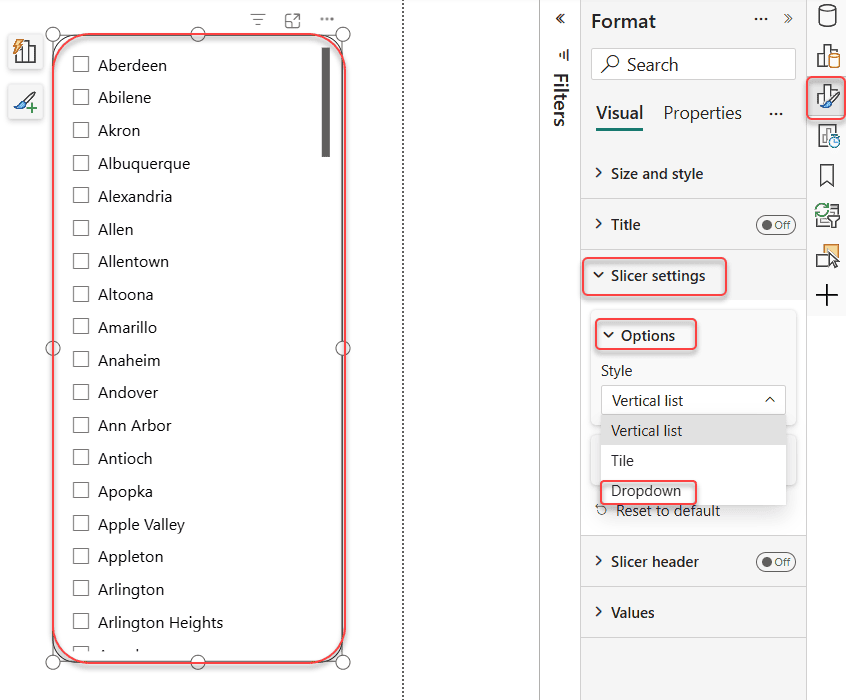
That’s it. Your slicer will immediately collapse into a single bar with a down arrow.
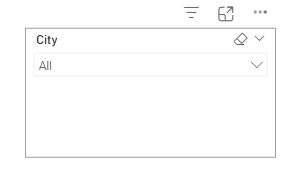
Important Note
If you don’t see “Slicer settings” in the Format pane, you might have accidentally selected the new List Slicer or Button Slicer visual instead of the classic Slicer. Delete it and re-add the slicer using the classic Slicer icon from the Visualizations pane (it has no lightning bolt icon next to it). The classic slicer is what gives you the dropdown option.
How to Enable Search Inside the Power BI Dropdown
If your dropdown has a long list — say, 30+ product names or a list of employee names — the search box is a game-changer. Users can start typing, and the list filters instantly.
Here’s how to turn it on:
- Select the dropdown slicer
- Click the three dots (…) at the top right of the slicer
- Click Search
A search box will appear at the top of your dropdown when users open it. They can type any part of the value, and the list narrows down in real time.
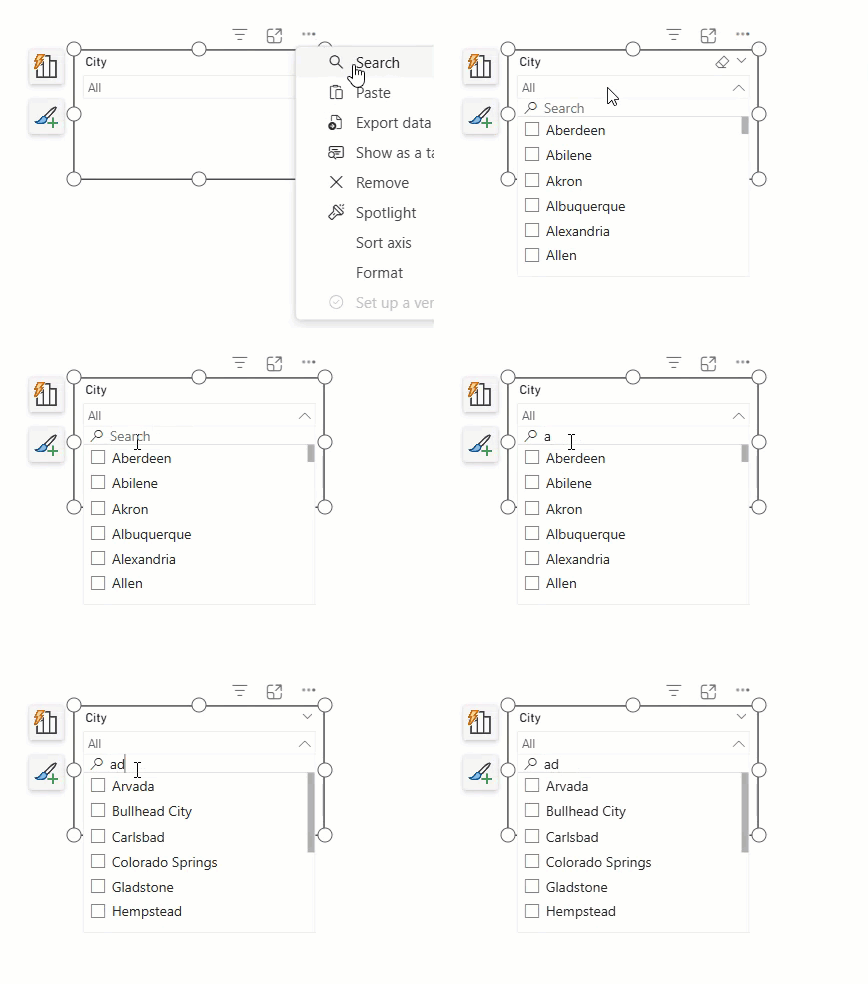
Quick tip: Search only works with text fields. If you’re using a numeric or date field in your slicer, the search option won’t appear in the menu. If you need to search on a date or number field, the workaround is to create a calculated column using DAX FORMAT() to convert it to text, then use that column in the slicer instead.
Set a Default Value in a Power BI Dropdown Slicer
By default, a dropdown slicer starts with nothing selected — meaning all data is shown unfiltered. If you want your report to load with a specific filter already applied (like showing only the current year, or a specific region), you can set a default value.
Here’s my preferred method:
- Select the slicer value you want as the default (e.g., click “North” in the dropdown)
- Go to the View tab in the ribbon
- Click Bookmarks → Add → name it something like “Default View”
- Go to File → Options and settings → Options → Current file → Report settings
- Set the default bookmark to the one you just created
Now, whenever someone opens the report or clicks “Reset to default,” the report will automatically load with your chosen filter already selected.
Important Note:
This setting was mainly required in older versions of Microsoft Power BI. In newer versions, you can simply select the slicer value you want as the default. Save the report. When the report is reopened, the selected value will remain as the default.
This way, whenever someone opens the report or clicks “Reset to defaults,” it loads with your chosen filter already selected.
Alternatively, for a simpler setup, you can use Single Select mode:
- Select the slicer
- Go to Format pane → Slicer settings → Selection
- Turn on Single select
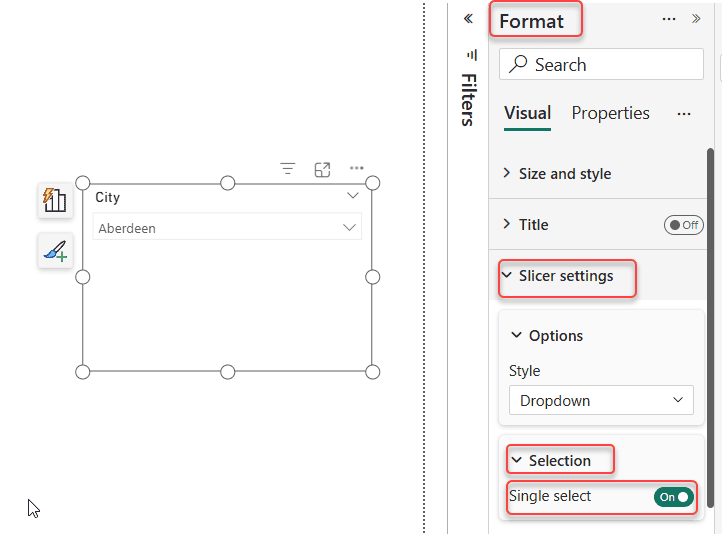
With single select on, only one item can be chosen at a time. The first time a user interacts with it, they can choose a value — but this alone doesn’t automatically pre-select a default on load. Bookmarks are the reliable route for true defaults.
Sort Dropdown Slicer Items in Power BI
By default, items in a dropdown slicer are sorted alphabetically (A to Z for text, lowest to highest for numbers). You can change this easily.
- Select the slicer
- Click the three dots (…) at the top right
- Choose Sort ascending or Sort descending
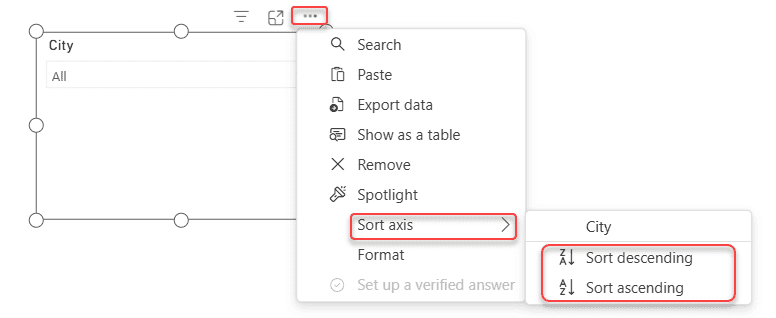
For text fields, this gives you A–Z or Z–A. For number fields, it gives you 1–100 or 100–1.
What if you need a custom sort order? For example, you want months to appear as Jan, Feb, Mar — not Apr, Aug, Dec alphabetically. In that case:
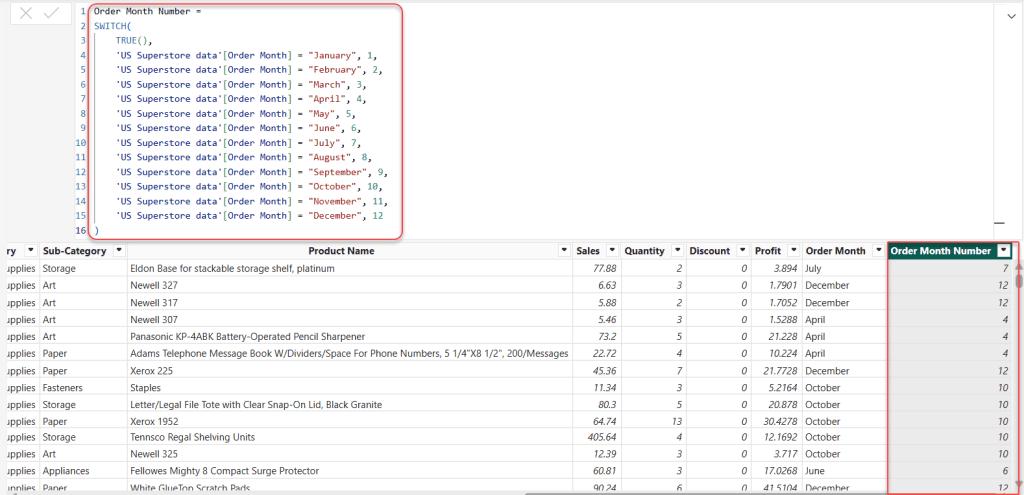
- In your data model, add a column called Month Number using the following DAX formula:
MonthNumber =
SWITCH(
    TRUE(),
    'Table'[Month] = "January", 1,
    'Table'[Month] = "February", 2,
    'Table'[Month] = "March", 3,
    'Table'[Month] = "April", 4,
    'Table'[Month] = "May", 5,
    'Table'[Month] = "June", 6,
    'Table'[Month] = "July", 7,
    'Table'[Month] = "August", 8,
    'Table'[Month] = "September", 9,
    'Table'[Month] = "October", 10,
    'Table'[Month] = "November", 11,
    'Table'[Month] = "December", 12
)Important:
Replace ‘Table'[Month] with your actual table name and column name.
For example, in my case:
- Table Name: ‘US Superstore data’
- Column Name: [Order Month]
If your month values are displayed as Jan, Feb, Mar, then update the formula to use Jan, Feb, Mar instead of January, February, March.
- Select your “Month Name” column in Power BI Desktop
- Go to Column tools → Sort by column → choose “Month Number”
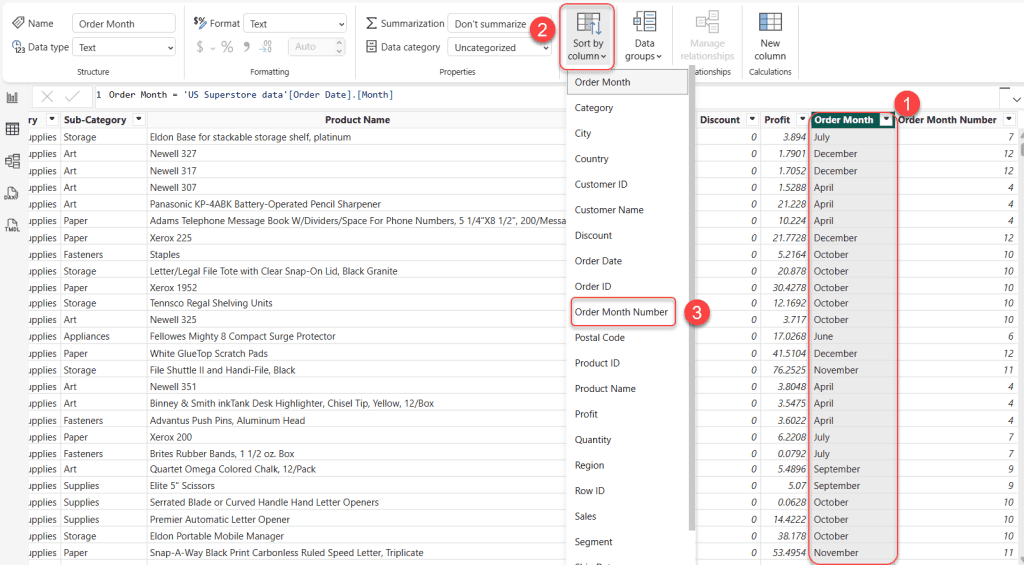
Now your month dropdown will sort in the correct calendar order.
How to Customize Dropdown Slicer Colors in Power BI
Matching your dropdown slicer to your report theme makes the whole dashboard look polished. Here’s where to find the color settings:
- Select the slicer
- Open the Format pane
- Expand the Values section
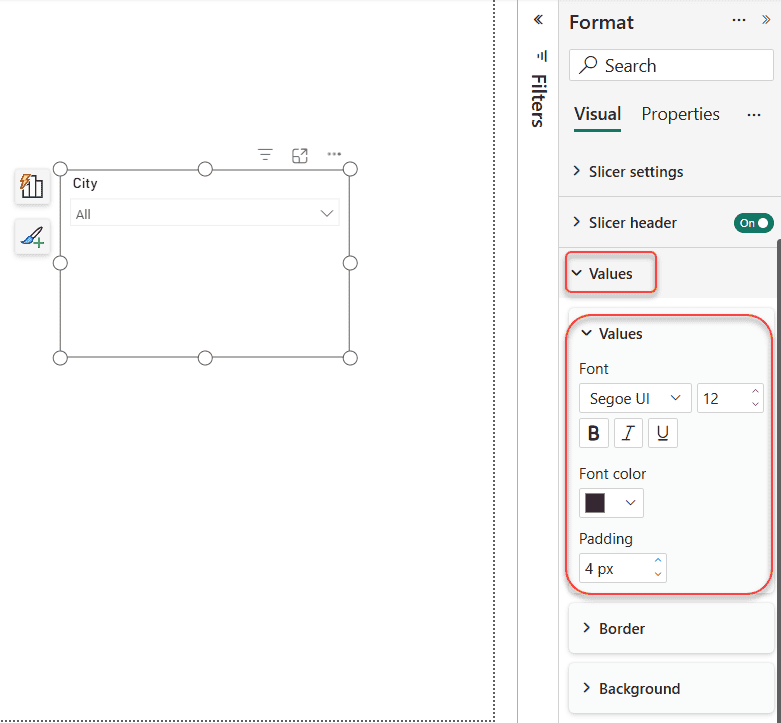
From here you can change:
- Font color — the color of the text in the dropdown list
- Background color — the background behind each item
- Text size — how big the font is
- Padding — the spacing inside each list item
For the slicer header (the bar that shows the field name or the selected value), go to Format pane → Slicer header to control the header font color, background, and text.
Quick tip: If your report uses a theme file (.json), you can define slicer colors globally there instead of setting them manually on every slicer. This is worth doing if you have more than three slicers in a report.
How to Use a Date Field in a Power BI Dropdown Slicer
Using a date column in a dropdown slicer is straightforward, but there’s a nuance worth knowing.
- Add a Slicer visual to your canvas
- Drag a date column into the slicer’s field well
- Go to Format pane → Slicer settings → Options → Style → Dropdown
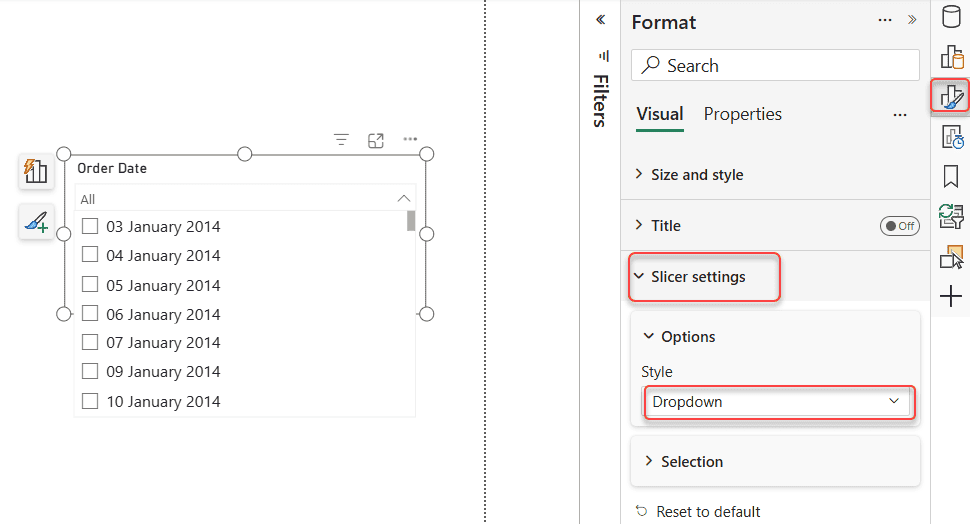
Your dropdown will now list individual dates (or year/month values, depending on how your date column is set up in the model).
When you get a hierarchy instead of a flat list: If your date column is a standard Power BI date hierarchy (Year → Quarter → Month → Day), the dropdown will show those levels. If you just want a flat list of specific dates, right-click the date field in the field well of your slicer and select the specific level (like “Date” instead of “Date Hierarchy”).
Sort dates newest first: Click the three dots (…) on the slicer → Sort descending. This puts the most recent dates at the top of the dropdown — much more user-friendly for reports where people usually want to see the latest data.
Common Problems and Fixes
I’ve seen these come up constantly in the Power BI community, so here are the ones worth knowing.
Problem: The dropdown style option is missing
This usually happens when you’ve accidentally added the new List Slicer or Button Slicer instead of the classic Slicer. Delete it and re-add using the classic slicer visual (no lightning bolt). If you still don’t see “Slicer settings” in the Format pane, update Power BI Desktop to the latest version.
Problem: Dropdown disappears before you can select anything
This is a known bug in Power BI Service (the browser version), mostly affecting Chrome and Edge. Try clearing your browser cache and opening the report in a private/incognito window. If that doesn’t fix it, ask the affected users to try a different browser temporarily. Microsoft has acknowledged this type of issue before.
Problem: Dropdown reverts to a list after publishing
This was a reported bug in older versions of Power BI Desktop. The fix is to update to the latest version. If you’re already up to date, try re-creating the slicer from scratch in the latest version of Desktop and republishing.
Problem: Search box not showing in the slicer menu
The search option only appears for text-based fields. If your field is a date or number, search won’t show up. Use a FORMAT() DAX column as a workaround.
Problem: “Slicer settings” section not visible in Format pane
You’re likely looking at the wrong slicer type. Select the slicer, check the visual type in the Visualizations pane — make sure it’s the plain “Slicer” visual and not “Button Slicer” or “List Slicer.”
Before You Publish: Power BI Dropdown Slicer Checklist
Run through this before you share any report with Power BI dropdown slicers:
- Search is enabled if the list has more than 15 items
- The slicer header text says something meaningful to users (e.g., “Select Region” not “RegionCode”)
- Sort order matches what users expect (A–Z for names, newest-first for dates)
- A default value is set so the report doesn’t open completely unfiltered
- Colors match the report theme
- The slicer isn’t positioned at the far right edge of the canvas (this can cause the dropdown to open off-screen in some browsers)
- The slicer is using the classic Slicer visual (not the new List Slicer) so the dropdown style is available
Real-World Scenario Examples
Scenario 1: Sales dashboard with 80+ product names
A sales manager wants to filter a revenue chart by product without giving up half the report page to a list. Converting the product slicer to dropdown with search enabled means users can type the first few letters of a product name and instantly filter the whole report. The canvas stays clean.
Scenario 2: Monthly report with calendar year filter
A finance team opens a monthly report and always wants to see the current year by default. Adding a date dropdown, sorting it descending, and saving a bookmark as the default view means the report loads showing the current year every time — no one has to manually change it.
Scenario 3: Mobile report for field teams
A field team accesses reports on phones. A vertical list with 20+ values is unusable on a small screen. Switching all slicers to dropdown in the Mobile layout view makes the report significantly easier to use on mobile without changing the desktop experience.
You may also like the following tutorials:
- Create a Power BI Slicer Panel
- Create Ribbon Chart in Power BI
- Power BI Desktop (Step‑by‑Step Guide for Beginners)
- Power BI Row Level Security Tutorial (RLS) for Beginners
FAQs
Can I use the new List Slicer as a dropdown?
No — as of March 2026, the new List Slicer doesn’t support a dropdown mode. If you need the compact dropdown layout, use the classic Slicer visual with style set to Dropdown.
Can I have multiple default values selected in a dropdown slicer?
Yes, but you’ll need to use bookmarks. Select all the values you want as defaults, save a bookmark, and set it as the report’s default bookmark in File → Options.
Why does my dropdown slicer slow down when opened?
If your slicer field has thousands of unique values, the dropdown has to load them all when a user clicks it. Try reducing the field to the most relevant values using a calculated table or applying row-level security to limit the data.
Can I change the placeholder text that shows in the dropdown bar before anything is selected?
Not directly through built-in settings. The slicer header shows the field name by default, but you can rename the header text in Format pane → Slicer header → Title text.
Does a dropdown slicer affect all pages or just the current page?
By default, it only affects the current page. To sync a slicer across multiple pages, go to View → Sync slicers and configure which pages it should apply to.
Why is the search box missing for my date slicer?
Search doesn’t work on date or numeric fields natively. Create a FORMAT() DAX column to convert the date to text (e.g., “Jan 2026”) and use that column in the slicer instead.

After working for more than 18 years in Microsoft technologies like SharePoint, Microsoft 365, and Power Platform (Power Apps, Power Automate, and Power BI), I thought will share my SharePoint expertise knowledge with the world. Our audiences are from the United States, Canada, the United Kingdom, Australia, New Zealand, etc. For my expertise knowledge and SharePoint tutorials, Microsoft has been awarded a Microsoft SharePoint MVP (12 times). I have also worked in companies like HP, TCS, KPIT, etc.

