
A finance manager who didn’t have a Power BI license asked me for the numbers behind one of my report visuals so they could add their own calculations in Excel. Power BI can do that in a few clicks, but what you get depends on where you export from, which option you pick and how many rows the visual has.
In this tutorial, I’ll show you how to export data from Power BI to Excel and CSV from Power BI Desktop, the Power BI service and dashboards, how to copy a full table, the row limits, how to get past them, and why the export option is sometimes missing.
Quick answer: Select the visual, select More options (…) > Export data. In Power BI Desktop, this saves a .csv file of the summarized data. In the Power BI service, you can choose Data with current layout, Summarized data or Underlying data and save as .xlsx (up to 150,000 rows) or .csv (up to 30,000 rows). For a whole table, use Copy table in Desktop or Analyze in Excel in the service.
Ways to export data from Power BI
Export works per visual, so it helps to build a table visual with exactly the columns you need first; here’s how to create a table in Power BI. Pick the method based on what you need:
| You need | Use | Where |
|---|---|---|
| What one visual shows | More options > Export data (summarized) | Desktop (.csv) or service (.xlsx/.csv) |
| A matrix in the same shape | Export data > Data with current layout | Service |
| The rows behind a visual | Export data > Underlying data | Service (if allowed) |
| A whole table from the model | Copy table | Desktop, Table view |
| A live, refreshable Excel workbook | Analyze in Excel / Excel with live connection | Service |
| Very large or scheduled exports | Paginated reports or Power Automate | Service |
| The report as pages | Export to PDF or PowerPoint | Desktop (PDF) or service |
Export data from a visual in Power BI Desktop
I used a table of products that have at least $50,000 in revenue. To export it:
- Select the visual on the report canvas.
- Select More options (…) in the visual header.
- Select Export data.
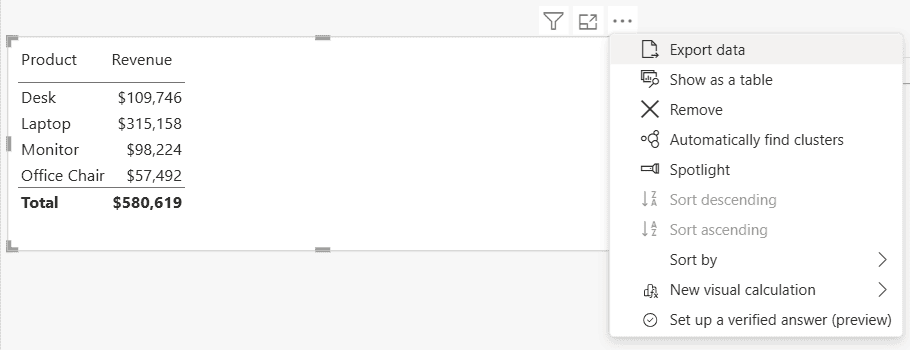
Power BI opens a Save As dialog. The only file type in Desktop is CSV File. Enter a name and select Save.
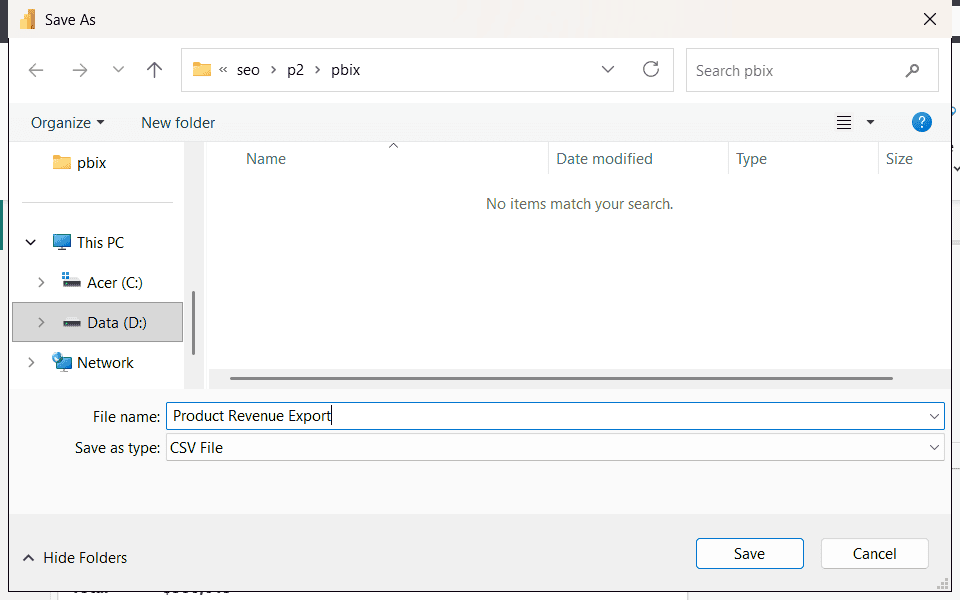
This is the file I got, opened in a text editor:
Product,Revenue
Desk,$109746
Laptop,$315158
Monitor,$98224
Office Chair,$57492
Three things are worth knowing. The export respects every filter on the visual, here a visual-level filter that keeps four of nine products (see how to filter a Power BI measure).
The CSV has no total row. And currency comes through as text like $109746, so remove the format or convert the column in Excel if you need numbers to calculate with.
Slicers on the page also filter the export. If you need everything, clear them first; how slicers work in Power BI covers resetting them.
Export data from a report in the Power BI service
The service gives you more options than Desktop:
- Open the report in the Power BI service and hover over the visual.
- Select More options (…) > Export data.
- Choose the data option: Data with current layout, Summarized data or Underlying data. Options the report designer turned off don’t appear.
- Choose the file format, then select Export. The file goes to your browser’s Downloads folder.
| File format | Maximum rows | Notes |
|---|---|---|
| Excel .xlsx with live connection | 500,000 | Stays connected to the semantic model; inherits its sensitivity label |
| Excel .xlsx | 150,000 | Static copy; first row lists the applied filters |
| .csv | 30,000 | No sensitivity label; no totals |
Data with current layout keeps the shape of a table or matrix, including the row and column headers of a Power BI matrix. Summarized data exports the same numbers as a flat list. Report-specific formatting such as a percentage of grand total isn’t kept; build it as a measure instead, as in calculating percentage of total in a matrix.
Summarized data vs. underlying data
Say a bar chart shows total revenue for four regions. Summarized data gives you four rows, one per region, as on screen. Underlying data gives you every order row behind those totals, plus other non-hidden columns from the same and related tables.
Use summarized data for reports and presentations, and underlying data when you need to trace a number back to transactions.
Underlying data needs Build permission on the semantic model and is disabled when the report designer doesn’t allow it, the tables have no unique key, or Show items with no data is on for the visual.
Export data from a dashboard tile
On a dashboard in the Power BI service, hover over a tile, select More options (…) and choose Export to .csv. You get the summarized data of the tile, with its filters.
For the other options, open the report the tile was pinned from and export from the visual there. The Power BI mobile app also has Export data on report visuals.
Export a full table with Copy table
To get a whole table, including calculated columns and the result of your Power Query steps, use Power BI Desktop:
- Select Table view on the left.
- In the Data pane, right-click the table and select Copy table.
- Paste into an Excel sheet with Ctrl+V.
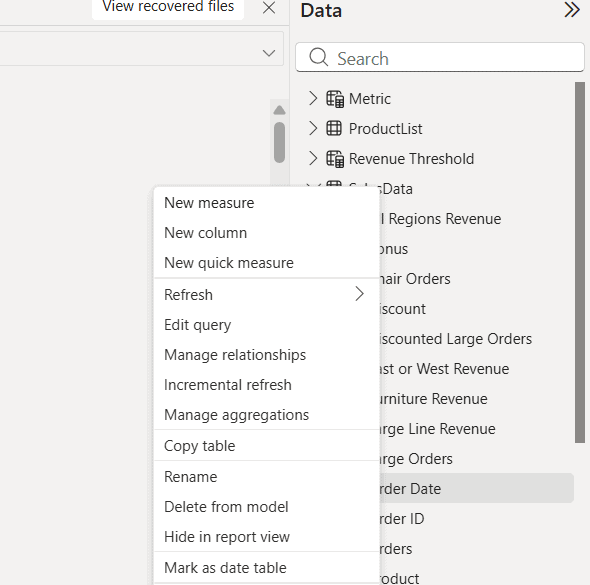
This copies the table as it is stored in the model, not as a visual shows it, and it ignores report filters. It’s fine for a few thousand rows like my 400 orders; very large tables can be slow to paste. To copy just one column, right-click its header in Table view and select Copy.
Allow or block exporting data
Report authors decide what readers can export. In Power BI Desktop, select File > Options and settings > Options, then Report settings under Current file:
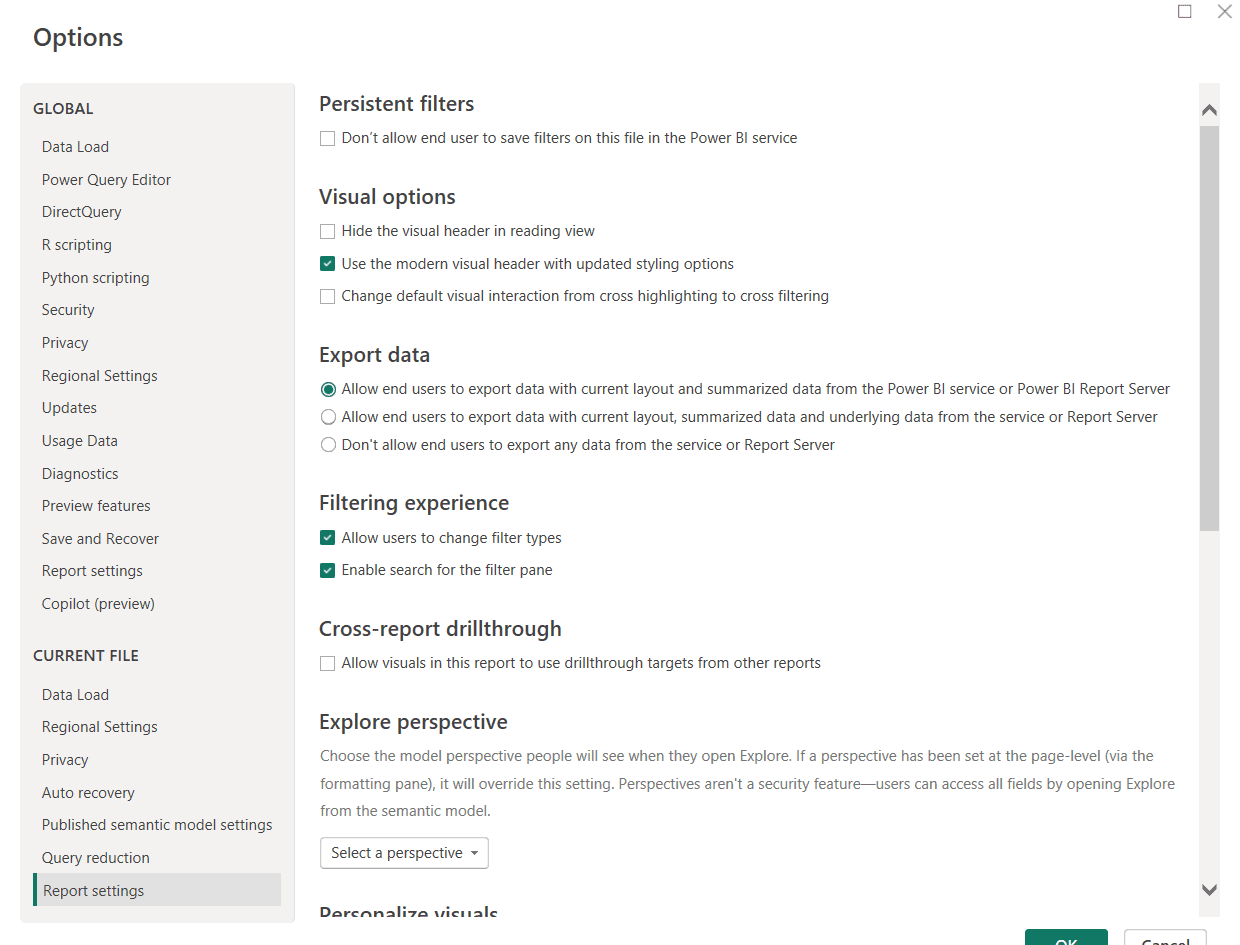
- Allow end users to export data with current layout and summarized data (the default, so underlying data is off unless you change it).
- Allow end users to export data with current layout, summarized data and underlying data.
- Don’t allow end users to export any data.
These settings apply in the Power BI service and Report Server, and you can also change them on the published report. Power BI admins have tenant settings for exporting to Excel, .csv and other formats, and admin settings win when they conflict with the report setting. Readers with row-level security in Power BI only ever export the rows they’re allowed to see.
Power BI export limits
| Export | Limit |
|---|---|
| .csv (Desktop or service) | 30,000 rows |
| .xlsx | 150,000 rows (can be lower depending on the visual and query) |
| .xlsx with live connection | 500,000 rows |
| Matrix, data with current layout | 150,000 data intersections (rows x value columns) |
| DirectQuery models | 16 MB of uncompressed data, which can mean fewer rows |
When an .xlsx export hits the limit, Power BI adds the footer “Exported data exceeded the allowed volume. Some data might have been omitted.” Removing columns, measures or matrix categories you don’t need, or filtering the visual, keeps you under it.
How to export more than 150,000 rows
- Excel with live connection: in the service export dialog, choose the live-connection .xlsx format for up to 500,000 rows. The workbook can be refreshed later.
- Analyze in Excel: in the service, select Export > Analyze in Excel on a report (or the option on a semantic model). Excel connects live to the model and you build PivotTables over all the data, without a row export at all. You need Build permission.
- Paginated reports: build a table report in Power BI Report Builder, publish it, and export it to Excel or CSV. Paginated reports are designed for large, printable lists.
- Power Automate: run a DAX query against the model and write the rows to a file on a schedule; see export a Power BI report to Excel with Power Automate.
- DAX Studio: this free external tool connects to a model open in Desktop and can export a query or whole tables to CSV files.
Export a Power BI report to PDF or PowerPoint
If you need the pages rather than the data, Power BI Desktop has File > Export > Export to PDF (the other option there, Power BI template, saves a .pbit without data). In the Power BI service, the report’s Export menu also offers PowerPoint, and both can include the current filters.
Why is Export data missing or grayed out?
- Export is turned off in the report settings or by your Power BI admin. Ask the report owner; the owner is shown in the report title dropdown.
- Underlying data is missing: the report allows only summarized data, you don’t have Build permission, or the visual has Show items with no data turned on.
- The visual doesn’t support export: some custom visuals and R visuals don’t implement it.
- Your organization blocks it: sensitivity labels and data protection policies can prevent downloads.
- You get fewer rows than expected: row-level security, filters or the limits below cut the export.
Problems in the exported file
- Dates look different: exported dates follow your computer’s regional format, not the report’s. See how to format dates in Power BI.
- Column names changed: names you renamed only in a visual revert to the original field names in Excel.
- Currency and special characters look wrong in a .csv: import the file in Excel with Data > From Text/CSV instead of double-clicking it.
- Some text starts with an apostrophe: .csv exports escape text starting with =, @, + or – to prevent formulas from running.
- Only one table’s data came out: the visual uses tables without an active relationship, so Power BI exports only the first.
These Power BI tutorials go well with this one:
Frequently Asked Questions
How do I export data from Power BI to Excel?
Select the visual, then More options (…) > Export data. In the Power BI service, choose Summarized or Underlying data and the .xlsx format. Microsoft’s export data documentation lists all limits.
Can I export data from Power BI Desktop to Excel?
Power BI Desktop exports visual data as a .csv file, which opens in Excel. For a whole table, right-click it in Table view and select Copy table, then paste into Excel.
How many rows can I export from Power BI?
Up to 30,000 rows to .csv, 150,000 rows to .xlsx and 500,000 rows to .xlsx with a live connection. DirectQuery exports are limited to 16 MB of uncompressed data.
Why can’t I export underlying data in Power BI?
By default, reports allow only current layout and summarized data. The report author must allow underlying data, and you need Build permission on the semantic model.
How do I export a whole Power BI table?
Use Copy table in Power BI Desktop, Analyze in Excel in the service, or a paginated report for very large tables.

I have worked with Microsoft technologies for more than 18 years, including SharePoint, Microsoft 365 and the Power Platform (Power Apps, Power Automate and Power BI), at companies like HP, TCS and KPIT. I started EnjoySharePoint in 2011 to share the solutions I build in real projects with readers in the United States, Canada, the United Kingdom, Australia, New Zealand and beyond. Microsoft has recognized this work with the Microsoft MVP award 13 times since 2014.