
You can change data source in Power BI Desktop in a few clicks: go to Home > Transform data > Data source settings, select the source, choose Change Source, enter the new file path or server, and apply the changes. Your visuals, measures and relationships stay as they are.
A typical case: a Contoso sales report reads last year’s workbook, and you need it to read the new one, or the file moved to another folder or server. In this tutorial, I’ll switch a real report from a 2025 workbook to a 2026 workbook, then cover the Advanced Editor, parameters, and what to do in the Power BI Service.
Quick answer: In Power BI Desktop, select Transform data (drop-down) > Data source settings > select the source > Change Source. Enter the new path or server, select OK and Close, then Apply changes. The new source must have the same table and column names. To switch connector types, edit the Source step in the Advanced Editor.
Before you change the source
- Match the structure. The new file or database needs the same sheet or table names and the same column names, or the queries break.
- Keep a copy of the .pbix file, so you can go back if something doesn’t match.
- Check the Power Query preview. If you turned on the new Power Query experience under Preview features, Data source settings and Change source aren’t available there yet. Turn it off to use the steps below.
If you’re still building the report, see how to build a report from SharePoint and Excel data.
Method 1: Change Source in Data source settings
This is the quickest way when only the location changes: a new file path, a renamed file, or a different server and database.
Step 1: Open Data source settings
On the Home tab, select the arrow under Transform data, then Data source settings. You can also get there from File > Options and settings > Data source settings.
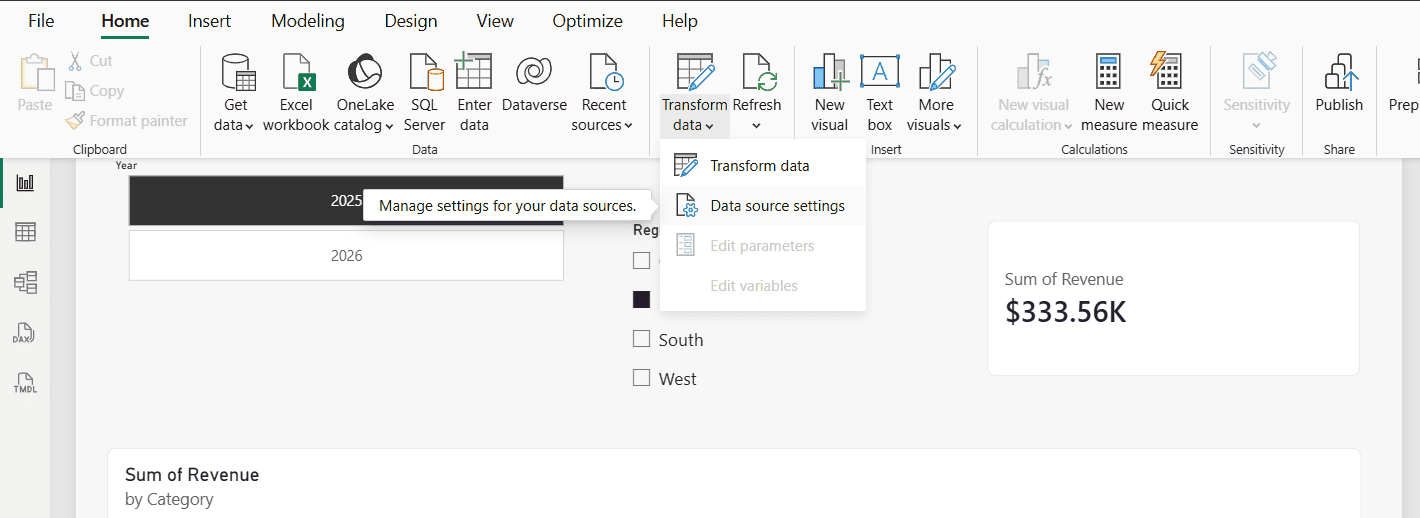
Step 2: Select the source and choose Change Source
Keep Data sources in current file selected. My report has one source, the 2025 workbook. Select it and choose Change Source.
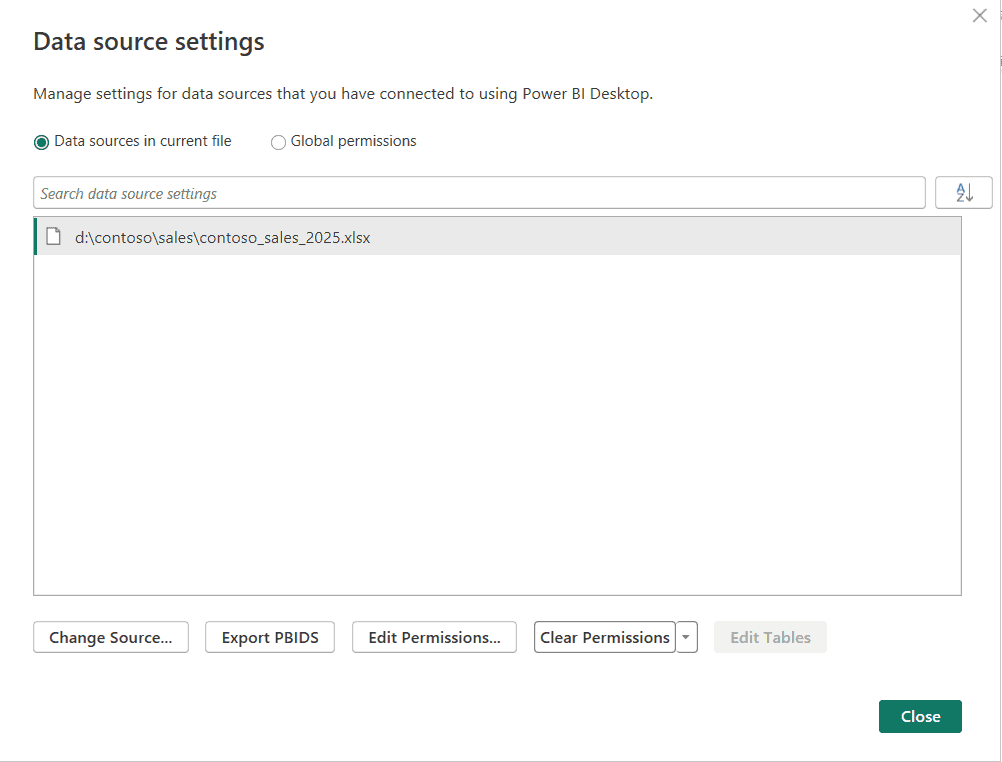
Step 3: Enter the new location
The dialog depends on the connector. For Excel, it shows the File path. I changed it to the 2026 workbook and selected OK. For SQL Server, you’d change the server and database instead.
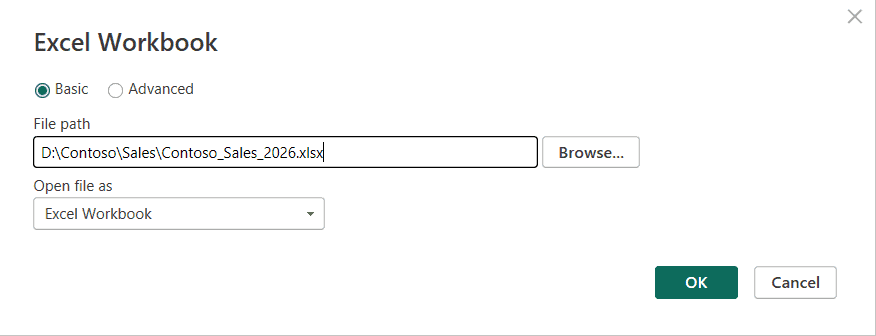
Step 4: Apply the changes
Select Close. Power BI shows a yellow banner that there are pending changes in your queries. Select Apply changes to reload the data. Then check that your slicers and visual, page and report filters still show data. To export the refreshed data afterward, see how to export data from Power BI to Excel and CSV.

Method 2: Edit the Source step in the Advanced Editor
Use the Advanced Editor when Change Source is grayed out, when you have several queries to update, or when the connector itself changes. Select Transform data to open Power Query, select the query, and choose Advanced Editor. The first line is the source:
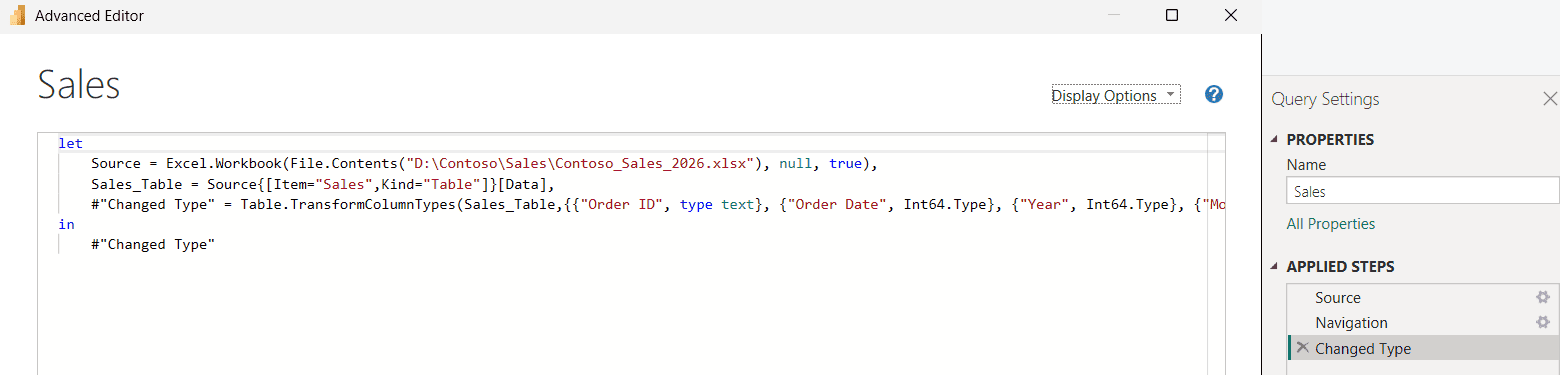
Source = Excel.Workbook(File.Contents("D:\Contoso\Sales\Contoso_Sales_2026.xlsx"), null, true),Change the path, select Done, then Close & Apply. The gear icon next to Source in Applied Steps opens the same settings as Change Source, but it can’t switch to a different connector.
Move a local Excel file to SharePoint or OneDrive
Change Source alone can’t do this, because the connector changes from a local file to a web address. In SharePoint, open the file’s Details and copy its Path. Then in Power BI, use Get data > Web, paste the path, and sign in with Organizational account. The Source step then reads like this:
Source = Excel.Workbook(Web.Contents("https://contoso.sharepoint.com/sites/Sales/Shared%20Documents/Contoso_Sales_2026.xlsx"), null, true),Paste that line over the old Source step in the Advanced Editor, keep the other steps, and apply. Because the file is now in the cloud, the report can refresh on a schedule in the Power BI Service without a gateway.
Method 3: Use a parameter for the path
If you switch sources often, for example between test and production, store the path in a parameter. Select Manage Parameters > New Parameter, name it FilePath, set the type to Text and the current value to the path. Then use it in the Source step:
Source = Excel.Workbook(File.Contents(FilePath), null, true),Next time, select Transform data > Edit parameters, enter the new path, and apply. No query editing needed.
Change the data source in the Power BI Service
You can’t edit a source path in the Service directly, but you can manage what it connects to. Open the semantic model’s Settings:
- Gateway and cloud connections: map each source to a connection.
- Data source credentials: sign in again after a change. Only the semantic model owner can do this.
- M parameters: change parameter values, the cleanest way to switch sources without republishing.
For a path change without a parameter, update the report in Desktop and publish it again. If a flow exports the report, also check how you export a Power BI report using Power Automate.
Troubleshooting
- Change Source is grayed out: the source was combined from several steps or uses a function. Edit the Source step in the Advanced Editor.
- “The column … of the table wasn’t found”: the new source has different column names. Rename them in the source or in Power Query.
- Data source settings is missing: the new Power Query experience preview is on. Turn it off under Preview features.
- Credentials errors after the change: select the source in Data source settings, choose Edit Permissions, and sign in again.
- Refresh fails in the Service: the new source isn’t mapped to a gateway or cloud connection, or the credentials weren’t updated.
More Power BI tutorials you might need next:
Frequently Asked Questions
How do I change the data source in Power BI Desktop?
Select Transform data > Data source settings, select the source, choose Change Source, enter the new path or server, then Close and Apply changes.
Why is Data source settings missing in Power BI?
The new Power Query experience preview removes it for now. Turn off the preview, as described in Microsoft’s new Power Query experience limitations.
Can I change the data source without losing my visuals?
Yes. As long as the new source has the same table and column names, visuals, measures and relationships keep working.
How do I change a Power BI data source from Excel to SharePoint?
Use Get data > Web with the file’s SharePoint path, sign in with an organizational account, and replace the old Source step in the Advanced Editor.
Can I change the data source in the Power BI Service?
You can change gateway connections, credentials and M parameter values in the semantic model settings. To change a fixed path, edit the report in Desktop and republish.

I have worked with Microsoft technologies for more than 18 years, including SharePoint, Microsoft 365 and the Power Platform (Power Apps, Power Automate and Power BI), at companies like HP, TCS and KPIT. I started EnjoySharePoint in 2011 to share the solutions I build in real projects with readers in the United States, Canada, the United Kingdom, Australia, New Zealand and beyond. Microsoft has recognized this work with the Microsoft MVP award 13 times since 2014.