
In this tutorial, I will explain the Power Automate indexOf() function, its syntax, and how to use the indexOf function in Power Automate.
Additionally, we will discuss the Power Automate LastIndexOf function and its uses with various examples.
Power Automate indexOf() Function
Power Automate indexOf() function returns the position of the first occurrence of a string from a given string. indexOf() function returns the first true match of a given string. This function also includes spaces as a count position.
This function is essential for finding the position of a string or a character from the provided string value. The indexOf() function consists of two components, such as the lastIndexOf() and nthindexOf().
Power Automate indexOf() Syntax
The below represents the syntax:
indexOf(['text'],'Search text ')NOTE:
The first character in the position of ‘0’ does not start with ‘1’.
Example:
indexOf([‘Joni Sherman’], ‘Sherman’)
Where the index position for ‘Sherman’ is ‘5’. If the search text is ‘Joni,’ the index position is ‘0’. The return value is an integer where the search text will appear for the first time in a given text.
Note: If the serach text not found in the given text, then it will return the output as [-1].Power Automate indexOf() Function Examples
Let’s dive into the indexOf() function by implementing it with various use cases.
Example:-1
1. Navigate to make.powerautomate.com in the browser. In the Power Automate Home page, click on “+Create” -> select Instant cloud flow -> set Flow name -> choose “Manually trigger a flow” -> click on Create.
- Add a text input box to provide the text manually in the trigger.

2. Then, add an Initialize variable action to provide the Name, Type, and Value for the variable.

3. Next, add the Compose data operation to return the indexOf() function output inside a flow.
- Inputs: Add the expression provided below and replace the text value.
indexOf(variables('Name'),'Sherman')
4. Now, it is time to save and test the flow. Click on Save and select Test. Test it Manually.

5. Finally, when the flow runs successfully, the outputs of the compose flow action will display returns of the indexOf() function for the given string as shown below.
- In the Run flow box, I have given the text as ‘Joni Sherman’.

This is how to use the indexOf() string function in a Power Automate flow.
Example:-2
Recently, When I was working on a SharePoint list, one of our clients required me to find a character index or string position of a text column value.
I used a SharePoint list named ‘HR Policies’ with the columns in the table below.
| Column Name | Datatype |
| Employee Name | It is a single line of text – Title column |
| Policy Applied | Single line of text |
| Started Date | A single line of text |

In the SharePoint list mentioned above, we need to find the character index or string position based on the list column, Policy Applied.
To implement it, let’s create a Power Automate ‘Automated cloud flow’ that will trigger automatically.
Follow the below steps to create the flow:
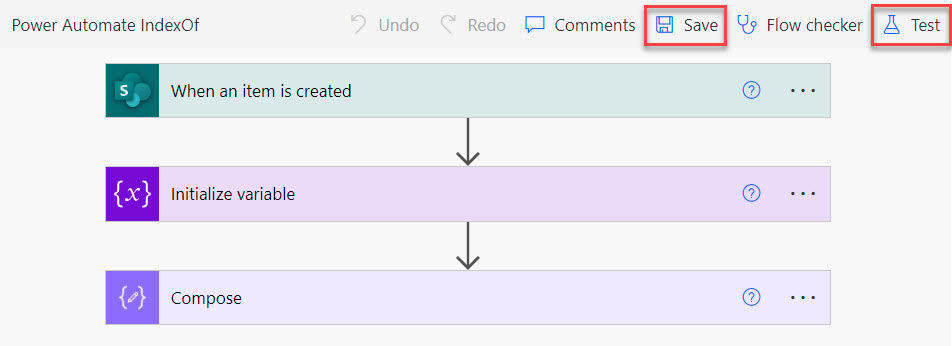
1. Open the Power Automate home page and click on +Create -> Automated cloud flow. Provide the flow name, choose a trigger for when an item is created, and Click on Create. Set details like the Site Address and List Name.

2. After that, add an ‘Initialize variable’ flow action to store the values of a text column. Give the details for a variable.
- Name: Give a name for an initialized variable.
- Type: Select datatype as ‘String’ from drop-down.
- Value: Add the list column from the dynamic content.

3. To see the results of the indexOf() function, add the ‘Compose’ flow action and provide the below-given expression in the ‘Inputs’ section.
indexOf(variables('Applied Policy'),'Policy')
4. At this point, save and test the flow manually. Click on Save and Test.
5. Then, the outputs of the compose data operation will show the index number for a ‘Policy’ in the provided string, as shown in the figure below:

This is how to use the indexOf() string function in a Power Automate flow to get the index of a string.
Power Automate LastIndexOf Function
Power Automate LastindexOf Function will return the index of the last occurrence of a string from a given string. This function also includes spaces as a count position. And the lastindexOf() output will always return as ‘Number’.
This is one of the Power Automate string functions included under the indexOf() function. Finding the index of characters or strings that appear repeatedly will be useful.
The index of a character will be started at '0'. If the character or a text is not found, then it will return the output as '-1'.
LastIndexOf() Function Syntax
The syntax of the lastindexOf() function in Power Automate is:
lastindexOf(['text'],'Search text ')Example:
lastIndexOf(Power Platform has four major components Power BI, Power Apps, Power Automate and Power Virtual Agents),’Power’)
It will return the last power index, i.e. (82).
lastindexOf(Henrietta Muller),’e’) => Return the output as ’14’ because in the given text i.e., ‘Henrietta Muller’ lastindexOf() function finds out the last repeated character position of ‘e’.
Power Automate lastIndexOf Examples
I will explain how to use the lastindexOf() function in Power Automate by implementing it in a manual trigger flow.
Example:-1
1. Navigate to make.powerautomate.com in the browser. In the Power Automate Home page, click on “+Create” -> select “Instant cloud flow” -> In the next window, set Flow name -> choose “Manually trigger a flow” -> click on Create.
- Add a text input box in the trigger to provide the text manually.

2. Then, add an ‘Initialize variable’ flow action to store the value of a text during the flow. Set Name, Type, and Value for a variable.

3. In the next step, add a ‘Compose’ data operation to give the expression of lastindexOf() function. Add the details:
- Inputs: Provide the expression below.
lastIndexOf(variables('Name'),'e')
4. Now, the flow has been created. Click on Save and Test. Test the flow Manually.

5. In the Run flow window, I was given the text input (Henrietta Muller) -> Click on the ‘Run flow’ button as shown below.

5. Now, the outputs of a compose data operation will return the last index of a character or a text from the provided text.

This is how to use the lastindexOf() string function in a Power Automate flow.
Example:-2
Here, I will explain one more example of the Power Automate lastindexOf() function based on a SharePoint list.
Recently, when I was working with a SharePoint list, I was asked to find the last index of a text or character based on a SharePoint list column using Power Automate flow.
To do that, I have created a SharePoint list named ‘HR Policies’ with different columns, as represented in the table below.
| Column Name | Datatype |
| Employee Name | It is a Single line of text – Title column |
| Policy Applied | Single line of text column |
| Policy Description | Single line of text column |

From the above given SharePoint list, I need to find out the last index of a particular string from the given text based on the list column i.e., Policy Description.
To achieve this, let’s build an ‘Automated cloud flow’ in Power Automate that will trigger when an item is created in a SharePoint list.
Follow the below steps:
1. To create an ‘Automated cloud flow,’ follow these steps: Browse https://make.powerautomate.com -> On the Power Automate Home page, click +Create -> Select ‘Automated cloud flow’.
In the next window, set the Flow name, choose ‘When an item is created’ trigger -> Click Create. Provide the below details inside the trigger.
- Site Address: Select a SharePoint site from the drop-down.
- List Name: Choose a specific SharePoint list from the drop-down.

2. Under the trigger, add an ‘Initialize variable’ flow action to store the values of a list column during the flow. Set the details for a variable as below:
- Name: Give the name manually.
- Type: Select datatype from the drop-down.
- Value: Take value from the dynamic content.

3. Then, add a ‘Compose’ data operation to include the lastindexOf() string expression along with the variable and search text.
- Inputs: In the inputs, add the expression given below to the code.
lastIndexOf(variables('Description'),'Policy')
4. It is the time for the flow to save and test it. So, click on Save and Test the flow -> Test the flow Manually.

5. When the flow runs, add an item to the SharePoint list. If there are no errors, the flow runs successfully.
Open the compose flow action to display the last index of a search text from the given text like the screenshot below:

This is how to use a Power Automate lastindexOf() function, to find out the last index of a character, text, or string based on a SharePoint list column.
Conclusion
I hope this tutorial has helped you understand how to use the indexOf() function in Power Automate. I have also shown you two Power Automate index examples.
You can also check:
- Create an HTML Table from an Array in Power Automate
- Get Approval Comments Using Power Automate
- 3 Various Ways to Copy Files in Power Automate
- Get Last & First Item ID from SharePoint List in Power Automate

Preeti Sahu is an expert in Power Apps and has over six years of experience working with SharePoint Online and the Power Platform. She is the co-author of Microsoft Power Platform: A Deep Dive book. As a Power Platform developer, she has worked on developing various tools using Power Apps and Power Automate. She also makes Microsoft 365 videos and shares them on YouTube.

