
In this article, learn how to use the SharePoint Online Organization Chart web part to visually display your company’s reporting structure on a modern SharePoint page. This helps employees quickly understand who reports to whom and find the right person for approvals or escalations.
Recently, a client wanted a clear way for employees to understand the reporting hierarchy because many team members were confused about whom to contact for approvals.
To solve this, the Organization Chart web part was added to their SharePoint Online intranet home page so everyone could see the structure in one place.
What is the Organization Chart web part?
The Organization Chart web part is a modern SharePoint web part that shows a visual hierarchy of people and their reporting relationships. It retrieves profile information such as name, job title, and manager from Microsoft 365 / Azure AD so that the chart reflects the real organizational structure.
Users can start from a specific person and then move up or down the reporting chain to understand how that person fits into the broader organization. This is much easier than manually trying to understand reporting lines from lists or static documents.
Here are a few things that you should remember.
- The web part works on modern SharePoint Online pages, not classic pages.
- You need Edit permission on the page to add or configure the web part.
- Manager information comes from your Microsoft 365 / Azure AD user profiles. If the manager field is not set correctly, the hierarchy in the chart may be incomplete.
- The web part focuses on showing the reporting structure around a specific person; it is not meant to render a huge, full‑company tree all at once.
If the chart does not show expected managers or reports, check and correct the “Manager” field for users in the Microsoft 365 admin center or your directory system.
Check out SharePoint Online Quick Chart Web Part Tutorial
Add SharePoint Online Organization Chart Web Part
Here are the steps to add the Organization Chart web part to a modern SharePoint Online page.
- Go to the SharePoint page where you want to display the org chart and click Edit at the top right. In the section where the chart should appear, click the + icon to add a new web part. Click the Organization chart to add the web part to the page.
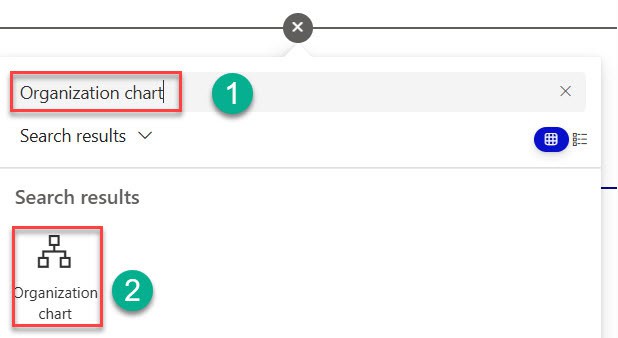
- The Organization Chart web part appears with a default configuration; you can click the title to rename it, for example, “HR Reporting Structure” or “Sales Leadership Org Chart.”
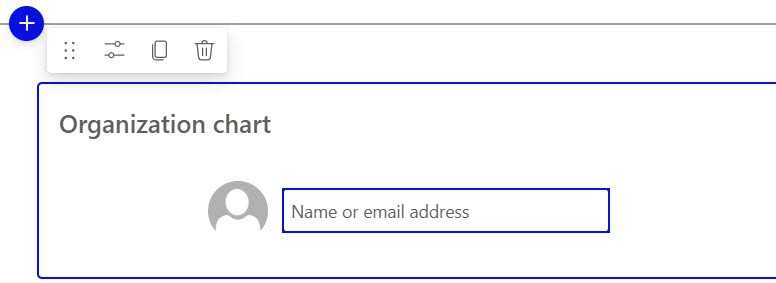
Once the web part is on the page, you can specify the person from whom the chart should start and configure how many levels to display.
Check out SharePoint File and Media Web Part
Configure the Organization Chart web part
After adding the web part, the next step is to choose the starting person and review how the chart looks.
Select a person
- While the page is in edit mode, click inside the Organization Chart web part.
- In the box that appears, start typing the name of the person you want as the root of the chart (for example, Joni Sherman).
- Choose the person from the people picker.
- The web part automatically retrieves that person’s direct reports and displays them in the chart, using the manager relationships stored in the user profiles.
If you hover over a person in the chart, an information card is shown with more details from their profile, such as job title and contact information, which helps employees quickly get context about each person. Here is what it looks like:
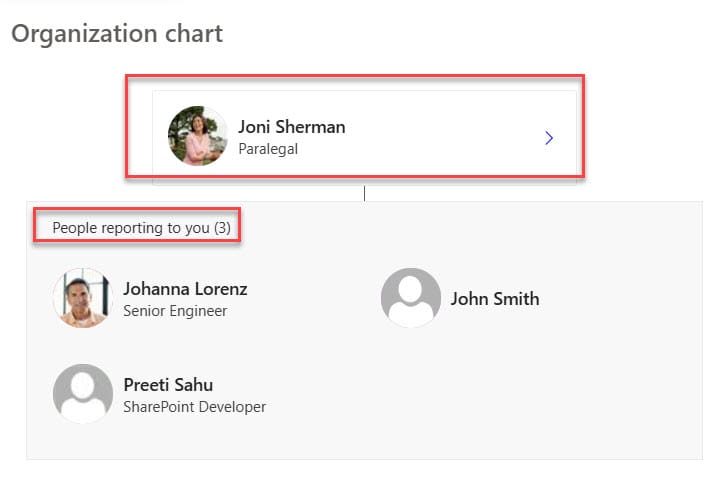
- If you hover over a person, you can see their profile by an information card.
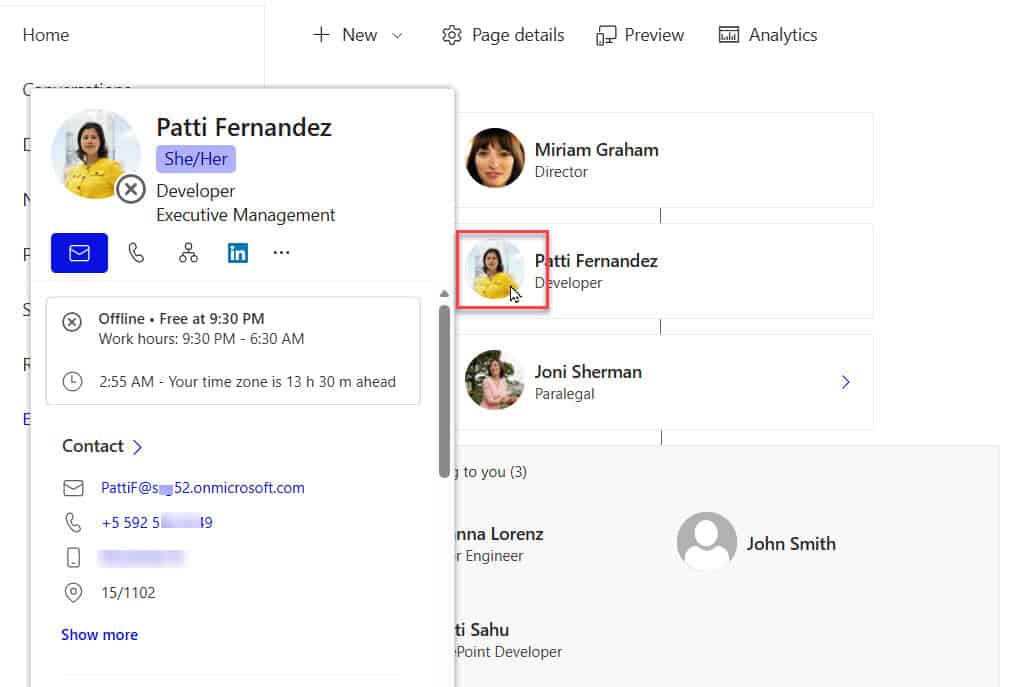
Once we add the person, we can also display the number of reporting levels up if we want.
Read SharePoint Group Calendar Web Part
Add Reporting Levels Up in SharePoint Online Organization Chart Web Part
By default, the chart focuses on the selected person and their direct reports. Sometimes, you also want to show the managers above that person to provide more context.
Configure “Number of reporting levels up”:
- Edit the page and click the Organization Chart web part to select it.
- In the web part property pane on the right, locate Number of reporting levels up.
- Enter the number of manager levels you want to show above the selected person, for example, 2 or 3.
- The chart updates to show the number of managers above the person, if they exist in the directory.
Note: If there are fewer managers above the person than the number you enter, the chart shows only the existing levels. For example, if there are only two managers above the person, and you enter 3, only those two managers will be displayed.
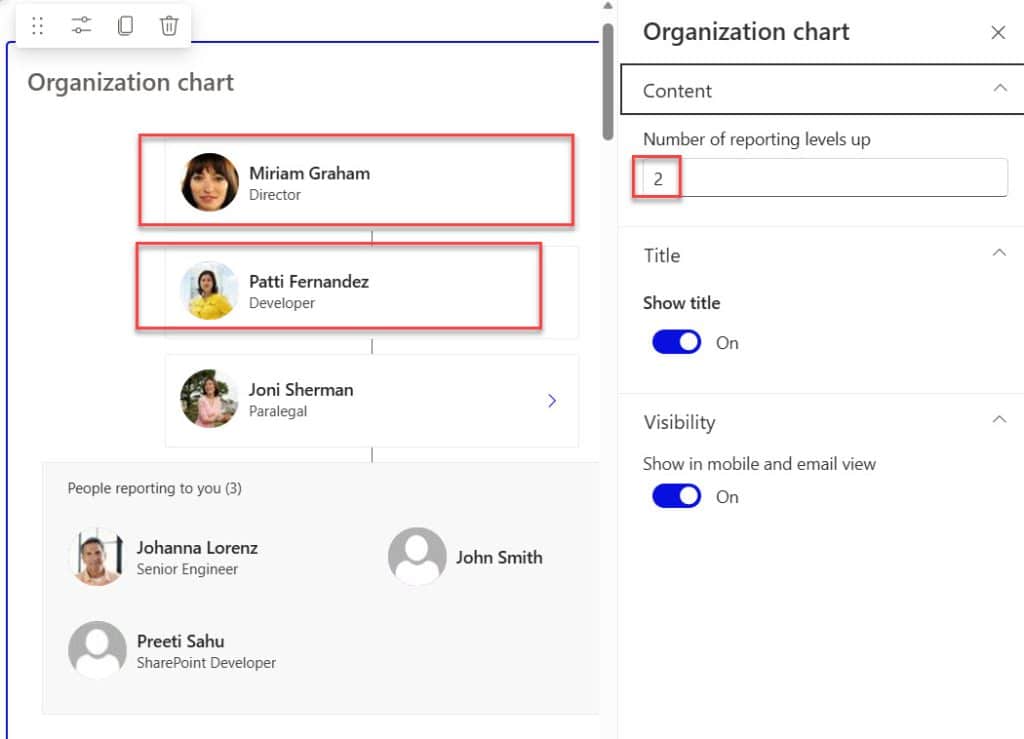
This option makes it easier for employees to see both direct managers and higher‑level leadership in a single view.
Conclusion
The SharePoint Organization Chart web part helps to make your intranet more informative and user-friendly. It helps new and existing employees:
- Understand the reporting structure for their department and the entire organization.
- Find the right manager for approvals, escalations, and decision making.
- Discover who leads key functions and where specific teams sit in the hierarchy.
By placing the org chart on key intranet pages such as department home pages or HR portals, you make it easier for people to navigate the organization and collaborate with the right stakeholders.
You may also like the following tutorials:
- SharePoint People Web Part [With Examples]
- SharePoint Planner Web Part
- SharePoint Online News Web Part

After working for more than 18 years in Microsoft technologies like SharePoint, Microsoft 365, and Power Platform (Power Apps, Power Automate, and Power BI), I thought will share my SharePoint expertise knowledge with the world. Our audiences are from the United States, Canada, the United Kingdom, Australia, New Zealand, etc. For my expertise knowledge and SharePoint tutorials, Microsoft has been awarded a Microsoft SharePoint MVP (12 times). I have also worked in companies like HP, TCS, KPIT, etc.


Perfect! Good job! Thanks for sharing!
Thanks
I getting this error, maybe you know what is.
Uncaught Error: The collection has not been initialized. It has not been requested or the request has not been executed. It may need to be explicitly requested.
tnks!
Hi Tomas, Check out the column names. You have to load the columns. You can check the below URL:
https://www.sharepointsky.com/sharepoint-the-collection-has-not-been-initialized/
Hi
because we use sharepoint as intranet and offline, how could we use google charts ? Do you have any other suggestion for us?
hello
The chart is not displaying when i paste into the script editor of my SharePoint Online page. Please what do you think i am doing wrong
Please check error in console.
It is not working for me. Just displayed blank white space.
Same issue as gboyega…nothing happens, not even an error…big white blank screen. Thoughts?
Pleas check the error log in console and put breakpoint and check where is the exact issue .,
sp is undefined error coming
how to remove small line on collapsed of chart at end o