
Rachel Kim, an HR manager in Denver, wanted a quick pulse check before the December 2026 planning meeting. Her one condition: “Keep the answers inside SharePoint, not in some outside tool.”
The catch: SharePoint has three different things people call a survey, and picking the wrong one means rebuilding it later.
In this tutorial, I’ll show you how to build a SharePoint survey the classic way with the Survey app, the modern way with a Microsoft Lists form, and when Microsoft Forms is the smarter choice, using a real survey I built on our EnjoySharePoint site.
Quick answer: Select the Settings gear > Add an app, search for survey, and pick the Survey app. Under Advanced Options, type a name, choose whether to show user names and allow multiple responses, select Next, and add each question with Next Question.
Which SharePoint survey option should you use?
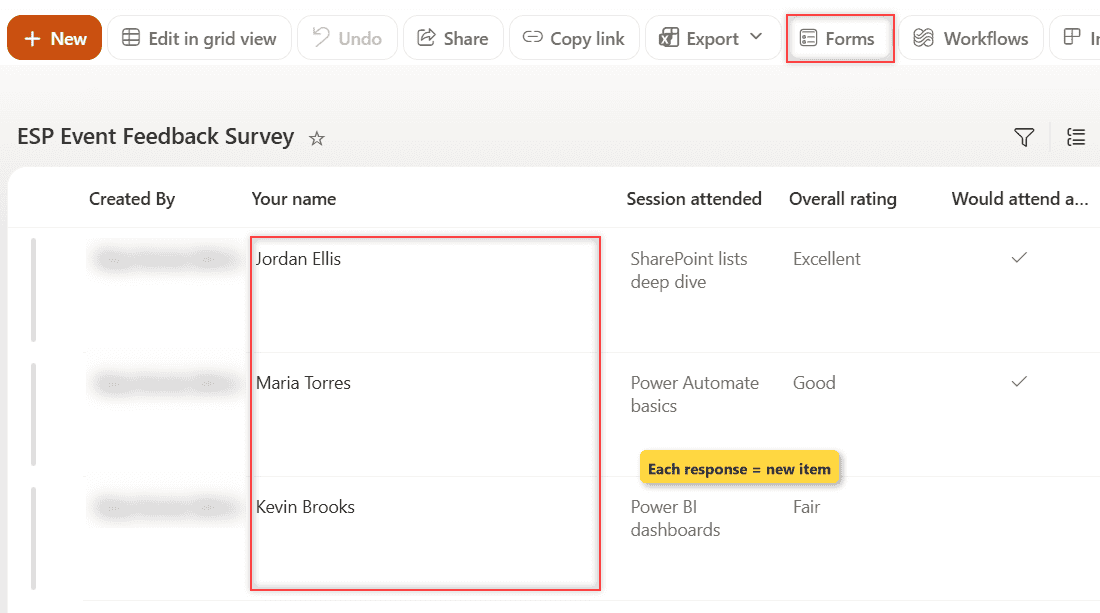
The Survey app and Lists forms both save responses as items in a list (here’s what a SharePoint list is); Microsoft Forms keeps them in Forms.
| Option | Best for | Watch out for |
|---|---|---|
| Classic Survey app | Rating scales, branching, a built-in results chart | Classic look; no anonymous answers |
| Microsoft Lists form | A modern form that writes straight into a list | Sign-in required; no built-in chart |
| Microsoft Forms | Anonymous or external respondents, quizzes | Answers live in Forms, not a list |
Create a classic survey step by step
You need permission to create lists on the site, which members have by default.
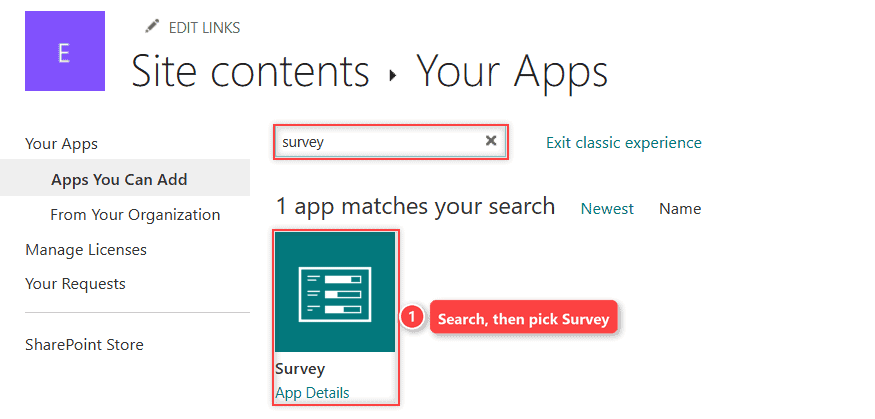
- Select the Settings gear, then Add an app.
- Search for survey and select the Survey tile. If it’s missing, select the classic experience link on that page.
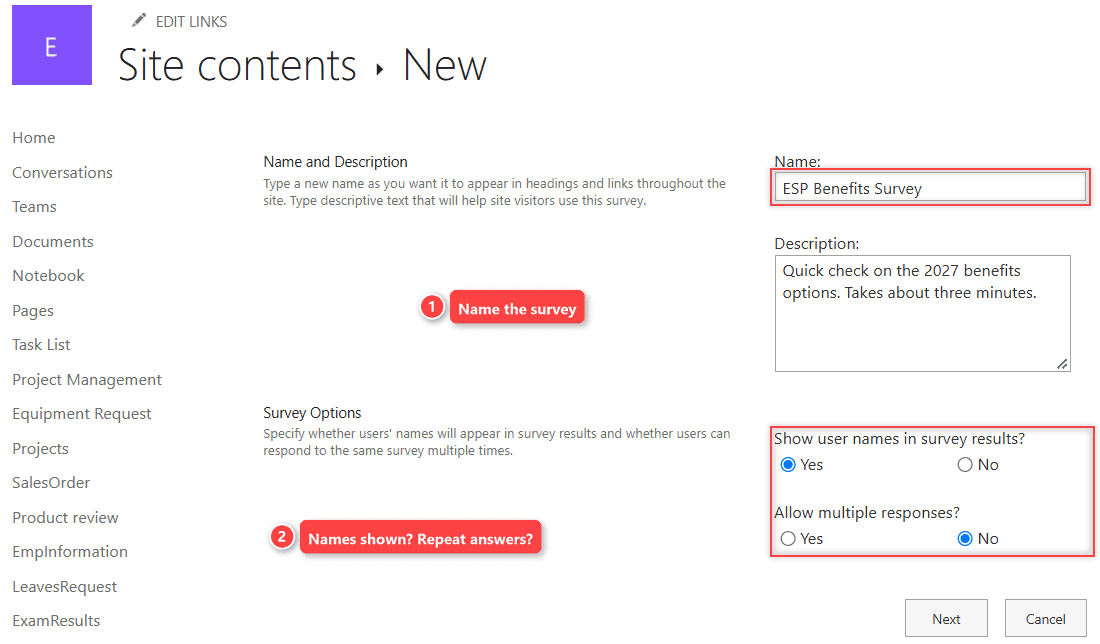
- In the Adding Survey box, select Advanced Options.
- Type a name, such as ESP Employee Pulse Survey, and an optional description.
- Under Survey Options, choose whether to show user names with responses and whether people can respond more than once.
- Select Next to open the New Question page.
Add rating scale, choice, yes/no and text questions
Each question is a column in the survey list, much like the columns behind SharePoint list views. Rachel’s survey got five:
| Question | Type | Setting I used |
|---|---|---|
| 1. Which office do you work in? | Choice | Seattle, Chicago, Austin, Remote; required |
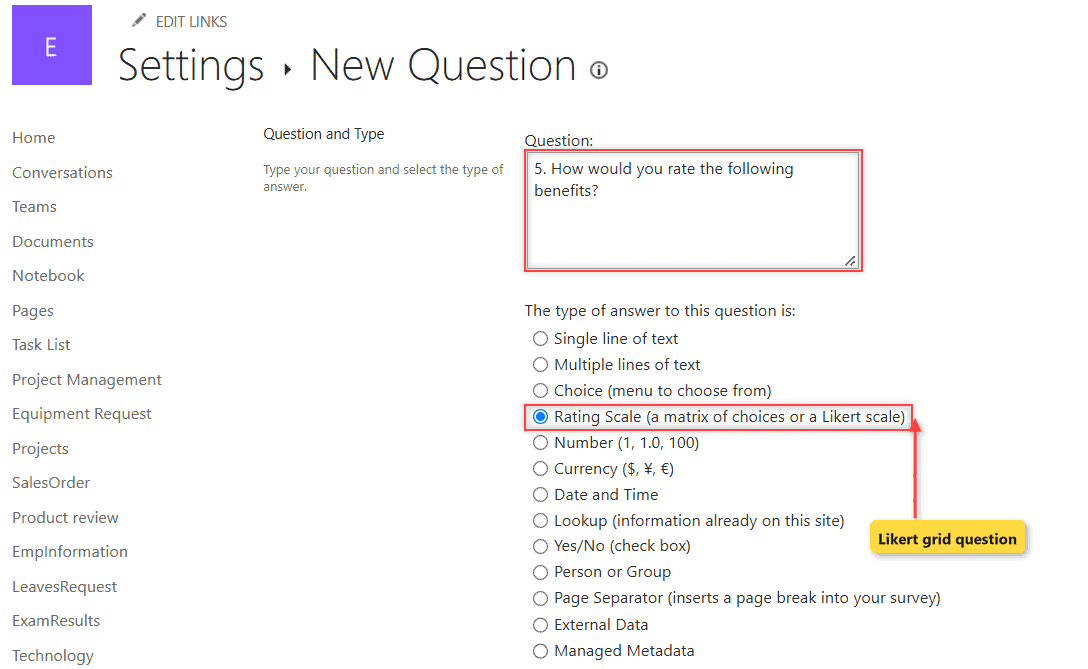
| 2. Rate the following | Rating Scale | 1 to 5, Strongly disagree to Strongly agree, N/A option |
| 3. Would you join an in-person team event in December 2026? | Yes/No | Default Yes |
| 4. Which week in December works best for you? | Choice | Dec 7-11, Dec 14-18 |
| 5. What is one thing we should change next year? | Multiple lines of text | Optional |
Type the question under Question and Type, set choices and defaults under Additional Question Settings, then select Next Question or Finish. SharePoint doesn’t number questions in the form, so type the number yourself (the Graphical Summary then shows it twice, as "1. 1.").
Branching skips questions based on an answer. Finish the survey first, open Settings > Survey Settings, select a question and pick a jump target under Branching Logic. I sent anyone answering No on question 3 straight to question 5, skipping the December week question. SharePoint adds a page break after a branching question.

Share the survey and collect responses
Respondents need at least Contribute permission, which site members already have. For people outside the site, adjust access with SharePoint list permissions rather than opening the whole site.
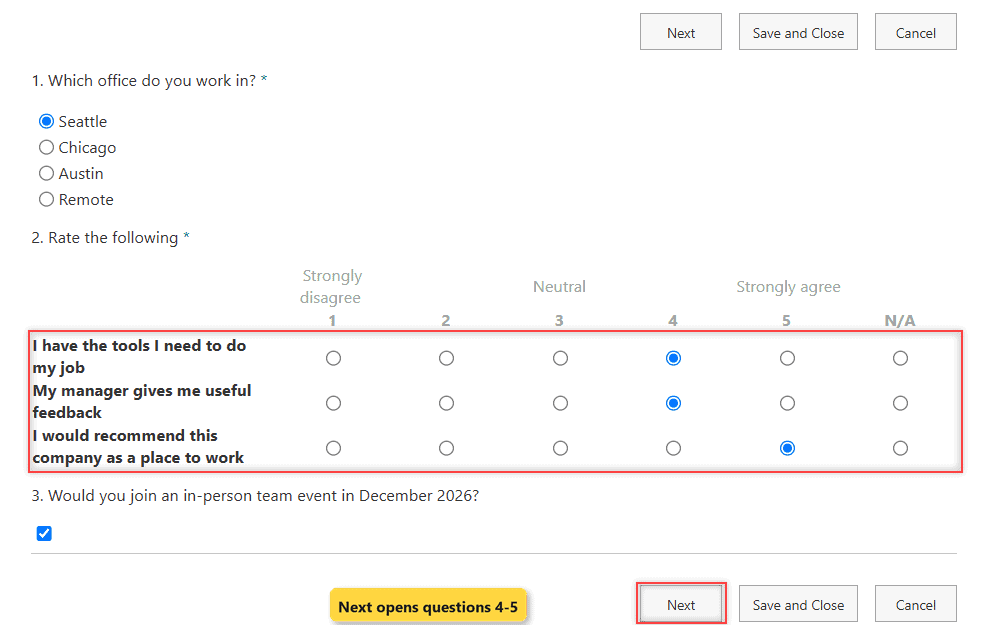
Share the survey’s address by email or Teams. People select Respond to this Survey, answer page one, select Next, and then Finish.
View and export the survey results
The survey comes with three views: Overview, Graphical Summary and All Responses. Graphical Summary draws a bar chart for every question, perfect for Rachel’s meeting.
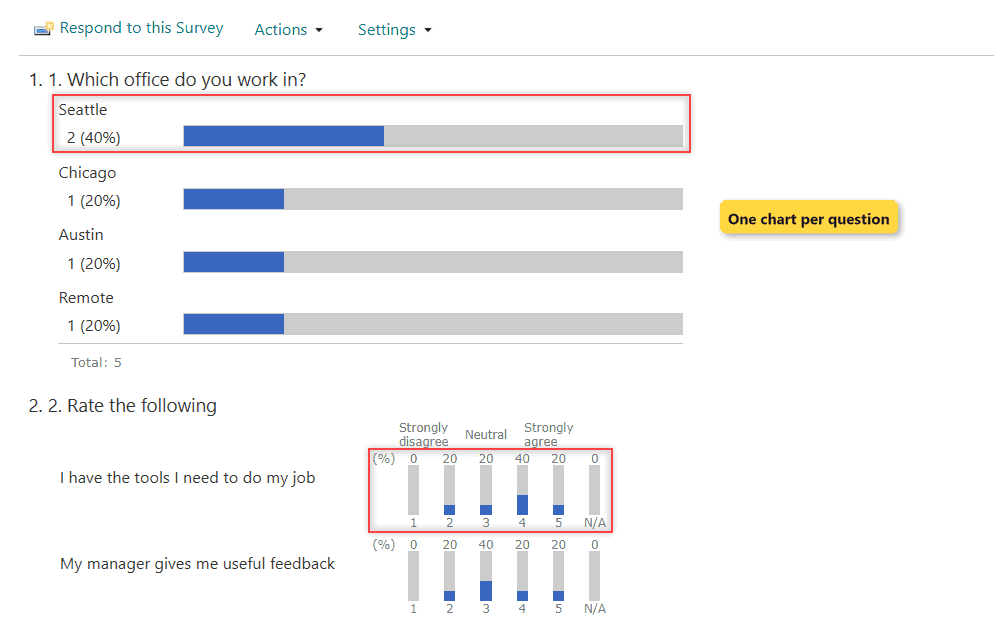
After five test responses, 3 of 5 people (60%) agreed they have the tools they need, and 3 said Yes to the December event.
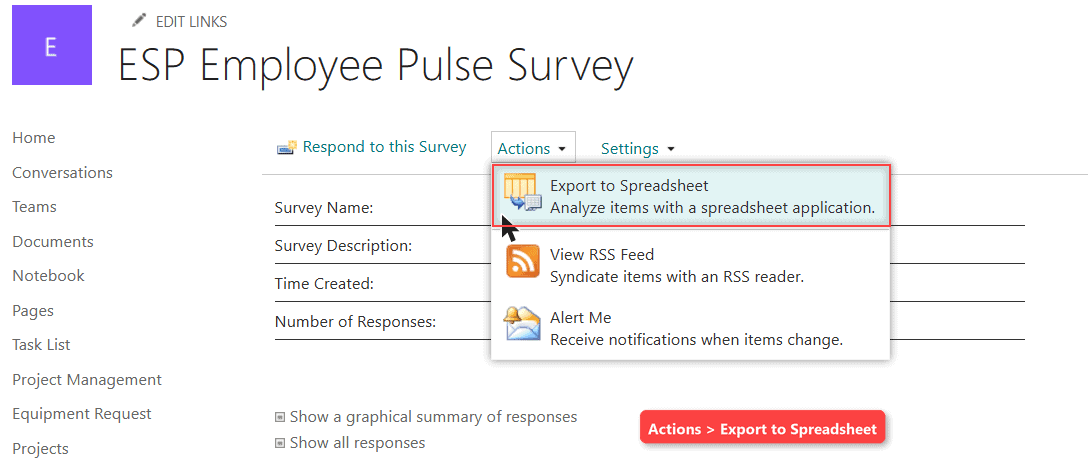
To analyze in Excel, open the Overview page and select Actions > Export to Spreadsheet. For a live dashboard, connect Power BI to the survey list the same way you’d build a Power BI report from a SharePoint list.
The modern way: build the survey as a Lists form
A Lists form is a modern survey page whose answers land as list items. Select + New > List > Form and name the list for form responses, or select Forms on an existing list’s command bar.
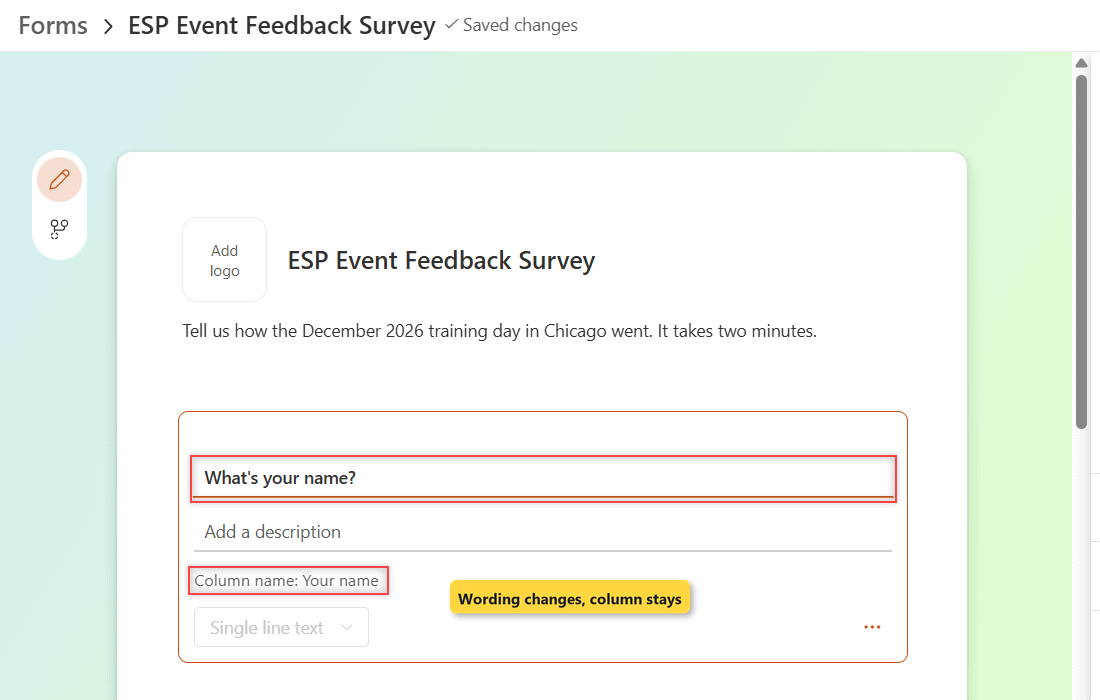
I built ESP Event Feedback Survey this way. The builder turns columns into questions; you can reword them (the column name stays), pick fields in the Form fields panel and change the theme.
Select Share form > Copy link (or QR code). Anyone in your organization can respond after signing in, and the form tells them you’ll see their name and email. Responders never see the list itself. If you prefer Lists over SharePoint, here’s how Microsoft Lists and SharePoint lists compare.
When Microsoft Forms is the better fit
Choose Microsoft Forms when you need answers from people outside your company or truly anonymous feedback, because only Forms offers Anyone can respond. You can still show it on a page with the Microsoft Forms web part, and copy answers into a list with a Power Automate flow for Forms responses.
Common errors and how to fix them
- The Survey tile doesn’t show up. Select the classic experience link on the Add an app page, or ask your site owner whether survey apps are allowed on the site.
- “You are not allowed to respond again to this survey.” Allow multiple responses is set to No. Change it in Survey Settings if repeat answers are intended.
- People can’t respond. They have Read permission only. Give them Contribute on the site or the survey.
Want to do more with survey answers? These guides help:
Frequently Asked Questions
Can a SharePoint survey be anonymous?
Not completely. The classic Survey app can hide user names in views, but site owners can still trace answers, and Lists forms require sign-in. Use Microsoft Forms with Anyone can respond for anonymous feedback.
Is the classic SharePoint Survey app still available?
Yes. In November 2026 I could still add it from Add an app on a SharePoint Online site. Microsoft’s Create a survey guide covers the full steps.
How do I change the order of survey questions?
Open Settings > Survey Settings, scroll to the bottom, select Change the order of the questions, and set the numbers under Position from Top.

I have worked with Microsoft technologies for more than 18 years, including SharePoint, Microsoft 365 and the Power Platform (Power Apps, Power Automate and Power BI), at companies like HP, TCS and KPIT. I started EnjoySharePoint in 2011 to share the solutions I build in real projects with readers in the United States, Canada, the United Kingdom, Australia, New Zealand and beyond. Microsoft has recognized this work with the Microsoft MVP award 13 times since 2014.