
Maria Torres runs operations for a small Denver design agency, and her message was short: the project library is a mess. Closed client work from 2024 sits right next to this month’s proposals, and people keep opening the wrong budget.
She didn’t want anything deleted, since clients still call about old jobs. She wanted the old files out of the way, read-only, and out of everyday search, while the active work stays where it is.
In this tutorial, I’ll show you how to archive documents SharePoint users no longer touch, using an archive library, a view that finds the old files, Move to and locked-down permissions. Then I’ll cover when Microsoft 365 Archive is the better fit.
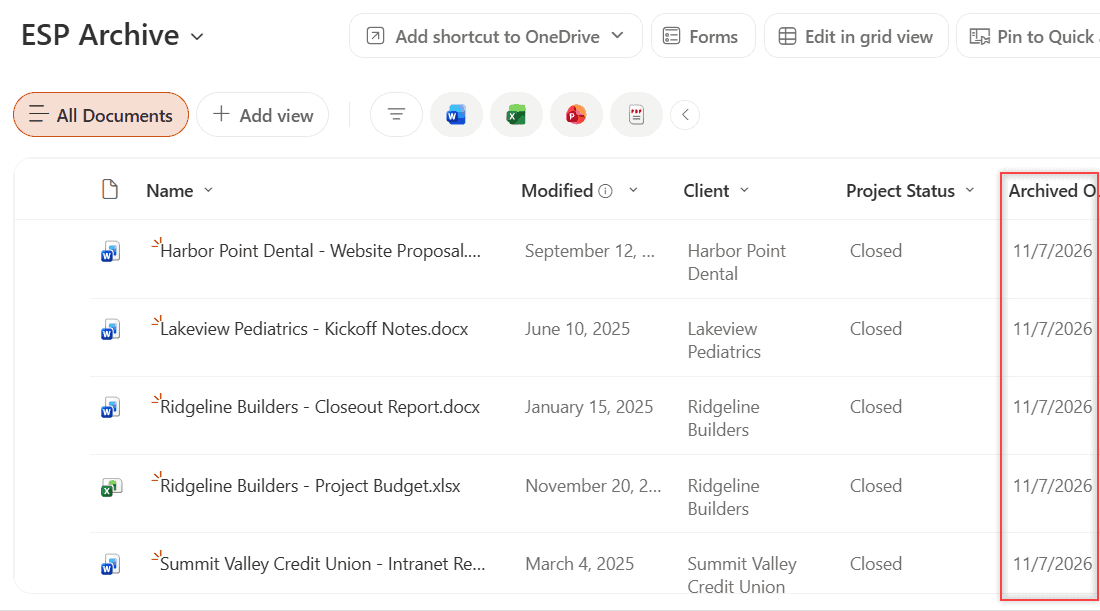
Here’s what we’re building, an archive library holding six closed project files, each with the date it was archived:
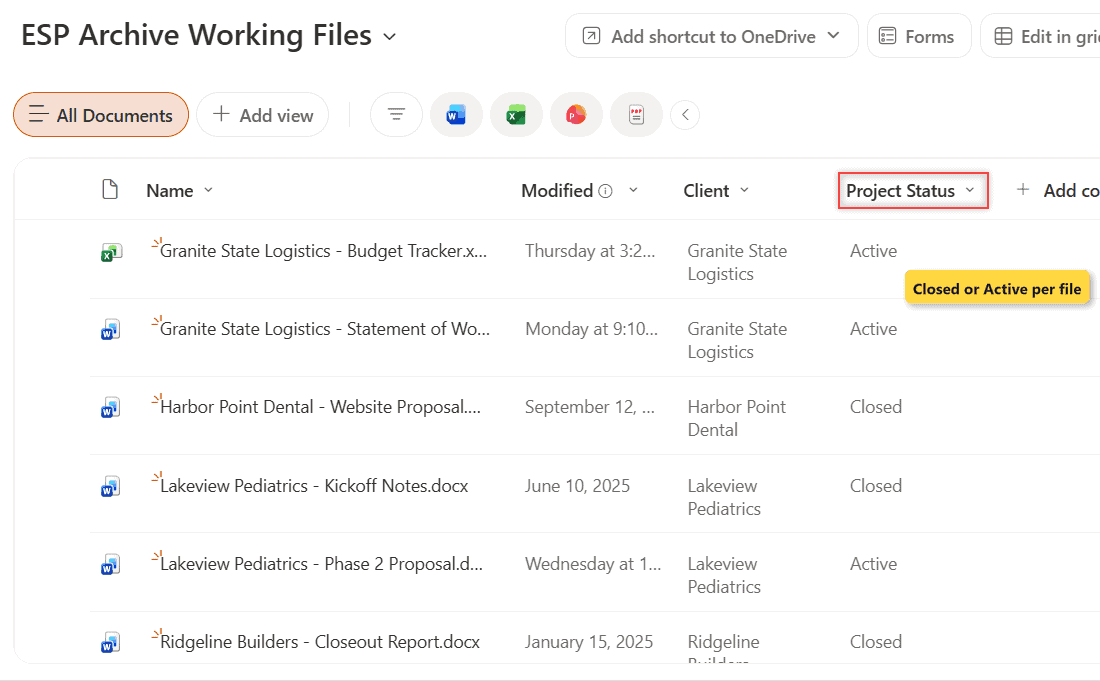
- ESP Archive Working Files, the live library everyone works in.
- Ready to Archive, a view that lists closed files older than a year.
- ESP Archive, a read-only library that search skips.
Before You Start
You need edit rights on the site to create a library, and Full Control (site owner) to change its permissions. If libraries are new to you, read what a SharePoint document library is first, because everything below happens inside two of them.
First, a quick word on what “archive” means here. SharePoint has no single Archive button for every tenant, so you have three real choices:
| Option | What happens to the file | Cost and setup |
|---|---|---|
| Archive library (this tutorial) | Moves to a read-only library on the same site | Free, any site owner can set it up |
| Microsoft 365 Archive | Stays in place but moves to cold storage until someone reactivates it | Pay-as-you-go add-on an admin turns on |
| Retention label or policy | Kept or deleted after a set period, wherever it lives | Compliance admin in Microsoft Purview |
Here’s the running sample, the working library I built. Six files belong to closed projects and three are active:
| File | Client | Project Status | Modified |
|---|---|---|---|
| Harbor Point Dental – Website Proposal.docx | Harbor Point Dental | Closed | 9/12/2024 |
| Ridgeline Builders – Project Budget.xlsx | Ridgeline Builders | Closed | 11/20/2024 |
| Ridgeline Builders – Closeout Report.docx | Ridgeline Builders | Closed | 1/15/2025 |
| Summit Valley Credit Union – Intranet Requirements.docx | Summit Valley Credit Union | Closed | 3/4/2025 |
| Summit Valley Credit Union – Training Schedule.xlsx | Summit Valley Credit Union | Closed | 4/22/2025 |
| Lakeview Pediatrics – Kickoff Notes.docx | Lakeview Pediatrics | Closed | 6/10/2025 |
| Granite State Logistics – Statement of Work.docx | Granite State Logistics | Active | 11/2/2026 |
| Granite State Logistics – Budget Tracker.xlsx | Granite State Logistics | Active | 11/5/2026 |
| Lakeview Pediatrics – Phase 2 Proposal.docx | Lakeview Pediatrics | Active | 11/4/2026 |
Step 1: Create the Archive Library
The archive gets its own library, so it can have its own permissions and search setting without touching the working one. I keep it on the same site, so Move to works without any admin changes. Pick a document library web part later if you want it on a page.
- Open Site contents and select New > Document library.
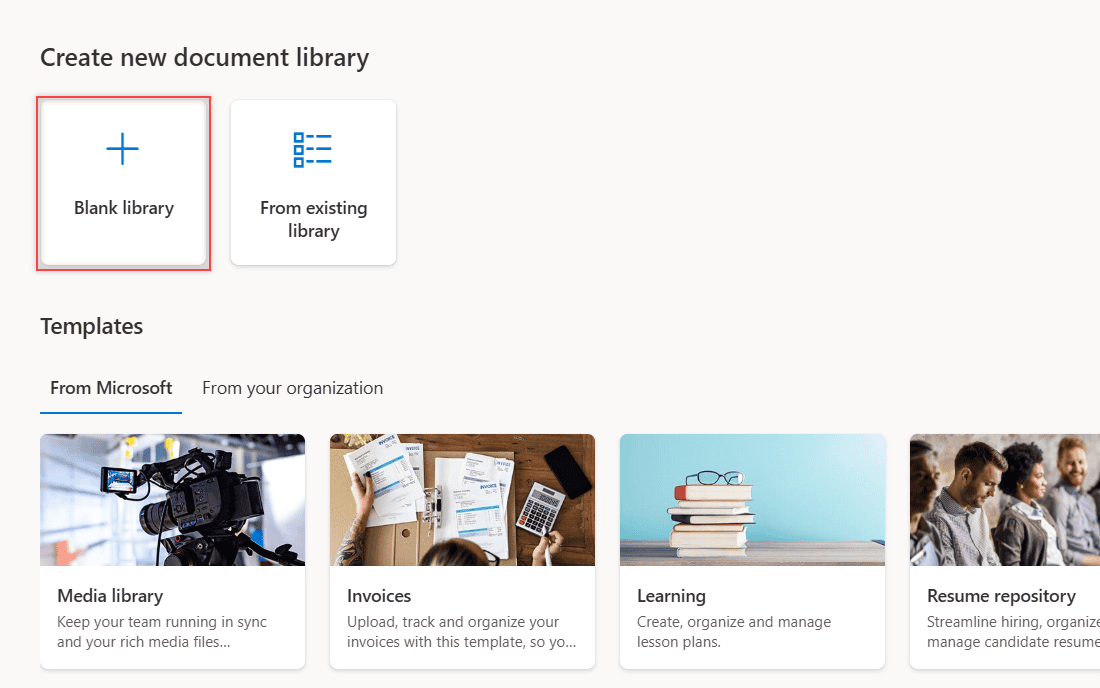
- In Create new document library, pick Blank library.
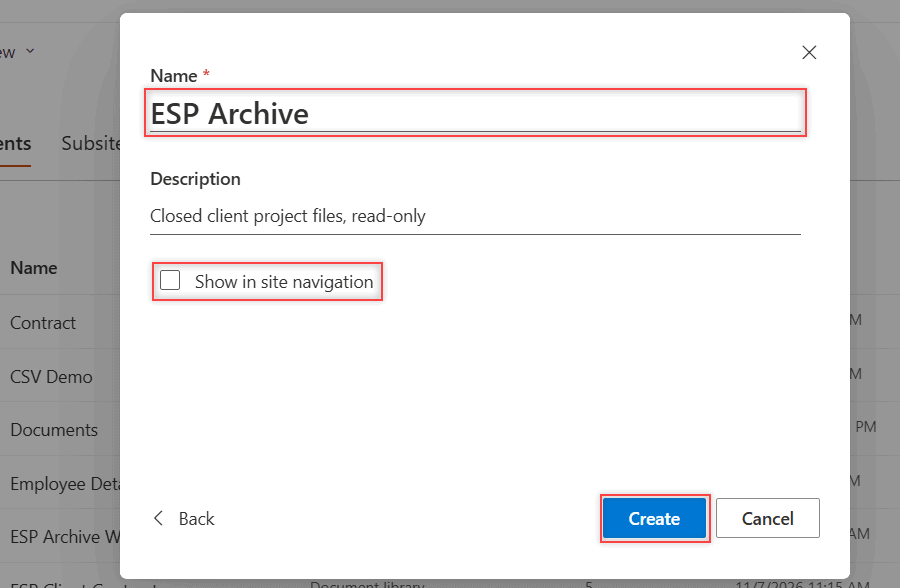
- Name it ESP Archive and add a short description.
- Clear Show in site navigation (nobody needs a shortcut to the archive), then select Create.
- Add the same columns the working library uses: Client (Single line of text) and Project Status (Choice: Active, Closed).
Important: Move to only keeps metadata for columns that exist in the destination. If the archive library has no Client column, every file arrives without its client name.
Checkpoint: ESP Archive is empty and shows the Name, Modified, Client and Project Status columns.
Step 2: Add an Archived On Date Column
Six months from now, someone will ask when a file was archived. A date column answers that without digging through the audit log.
- In ESP Archive, select Add column > Date and time > Next.
- Name it Archived On.
- Leave Include Time off, since the day is enough.
- Under Default value, choose Today’s date, then select Save.
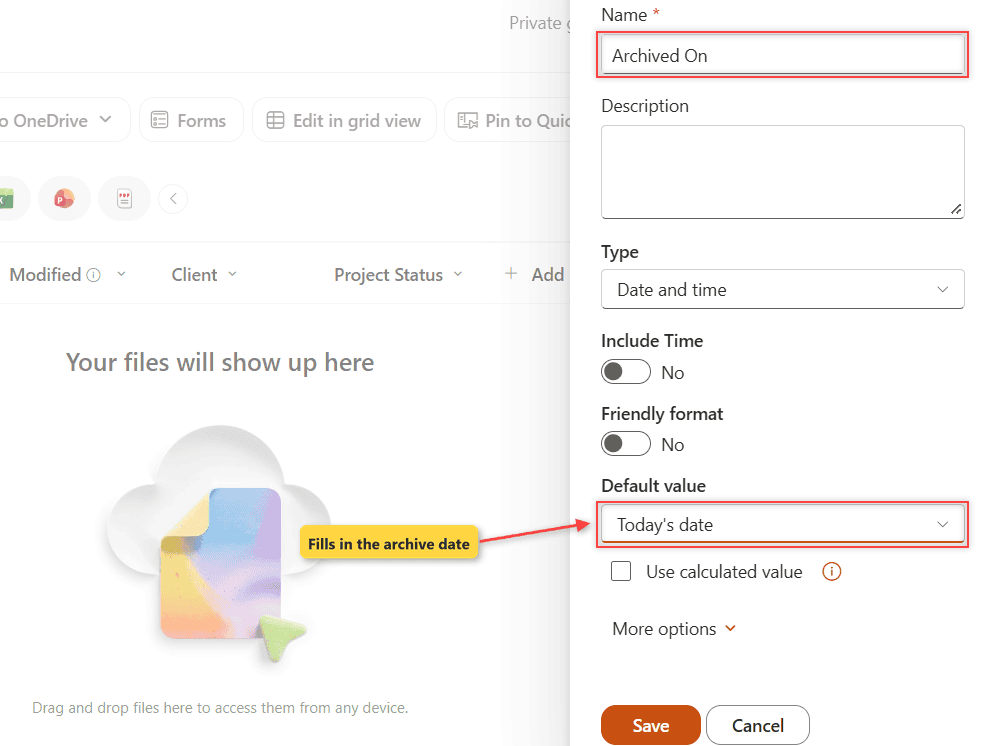
I wasn’t sure a default value would fire on moved files, since they aren’t new uploads. It does. Every file I moved got the move date with no extra work.
Checkpoint: ESP Archive shows Name, Modified, Client, Project Status and Archived On, and it’s still empty.
Step 3: Build a Ready to Archive View
Instead of hunting for old files by eye, let a view find them. This one shows closed projects that nobody has touched for a year. My complete guide to SharePoint list views explains the view options if you want to tweak it.
- Open ESP Archive Working Files, select Settings (gear) > Library settings > More library settings.
- Under Views, select Create view > Standard View, and name it Ready to Archive.
- In the Filter section, select Show items only when the following is true.
- Under Filter, set Project Status is equal to Closed.
- Select And, then set Modified is less than [Today]-365.
- Select OK.
Project Status  is equal to   Closed
AND
Modified        is less than  [Today]-365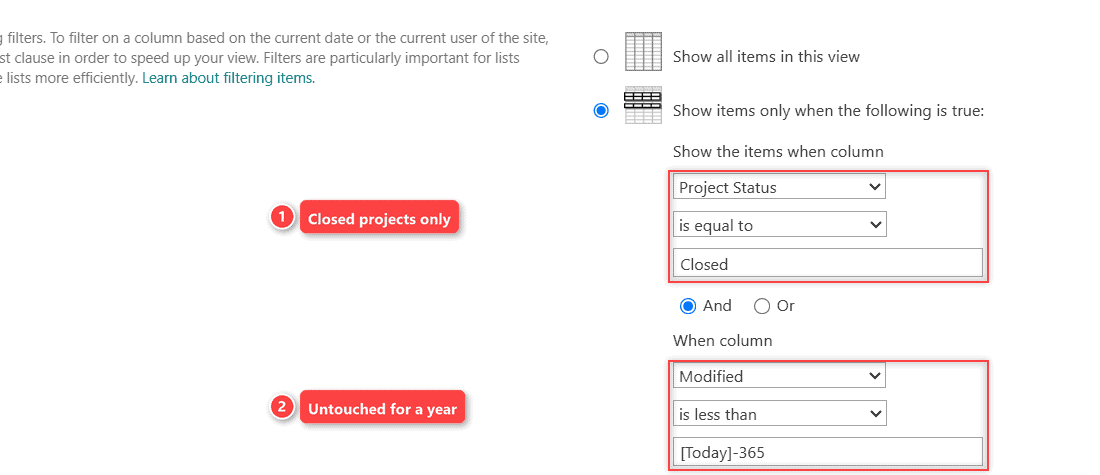
The [Today] token is what makes this view useful long term. It recalculates every day, so next November the view automatically picks up files from this one.
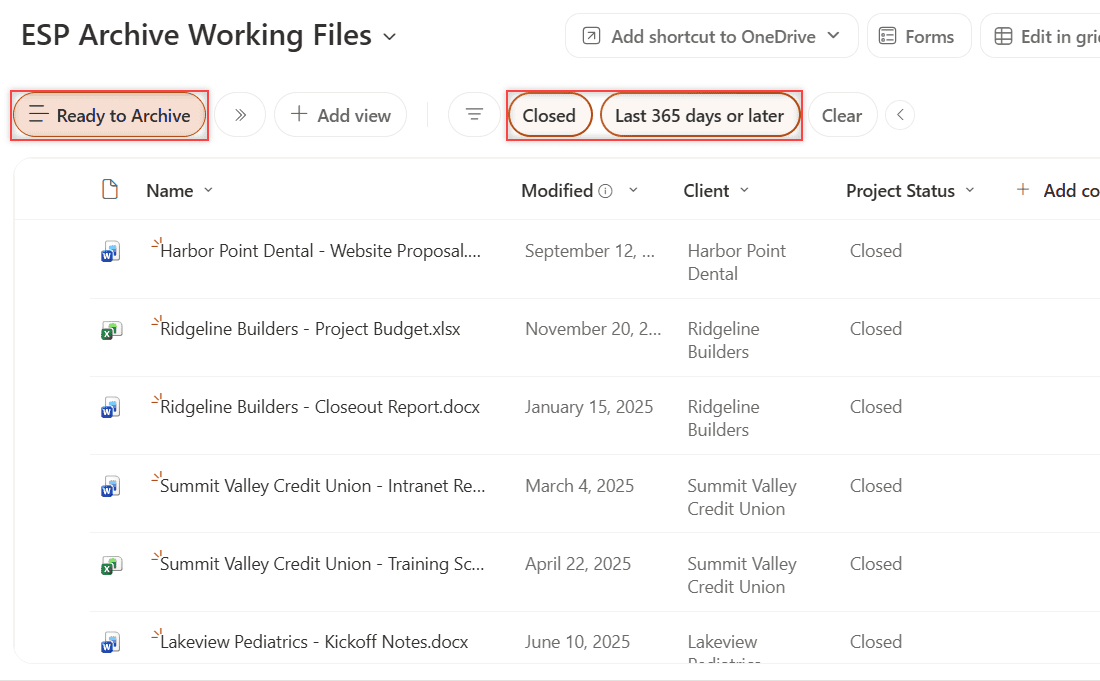
Checkpoint: the view shows 6 files, and the modern library displays the filter as two pills, Closed and Last 365 days or later. The three active files stay hidden.
Step 4: Move the Old Files to the Archive
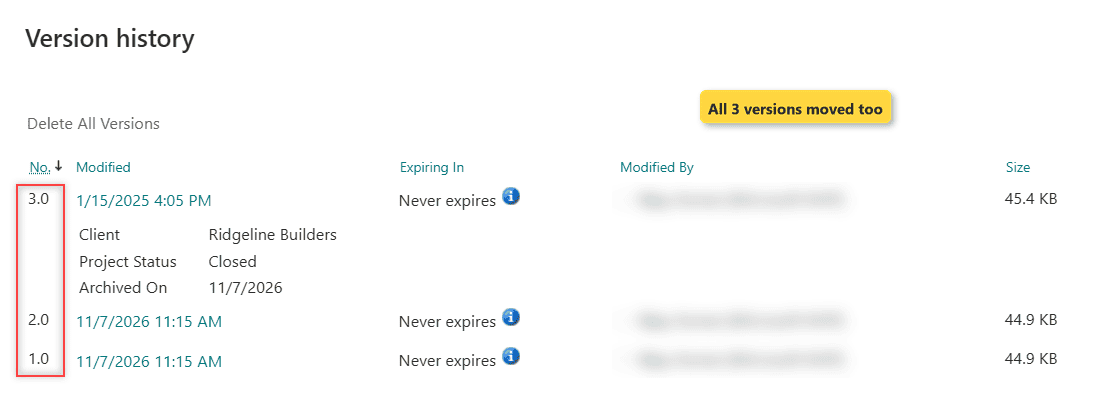
Now the actual archiving. Use Move to, not Copy to, because a move takes the version history with the file. If you ever need to check in or check out a SharePoint file, do it before the move, since checked-out files can trip it up.
- In the Ready to Archive view, select the check circle next to Name to select all 6 files.
- On the command bar, select Move to. With a single file selected, it hides under the … menu.
- The picker opens in the current library. Select the site name in the breadcrumb (EnjoySharePoint for me), then open ESP Archive.
- Scroll to the bottom of the panel and select Move here.
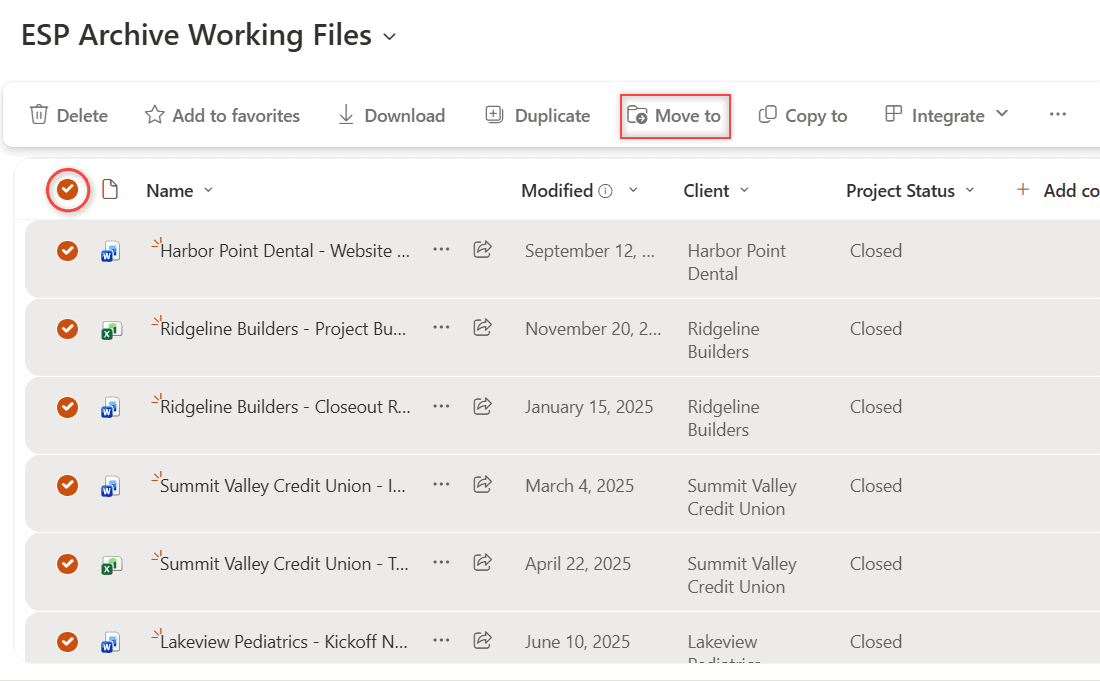
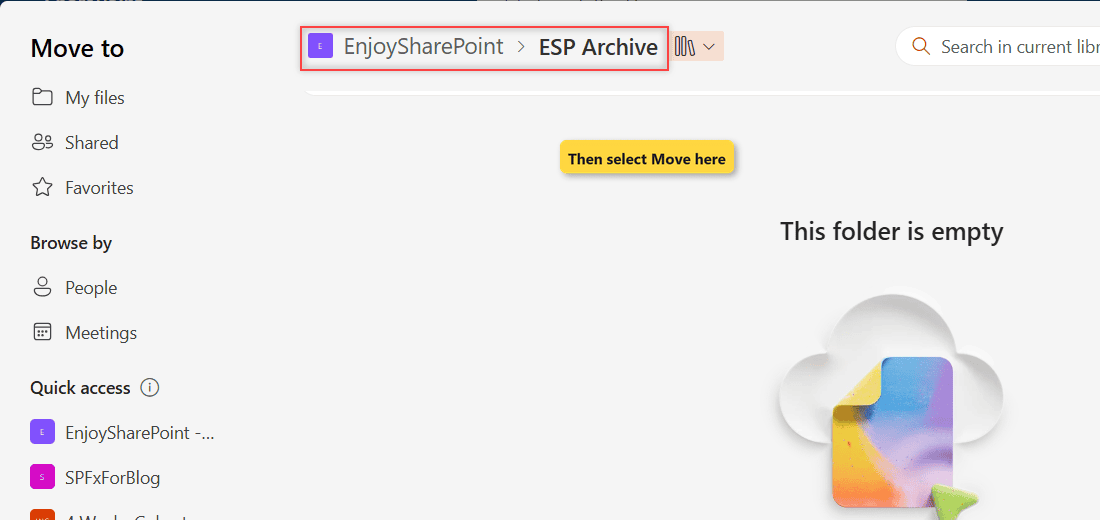
SharePoint shows a Moving 6 items message, then Moved 6 items to ESP Archive. Mine took about 15 seconds. The originals disappear from the working library only after the move finishes.
Checkpoint: ESP Archive now holds 6 files. Client and Project Status came along, and Modified still shows the original 2024 and 2025 dates, so nobody loses track of how old a file is.
To prove the history came too, I opened Version history on Ridgeline Builders – Closeout Report.docx in the archive. All three versions were there:
Step 5: Make the Archive Read-Only
An archive that anyone can edit isn’t much of an archive. We’ll stop the library from inheriting site permissions and give members read access only. The unique permissions for a SharePoint library guide covers every option on this page.
- In ESP Archive, select Settings (gear) > Library settings > More library settings.
- Select Permissions for this document library.
- Select Stop Inheriting Permissions and confirm.
- Check the Members group, select Edit User Permissions, choose Read, and select OK.
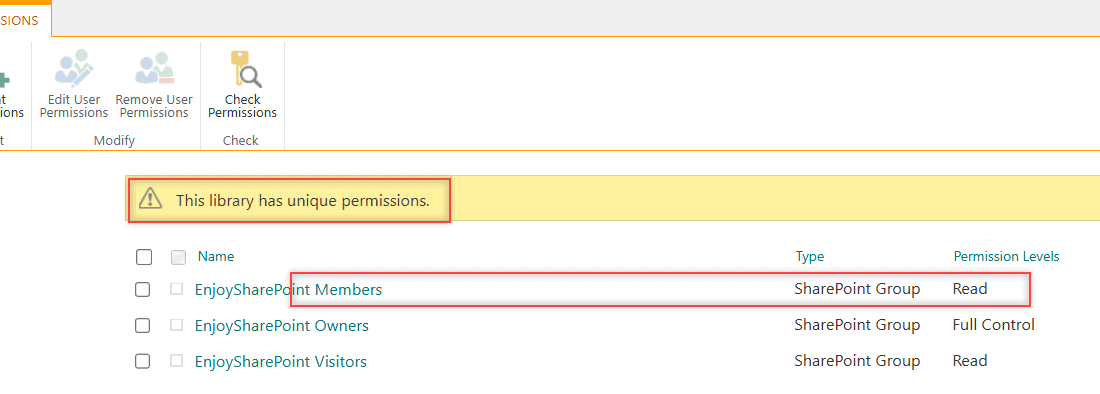
Leave the Owners group at Full Control. Someone still needs to add files to the archive, and sometimes pull one back out.
Checkpoint: the page shows “This library has unique permissions,” with Members and Visitors at Read and Owners at Full Control.
Step 6: Hide the Archive From Search
Read-only files still show up in search, and that was half of Maria’s complaint. One library setting keeps the archive out of everyday results.
- In Library settings > More library settings, select Advanced settings.
- Scroll to Search.
- Under Allow items from this document library to appear in search results?, select No.
- Select OK.
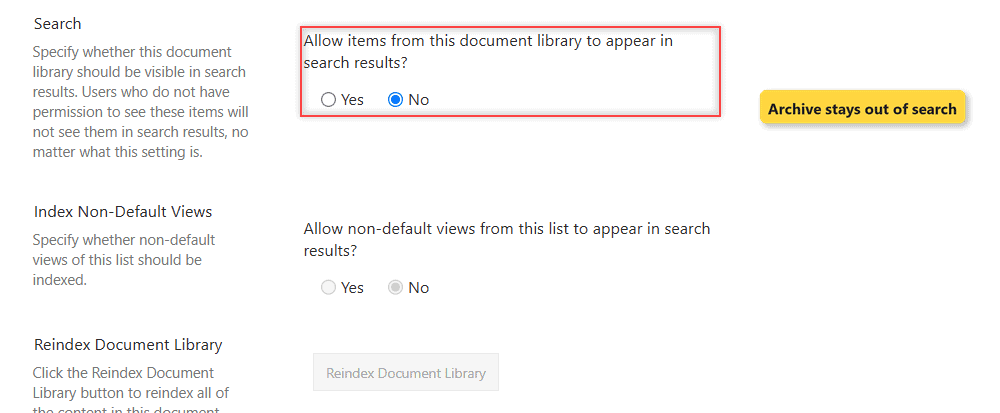
Note: this only removes the files from search results. Anyone with access can still open the library directly, so the permissions in Step 5 still matter.
Test the Archive
Back in ESP Archive Working Files, I switched to All Documents. Only the three active files are left, Granite State Logistics’ Statement of Work and Budget Tracker plus the Lakeview Pediatrics Phase 2 Proposal.
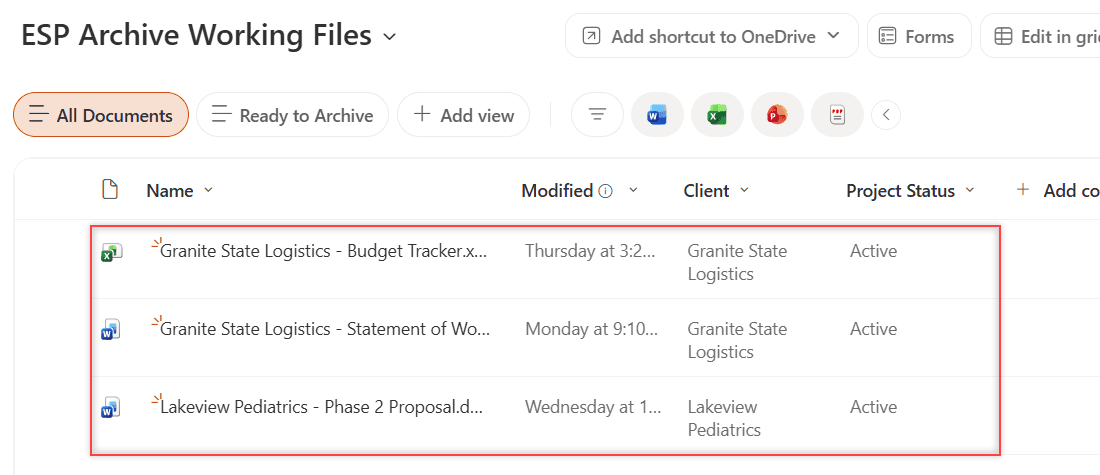
In ESP Archive, all six closed files open in the browser, and the Ridgeline Closeout Report still has its three versions. The Ready to Archive view now shows nothing, which is exactly what you want after an archive run.
Every archived file shows 11/7/2026 in Archived On, the day I ran the move in the site’s time zone. That’s the whole archive run, and nothing was deleted.
Option 2: Archive Files With Microsoft 365 Archive
If your organization pays for Microsoft 365 Archive, there’s a built-in way to archive individual files without moving them. The file stays in its library but drops to cheaper cold storage.
- An admin links an Azure subscription for pay-as-you-go billing and turns on Archive in the Microsoft 365 admin center. Billing is per GB archived.
- File-level archiving is then on by default for every SharePoint site, unless the admin turns it off.
- Anyone with edit permission selects one or more files and chooses Archive. A folder offers Archive all files, up to 20,000 items.
- Anyone with read permission can select an archived file and choose Reactivate. It can take up to 24 hours, and they get an email when it’s done.
Our tenant doesn’t have Microsoft 365 Archive turned on, so when I selected a file, the command bar and its … menu had no Archive option. If you don’t see it either, that’s the reason, and only an admin can change it.
A few limits matter. OneNote notebooks and SharePoint pages can’t be archived, archived files can’t be opened until they’re reactivated, and a reactivated file can’t be archived again for 120 days. There’s no reactivation fee.
I’d pick Microsoft 365 Archive for big, rarely used files like video, where storage cost is the real problem. For a team that just wants old files out of the way, the free archive library is simpler.
Option 3: Keep or Delete Archived Files on a Schedule
An archive library holds files forever unless you clean it. If your records policy says to keep client files for seven years, a compliance admin can publish a retention label or policy in Microsoft Purview. The other route is a flow, like deleting files older than 3 years with Power Automate.
Retention labels don’t move files to another library. At the end of the period they delete the file, start a disposition review, or do nothing, so pair them with the archive library rather than replacing it.
Make It Production-Ready
- Put a recurring reminder on the owner’s calendar to run the Ready to Archive view once a quarter.
- Keep the same column names in both libraries, so no metadata is lost in the move.
- Add a Fiscal Year folder or column in the archive once it grows past a few hundred files.
- Label sensitive archived files, too. My guide to sensitivity labels for a document library shows how.
Troubleshooting
- Move to is missing: you’re on the classic experience or a Site Pages library. Switch to the modern library view.
- Other sites don’t show in Move to: your admin hasn’t allowed cross-site moves. Keep the archive on the same site.
- Client values are blank after the move: the archive library is missing that column. Add it, and fill in the moved files in grid view.
- Archived files still show in search: the setting applies at the next crawl, so give it a day. Reindex Document Library is grayed out once Search is set to No.
Where to Take It Next
Once the manual run works, automate it. A scheduled flow can move files with Power Automate on the same rule the view uses. If you’d rather have one place for everything, see these SharePoint document library examples for other library layouts.
More guides for organizing SharePoint libraries:
Frequently Asked Questions
Does SharePoint have an archive feature?
Yes, Microsoft 365 Archive, but it is a pay-as-you-go add-on your admin must turn on. Microsoft covers file and site archiving in Manage Microsoft 365 Archive.
How do I archive old documents in SharePoint for free?
Create a separate archive library, move the old files there with Move to, set the library to read-only, and turn off its search results setting.
Does moving a file to an archive library keep its version history?
Yes. Move to brings the full version history. Copy to only brings the latest version, so always move, not copy.
Can users still open archived files?
With an archive library, yes, if they have read access. With Microsoft 365 Archive, no, the file must be reactivated first, which can take up to 24 hours.
How do I archive a whole SharePoint site?
A SharePoint admin selects the site on the Active sites page of the SharePoint admin center and chooses Archive. It needs Microsoft 365 Archive turned on.

I have worked with Microsoft technologies for more than 18 years, including SharePoint, Microsoft 365 and the Power Platform (Power Apps, Power Automate and Power BI), at companies like HP, TCS and KPIT. I started EnjoySharePoint in 2011 to share the solutions I build in real projects with readers in the United States, Canada, the United Kingdom, Australia, New Zealand and beyond. Microsoft has recognized this work with the Microsoft MVP award 13 times since 2014.