
Every November, Jordan Ellis clears out his operations team’s document library before the year-end audit. Old budget drafts, a superseded vendor list and a 2024 archive folder all have to go.
Clicking Delete is easy. The questions come after: where did the file go, and can I get it back?
In this tutorial, I’ll show you how to delete files in SharePoint one at a time, in bulk and as whole folders, using a demo library called ESP Delete Demo, and how to restore what you removed by mistake.
Quick answer: Open the document library, select the circle next to the file (not the file name), select Delete on the command bar, and confirm with Delete. To undo it, open Recycle bin in the left pane (or Site contents > Recycle bin), select the file and choose Restore. Deleted files stay there for 93 days.
Before you delete: permissions and where files go
You need the Contribute or Edit permission level on the SharePoint document library to delete files. Visitors with Read access don’t see a Delete button, and a library with unique library permissions can differ from the rest of the site.
A deleted file moves, with all its versions, to the site’s Recycle bin for 93 days. It’s gone for everyone, though, so archive anything coworkers might still need.
Delete a single file from a document library
Jordan’s first target is Vendor List Old.docx:
- In the library, select the round check circle left of the file name. Selecting the name opens the file instead.
- Select Delete on the command bar.
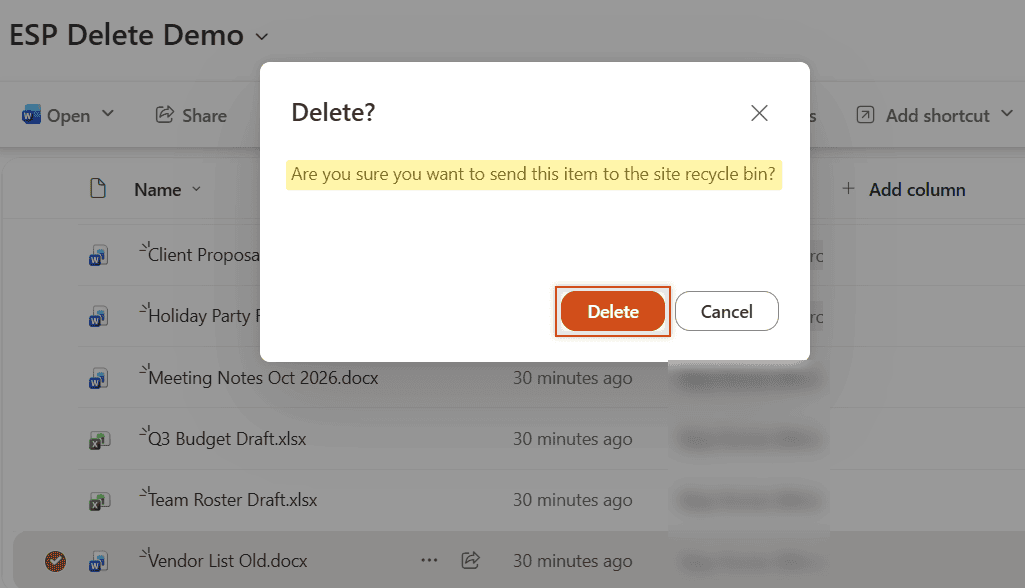
- In the Delete? box, select Delete again.
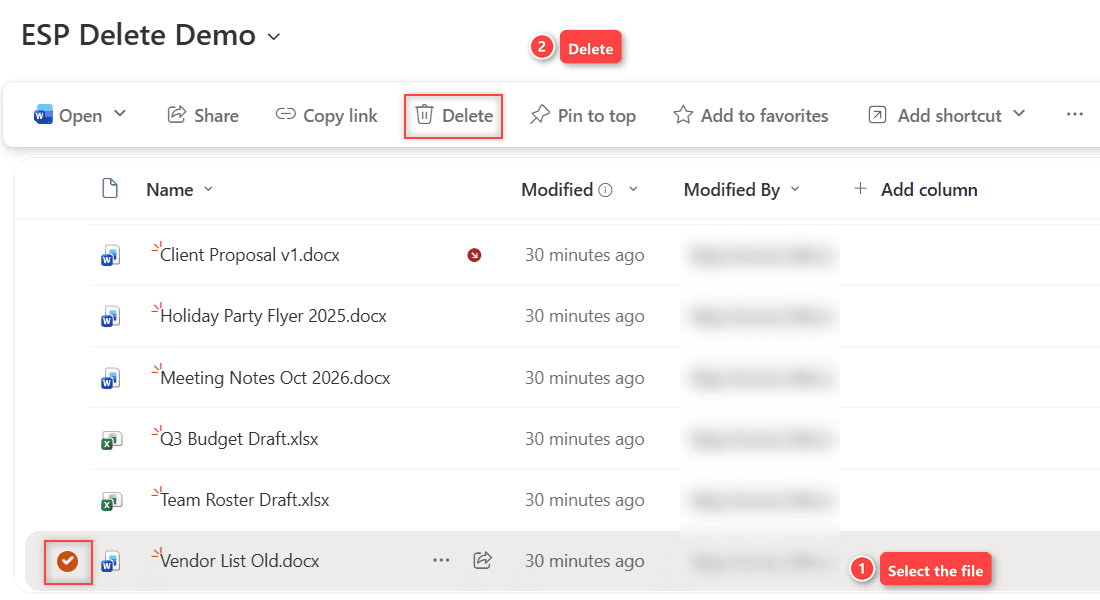
The box asks, “Are you sure you want to send this item to the site recycle bin?” After I confirmed, a message at the bottom said Deleted 1 item, with an Open Recycle bin link, and the file left the list.
Delete multiple files or a whole folder
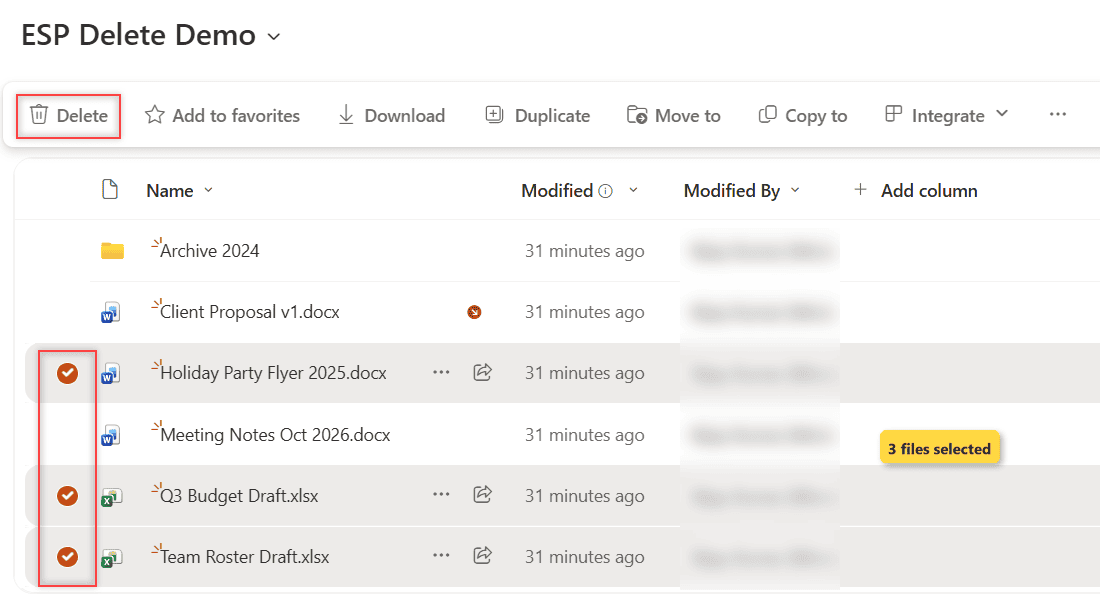
For bulk cleanup, select the check circle of each file. The command bar shows how many are selected, and one Delete removes them all.
I selected Q3 Budget Draft.xlsx, Team Roster Draft.xlsx and Holiday Party Flyer 2025.docx, chose Delete, and confirmed once. The message read Deleted 3 items from ESP Delete Demo.
A folder deletes the same way, along with every file and subfolder inside it. The prompt doesn’t warn you about the contents, so open the folder first. Archive 2024 showed up in the Recycle bin as a single item.
Cleaning up every quarter? You can delete files older than 3 years with Power Automate or delete SharePoint folders using Power Automate on a schedule.
Delete files from a synced folder or File Explorer
In a library synced with the OneDrive app, select a file in File Explorer and press Delete. The deletion syncs to SharePoint, so the file leaves the library for everyone and lands in the site’s Recycle bin.
Deleting a synced folder also removes it from every coworker’s synced copy. To clear files from your laptop only, stop syncing instead. This comparison of SharePoint sync vs Add shortcut to OneDrive helps you pick the lighter option.
Find and restore deleted files from the Recycle bin
An hour later, Maria Torres in finance wanted the Q3 budget draft back. Here’s how I restored it:
- Select Recycle bin in the site’s left pane, or go to Settings > Site contents and select Recycle bin.
- Find the file. The columns show Name, Date deleted, Deleted by, Created by and Original location.
- Select the file and choose Restore. A Restored 1 item note appears.
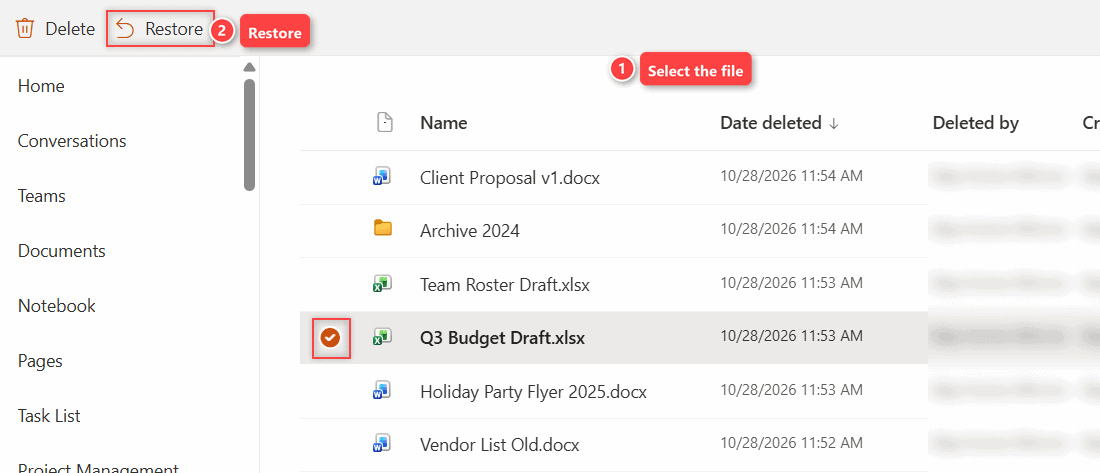
The file went back to ESP Delete Demo. If its name is taken, SharePoint adds a number to the restored copy.
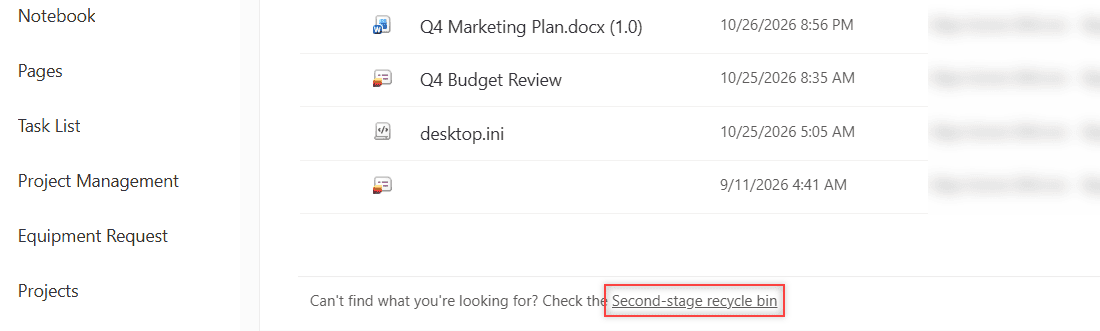
If someone emptied the Recycle bin, the file sits in the second-stage recycle bin for the rest of the 93 days. Site owners and admins open it from the link at the bottom of the page.
Pro Tip: after a big accidental cleanup, a site owner can use Settings > Restore this library to undo file and folder changes from the last 30 days.
Common errors and how to fix them
- The file is checked out to someone else. That person must check it in first, or someone with permission can override. Here’s how SharePoint check-in and check-out works. A file checked out to me deleted normally.
- “The file is locked for shared use.” Someone has it open in Word or Excel. Close it everywhere and retry in a few minutes.
- A retention label blocks it. Files labeled as records can’t be deleted. Ask your compliance admin.
- There’s no Delete button. You have Read access only; ask the site owner for Edit.
- The file still shows up. Refresh the page, or clear the SharePoint cache in your browser.
Keep your library tidy with these guides:
Frequently Asked Questions
How long do deleted files stay in the SharePoint Recycle bin?
93 days from the original deletion, including any time in the second-stage recycle bin. Microsoft explains it in Restore items in the recycle bin of a SharePoint site.
Can I recover a file after the Recycle bin is emptied?
Yes, within the 93 days. A site owner or admin can restore it from the second-stage recycle bin. After that, it’s permanently deleted.
Who can restore a file someone else deleted?
Anyone with edit permission on the site. The Deleted by column shows who removed each file.

I have worked with Microsoft technologies for more than 18 years, including SharePoint, Microsoft 365 and the Power Platform (Power Apps, Power Automate and Power BI), at companies like HP, TCS and KPIT. I started EnjoySharePoint in 2011 to share the solutions I build in real projects with readers in the United States, Canada, the United Kingdom, Australia, New Zealand and beyond. Microsoft has recognized this work with the Microsoft MVP award 13 times since 2014.