
An email says Megan Bowen shared “Q4 Vendor Contract Review” with you. Is it really from SharePoint, or a phishing email dressed up to look like one?
In this tutorial, I’ll explain who do legitimate SharePoint document share requests come from, which sender addresses are normal, and the five checks I use before I open any shared file.
Quick answer: A real share email comes from the coworker who shared the file (their own work address) or, if they have no mailbox, from no-reply@sharepointonline.com with their name on it. The link always goes to your company’s sharepoint.com address, and the same file also shows up under Shared with you in OneDrive.
What You Need Before You Start
- The suspicious email, open in Outlook (don’t select any link yet).
- Access to OneDrive or SharePoint on the web, signed in the normal way from your bookmark.
- A way to reach the sender outside email, such as Teams. If the file came from a site, you can also find the SharePoint site owner.
Who Legitimate SharePoint Share Requests Come From
Microsoft sends sharing messages from a small, predictable set of senders:
| Message | Real sender |
|---|---|
| A coworker shared a file | The coworker’s own work email address |
| A coworker without a mailbox shared a file | no-reply@sharepointonline.com, showing the coworker’s name |
| Someone asks for access to your file or site | Same rule: the requester’s mailbox or no-reply@sharepointonline.com |
| Guest invitation from another company | Microsoft Invitations on behalf of the company, from invites@<company>.onmicrosoft.com |
| Verification code to open a guest file | no-reply@notify.microsoft.com |
Outlook tags the Microsoft no-reply messages as [External], so that tag alone doesn’t mean fake. When you can’t share something yourself, that’s a different problem, covered in the Sharing Is Limited on This Item fix.
Step 1: Check the Sender Name Against the Address
Select the sender’s name to see the full address. A real share shows the person’s name with either their company address or no-reply@sharepointonline.com.
A coworker’s name on an address from an unknown domain is the classic SharePoint phishing email pattern.
Step 2: Hover Over the Link Before You Select It
Hover over Open and read the tooltip address. I created a sharing link on my demo file in the ESP Share Request Demo library, and copied, every real link has the same shape:
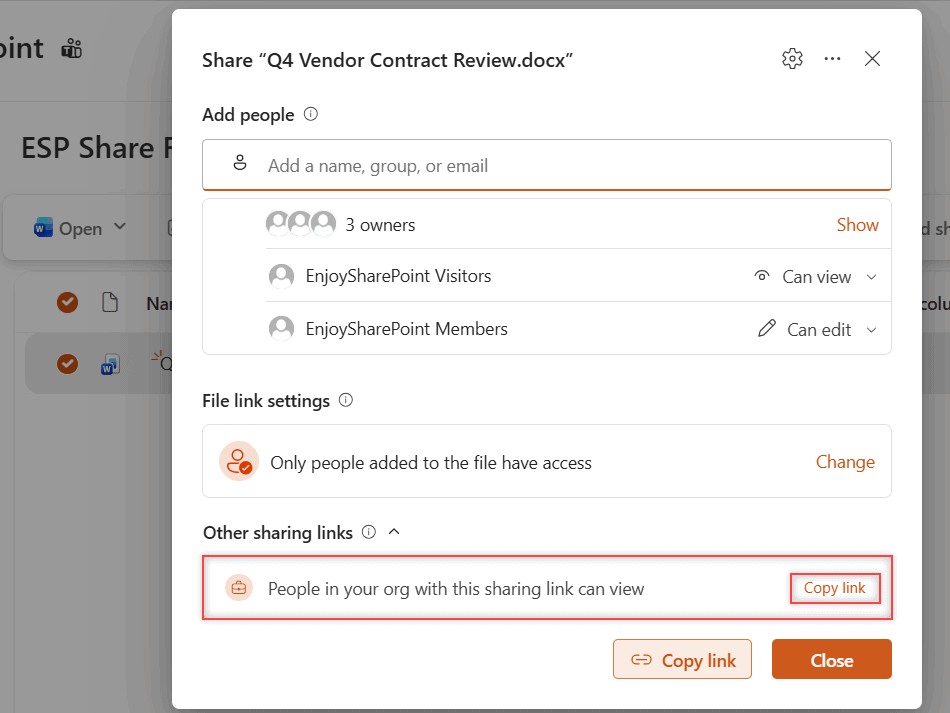
Real SharePoint link (my demo file):
https://<tenant>.sharepoint.com/:w:/s/EnjoySharePoint/IQBGgzPTVwyjQrDGtAQY8VZv...

Fake examples to stop at:
https://sharepoint-docs-view.com/...
https://<random-site>.web.app/onedrive/...
OneDrive links use <tenant>-my.sharepoint.com instead. If the link points anywhere other than your company’s sharepoint.com address, don’t open it. For partner files, read how external sharing with guests works first.
Step 3: Open the File Without Using the Email
Open OneDrive from your bookmark, select Shared, then the With you tab.
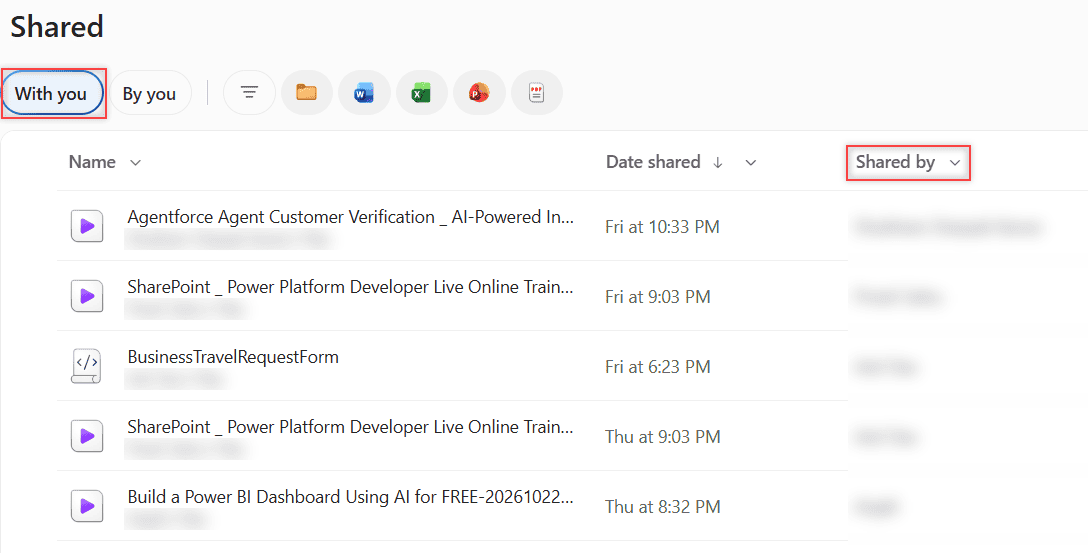
If the file is there, open it here; if not, the email is almost certainly fake. Stale results in this view usually clear after you clear the SharePoint cache.
Step 4: Confirm With the Sender Another Way
Attackers sometimes send shares from a stolen real account, so a familiar name isn’t proof. Send the person a Teams chat or call: “Did you just share a contract with me?”
Never reply to the email itself, because a compromised account means the attacker reads it.
Step 5: Report a Fake Share Email
In new Outlook, select Home > Report > Report phishing. In classic Outlook and Outlook on the web, the Report button is on the Message tab.
Already typed your password on a fake page? Change it now and tell IT.
Cheat Sheet: Real vs Fake Share Emails
| Check | Real | Fake |
|---|---|---|
| Sender | Coworker’s address or no-reply@sharepointonline.com | Random or look-alike domain |
| Link | <company>.sharepoint.com | Any other domain |
| Sign-in | You’re already signed in | Asks for your password again |
| OneDrive | File is in Shared with you | File isn’t there |
Can a Real SharePoint Email Still Be Phishing?
Yes. An attacker with a stolen account can share a file through real SharePoint, and the email comes from no-reply@sharepointonline.com. The file just holds a second link to a fake sign-in page.
That’s why Step 3 and Step 4 matter more than the sender. Site owners face the same trick with access requests: verify the person before you approve anything in access requests in SharePoint Online.
Common Mistakes to Avoid
- Trusting the display name. Anyone can type any name; read the address.
- Signing in from the email. Open SharePoint or OneDrive from your bookmark instead.
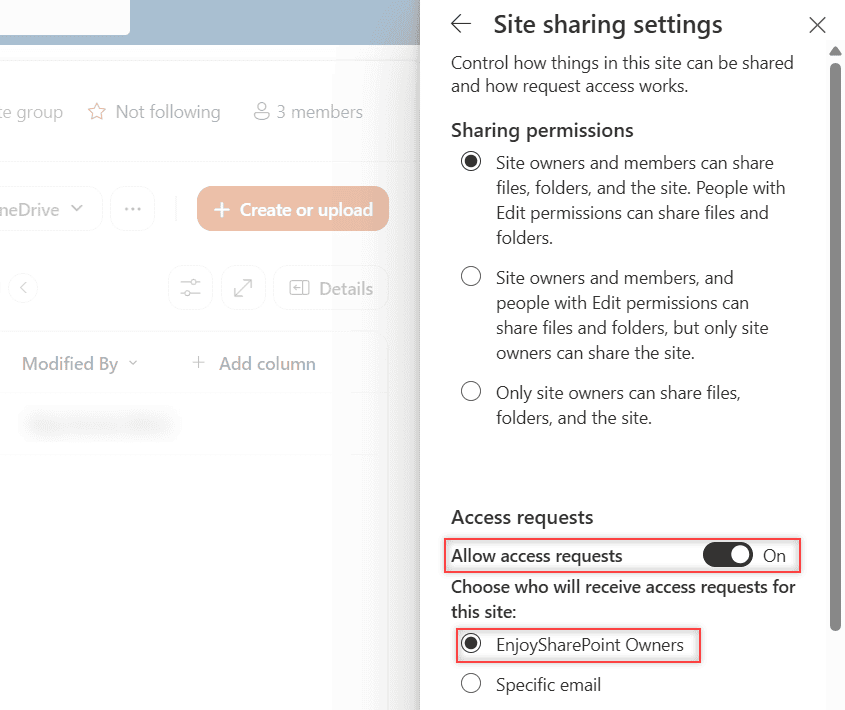
- Approving unknown access requests. Check who the person is, then grant the least access, as in SharePoint list and external access permissions.
Next Steps
To protect the real files too, my guide to configuring a sensitivity label for a library shows how to lock down sensitive documents.
If you’re helping coworkers share files safely, I’d read these next:
Frequently Asked Questions
Is no-reply@sharepointonline.com a legitimate email address?
Yes. Microsoft uses it for SharePoint system messages and for shares from people without a mailbox. Attackers can still abuse real SharePoint, so check the link and the Shared with you list too.
Why did I get a SharePoint share email from someone I don’t know?
It can be a real guest share from a partner company, or phishing. If you weren’t expecting it and can’t confirm the sender another way, report it instead of opening it.
Does a real SharePoint share email ask for my password?
Usually not. If you’re signed in to Microsoft 365, the file opens directly, so a page that asks for your password right after you select Open is a red flag.
Can my company send SharePoint notifications from its own domain?
Yes. Admins can switch system notifications from Microsoft’s no-reply addresses to a verified company domain. Microsoft explains the setting in the email notifications domain guide.

I have worked with Microsoft technologies for more than 18 years, including SharePoint, Microsoft 365 and the Power Platform (Power Apps, Power Automate and Power BI), at companies like HP, TCS and KPIT. I started EnjoySharePoint in 2011 to share the solutions I build in real projects with readers in the United States, Canada, the United Kingdom, Australia, New Zealand and beyond. Microsoft has recognized this work with the Microsoft MVP award 13 times since 2014.