
If you’ve ever needed to collect data from your team — a leave request, a feedback form, an expense submission — Power Apps is one of the quickest ways to build a clean, working form without writing a single line of backend code.
In this tutorial, I’ll walk you through how to create a form in Power Apps from scratch, make it look good on any screen size using containers, and hook it up to a SharePoint list so the data actually goes somewhere useful.
I’ll also show you two bonus examples — one that shows a success notification after submitting, and another that saves data directly to a SharePoint list using the Patch() function.
Let’s get into it.
What You’ll Need
Before we start, make sure you have these ready:
- A Microsoft 365 account with access to Power Apps (go to make.powerapps.com)
- A SharePoint site (for the second example)
- Basic familiarity with how Power Apps Studio looks — but don’t worry if you’re new, I’ll explain each step
Two Ways to Build a Form in Power Apps
There are actually two main approaches to building a form in Power Apps canvas apps:
- Using the built-in Edit Form control — This is the quick route. You drop a form control onto the screen, connect it to a data source, and Power Apps auto-generates the fields. Great for beginners.
- Building a custom form manually — You use individual text inputs, dropdowns, date pickers, and a button. Then you write a
Patch()formula to save the data. More work upfront, but you get full control over the layout and behavior.
Create a Simple Form in Power Apps
I’ll cover both, starting with the built-in form control, then moving to the custom approach.
Method 1: Using Power Apps Edit Form Control
Step 1 – Create a New Canvas App
- Go to make.powerapps.com
- Click Create → Blank app → Blank canvas app
- Give your app a name, choose Tablet format (easier to work with for forms), and hit Create
You’ll land in the Power Apps Studio — the main editor where you build everything.
Step 2 – Add a Data Source
Before you drop a form on the screen, you need something to connect it to. Let’s use a SharePoint list.
- On the left panel, click the Data icon (cylinder shape)
- Click Add data → search for SharePoint
- Enter your SharePoint site URL and select your list
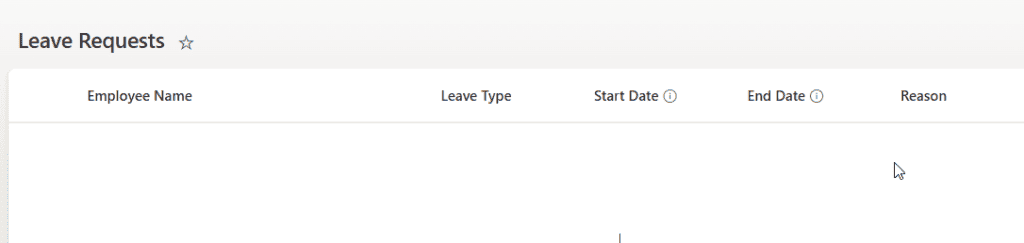
For this example, let’s say I have a SharePoint list called LeaveRequests with these columns:
- EmployeeName (Single line of text)
- LeaveType (Choice: Annual, Sick, Unpaid)
- StartDate (Date)
- EndDate (Date)
- Reason (Multiple lines of text)
Step 3 – Insert the Edit Form Control
- Click Insert → Edit form (you may find this under Input or just search for “Edit form”)
- The form will appear on the screen — it’ll look empty at first
- On the right panel under Properties, click Data source and select your SharePoint list (LeaveRequests)
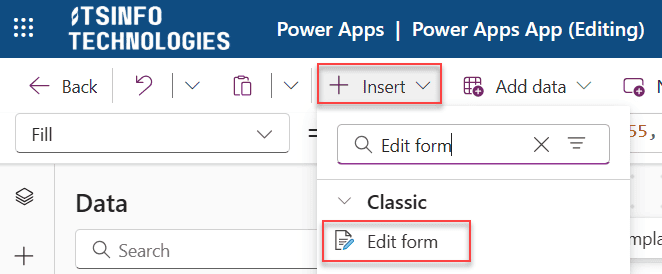
Power Apps will automatically generate fields based on your list columns. You’ll see labels and input boxes appear. Pretty neat.
Step 4 – Customize the Fields
You don’t have to keep all the auto-generated fields. Here’s how to clean it up:
- Click the form, then on the right panel, click Edit fields
- Use the + button to add fields or the … next to a field to remove it
- Drag fields up or down to reorder them
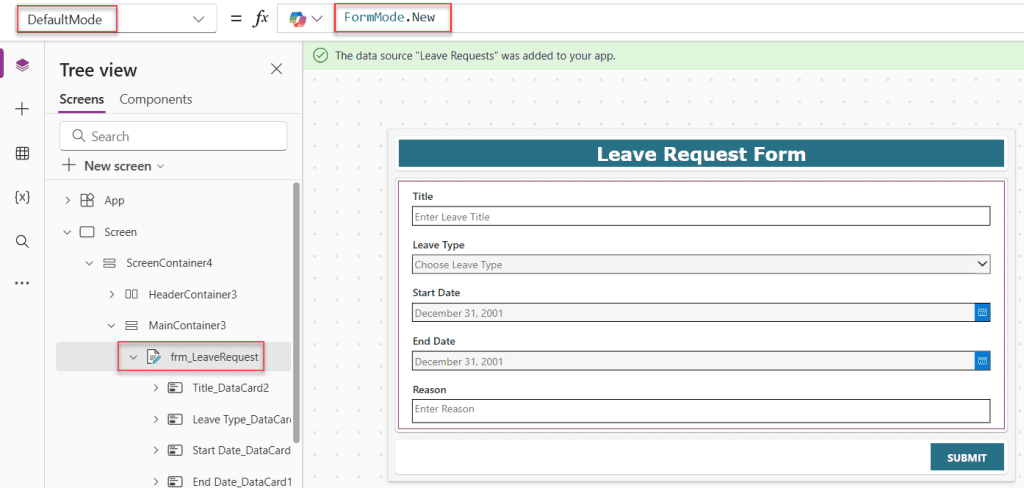
Also, change the form’s DefaultMode property to FormMode.New So it’s ready to accept new entries:
DefaultMode: FormMode.New
Step 5 – Add a Submit Button
- Click Insert → Button
- Place the button below the form
- Change the Text property to
"Submit" - On the OnSelect property, enter:
SubmitForm(frm_LeaveRequest);
ResetForm(frm_LeaveRequest)
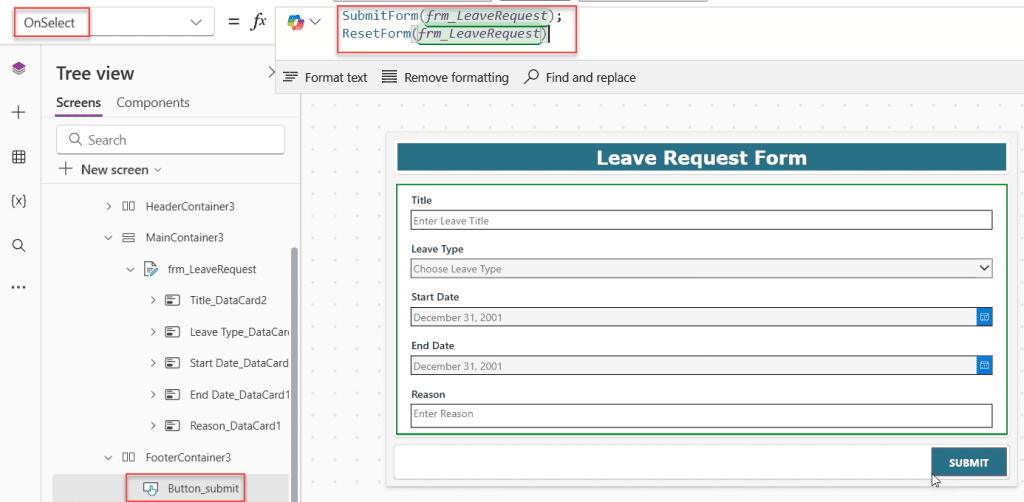
This saves the form data to SharePoint and resets the fields. That’s really all it takes.
Method 2: Build a Power Apps Custom Form With Patch()
The Edit Form control is fast, but many Power Apps makers prefer building their own form using individual controls. Why? Because you get pixel-level control over how things look, and you can handle complex logic more easily. Here, we will build a custom form for the ‘IT Support Tickets’ SharePoint list.
Step 1 – Set Up Your Input Controls
Delete the Edit Form control if you added one. Now manually insert these controls:
- Text input for Title → rename it
txtTitle - Text input (multi-line) for Description → rename it
txtDescription - Dropdown for Priority → rename it
ddPriority - Combo box for Assigned To → rename it
cmbAssignedTo - Date picker for Due Date → rename it
dpDueDate - Toggle for Resolved → rename it
tglResolved - Button for Submit → rename it
btnSubmit
Arrange the above controls in this format, or if you prefer another layout, feel free to design professionally.
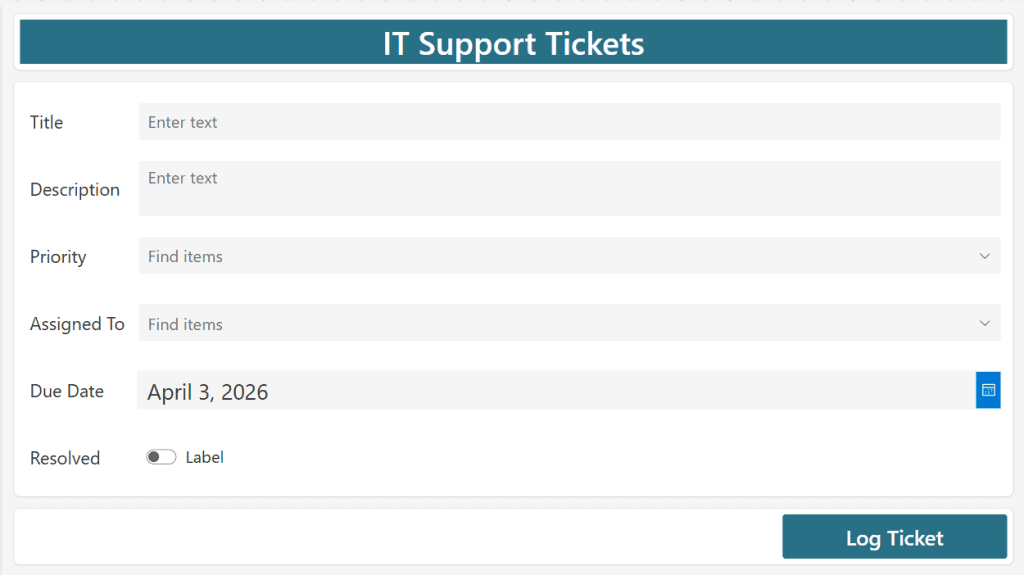
To rename a control, click it, then double-click its name in the left-side tree view.
Step 2 – Populate the Dropdown
Click on ddPriority
["Low", "Medium", "High","Critical"]
Step 3 – Write the Patch Formula
Click on btnSubmit. On the OnSelect property, enter this formula:
Patch(
    'IT Support Tickets',
    Defaults('IT Support Tickets'),
    {
        Title: txtTitle.Text,
        Description: txtDescription.Text,
        Priority: {Value: ddPriority.Selected.Value},
        'Assigned To': {
            '@odata.type': "#Microsoft.Azure.Connectors.SharePoint.SPListExpandedUser",
            Claims: "i:0#.f|membership|" & cmbAssignedTo.Selected.Email,
            DisplayName: cmbAssignedTo.Selected.DisplayName,
            Email: cmbAssignedTo.Selected.Email,
            JobTitle: "",
            Department: "",
            Picture: ""
        },
        'Due Date': dpDueDate.SelectedDate,
        Resolved: tglResolved.Checked
    }
)
Notify("Your new ticket submitted successfully!", NotificationType.Success);
Reset(txtTitle);
Reset(txtDescription);
Reset(ddPriority);
Reset(cmbAssignedTo);
Reset(tglResolved);
Reset(dpDueDate)
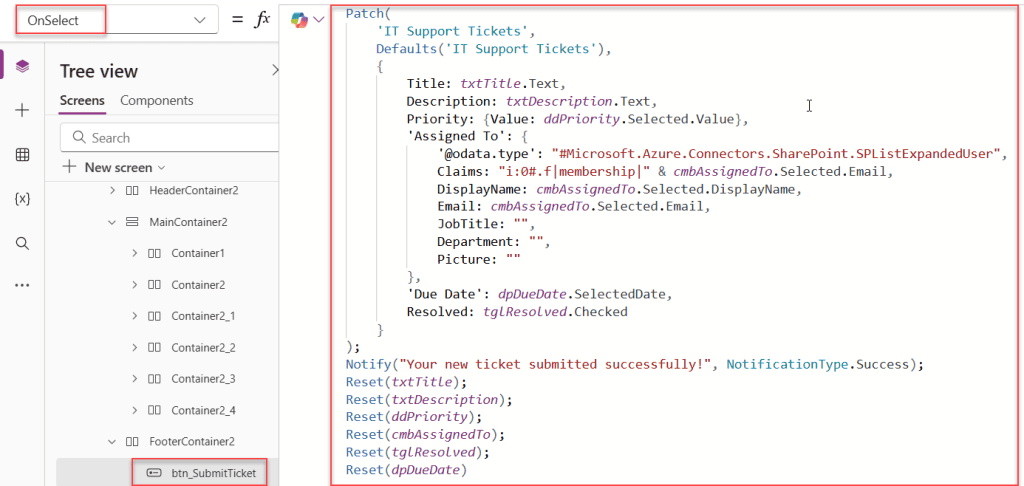
Let me break this down:
Patch()is the function that writes data to your data source. The first argument is the data source, the second isDefaults()which tells Power Apps to create a new record, and the third is the actual data.Priority: {Value: ddPriority.Selected.Value}— Choice columns in SharePoint need to be passed as a record with aValuefield, not just plain text. This trips a lot of people up.Notify()shows a green success banner at the top of the screen once the data is saved.- The
Reset()calls clear all the inputs so the form is blank and ready for the next entry.
Bonus Example 1: Showing a Popup Notification in Power Apps
The Notify() function is a quick, clean way to show feedback to the user. Here’s the full syntax:
Notify(Message, NotificationType, Timeout)
There are four notification types you can use:
NotificationType.Success— green banner, for confirmationsNotificationType.Error— red banner, for failuresNotificationType.Warning— yellow banner, for cautionsNotificationType.Information— blue banner, for general messages
So, for example, if you want to show an error when a required field is empty:
If(
    IsBlank(txtTitle.Text),
    Notify("Please enter ticketitle before submitting.", NotificationType.Error),
    Patch(
        LeaveRequests,
        Defaults(LeaveRequests),
        {EmployeeName: txtEmployeeName.Text}
    );
    Notify("Submitted successfully!", NotificationType.Success)
)
This checks if the Ticket Title is empty. If it is, it shows a red error message. If not, it saves the record and shows a green success message. Simple validation, no fuss.
If you want something more dramatic — like an actual pop-up overlay with a message and a close button — you can fake one using a Rectangle, a Label, and a Button, with a context variable controlling visibility. But honestly, for most forms, the Notify() banner is clean and gets the job done.
Bonus Example 2: Saving Power Apps Data to a SharePoint List
I already showed the Patch() formula above, but let me dig a bit deeper into the SharePoint-specific bits, because column types matter.
Here’s a more complete example with a Choice column, a Date column, and a Person column — the three types that confuse most beginners:
Patch(
    'IT Support Tickets',
    Defaults('IT Support Tickets'),
    {
        // Text column — just pass the value directly
        Title: txtTitle.Text,

        // Choice column — must be wrapped in {Value: ...}
        Priority: {Value: ddPriority.Selected.Value},

        // Date column — use SelectedDate from DatePicker
        'Due Date': dpDueDate.SelectedDate,

        // Person column — use Office365Users or hardcode with 'Assigned To': {
            '@odata.type': "#Microsoft.Azure.Connectors.SharePoint.SPListExpandedUser",
            Claims: "i:0#.f|membership|" & cmbAssignedTo.Selected.Email,
            DisplayName: cmbAssignedTo.Selected.DisplayName,
            Email: cmbAssignedTo.Selected.Email,
            JobTitle: "",
            Department: "",
            Picture: ""
        },
    }
)
Make Power Apps Form Responsive
This is where many forms fall apart. You build something that looks great on your laptop, and then a colleague opens it on a smaller screen, and half the form is cut off.
Power Apps gives you a proper way to fix this using containers.
Step 1 – Disable Scale to Fit
First things first — turn off the setting that forces your app to squeeze or stretch itself:
- Go to Settings (gear icon at top)
- Under Display, turn off Scale to fit, Lock aspect ratio, and Lock orientation
- Click Apply
This is the single most important step for responsive design. Without this, nothing else will work properly.
Step 2 – Using Vertical and Horizontal Containers
Containers in Power Apps work a lot like flexbox in CSS if you’re familiar with web development. You put controls inside a container, and the container manages how they flow and resize.
- Vertical Container — stacks controls on top of each other. Good for a top-to-bottom form layout.
- Horizontal Container — places controls side by side. Good for putting two fields on the same row, like Start Date and End Date.
Here’s how I’d structure a leave request form:
Screen
 └── VerticalContainer (Main body)
      ├── Label: "Leave Request Form" (header)
      ├── HorizontalContainer (Row 1)
      │    ├── TextInput: Employee Name
      │    └── Dropdown: Leave Type
      ├── HorizontalContainer (Row 2)
      │    ├── DatePicker: Start Date
      │    └── DatePicker: End Date
      ├── TextInput: Reason (multi-line)
      └── Button: Submit
To insert a container:
- Click Insert → Layout → Vertical container or Horizontal container
- Drag your controls inside the container
For each container, set the Fill portions property of child controls to control how much space each one takes. For example, if you have two text inputs in a horizontal container and you want them to take equal space, set both to 1. If you want one to be twice as wide, set it to 2 and the other to 1.
Also, in the container properties:
- Set Layout direction to Horizontal or Vertical depending on what you need
- Turn on Flexible height on the container so it grows as the content grows
- Set Gap to add space between controls automatically
Step 3 – Use Power Apps Responsive Screen Template
If you don’t want to build the container structure from scratch, Power Apps gives you pre-built screen templates with the responsive layout already set up.
Here’s how to use one:
- In Power Apps Studio, click the + icon to add a new screen
- On the Layout tab, you’ll see options like Header and footer, Sidebar, and Split screen
- Pick the one that suits your form — Header and footer is great for a form layout with a title at the top and a submit button pinned at the bottom
The template gives you a proper vertical container structure. You just drop your form controls into the body section, and the layout handles the rest.
Quick tip: The screen templates are only available for Tablet format apps. If you chose Phone format, you’ll need to build the container layout manually.
A Few Things Worth Knowing
- Naming your controls matters. Once you have 10+ controls on a screen, names like
TextInput3become impossible to work with. Use descriptive prefixes:txtfor text inputs,ddfor dropdowns,dpfor date pickers,btnfor buttons. - Always test on different screen sizes. After you enable responsiveness, drag the studio preview window to different widths to check how your layout reacts.
- The
Defaults()function is your friend. When usingPatch()to create a new record, always useDefaults(DataSourceName)as the base record. This pre-fills required system fields and avoids common save errors. SubmitForm()vsPatch()— UseSubmitForm()when you’re using the built-in Edit Form control. UsePatch()when you’re building a custom form with individual controls. Mixing them up causes headaches.
Conclusion
I hope you found this article helpful. In this post, I showed two simple ways to create a form in Power Apps step by step.
If you’re just getting started, don’t worry too much about doing everything perfectly. Start with a basic layout using containers, add your fields, and use Patch() to save your data. That’s more than enough to build a working form.
Things like responsiveness and handling different column types might feel a bit tricky at first, but once you build one complete form, it starts to make sense. After that, creating new forms becomes much faster and easier.
Just try it out in your own app, and you’ll get comfortable with it quickly.
Also, you may like:
- 3 Simplest Ways to Create a Navigation Menu in Power Apps Canvas App
- Power Apps Format Number With Commas
- Add an Item to a SharePoint List Using Power Apps
- Create a QR Code in Power Apps
- Power Apps Hover Popup: 3 Ways to Show Tooltips and Popups in Canvas Apps

Preeti Sahu is a Microsoft MVP for Power Apps with over six years of experience working with SharePoint Online and the Power Platform. She is the co-author of the book Microsoft Power Platform: A Deep Dive. As a Power Platform developer, she has built various tools with Power Apps and Power Automate, and she makes Microsoft 365 videos for YouTube.