
We’ve all been there — you jump on a Teams call, and somewhere behind you, there’s a pile of laundry, a noisy family member walking by, or just a messy desk you forgot to clean up. It’s distracting, and it takes the focus away from what actually matters: your work.
The good news? Microsoft Teams has a built-in background blur feature that hides all of that in seconds. In this tutorial, I’ll walk you through every way to blur your background in Teams — before joining a meeting, while you’re already in one, on your phone, and even on the web. I’ll also cover what to do if the blur option isn’t showing up for you.
Let’s get into it.
What Is Background Blur in Microsoft Teams?
Background blur is a video effect in Microsoft Teams that keeps you in sharp focus while softening everything behind you. It uses AI to detect your face and body, then applies a blur to the background.
Teams actually gives you two blur options:
- Standard blur— Blurs the entire background behind you. Great for general use.
- Portrait blur — A softer, more subtle effect that slightly blurs the background while keeping your outline looking natural. It’s a newer option that works well in well-lit rooms.
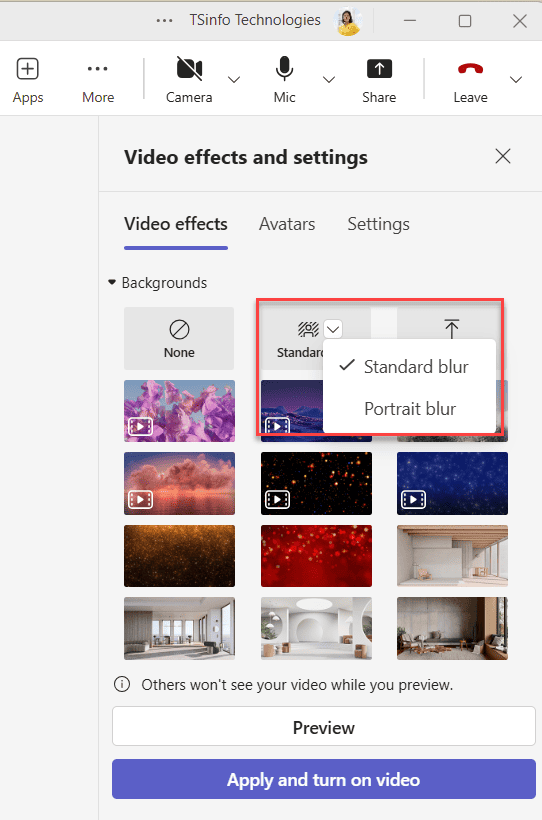
Both options work well. I personally use Portrait Blur for most client-facing calls because it looks a bit more polished.
Multiple Ways to Blur Background in Microsoft Teams Meetings
Let’s look at a few different ways to apply a blur background or a custom background in Microsoft Teams, both before joining and during a meeting.
Method 1: Blur Background Before Joining a Meeting (Desktop)
This is the most common scenario — you want to set up your background before you even join the call. Here’s how to do it step by step.
Steps:
- Open the Microsoft Teams desktop app (Windows or Mac).
- Go to your Calendar on the left sidebar.
- Find the meeting you want to join and click Join.
- The pre-join screen will pop up with a camera preview.
- Look for the Video Effects button just below your video preview and click it.
- A panel will open on the right side. Click on the Blur dropdown arrow.
- Choose either None or Blur.
- You’ll instantly see it applied in your preview.
- Once you’re happy with how it looks, click Join Now.
That’s it. You walk into the meeting with your background already blurred, no fumbling around during the call.
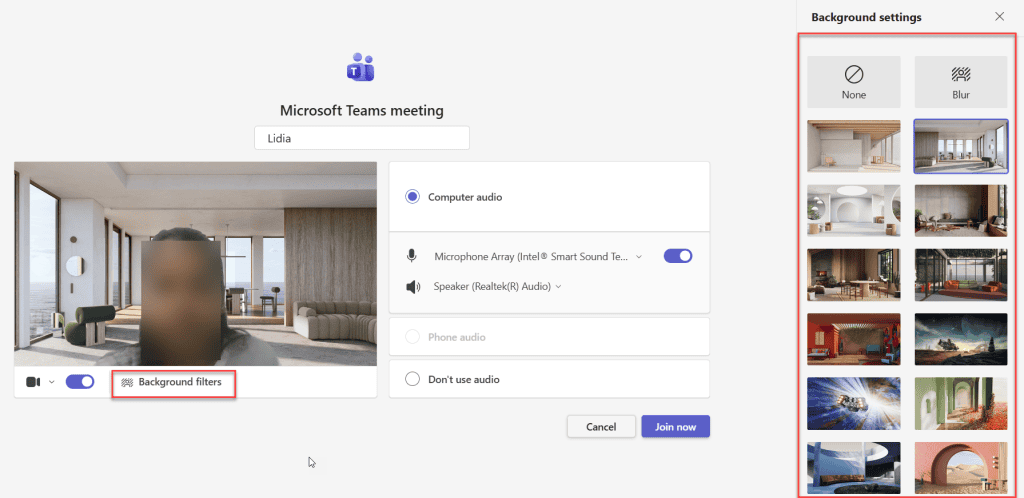
Tip: If you don’t see a “Video Effects” button, look for a button that says Background Filters or Effects and Avatars — the exact label can vary slightly depending on your Teams version, but it’s always right below the camera preview.
Method 2: Blur Background During a Live Microsoft Teams Meeting (Desktop)
Already in a meeting and forgot to set the blur? No problem. You can enable it mid-call without interrupting anyone.
Steps:
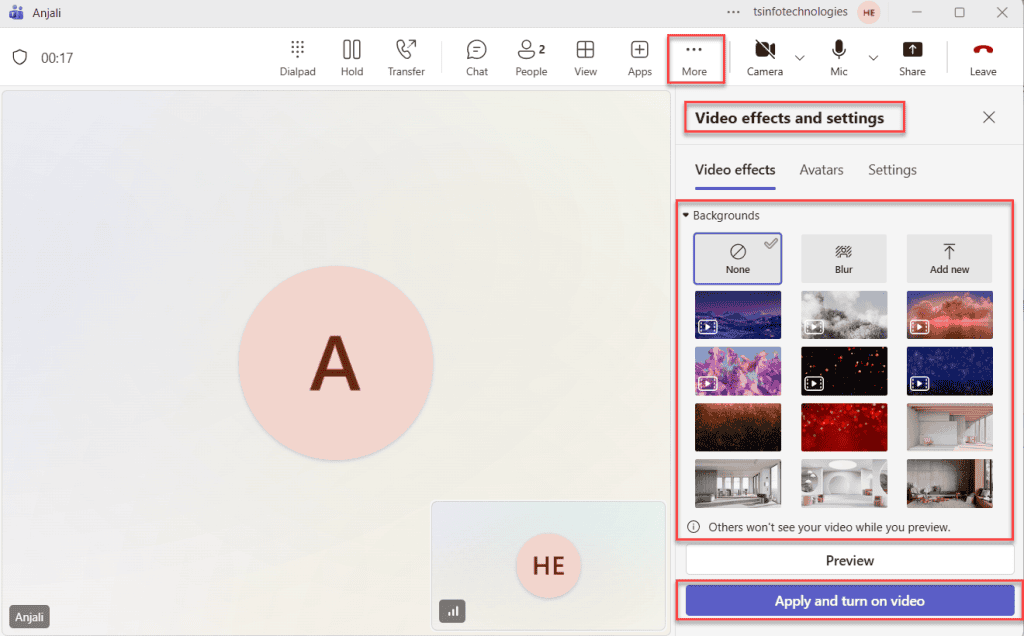
- In the active meeting, move your mouse to bring up the toolbar at the top.
- Click the More Actions button — the three dots (- – – ) icon.
- From the dropdown menu, select Video Effects and Settings.
- A side panel will open. Click on Video Effects.
- Choose the blur you want or any other backgrounds.
If you want to preview before applying, hit the Preview button. Once you’re satisfied, click Apply, and you’re good to go.
Method 3: Blur Background on Microsoft Teams Web (Browser)
If you’re using Teams directly in a browser like Chrome or Edge without installing the app, you can still use background blur — though with slightly fewer options.
Before Joining:
- Click the meeting link to open Teams in the browser.
- On the pre-join screen, look for the Apply Video Effects button.
- Click it and select Blur.
- Click Join Now.
During a Meeting:
- Click More Actions (the three dots) in the toolbar.
- Select Video Effects.
- Choose Blur.
One thing to keep in mind — background effects in the browser depend heavily on your hardware and browser settings. If it’s not working, try switching to the desktop app, which handles this more reliably.
Method 4: Blur Background on iPhone (iOS)
The Teams mobile app also supports background blur, which is really handy when you need to join a call from your phone.
Before Joining:
- Open the Microsoft Teams app on your iPhone.
- Tap Calendar at the bottom.
- Find your meeting and tap Join.
- On the pre-join screen, tap Background Effects.
- Tap on Blur from the list of effects.
- Tap Done, then tap Join Now.
During a Meeting:
- Tap on the screen to bring up the controls.
- Tap the three dots (More Options) at the bottom.
- Select Background Effects.
- Choose Blur, then tap Done.
Method 5: Blur Background on Android
If you’re on an Android phone, the steps are almost identical to iOS.
Before Joining:
- Open Teams and go to your Calendar.
- Tap your meeting and tap Join.
- On the pre-join screen, tap Video Effects.
- Choose Blur, then tap Done.
- Tap Join Now.
During a Meeting:
- Tap the screen to show controls.
- Tap More Options (three dots).
- Tap Background Effects and select Blur.
- Tap Done to apply.
Note: Background blur on mobile can be a bit more demanding on your phone’s processor. If you notice lag or heating up, consider using a custom image background instead — it’s lighter on the hardware.
Bonus: Use a Custom Background Instead of Blur in Teams Meeting
If blur isn’t giving you the look you want, Teams also lets you upload a custom background image. This replaces your background entirely with a photo of your choice — a clean office, a branded wall, or even a beach.
How to upload a custom background:
- On the pre-join screen, click Video Effects → More Video Effects → Add New.
- Upload an image in .JPG, .PNG, or .BMP format.
- It’ll show up in your list of backgrounds — click it to apply.
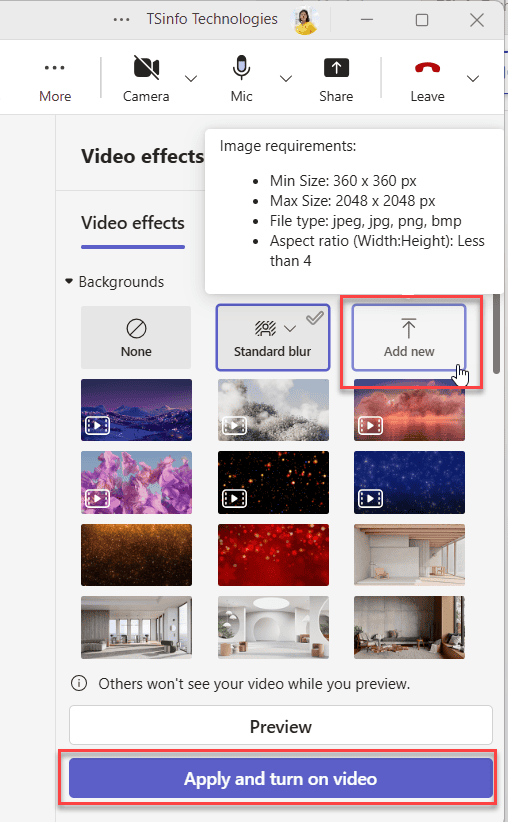
For professional calls, I find that a clean, minimal office photo works better than blur for a polished look. But blur is faster and requires zero prep, which is why most people default to it.
Troubleshooting: Blur Option Not Showing Up in Teams Meeting?
If you can’t find the blur option at all, here are the most likely reasons and fixes:
- Teams app is outdated — Go to your profile picture in Teams, click Check for Updates, and install any available updates. Blur requires a fairly recent version of Teams.
- Your device doesn’t meet the hardware requirements — Background blur uses AI processing and needs a relatively modern CPU. Very old machines (especially ones without hardware acceleration) may not support it.
- Hardware acceleration is disabled — Open Teams Settings → General and make sure hardware acceleration is turned on.
- Camera permissions are blocked — Go to your device’s privacy settings and confirm that Teams has permission to access your camera.
- You’re using an older version of Teams — Microsoft has been rolling out the “New Teams” experience. If you’re still on Classic Teams, some options may look different or be in different locations. Switching to New Teams usually resolves this.
- IT admin restrictions — In some organizations, background effects are disabled by IT admins at the policy level. If none of the above fixes work, check with your IT department.
Microsoft Teams Standard Blur vs Portrait Blur — Which One Should You Use?
Here’s a quick breakdown to help you pick the right one:
| Feature | Standard Blur | Portrait Blur |
|---|---|---|
| Blur intensity | Strong, obvious blur | Subtle, softer blur |
| Best for | Hiding cluttered or busy backgrounds | Well-lit rooms, client-facing calls |
| Edge detection | Can sometimes blur the edges of your hair/shoulders | More precise around your outline |
| Available on | Desktop, web, mobile | Desktop (primary) |
My honest take: start with Portrait Blur if your room has decent lighting. It looks more natural. Use Standard Blur when your background is really distracting and you want it fully hidden.
A Few Tips to Get the Best Results
Background blur works best when a few conditions are in place:
- Good lighting — Face a window or a lamp. If the light is behind you, Teams struggles to detect your outline properly.
- Stay fairly still — Frequent movement can cause brief “bleed” effects where the background flickers through.
- Use a plain background if possible — Even with blur on, starting with a less chaotic background gives cleaner results.
- Test before important calls — Jump into a test meeting before a big presentation to make sure everything looks right.
- Close unused apps — Background effects use processing power. Closing Chrome tabs and other apps gives Teams more room to work.
Wrapping Up
Blurring your background in Microsoft Teams takes about 10 seconds once you know where to look. The pre-join screen is your best bet — get it set before you walk into the meeting so you never have to scramble mid-call. If you’re on mobile, the steps are just as straightforward, and the effect works surprisingly well even on phones.
The two blur options — Standard and Portrait — give you enough flexibility to handle most situations. And if blur isn’t cutting it, uploading a custom background is always a solid backup option.
Try it on your next call and see how much cleaner it makes your video look.
Also, you may like:
- Mention Multiple Users in a Microsoft Teams Message using Power Automate
- Share Screen in Microsoft Teams
- Use Copilot in Microsoft Teams
- Post an Adaptive Card to Microsoft Teams Using Power Automate
- Set Microsoft Teams Status Using Power Automate

After working for more than 18 years in Microsoft technologies like SharePoint, Microsoft 365, and Power Platform (Power Apps, Power Automate, and Power BI), I thought will share my SharePoint expertise knowledge with the world. Our audiences are from the United States, Canada, the United Kingdom, Australia, New Zealand, etc. For my expertise knowledge and SharePoint tutorials, Microsoft has been awarded a Microsoft SharePoint MVP (12 times). I have also worked in companies like HP, TCS, KPIT, etc.

