
I was working with a client who had various document library links in the SharePoint Online site’s left navigation. As per their requirement, only the respective department personnel should be able to see their document library link.
To solve this, I used audience targeting in the left navigation of the SharePoint site. In this tutorial, I will explain how to enable audience targeting in the SharePoint Online left navigation.
The left navigation (also called Quick Launch) is the vertical menu on the left side of a SharePoint team site. With audience targeting, you can make certain links in that menu visible only to specific audiences.
First, let’s define what audience targeting is.
What is Audience Targeting in SharePoint Online?
Audience targeting is a feature in SharePoint Online that allows you to show specific content (like links, pages, or news) only to certain groups of users.
Think of it like this:
You can decide who sees what on your SharePoint site based on their role, department, or Microsoft 365 group membership.
For example:
- HR staff see links to “Employee Records.”
- IT staff see “System Maintenance” links.
- Everyone else doesn’t see those links at all.
This helps keep navigation clean, relevant, and personalized for each user.
Here is an example that we implemented recently while working with a client to implement SharePoint in their organization:
We have a SharePoint Online site named ‘Sales‘, where we have created a few document libraries, such as:
- IT Documents library
- HR Documents library
- Finance Documents library
Here, the IT document library should be visible to IT Team members, the HR document library should be visible to HR Team members, and the Finance document library should be visible to both the IT Team and the HR Team.
Now, to enable audience targeting in the left navigation of the SharePoint site, we should follow the steps below:
- Create the required Microsoft 365 groups
- Enable audience targeting in the SharePoint left navigation
- Assign groups to the left navigation links.
Create Microsoft Groups using Outlook.
To enable audience targeting, we must create Microsoft groups. We can create groups using Microsoft Admin Center and Outlook. Here, I used Outlook to create groups. Below are the steps to create groups using Outlook.
- Open Outlook, click “New,” and then click “Group.”
- Then it will navigate to a “New Group” dialog box. Then, assign the group a name of your choice (e.g., HR Group).
- Then click on create.
- Then it will navigate to the “Add Members” dialog box. Then add members by giving their name or email address.
- After adding members, click “Add“.
Once click on Add, the group is created. Now, click “Go to groups” in the left navigation of Outlook. Then you will see the group you created, as shown in the screenshot below.

Here, I have created two groups: the HR group for the HR Team and the IT group for the IT Team.
Once we create the group, we should set up audience targeting in the SharePoint site’s left navigation. For that, please follow the steps below:
Check out Content Approval in SharePoint Document Library
Set up Audience Targeting in the SharePoint site Left Navigation
Here are the steps to set up audience targeting in the SharePoint site’s left navigation.
- Open the SharePoint site, and on the left-side navigation, click Edit.

- Then, you can see a toggle button under “Enable site navigation audience targeting“. Now turn on the toggle to enable audience targeting.
- Now you can set the audience for any link in the navigation menu. To do that, click on the three dots (…) that you want to set the audience for. Then you will get a dialog box with Edit options. Click on “Edit“.

- Then it will navigate to an Edit panel. Under Audience to target, you can set the Audience Targeting for up to 10 Active Directory groups. Select the group(s), as only those who are in the selected group will be able to view the document libraries. Here I am selecting HR group members, as only the HR team should view this document library in the left navigation of the SharePoint site.
- Then, click OK.

- Once you click OK, you will see the audience icon beside the document library where you have set audience targeting. Then click Save.
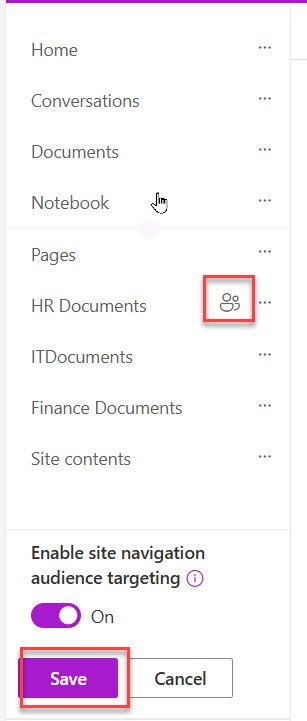
Once you click Save, audience targeting is enabled for the particular document library in the navigation. You can then see that the document library is only visible to the audience we have set, and others cannot view it.
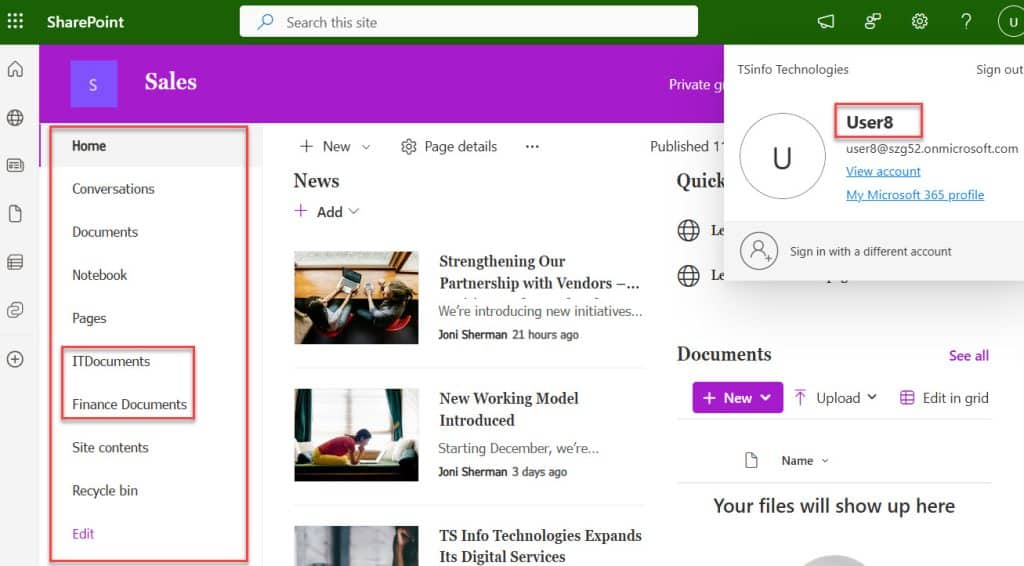
Here, you can see that User8 can view both the IT documents library and the Finance documents library in the SharePoint site left Navigation. User8 can see the IT documents library but not the HR documents, because he is part of the IT group.
Additionally, User8 can view Finance documents, since I have not set audience targeting for the Finance documents library.
You can see in the screenshot below.
Here, you can see that User9 can view both HR documents and Finance documents in the SharePoint site left Navigation, as User9 is a part of the HR team. User9 can see the HR documents library but not the IT documents library, because User9 is a part of the HR group.
Additionally, User9 can view Finance documents, since I have not set audience targeting for the Finance documents library.

Conclusion
Audience targeting in the SharePoint site’s left navigation helps users see only the links relevant to their role. It also keeps the site clean, organized, and easy to use. In this tutorial, I explained how to enable audience targeting in the SharePoint site’s left navigation.
You may also like the following tutorials:
- Add Users to a SharePoint Site
- Convert SharePoint Site to Microsoft Teams
- Change a SharePoint Site From Private to Public

After working for more than 18 years in Microsoft technologies like SharePoint, Microsoft 365, and Power Platform (Power Apps, Power Automate, and Power BI), I thought will share my SharePoint expertise knowledge with the world. Our audiences are from the United States, Canada, the United Kingdom, Australia, New Zealand, etc. For my expertise knowledge and SharePoint tutorials, Microsoft has been awarded a Microsoft SharePoint MVP (12 times). I have also worked in companies like HP, TCS, KPIT, etc.

