
I recently built a Power Apps form where employees can submit their details. Here, I need to set the default value of the employee name dropdown with the current user.
In this tutorial, I will explain how to set the default value in the Power Apps Dropdown control manually and from a SharePoint list.
Also, we will see some more topics below:
- Reset the Power Apps dropdown to a default value
- Set the Power Apps dropdown default value based on the condition
- Set default value to blank to Power Apps dropdown
- Display text in the Power Apps dropdown before the selection
- Display the current user as a default value in the Power Apps dropdown
- Power Apps dropdown default value based on another field
- Set dropdown default value to a variable in Power Apps
Set Power Apps Dropdown Default Value [Manually Added Dropdown Values]
Let’s see how to set the default value for the Power Apps dropdown control. Refer to the image below; the first item is shown as a default value at the start. After providing the default value, it shows the changed default value.
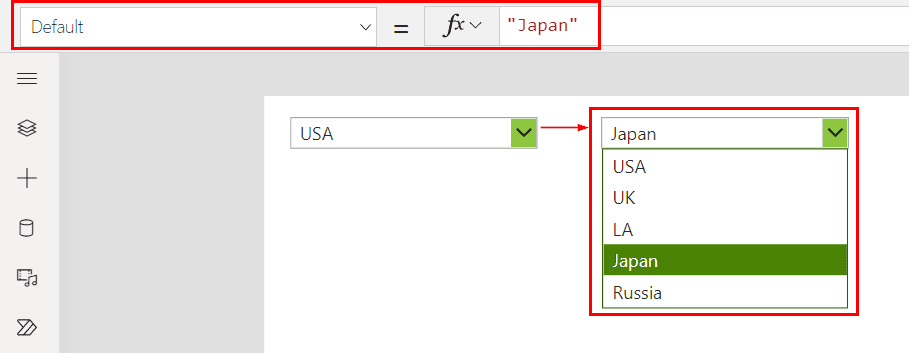
To achieve this, follow the steps below.
1. I manually added values to the Power Apps dropdown control.
Items = ["USA","UK","LA", "Japan", "Russia"]
2. The Power Apps dropdown control displays the first item as the default item by default.

Let’s set the default value instead of the first item.
3. Choose the value you want to set as a default value for the Power Apps dropdown and put it in its Default property. Like in the image below,
Default = "Japan"
This way, we can set the default value of a Power Apps dropdown control.
Set Power Apps Dropdown Default Value [Dropdown Values From SharePoint list]
Now, I will explain how to set a default value for the Power Apps dropdown control if it takes values from the SharePoint list choice field.
Here, I have a SharePoint list named BikeSales, which has the Payment Mode as a choice field.
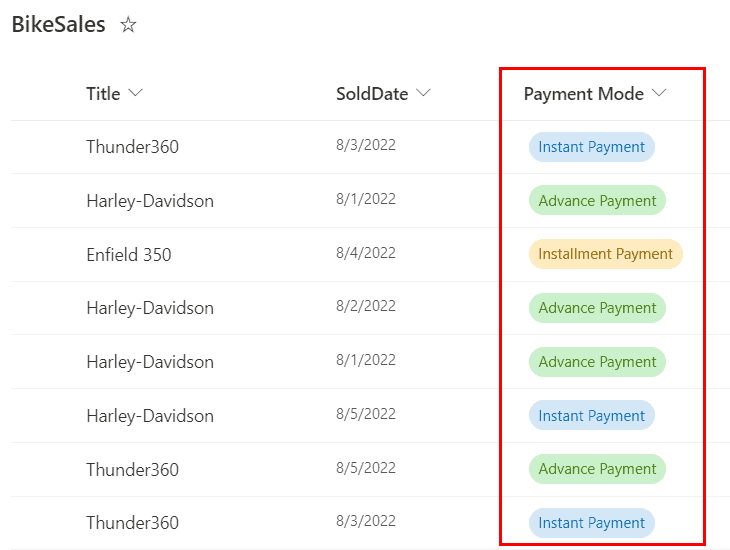
Follow the steps below to set the default value for the dropdown, which is getting values from the SharePoint list.
1. Connect the Power Apps with the SharePoint list. Then, add a Dropdown control from the +Insert tab.

2. Provide the formula below in the Items property of the dropdown control.
Items = Choices(BikeSales.'Payment Mode')Where,
- BikeSales: SharePoint list name.
- ‘Payment Mode’: choice column name.

The first value is displayed as the default value by default. Follow the steps below to change the default value of the Power Apps dropdown.
3. To set the default value, choose a value in the dropdown that you want to set as the default and provide that value in the Default property of the dropdown.
Default = "Installment Payment"
4. After setting the default value, you can see that the changed default value is displayed at the top.
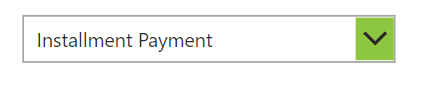
I hope you understand how to set a default value for the Power Apps dropdown if it gets values from the SharePoint list.
Reset a Power Apps Dropdown to Default Value
Let’s see how to reset the Power Apps dropdown control to its default value. I have a SharePoint list named Product Details with the choice column Category.

Here, I set the Power Apps dropdown to Apparel as the default value. It displays this value every time the dropdown control is reset.

To achieve this, follow the steps below!
1. Connect Power Apps with SharePoint list ->Add Dropdown control ->Provide below formula in Items property of dropdown.
Choices([@'Product Details'].Category)Here, Product Details is the SharePoint list name, and Category is the choice filed name.

2. Set the default value by providing one of the values in the dropdown to its Default property. As in below,
Default: "Apparel"
3. To reset the Power Apps dropdown control, add the Reset icon from the +Insert tab under Icons.

4. Add the below formula in the OnSelect property of the reset icon.
OnSelect: Reset(drp_Category)The Reset function will reset the dropdown control to its default property.

5. Save and publish the app. While previewing, select a value in the Power Apps dropdown control and click on the reset icon. The dropdown control will then reset to its default value.
This way, we can reset the Power Apps dropdown value to its default value.
Set Power Apps Dropdown Default Value Based on Condition
I have a Power Apps form where employees can fill in their details. The form has a department dropdown where employees can select a department.
Here, I wanted to display the department’s default value as Information Technology [IT] only if the form is in New mode. If it is in Edit mode, then the default will be Parent. Default. Like in the example below.

Here is the SharePoint list we used for the Power Apps form above.

To achieve the above requirement, follow the steps below!
1. Add the Edit form control to Power Apps and connect it to the SharePoint list. Then, provide the formula below in the DefaultSelectedItems property of the Department DataCardValue.
DefaultSelectedItems = If(frm_Employees.Mode=FormMode.New,{Value:"Information Technologies"},Parent.Default)Here, frm_Employees is the form name, and “Information Technologies” is the department value.

2. Save the app and publish it. While previewing, you can see the default selected item will be Information Technology if the form is in Newmode. If not, it will parent the default value.
This way, we can set the Power Apps dropdown default value based on condition.
Set Default Value to Blank or Null to Power Apps Dropdown
Let’s set the Power Apps dropdown default value to blank or null. In the image below, you can see the blank value is displaying, and by default, it is blank.

Follow the steps below to achieve this!
Note: Here, I took dropdown values from the SharePoint list choice field.1. After connecting the SharePoint list with Power Apps, provide the formula below in the OnStart property of the App object.
ClearCollect(CollDepartment,{Value:" "});Collect(CollDepartment,Choices([@'Product Details'].Category))This formula creates a collection that stores the first value as a blank or null and the remaining value from the SharePoint list choice field.
CollDepartment is the collection name, and Choices([@’Product Details’].Category)) will get the value from the SharePoint list.

2. Add the formula below in the dropdown control’s Items property.
Items: CollDepartment.ValueCollDepartment is the collection name, and Value is the header name.

3. By default, the Power Apps dropdown will display the first value as a default one. Now, the default value of the Power Apps dropdown is blank.
This way, we can set the blank value as a default value in the Power Apps dropdown.
Display Text in Power Apps Dropdown Before Selection
Unlike the combo box control, the Power Apps dropdown doesn’t show messages like “Find Items”; instead, it displays the first item as a default value.
So, we’ll see how to display a message like “–Please Choose a Value–” in the Power Apps dropdown before selecting a value like in the image below.

Follow the steps below to achieve this.
Note: Here, i took dropdown values from SharePoint list choice field values.1. Connect Power Apps with the SharePoint list. Then, add a dropdown control and provide the formula below in the Items property of the dropdown.
Choices([@'Product Details'].Category)This formula will fetch the choice column values into the Power Apps dropdown control.
2. To allow empty selections in the Power Apps dropdown, provide the boolean value true to the AllEmptySelection property of the dropdown control.
AllEmptySelection: true
3. Change the Fill property of the Dropdown control to transparent.
Color.Transparent
4. Add a Text label and provide the below text in its Text property.
Text: "--Please Choose the Category--"
Note: Make sure to set the label's reorder to send backward, so it will appear in the Power Apps dropdown control.5. Provide the below formula in the Visible property of the text label.
IsBlank(drp_Category.SelectedText.Value)Here, drp_Category is the dropdown control name.

Now save and publish the app. This message will appear by default while previewing, and after selecting a value, it will disappear.
If we select the same value again, it will blank that time, and the message will be visible.
Display Current User as a Default Value in the Power Apps Dropdown
I have a Power Apps form where employees can submit their details here. While filling in the details, I must populate the current user name as a default value in the Power Apps dropdown control. So the employee does not need to select their name again.
Look at the image below. The dropdown control displays the current user name as a default value.

For the above Power Apps form, the SharePoint list [Employees List] is the data source, with the Employee Name field as a Person or Group data type.

To set the default value of the Power Apps dropdown with the current user, follow the steps below!
1. In the Power Apps form, provide the formula below for the Default property of the Employee Name Data_card.
If(
    frm_Employees.Mode = FormMode.New,
    {
        '@odata.type': "#Microsoft.Azure.Connectors.SharePoint.SPListExpandedUser",
        Claims: Concatenate(
            "i:0#.f|membership|",
            User().Email
        ),
        DisplayName: User().FullName,
        Email: User().Email
    },
  ThisItem.'Employee Name'
)
If the form is in New mode, this formula will display the current user as the default value in the employee name dropdown. Here, frm_Employees is the form name.
Where,
- User().FullName: It provides the logged-in user’s display name
- User().Email: It provides the current user’s email address
- ThisItem.EmployeeName: The EmployeeName is the name of the SharePoint people picker column.

This way, we can set the Power Apps dropdown default value with the current user name.
Power Apps Dropdown Default Value Based on Another Field
I have a collection that stores the countries and their capital details here. In Power Apps, I’m displaying country values in one dropdown control and capitals in another dropdown control.
So, when the user clicks the country in dropdown one, the capital of that particular country needs to be displayed in another dropdown control, like in the example below.

Follow the steps below to achieve this!
1. To create a Power Apps collection, provide the below formula in the OnStart property of the App object.
OnStart: ClearCollect(CollCountry,{Country: "USA",Capital: "Washington"},{Country: "UK",Capital: "Landon"},{Country: "India",Capital: "NewDelhi"})Where,
- CollCountry: The name of the collection
- Country, Capital: The header name of the collection

2. Add two dropdown controls and provide the below formulas on its Items property.
Items = CollCountry.Country     // For the country names dropdown
Items = CollCountry.Capital     // For the capital names dropdown
For the capital names displayed dropdown control.

3. To display the capital of the selected country in the Power Apps dropdown, provide the formula below in the Default property of the dropdown [drp_Ctry].
Default: LookUp(CollCountry,Country=drp_Ctry.Selected.Country,Capital)Where drp_Ctry is the name of the dropdown control.

Save the changes and preview the app once; while selecting the country names in the dropdown, the capital values will be displayed by default.
This is how to set the default value based on another field from a Power Apps dropdown.
Set Dropdown Default Value To Variable in Power Apps
Here, we’ll see how to set a variable for the Power Apps dropdown control’s default property.
In the example below, the default value of the Power Apps dropdown is HR. After resetting the dropdown, it displays the default value.

Follow the steps below to achieve this!
1. Create a global variable in Power Apps’s OnStrart property of the App object.

2. Add this variable in the Default property of the dropdown control.

3. To check whether the variable correctly adds value to the Power Apps dropdown control with the reset function.

Now, save and publish the app. The default value present in the variable will be applied to the Power Apps dropdown control.
In this way, we can also set the default value of the Power Apps dropdown with a variable.
I hope you understand the concepts above regarding setting the default value for the Power Apps dropdown control. Follow this article while trying to set default values for the dropdown control.
Also, you may like:
- Change Power Apps Radio Button to Checkbox
- How to remove all items from the Power Apps collection
- Remove duplicates in the Power Apps dropdown
- Get Power Apps dropdown selected value
- Power Apps multi-select dropdown

After working for more than 18 years in Microsoft technologies like SharePoint, Microsoft 365, and Power Platform (Power Apps, Power Automate, and Power BI), I thought will share my SharePoint expertise knowledge with the world. Our audiences are from the United States, Canada, the United Kingdom, Australia, New Zealand, etc. For my expertise knowledge and SharePoint tutorials, Microsoft has been awarded a Microsoft SharePoint MVP (12 times). I have also worked in companies like HP, TCS, KPIT, etc.

