
While working with business applications, connecting employees with their managers for different tasks is important. In Power Apps, you can auto-populate the manager’s name when the employee’s name is entered.
In this article, I will explain four ways to get a user manager name in the Power Apps form.
Get Selected User Manager Name By Default in Power Apps
Getting the Manager’s name in the Power Apps application makes it easier for users and helps to keep the information correct.
Follow the four ways to auto-populate the manager name of the selected user in Power Apps.
1. How to Auto Populate Manager Name in PowerApps
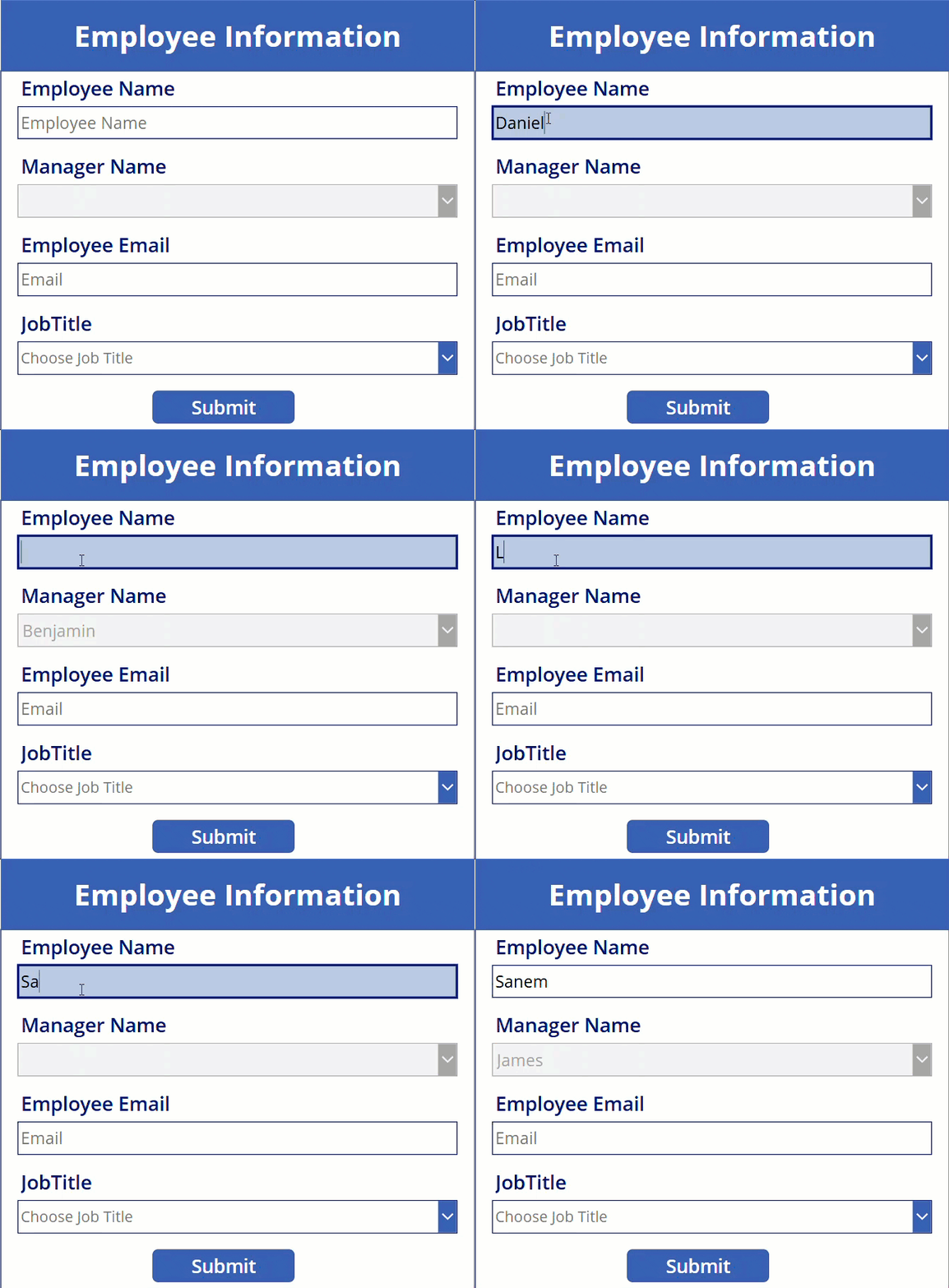
Here, I have a Power Apps application, which stores the details of new employees. To avoid the selection of the wrong manager name.
I created one SharePoint list that stores only employee and manager details. Based on this data, I’m auto-populating the manager’s name while entering the employee’s name.
Here is the SharePoint list named Employee Information, which stores employees’ and managers’ names.

| Column Name | Data Type |
|---|---|
| Employee Names | Title(Single line of text) |
| ManagerName | Choice |

| Column Name | Data Type |
|---|---|
| Employee Name | Title(Single line of text) |
| Manager Name | Choice |
| Employee Email | Single line of text |
| JobTitle | Single line of text |
Now, follow the steps below to auto-populate the manager name based on the entered employee name.
1. Open Power Apps studio and create one blank canvas application. Connect with the two SharePoint lists.
Then, insert the Edit form into the screen -> In the DataSource property of the form, provide the SharePoint list name.
'New Employee Details'
2. To get the manager’s name into this form, add a dropdown control instead of the manager name. Text input control. Then, provide the formula below in its Items property.
Choices([@'Employee Information'].ManagerName)
3. Then, provide the formula below in the DefaultSelectedItems property of the manager name dropdown data card value.
LookUp('New Employee Details',Title=txt_EmployeeName.Text,ManagerName)txt_EmployeeName is the input control name and ManagerName is the column name in SharePoint list New Employee Details.

It will fetch the manager name of the user we entered in the text input control.
4. Make the DisplayMode property of the manager name data card value to disabled. So, end users can’t make any changes.
DisplayMode.Disabled
Note:
Use the Patch() function to submit the details in the Power Apps form into the New Employee Details SharePoint list.
Patch('New Employee Details',Defaults('New Employee Details'),    {Title:EmployeeName_Value.Text,
'Manager Name':cmb_ManagerName.Selected.Value,
'Employee Email':EmployeeEmail_Value.Text,
JobTitle:jobTitle_Value.Text})
That’s it. Now, preview your app once. The manager’s name will auto-populate when you enter the employee’s name.
2. Get Selected User Manager Name in Power Apps
Here, we’ll see how to dynamically get the manager’s name while selecting the employee’s name. Both the employee name and manager name are Choice Fields.
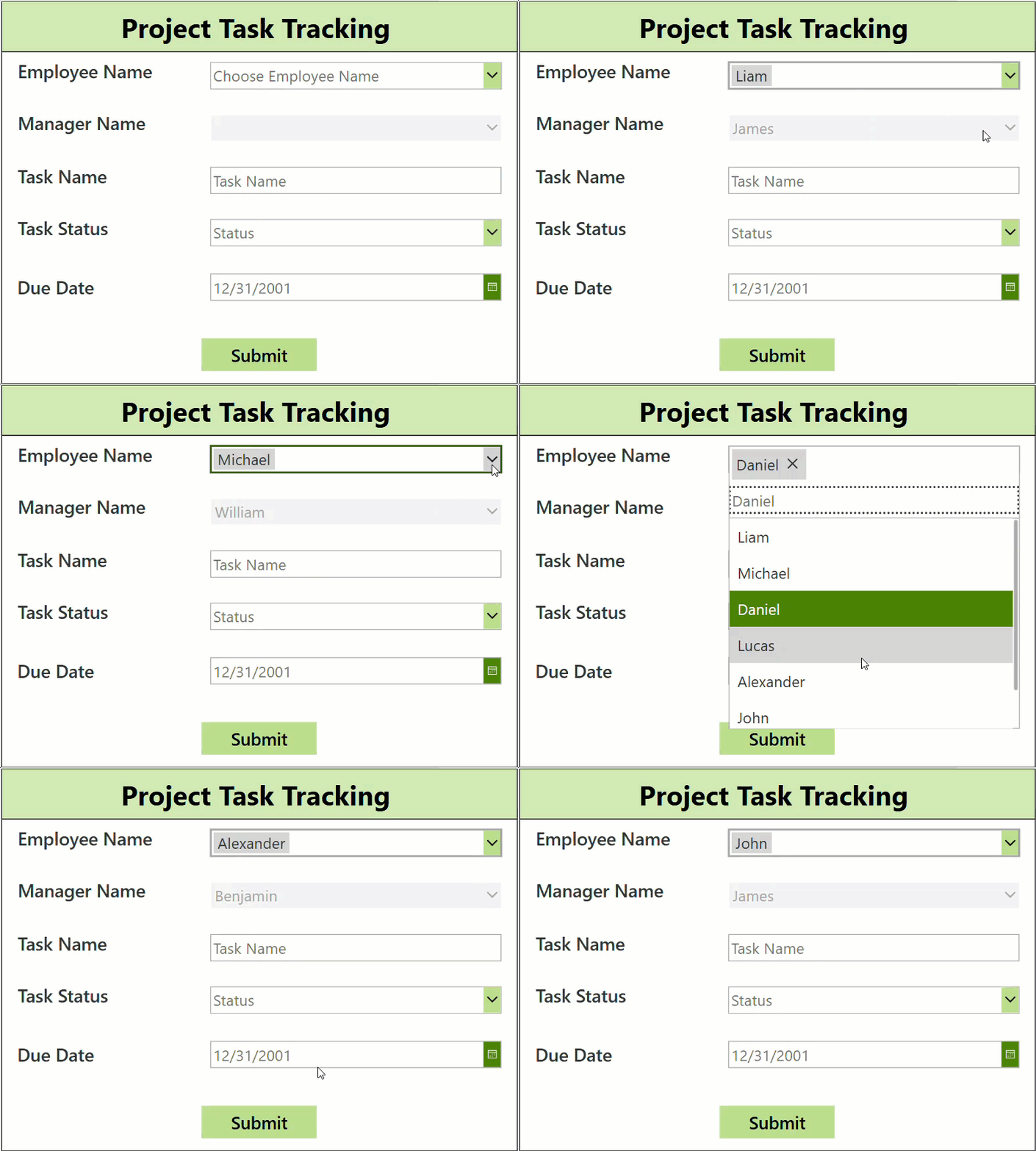
Refer to the example below. When I select an employee’s name in the combo box control, that employee’s manager is populated.
Here, I have two SharePoint lists for storing project-assigned members and their manager names.

I have taken the employee name and manager name fields as a choice field, because of assigning tasks only for a particular team.
| Column Name | Data taype |
|---|---|
| Employee Name | Choice |
| Manager Name | Choice |

Here are the column names and the data type of the project task tracking list.
| Column Name | Data type |
|---|---|
| Employee Name | Title(Single line of text) |
| Manager Name | Single line of text |
| Task Name | Single line of text |
| Task Status | Choice |
| Due Date | Date field |
1. Create one blank application from the canvas app. Then, connect with the above two SharePoint lists.

2. Insert one Edit Form and provide the below SharePoint name in it’s DataSource property.
Datasource: 'Project Task Tracking'
3. Click the form and delete the following data card values.
- Employee Name – Data card value.
- Manager Name – Data card value.
Then, insert the Combo box controls in place of deleted data card values.
4. In the Items property of the two combo box controls. Provide the following formulas.
Employee Name:
Choices([@'Employee and Manager details'].'EmployeeName (UserName)')Manager Name:
Choices([@'Employee and Manager details'].ManagerName)Save the changes and preview the app once; the employee and manager names will appear in the combo box controls, like in the example below.

Note: Turn Off the Allow Multiple Selection for both combo box controls.5. To get the manager name of the selected employee name, provide the formula below in the DefaultSelectedItems property of the manager name combo box control.
LookUp('Employee and Manager details', 'EmployeeName (UserName)'.Value = cmb_EmployeeName.Selected.Value, ManagerName)
6. Change the DisplayMode property of the manager name combo box control to Disabled so that end users can’t edit the manager name.
In this way, we can dynamically display the manager’s name while selecting the employee’s name.
3. Power Apps Get Current User Manager Name and Email
Here, I have a “Leave Request” form where I want to auto-populate the current user’s manager name and email.

Follow the steps below to achieve this.
1. Open the Power Apps form. Paste the formula below in the Default property of the manager name Text input control. It will get the current user’s manager name.
Office365Users.Manager(User().Email).DisplayName
2. Then, paste the below formula into the Default property of the manager email text input field. You will instantly get the manager’s email address in that field.
Office365Users.Manager(User().Email).UserPrincipalName
3. Then, set the DisplayMode property of the manager name and manager email Text Input controls to disabled mode.
DisplayMode: Disabled
4. Power Apps Office365Users Get Manager Name
I have an application here to update the daily work report. We added our employees and their managers to Office365.
Refer to the image below. Here, the manager’s name is auto-populating based on the employee name selection.

I have a SharePoint list named Daily Work Report, which stores the details entered in the Power Apps application.

Refer to the column names and the data types of the above SharePoint list.
| Column Name | Data type |
|---|---|
| Employee Name | Person or Group |
| Manager Name | Person or Group |
| Date of Report | Date and time |
| Work status | Choice(Completed, Not Started, Pending) |
| Report summary | Multiline text |
1. In the Power Apps application, first connect with Office365Users and the SharePoint list.

As in the first two ways, create one edit form and add this SharePoint list as a Data Source.
2. Then, insert the formula below in the DefaultSelectedItems property of the manager name combo box control.
{
    '@odata.type': "#Microsoft.Azure.Connectors.SharePoint.SPListExpandedUser",
     Department: Office365Users.ManagerV2(EmployeName.Selected.Email).department,
     Claims: "i:0#.f|membership|" & Office365Users.ManagerV2(EmployeName.Selected.Email).mail,
     DisplayName: Office365Users.ManagerV2(EmployeName.Selected.Email).displayName,
     Email: Office365Users.ManagerV2(EmployeName.Selected.Email).mail,
    JobTitle: Office365Users.ManagerV2(EmployeName.Selected.Email).jobTitle,
    Picture: ""
}
3. Make the DisplayMode of the manager name combo box control disabled. So users can’t change it.
DisplayMode: DisabledSave the changes and then preview the app. Then, you’ll get the manager’s name of the selected employee.
Also, you may like some more articles:
- Update SharePoint List Item Using Power Apps Patch Function
- How to Create Login Page in Power Apps Using SharePoint + Remember Me Option
- Link to a Specific Screen in Power Apps
- Create Cascading Dropdown in Power Apps
- How to Use Power Apps DropDown Control
- Get Current User Information in Power Apps
I hope you understand getting a user’s manager name and email in
In this article, I have explained four scenarios for getting the manager’s name and email based on the user. You can take this article as a reference while trying to get a particular user’s manager name.

After working for more than 18 years in Microsoft technologies like SharePoint, Microsoft 365, and Power Platform (Power Apps, Power Automate, and Power BI), I thought will share my SharePoint expertise knowledge with the world. Our audiences are from the United States, Canada, the United Kingdom, Australia, New Zealand, etc. For my expertise knowledge and SharePoint tutorials, Microsoft has been awarded a Microsoft SharePoint MVP (12 times). I have also worked in companies like HP, TCS, KPIT, etc.

