
You probably already have your data in Excel. With Power BI, you can turn that spreadsheet into an interactive report that refreshes itself, without learning to code.
This guide walks you through building a Power BI report from Excel, from preparing the file to publishing a report that updates when your spreadsheet changes.
Quick Answer: How to Create a Power BI Report from Excel
- Open Power BI Desktop and select Home > Get data > Excel workbook.
- Choose your Excel file, then pick the tables you need in the Navigator window.
- Click Transform Data to clean the data in Power Query, then click Close & Apply.
- Drag fields onto the report canvas to build charts, cards, and slicers.
- Click Publish to share the report in the Power BI Service.
Key Takeaways
- Format your Excel data as a Table (Ctrl + T) before importing. It’s the single biggest time-saver.
- Clean the data in Power Query, not in the report.
- Store the Excel file in OneDrive or SharePoint for automatic refresh without a gateway.
- Power BI Desktop is free. Sharing reports needs a Power BI Pro or Premium Per User license, or Fabric capacity.
📥 Download the sample files: Sales-Data.xlsx
Why Move from Excel to Power BI?
Excel is great for calculations and quick analysis. Once a spreadsheet becomes a report that people check every week, Power BI makes the job easier:
| Task | Excel | Power BI |
|---|---|---|
| Rows of data | Up to 1,048,576 per sheet | Millions of rows (compressed) |
| Interactivity | Limited (PivotTables, slicers) | Every visual filters every other visual |
| Refresh | Manual copy/paste or macros | Scheduled, automatic refresh |
| Sharing | Email attachments, version chaos | One secure link, one version of the truth |
| Mobile | Hard to read | Built-in mobile app and layout |
| Security | File-level | Row-level security per user |
You don’t need to give up Excel. Most analysts keep Excel as the data source and use Power BI as the reporting layer, which is the setup this guide shows.
What You Need Before You Start
- Power BI Desktop (free). Download it from the Microsoft Store or the official Microsoft website. It runs on Windows only, so Mac users need a Windows virtual machine or the Power BI Service in a browser.
- An Excel file (.xlsx, .xlsm, or .xls).
- A Power BI account (a work or school Microsoft account) if you want to publish.
- A Power BI Pro or Premium Per User license to share reports with coworkers.
In this tutorial we use a simple sales workbook with two sheets:
- Sales: Order Date, Order ID, State, Region, Product ID, Units, Revenue, Cost
- Products: Product ID, Product Name, Category
Prepare Your Excel File for Power BI
Most problems people run into with Excel data in Power BI come from a messy spreadsheet. Spend five minutes here and you’ll save an hour later.
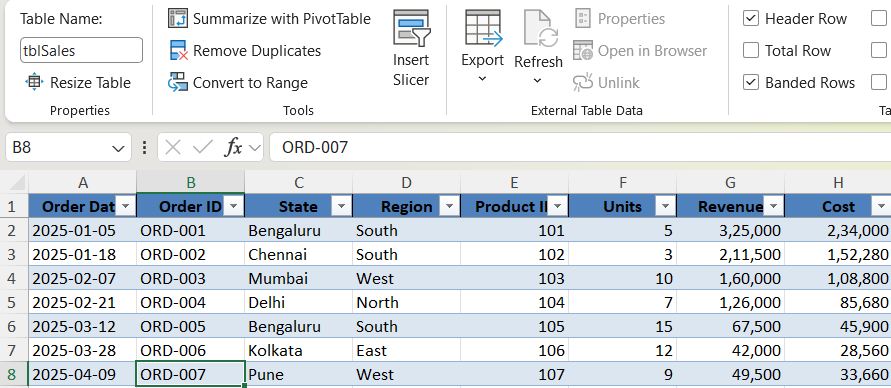
Format Data as an Excel Table (Ctrl + T)
Click anywhere in your data, press Ctrl + T, confirm My table has headers, and click OK. Then give the table a clear name on the Table Design tab, such as tblSales.
Tables matter because Power BI automatically picks up new rows added to a table. If you import a sheet, extra notes, totals, or blank cells get pulled in along with the data.
Use One Header Row and Avoid Merged Cells
Power BI expects one row of headers and one record per row. Before you import:
- Unmerge all merged cells.
- Remove title rows, logos, and notes above the data.
- Delete subtotal and grand total rows. Power BI calculates totals for you.
- Give every column a unique, descriptive name.
Keep Data Types Consistent
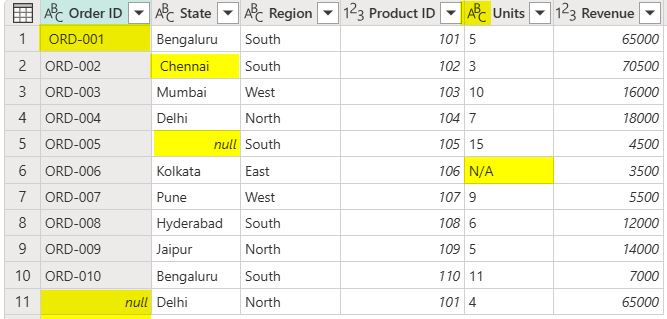
Each column should hold one type of data. Text such as “N/A” or “TBD” in a Revenue column causes errors when that column is converted to a number. Leave those cells empty or fix them at the source.
Step 1: Import Excel into Power BI Desktop
- Open Power BI Desktop.
- On the Home tab, click Get data > Excel workbook. (Or click Import data from Excel on the blank canvas.)
- Browse to your file and click Open.
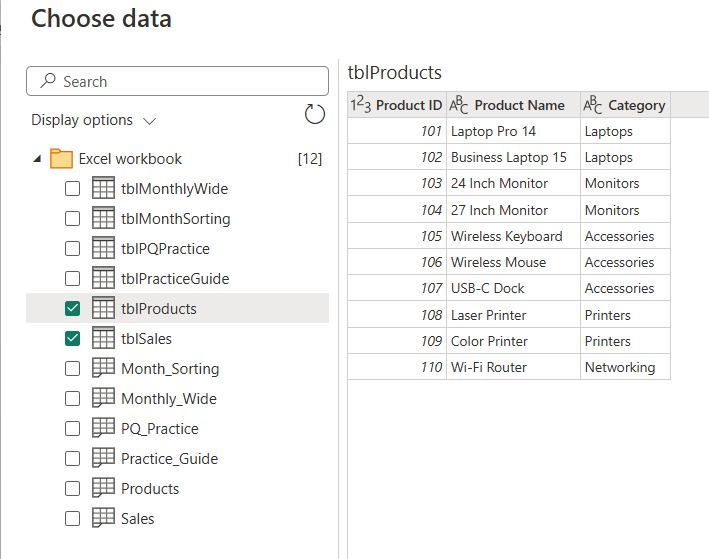
- The Navigator window opens and lists every table and sheet in the workbook.
- Check tblSales and tblProducts.
- Click Transform Data. Choose this instead of Load so you can check the data first.
Tables vs. Sheets in the Navigator Window
The Navigator shows two kinds of items:
- Tables (a blue header icon) are the Excel Tables you created. Always choose these when available.
- Sheets (a spreadsheet icon) are entire worksheets, including any stray cells.
If you see a table and a sheet with the same data, pick the table.
Step 2: Clean Your Data in Power Query
The Power Query Editor is where you clean data. Every change is recorded as a step under Applied Steps and repeats automatically on every refresh, so you only clean the data once.
Promote Headers and Change Data Types
- If your headers show up as the first data row, click Home > Use First Row as Headers.
- Check the icon to the left of each column name (ABC = text, 123 = whole number, 1.2 = decimal, calendar = date). To change one, click the icon and pick the right type.
- Set Revenue and Cost to Fixed decimal number (currency) and Order Date to Date.
Tip: Date formats can go wrong between US (MM/DD/YYYY) and international (DD/MM/YYYY) files. If your dates look wrong, right-click the column, choose Change Type > Using Locale, and select Date with English (United States).
Remove Blank Rows and Errors
- Home > Remove Rows > Remove Blank Rows deletes empty rows.
- Right-click a column and choose Remove Errors or Replace Errors to deal with cells that failed conversion.
- Use Transform > Format > Trim on text columns to strip extra spaces. Extra spaces often break relationships later.
Unpivot Columns (Turn Wide Excel Data into Long Data)
Many Excel reports have a column for each month (Jan, Feb, Mar…). This “wide” layout is easy to read but hard to analyze. To fix it:
- Select the columns that should stay as they are (for example, Product).
- Right-click and choose Unpivot Other Columns.
- Rename the new Attribute column to Month and Value to Revenue.
When you’re done, click Home > Close & Apply to load the data into your model.
Step 3: Build Your Data Model (Relationships and a Date Table)
The data model is what makes Power BI more powerful than a flat spreadsheet. Instead of VLOOKUPs, you connect tables with relationships.
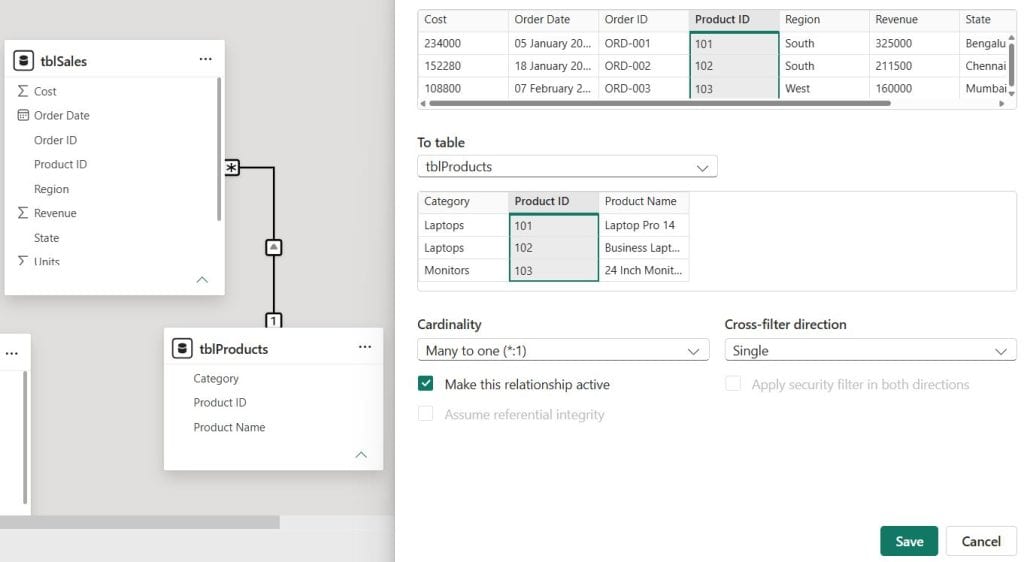
Create a Relationship
- Click the Model view icon on the left sidebar.
- Drag Product ID from tblProducts onto Product ID in tblSales.
- Power BI creates a one-to-many (1:*) relationship: one product, many sales.
Add a Date Table
A dedicated date table makes time intelligence work (year-to-date, last year, month-over-month). Go to Modeling > New table and paste:
Date =
ADDCOLUMNS (
    CALENDAR (
        DATE ( YEAR ( MIN ( tblSales[Order Date] ) ), 1, 1 ),
        DATE ( YEAR ( MAX ( tblSales[Order Date] ) ), 12, 31 )
    ),
    "Year", YEAR ( [Date] ),
    "Month Number", MONTH ( [Date] ),
    "Month", FORMAT ( [Date], "mmm" ),
    "Quarter", "Q" & QUARTER ( [Date] )
)
Then:
- Select the table, then Table tools > Mark as date table and choose the Date column.
- Select the Month column, then Column tools > Sort by column > Month Number, so months sort Jan to Dec instead of alphabetically.
- In Model view, relate Date[Date] to tblSales[Order Date].
Step 4: Create Measures with DAX
Measures are calculations that respond to filters and slicers. Create them with Home > New measure:
Total Revenue = SUM ( tblSales[Revenue] )

Total Cost = SUM ( tblSales[Cost] )

Total Profit = [Total Revenue] - [Total Cost]

Profit Margin % = DIVIDE ( [Total Profit], [Total Revenue] )

Revenue Last Year =
CALCULATE ( [Total Revenue], SAMEPERIODLASTYEAR ( 'Date'[Date] ) )

YoY Growth % =
DIVIDE ( [Total Revenue] - [Revenue Last Year], [Revenue Last Year] )
Tip: Use DIVIDE() instead of the / operator. It returns a blank instead of an error when the denominator is zero.
Format each measure in Measure tools: currency ($) for revenue, and percentage for margin and growth.

Step 5: Build Visuals
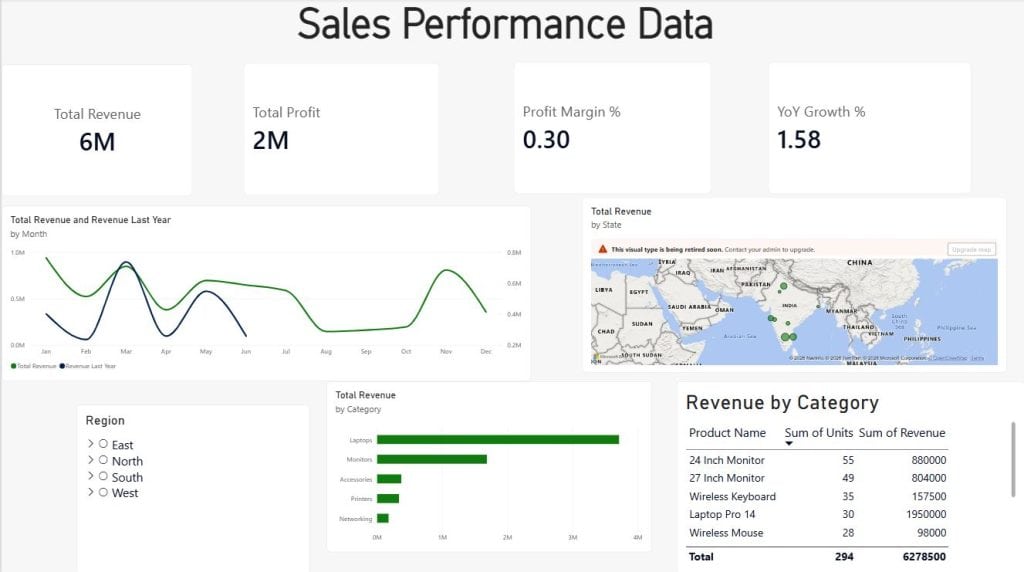
Switch to Report view and build your page. A proven layout for a sales report looks like this:
| Area | Visual | Fields |
|---|---|---|
| Top row | 4 Card visuals | Total Revenue, Total Profit, Profit Margin %, YoY Growth % |
| Middle left | Line chart | X-axis: Date[Month]; Y-axis: Total Revenue and Revenue Last Year |
| Middle right | Clustered bar chart | Y-axis: Category; X-axis: Total Revenue |
| Bottom left | Filled map or Map | Location: State; Bubble size: Total Revenue |
| Bottom right | Table | Product Name, Units, Revenue, Profit Margin % |
| Left side | Slicers | Year, Region |
To add a visual, click an empty area of the canvas, choose the visual in the Visualizations pane, then drag fields into its wells, or just check fields in the Data pane.

Tip: For maps, set the State column’s Data category to State or Province (under Column tools). This helps Power BI plot US states correctly.
Want more control over your filters? See our complete guide to Power BI slicers.
Step 6: Format and Polish the Report
A clean design makes your report look professional:
- Apply a theme: View > Themes.
- Give every visual a clear title, such as “Revenue by Category” instead of “Sum of Revenue by Category”.
- Use 3–4 colors max, and save red and green for bad and good.
- Align visuals with Format > Align and keep the spacing even.
- Add conditional formatting to the table so top performers stand out.
For a full walkthrough, read our guide to formatting Power BI table visuals and how to add conditional formatting in Power BI.
Step 7: Publish to the Power BI Service
- Save your file (File > Save as,
.pbix). - Click Home > Publish.
- Sign in with your work or school account if asked.
- Choose a workspace (use a shared workspace, not “My workspace”, for team reports).
- Click Open in Power BI when publishing finishes.
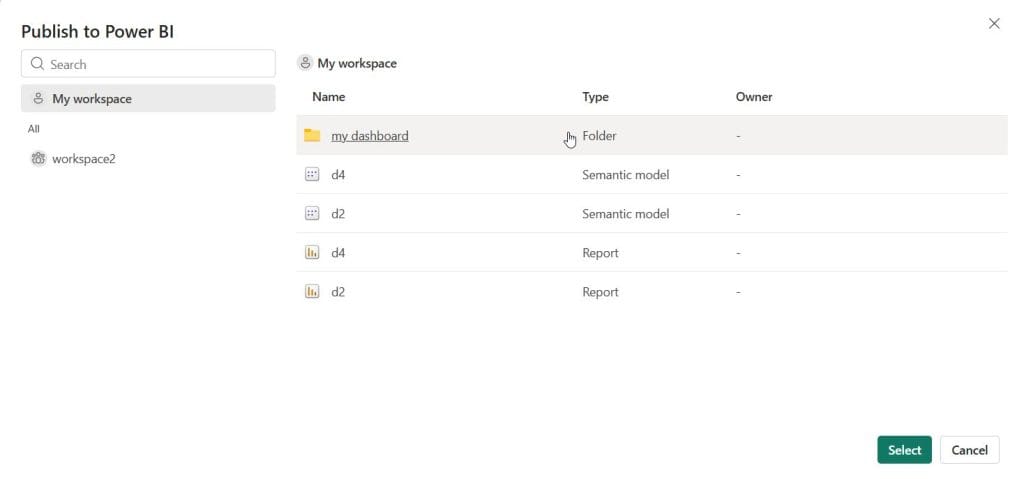
Publishing creates two items in the Service: a semantic model (your data and measures) and a report (your visuals). From there you can share the report, pin visuals to a dashboard, or bundle it into an app.
How to Auto-Refresh Power BI When Your Excel File Changes
A published report doesn’t update itself unless you set up refresh. How you do it depends on where your Excel file lives.
Option 1: Store Excel in OneDrive or SharePoint (Recommended, No Gateway)
If your Excel file is in OneDrive for work or school or SharePoint Online, Power BI can refresh it directly in the cloud:
- Open the file in Excel desktop, then go to File > Info > Copy path.
- In Power BI Desktop, go to Get data > Web and paste the path. Remove
?web=1from the end if it’s there. - Choose Organizational account to sign in.
- After publishing, go to the semantic model’s Settings > Data source credentials and sign in with OAuth2.
Step-by-step instructions are in the section below.
How to Connect SharePoint to Power BI
If your Excel workbook is stored in SharePoint Online, you can connect it directly to Power BI. This allows Power BI Service to refresh the data in the cloud without requiring an on-premises gateway.
To connect a single Excel file:
- Open the SharePoint document library containing the workbook.
- Select the file, click Copy link, and copy its URL.
- In Power BI Desktop, select Home > Get data > Web.
- Paste the SharePoint file URL and remove any extra text after the file extension, such as
?web=1. - Select Organizational account, click Sign in, and then choose Connect.
- In the Navigator window, select the Excel tables you need and click Transform Data or Load.
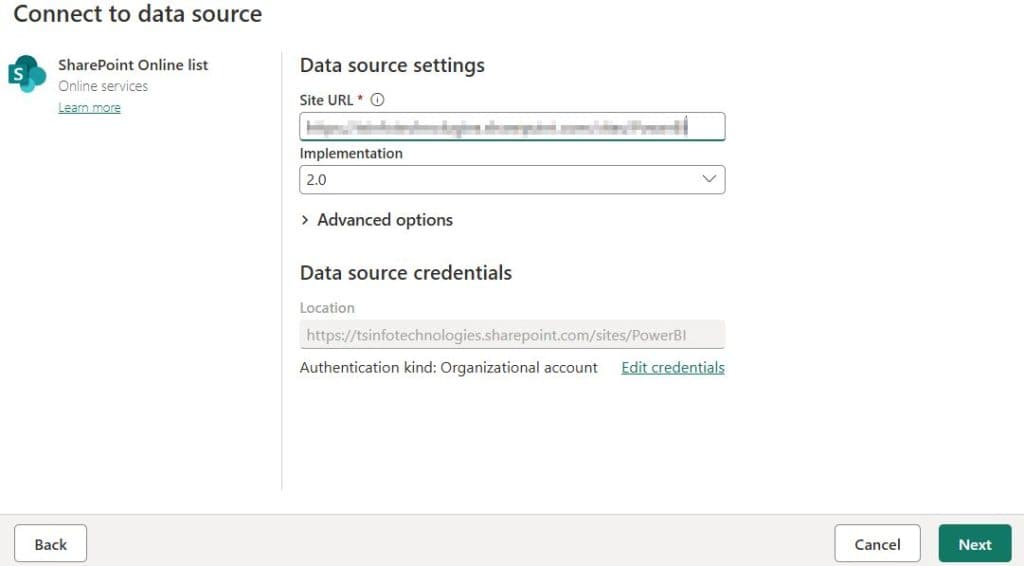
If you need to combine several Excel files from the same SharePoint folder, use Get data > SharePoint folder instead. Enter the SharePoint site URL, such as: https://company.sharepoint.com/sites/Sales
Do not enter the full path to the document or folder. After connecting, use Power Query to filter the Folder Path or Name column and select Combine Files.
You can also connect a SharePoint List by selecting Get data > SharePoint Online List, entering the site URL, and choosing the required list.
After publishing the report, open the semantic model settings in Power BI Service and sign in under Data source credentials using OAuth2. Because SharePoint Online is a cloud source, scheduled refresh normally works without a gateway.
Tip: Use the same Microsoft organizational account for SharePoint and Power BI, and make sure that account has permission to access the file, folder, or list.
Option 2: Local Excel Files with an On-Premises Data Gateway
If the Excel file is on your computer or a network drive, the Power BI Service can’t reach it. Install an on-premises data gateway, the standard or personal mode, on a machine that’s always on and can access the file. Then map the data source to the gateway in the semantic model settings.
Set Up Scheduled Refresh
- In the Power BI Service, open your workspace.
- Hover over the semantic model and click ⋯ > Settings.
- Expand Refresh, turn on Configure a refresh schedule, and add times.
- Set your time zone, for example (UTC-05:00) Eastern Time.
Refresh limits: Pro allows up to 8 refreshes per day. Premium Per User and Fabric/Premium capacity allow up to 48.
Alternative: Upload Excel Directly to the Power BI Service
If you don’t have Power BI Desktop (for example, on a Mac), you can work in the browser:
- Sign in to app.powerbi.com and open a workspace.
- Upload your Excel file from your computer, OneDrive, or SharePoint. The exact menu names change as Microsoft updates the Service.
- Power BI creates a semantic model from your Excel tables.
- Use Auto-create report or Create a blank report to start building.
This is fine for quick reports. For data cleaning, relationships, and DAX measures, Power BI Desktop is still the better tool.
Common Errors and How to Fix Them
| Error | Cause | Fix |
|---|---|---|
DataSource.NotFound: Could not find file | The Excel file was moved or renamed | Transform data > Data source settings > Change Source and select the new path |
DataFormat.Error: We couldn't convert to Number | Text values in a number column | Fix the data in Excel, or use Replace Errors / Remove Errors in Power Query |
| Columns missing after refresh | Column renamed in Excel | Rename it back, or update the step in Power Query that references it |
| New rows not showing | You imported a sheet range, or the rows are outside the table | Import an Excel Table and add rows inside it |
| “The process cannot access the file” | File locked by another program or sync | Close the file and pause OneDrive sync, then try again |
| Scheduled refresh failed | Expired credentials or missing gateway | Update Data source credentials or configure a gateway |
| Dates showing as text or wrong | Regional date format mismatch | Change Type > Using Locale > English (United States) |
Frequently Asked Questions
Is Power BI free for Excel users?
Yes, Power BI Desktop is free for building reports. To share reports with others in the Power BI Service, you need a Power BI Pro or Premium Per User license, or your organization needs Fabric/Premium capacity.
Will my Power BI report update when I change the Excel file?
Yes, if you set up refresh. Store the file in OneDrive or SharePoint for refresh without a gateway, or use an on-premises data gateway for local files. Then configure scheduled refresh in the Power BI Service.
Should I import an Excel Table or a Sheet?
Import an Excel Table whenever you can. Tables grow automatically when rows are added and don’t include stray cells, notes, or totals.
How much Excel data can Power BI handle?
Much more than Excel’s limit of 1,048,576 rows per sheet. Power BI compresses the data, and a semantic model on a Pro license can be up to 1 GB after compression, which is often tens of millions of rows.
Can I combine multiple Excel files into one Power BI report?
Yes. Use the Folder connector (or SharePoint Folder) to combine files with the same structure, or use Append Queries.
Is Power BI better than Excel?
They do different jobs. Excel is better for ad-hoc analysis, what-if modeling, and detailed calculations. Power BI is better for interactive dashboards that refresh automatically and are shared with many people. Most teams use both.
Can I use Power BI on a Mac?
Power BI Desktop runs only on Windows. Mac users can use the Power BI Service in a web browser, or run Power BI Desktop through a Windows virtual machine.
Conclusion
Creating a Power BI report from Excel comes down to seven steps: prepare the file, import it, clean it in Power Query, model it, add measures, build visuals, and publish. Two habits matter most: format your data as an Excel Table and store the file in OneDrive or SharePoint so refresh runs automatically.
Keep learning:
- How to Create a Power BI Report
- How to Combine Columns from Two Tables in Power BI
- Power BI Slicers: Complete Guide

I have worked with Microsoft technologies for more than 18 years, including SharePoint, Microsoft 365 and the Power Platform (Power Apps, Power Automate and Power BI), at companies like HP, TCS and KPIT. I started EnjoySharePoint in 2011 to share the solutions I build in real projects with readers in the United States, Canada, the United Kingdom, Australia, New Zealand and beyond. Microsoft has recognized this work with the Microsoft MVP award 13 times since 2014.