
While working on my Employee Satisfaction Survey app, I faced a challenge with the “Happy At Work” column. This column lets employees rate their satisfaction on a scale of 1 to 10, but the values are stored as strings.
I needed to convert these string values to integers to calculate and send an email alert if all employees provided a rating below 3. Without this conversion, performing numerical comparisons would be impossible.
In this tutorial, I will tell you how to convert a string to an integer in Power Automate.
Convert a String to an Integer in Power Automate
You have a SharePoint list called Order Details with the following columns:
- Order ID (Single line of text)
- Quantity (Single line of text)
- Unit Price (Currency)
- Total Cost(Currency)

When adding a new order, you want to calculate the Total Cost (Quantity * Unit Price) and update the item automatically. Since the Quantity is stored as a string, you need to convert it to an integer before calculating.
Now follow the below steps to do this:
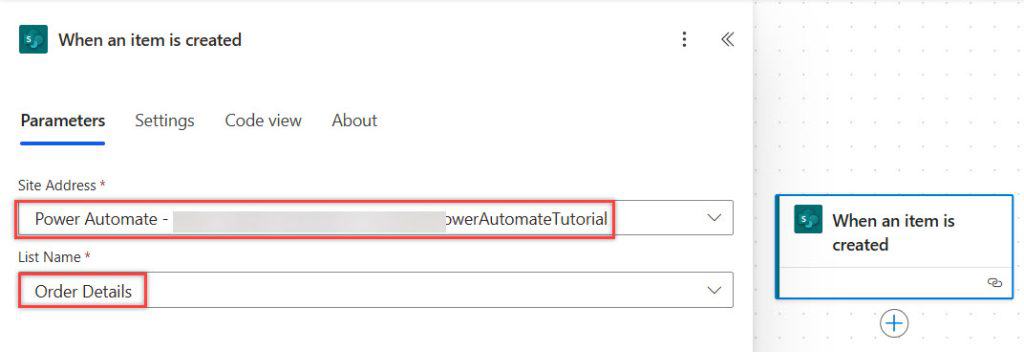
1. Create an Automated Cloud Flow using the SharePoint connector’s ‘When an item is created‘ trigger. Select the SharePoint site where your ‘Order Details’ list is located, and choose the ‘Order Details’ list.
2. Add an “Initialize Variable” action for the Quantity and provide below parameters:
- Name: varQuantityInteger
- Type: Integer
- Value:
int(triggerBody()?['Quantity'])
3. Add a “Compose” action with the following formula to calculate the total:
mul(variables('varQuantityInteger'),triggerBody()?['UnitPrice'])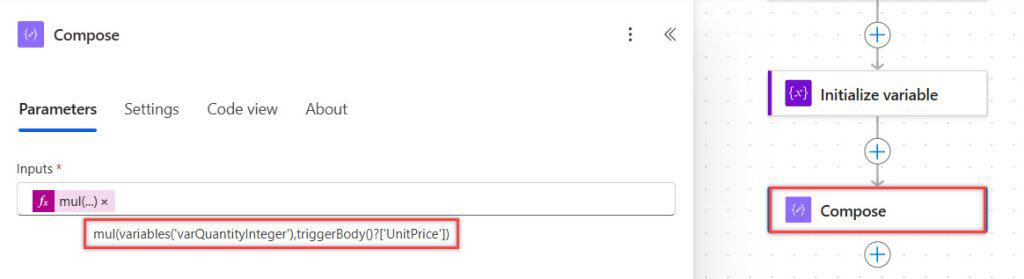
4. Add an Update Item action to update the item in the SharePoint list and provide below parameters:
- Site Address: Select the SharePoint site address in your ‘Order Details’ list.
- List Name: choose the ‘Order Details’ list from the drop-down.
- Id: Provide ID from dynamic content when an item is created.
- Total Cost: Set the Total Cost column to the output of the Compose action.

Run the Flow to Convert a String to an Integer
Save the flow and run it manually. Then, go to the SharePoint list and add a new item.

After the flow runs successfully, refresh the SharePoint list. The value will be updated in the ‘Total Cost’ column.

Conclusion
In this tutorial, I showed you how to convert a string to an integer in Power Automate, which is useful when working with data that needs numerical calculations.
You may also like:
- Convert time zone in Power Automate
- Retrieve SharePoint List Items Using Power Automate
- Convert String to GUID in Power Automate
- Convert Float to Integer in Power Automate
- Convert CSV to Excel Using Power Automate
- Send an Email When an Item is Deleted from the SharePoint List Using Power Automate

After working for more than 18 years in Microsoft technologies like SharePoint, Microsoft 365, and Power Platform (Power Apps, Power Automate, and Power BI), I thought will share my SharePoint expertise knowledge with the world. Our audiences are from the United States, Canada, the United Kingdom, Australia, New Zealand, etc. For my expertise knowledge and SharePoint tutorials, Microsoft has been awarded a Microsoft SharePoint MVP (12 times). I have also worked in companies like HP, TCS, KPIT, etc.

