
An HR coordinator at a 200-person company I worked with filtered the employee directory by department every day. One afternoon they cleared the filter, saw an empty screen, and assumed the app had lost its data. It hadn’t: the dropdown was blank, and the gallery was filtering on that blank value. The fix was a few small formulas that decide what “blank” should mean.
In this guide, I’ll show you how to control blank values in a Power Apps dropdown: start it empty, add an All Departments option, show every record when nothing is selected, reset it, make it required, and save a blank value back to SharePoint.
Quick answer: On the classic Drop down, set AllowEmptySelection to true and Default to Blank() so it starts empty. On the modern Dropdown, leave Default empty. To show all records when nothing is chosen, filter your gallery with Filter(Employees, IsBlank(ddDepartments.Selected.Value) || Department.Value = ddDepartments.Selected.Value). Use Reset(ddDepartments) to clear the selection.
Why a dropdown picks the first item, and what blank means
By default, the classic Drop down always has something selected. Microsoft’s control reference describes it plainly: when AllowEmptySelection is false, there is always a selected item, either the Default or the first item. That’s why so many forms quietly submit the first option in the list.
Blank can mean different things in your app, so decide first what you want it to mean. In a filter, blank usually means “don’t filter, show everything.” In a form, it usually means “the user hasn’t chosen yet”, and you should stop them from saving. In the data, it means “clear this value”.
One detail trips people up: IsBlank() returns true for both a blank value and an empty string (""). That’s usually what you want. A single space, though, isn’t blank, so never use ” ” as your empty option.
Power Apps has two dropdown controls, and they handle blanks differently. The classic Drop down uses AllowEmptySelection, Default and a Value property for the column to show. The modern Dropdown uses ItemDisplayText for the text and Default, which you can leave empty for no selection. The screenshots in this guide use the modern control.
The example: an employee directory
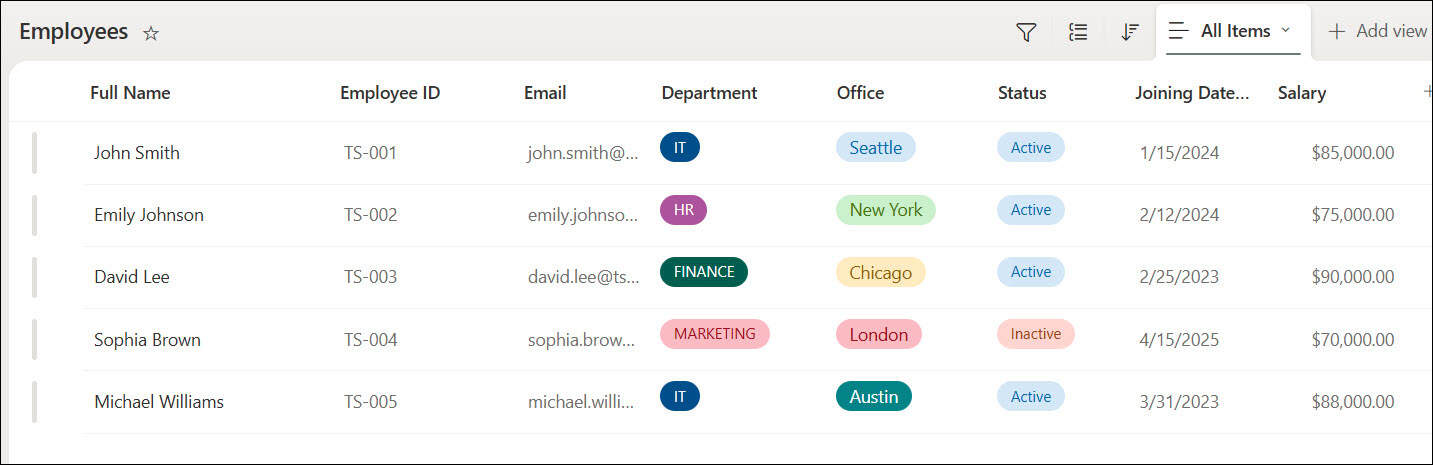
The app reads an Employees SharePoint list with columns such as Full Name, Employee ID, Email, Department (Choice), Office, Status (Choice), Joining Date and Salary:
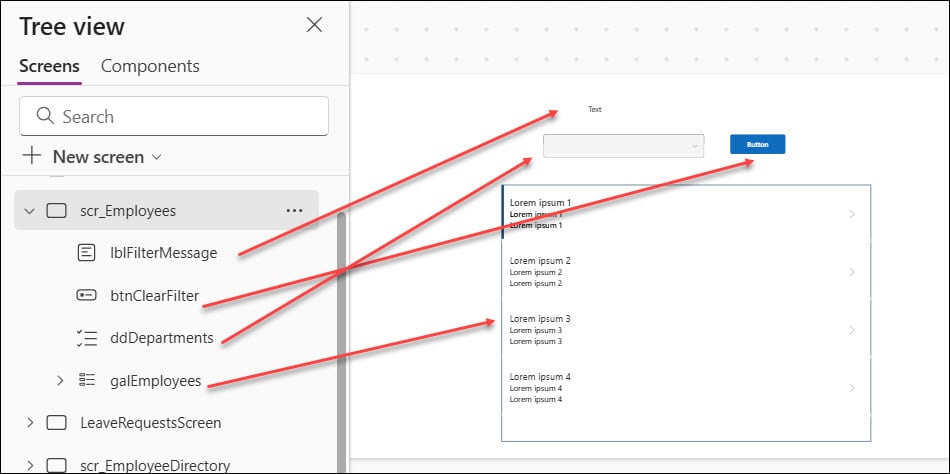
The screen has four controls: a dropdown called ddDepartments, a gallery called galEmployees, a button called btnClearFilter, and a label called lblFilterMessage:
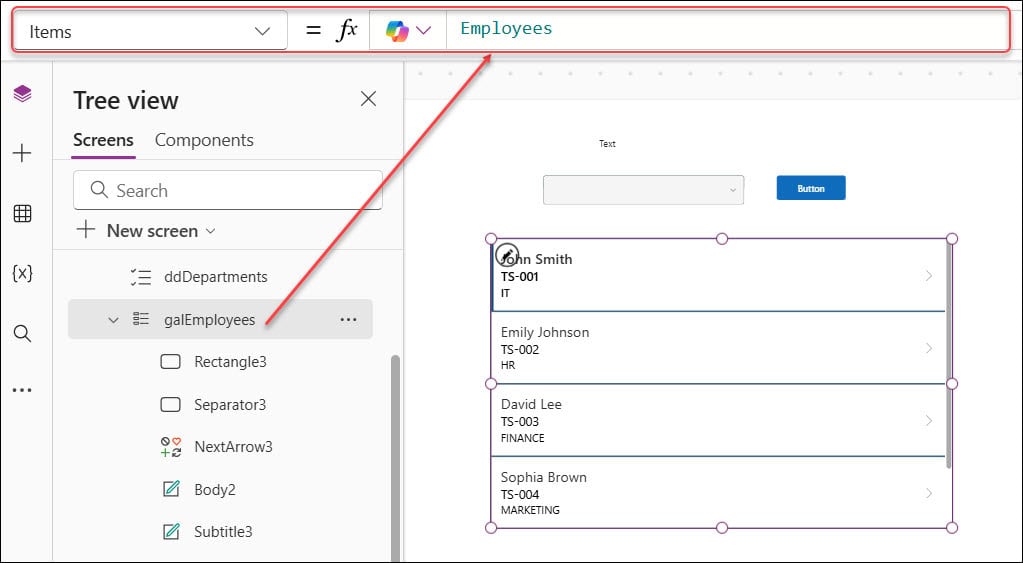
Step 1: Show every employee in the gallery
Set the gallery’s Items property to the list, so it shows every employee to begin with:
Step 2: Fill the dropdown with unique departments
If you point the dropdown straight at the Employees list, you’ll see IT five times, once per IT employee. Use Distinct() to get each department once. Because Department is a Choice column, take its Value, and remove empty departments first:
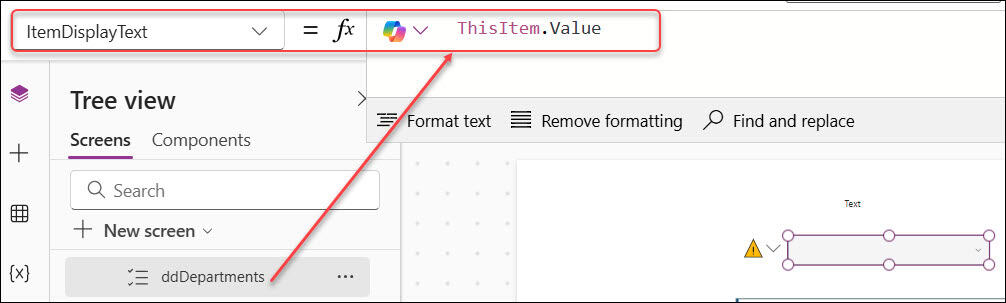
Sort(Distinct(Filter(Employees, !IsBlank(Department)), Department.Value), Value)Distinct returns a one-column table whose column is named Value, and Sort() needs that column name as its second argument. On the modern Dropdown, set ItemDisplayText to ThisItem.Value; on the classic control, set Value to Value.
Step 3: Add an “All Departments” option
For a filter, a clearly named option is friendlier than an empty box: people understand All Departments immediately. To put it at the top of the list, combine a one-row table with the department list using Table():
Table(
    {Value: "All Departments"},
    Sort(
        Distinct(Filter(Employees, !IsBlank(Department)), Department.Value),
        Value
    )
)
Note that the & operator joins text, not tables, so Table() is the way to combine them. Keep ItemDisplayText set to ThisItem.Value:
The dropdown now lists All Departments first, followed by each department:
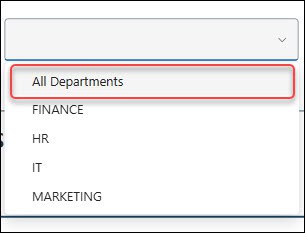
Step 4: Filter the gallery, and show everyone when nothing is selected
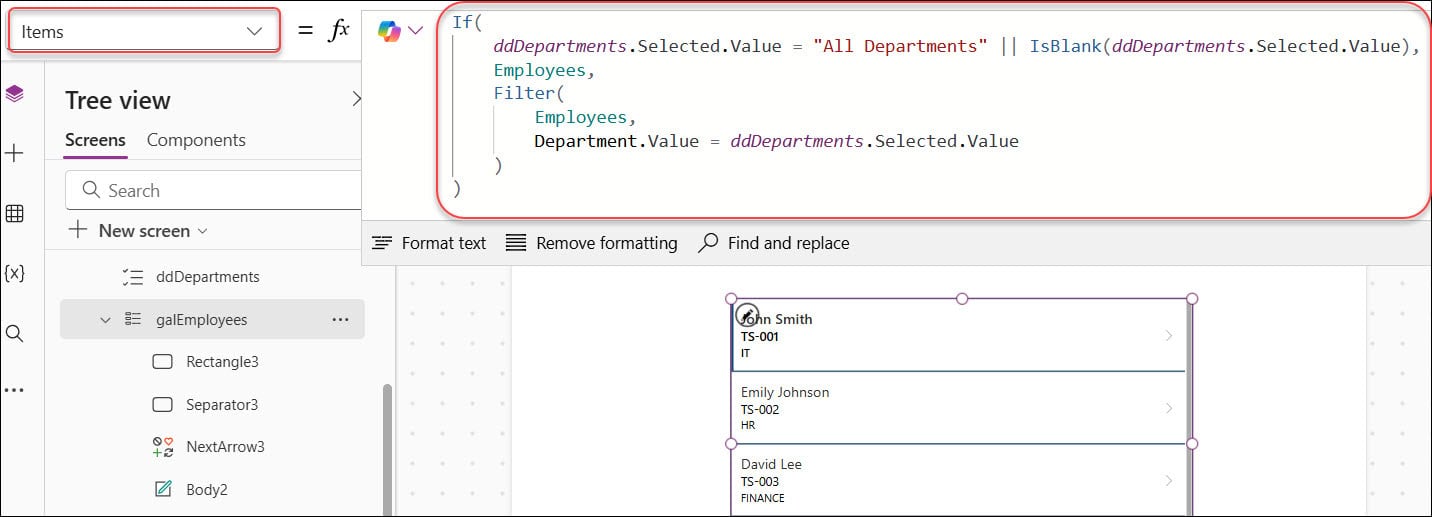
Set the gallery’s Items to return every employee when the choice is All Departments or blank, and filter by department otherwise:
If(
    ddDepartments.Selected.Value = "All Departments" || IsBlank(ddDepartments.Selected.Value),
    Employees,
    Filter(Employees, Department.Value = ddDepartments.Selected.Value)
)
Choosing All Departments shows everyone; choosing IT shows only John Smith and Michael Williams:
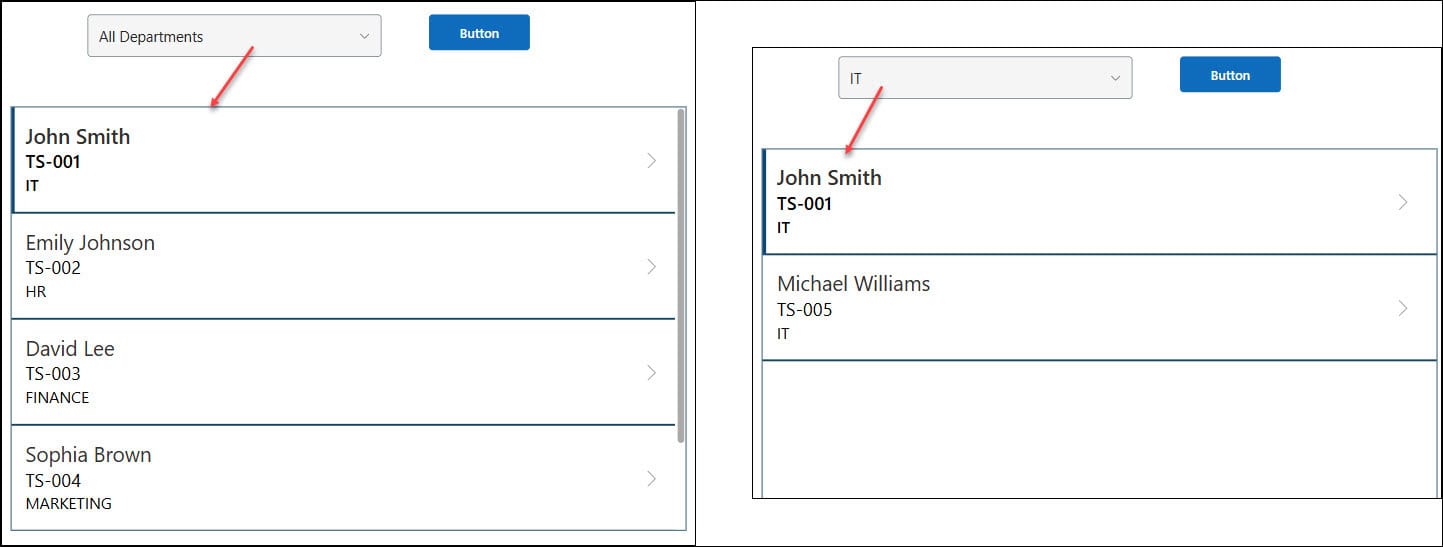
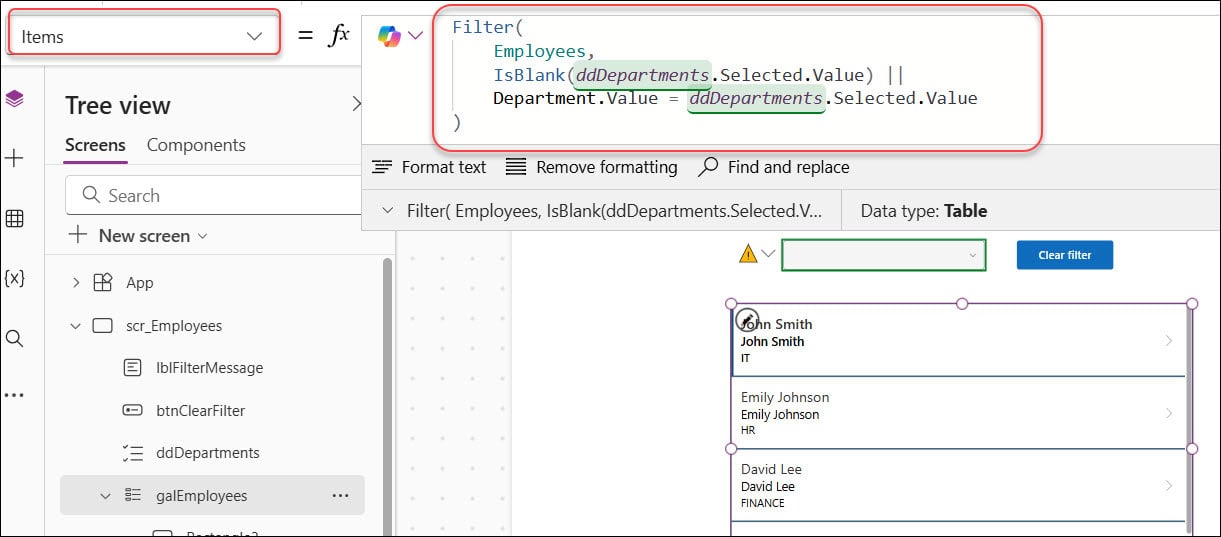
If you don’t use an All option, this shorter formula does the same job, treating a blank dropdown as “show everything”:
Filter(
    Employees,
    IsBlank(ddDepartments.Selected.Value) || Department.Value = ddDepartments.Selected.Value
)
You can add more optional filters the same way, one condition per dropdown, each written as IsBlank(dd.Selected.Value) || Column = dd.Selected.Value. The comparison on a Choice column’s Value can be delegated to SharePoint, so it works on large lists.
Step 5: Clear the filter with Reset
Set the Clear filter button’s OnSelect to Reset(ddDepartments):
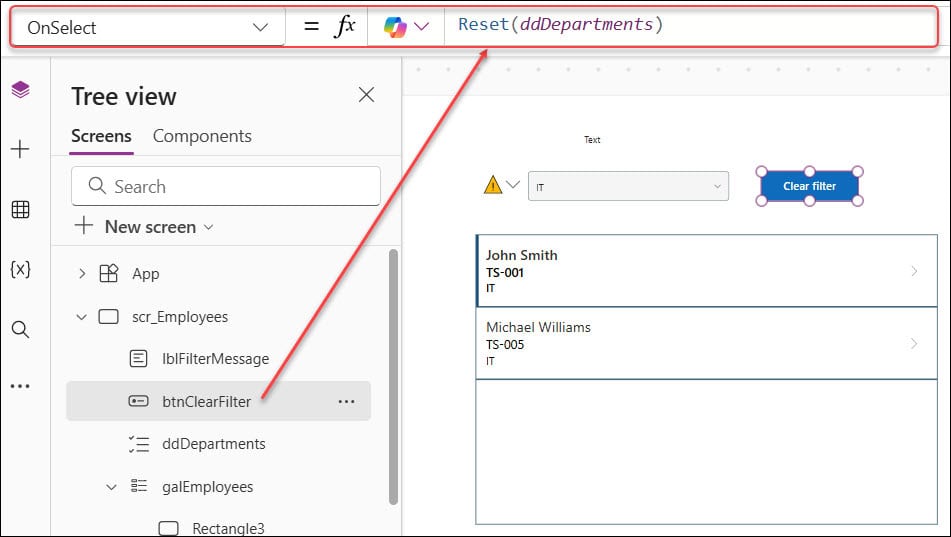
Reset doesn’t mean “make it blank”; it returns the control to its Default. On the modern Dropdown, leave Default empty. On the classic control, set AllowEmptySelection to true and Default to Blank(). If Default were “IT”, Reset would select IT.
You can also clear several filters at once from a variable: set each dropdown’s Default to its own variable, then set the variables to Blank(). Changing a control’s Default resets it automatically.
One limit to know: Reset can’t reach controls inside a gallery or an edit form from outside it; use ResetForm for forms. I’d also avoid resetting filters in a screen’s OnVisible, because users lose their selection every time they come back to the screen.
Make a blank dropdown required in a form
In a form, blank usually means “not answered yet.” Take a leave request form with a ddLeaveType dropdown whose Items are ["Vacation", "Sick Time", "Remote Work", "Unpaid Time Off"]. Starting blank forces people to choose on purpose, instead of accidentally submitting the first option.
Then check it before saving. Set the Submit button’s OnSelect to:
If(
    IsBlank(ddLeaveType.Selected.Value),
    Notify("Select a leave type before you submit your request.", NotificationType.Error),
    SubmitForm(frmLeaveRequest)
)
You can also set the button’s DisplayMode to If(IsBlank(ddLeaveType.Selected.Value), DisplayMode.Disabled, DisplayMode.Edit). I still keep the check in OnSelect, so the rule holds even if someone reaches the save logic another way. On the modern Dropdown, you can also set Required to true and use ValidationState to show an error on the control itself.
Save a blank value to SharePoint
When a dropdown is optional, saving it blank should clear the value in SharePoint. The formula depends on the column type. For a text column, save the text or Blank():
Patch(Employees, galEmployees.Selected, {Office: If(IsBlank(ddOffice.Selected.Value), Blank(), ddOffice.Selected.Value)})A Choice column expects a record, so wrap the value in {Value: ...}:
Patch(
    Employees,
    galEmployees.Selected,
    {
        Status: If(
            IsBlank(ddStatus.Selected.Value),
            Blank(),
            {Value: ddStatus.Selected.Value}
        )
    }
)
Sending plain text to a Choice column, or a record to a text column, fails with a type error such as “Expected record value”. In an edit form, put the same If() in the data card’s Update property and keep SubmitForm() simple. For more on this pattern, see how to update a SharePoint list item with Patch.
Remove blank values from a dropdown
For required choices, such as a new employee’s department, you may not want an empty option at all. Keep the !IsBlank() filter from Step 2 so empty departments don’t appear, and on the classic control set AllowEmptySelection to false.
Be careful with defaults for data entry, though. Automatically selecting the first department doesn’t mean the employee belongs to it. For required fields, I prefer starting blank and validating, as shown above.
Large lists and delegation
Distinct() can’t be delegated to SharePoint, and neither can !IsBlank() inside Filter. Power Apps only looks at the first 500 rows by default (up to 2,000 if you raise the data row limit), so a very large list can produce an incomplete department list. For big lists, keep the departments in their own small SharePoint list and use it as the dropdown’s Items. The classic Drop down also shows a maximum of 500 items.
These Power Apps dropdown guides go well with this one:
- Power Apps Dropdown Control With SharePoint [Complete Guide]
- Power Apps Dropdown Values Not Showing [How to Overcome]
- Remove Duplicates in Power Apps Dropdown [With Different Scenarios]
- How to Validate Power Apps Dropdown Control?
- Power Apps Combo Box Vs Dropdown [Know the Differences]
- Power Apps Display Mode: A Complete Guide (With Real Examples)
Frequently Asked Questions
How do I make a Power Apps dropdown start blank?
On the classic Drop down, set AllowEmptySelection to true and Default to Blank(). On the modern Dropdown, leave the Default property empty.
Why does my Power Apps dropdown select the first item automatically?
The classic Drop down always has a selection when AllowEmptySelection is false: the Default or the first item. Microsoft explains this in the Drop down control reference.
How do I show all records when a dropdown is blank?
Filter the gallery with Filter(Employees, IsBlank(ddDepartments.Selected.Value) || Department.Value = ddDepartments.Selected.Value).
How do I reset a Power Apps dropdown to blank?
Make the dropdown’s default blank (Blank() with AllowEmptySelection on the classic control, or an empty Default on the modern one), then call Reset(ddDepartments) from a button.
How do I save a blank dropdown value to a SharePoint Choice column?
Use If(IsBlank(dd.Selected.Value), Blank(), {Value: dd.Selected.Value}) in Patch or in the data card’s Update property.

Preeti Sahu is a Microsoft MVP for Power Apps with over six years of experience working with SharePoint Online and the Power Platform. She is the co-author of the book Microsoft Power Platform: A Deep Dive. As a Power Platform developer, she has built various tools with Power Apps and Power Automate, and she makes Microsoft 365 videos for YouTube.
I was implementing the last explained scenario but with Dataverse choice column and it is giving the error. What should i do .