
On a client’s intranet home page, HR wanted employees to leave feedback without opening another app. The Microsoft Forms web part solved it: the form sits right on the SharePoint page, and responses go to Microsoft Forms like any other form.
In this tutorial, I’ll show you how to add the web part, create a new form or embed an existing one, edit it, and show the results on the page, plus the sharing setting you need to understand before you show results.
Quick answer: Edit the page, add the Microsoft Forms web part, and select Add new form or Add existing form. For an existing form, paste its link into Form web address, keep Collect responses selected and select OK, then republish the page. Choose Show form results instead to display a summary of the responses.
Before you start
- You need edit permission on the page, and the form must allow the people who’ll fill it in, for example everyone in your organization.
- The web part isn’t available in SharePoint Server 2019, the SharePoint mobile app, or the GCC, GCC High and DoD clouds.
- Only the form’s owners (or co-owners) can create the results link that Show form results uses.
If you’re building a whole page, see how to customize a SharePoint site home page for where a form fits.
Add the Microsoft Forms web part
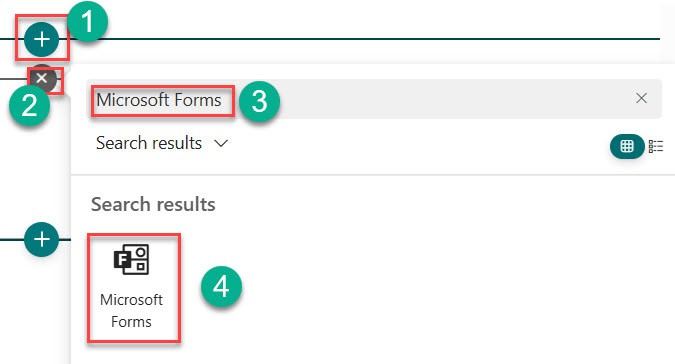
Select Edit on the page. Select the circled + where you want the form (or open the Toolbox and choose See all web parts), search for Microsoft Forms and select it:
The web part offers two choices, Add new form and Add existing form:

Option 1: Create a new form
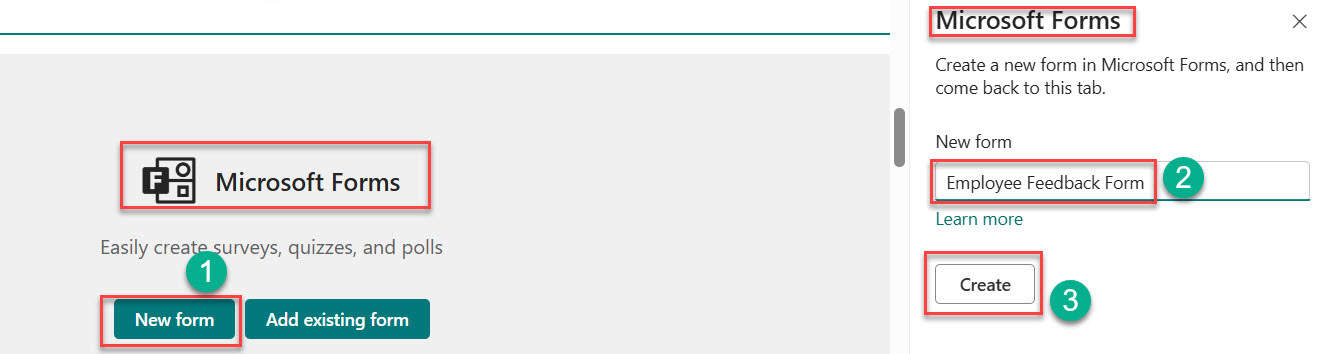
Select Add new form, type a name in the pane on the right (I used Employee Feedback Form) and select Create:
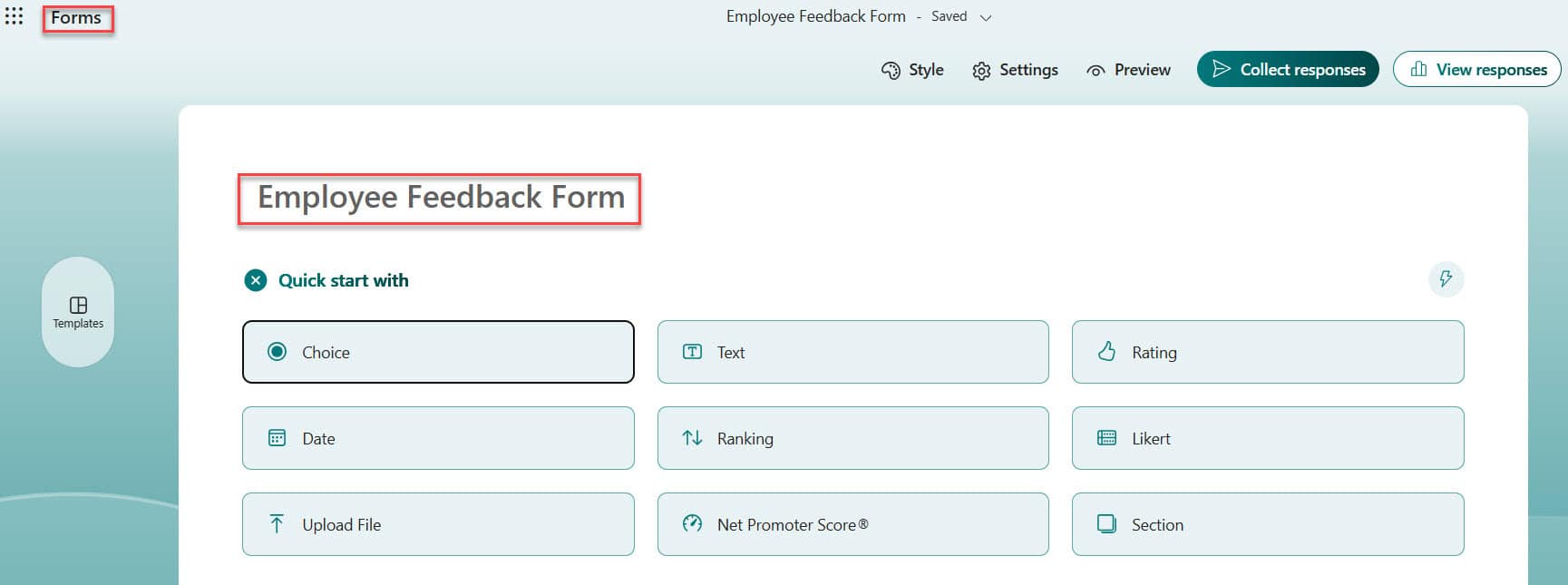
Microsoft Forms opens in a new browser tab. Add your questions, pick a theme, and close the tab when you’re done:
Back on the SharePoint page, keep Collect responses selected and select OK to refresh the web part. Then republish the page:
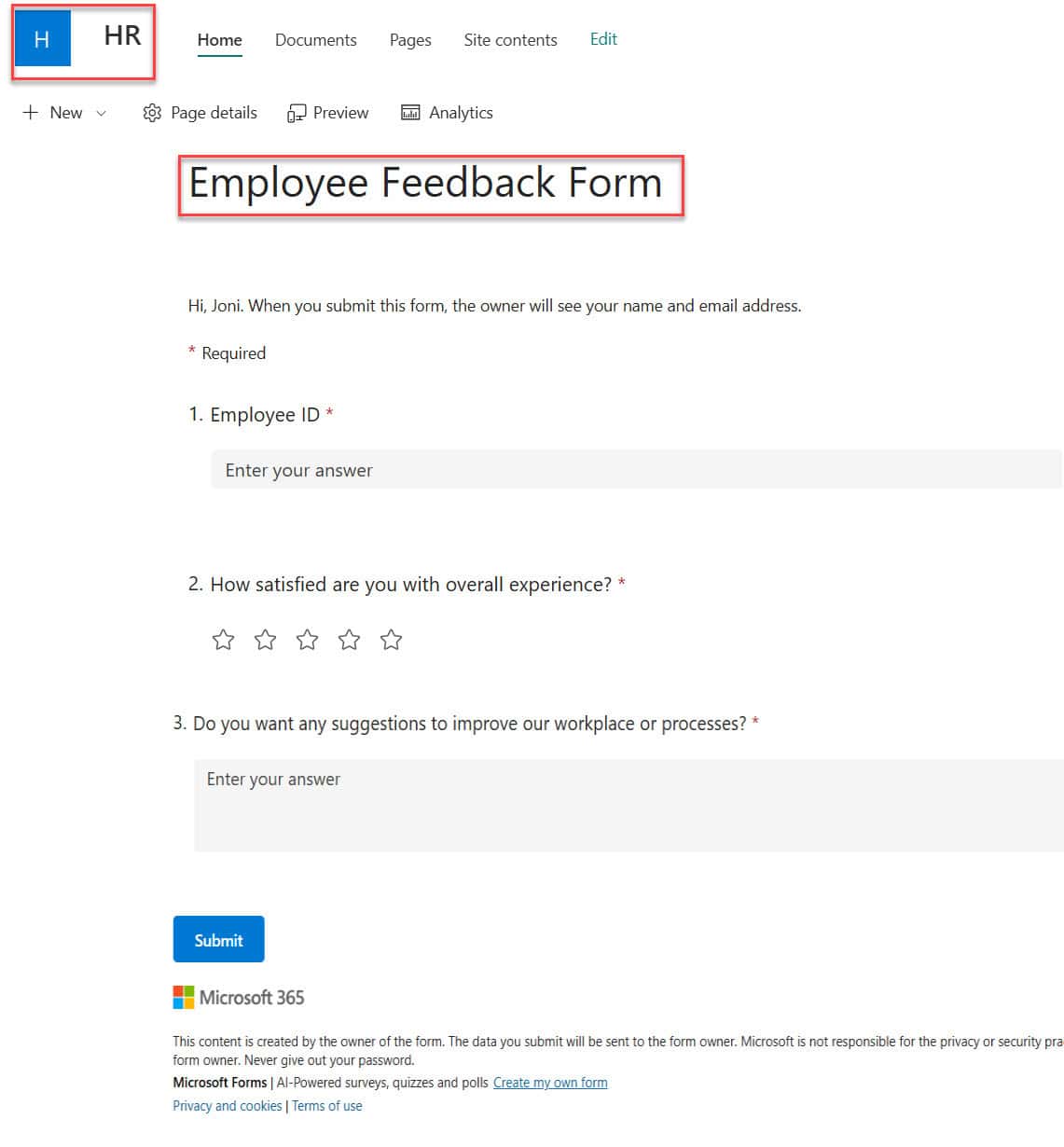
A form created this way belongs to you. If the team should own it, create it in a Microsoft 365 group or move it to a group later, so it doesn’t break if you leave. To save the answers in SharePoint as well, see how to save Microsoft Forms responses to a SharePoint list.
Option 2: Embed an existing form
In Microsoft Forms, open the form, select Collect responses and copy the link. On the SharePoint page, select Add existing form, paste the link into Form web address, keep Collect responses selected and select OK:
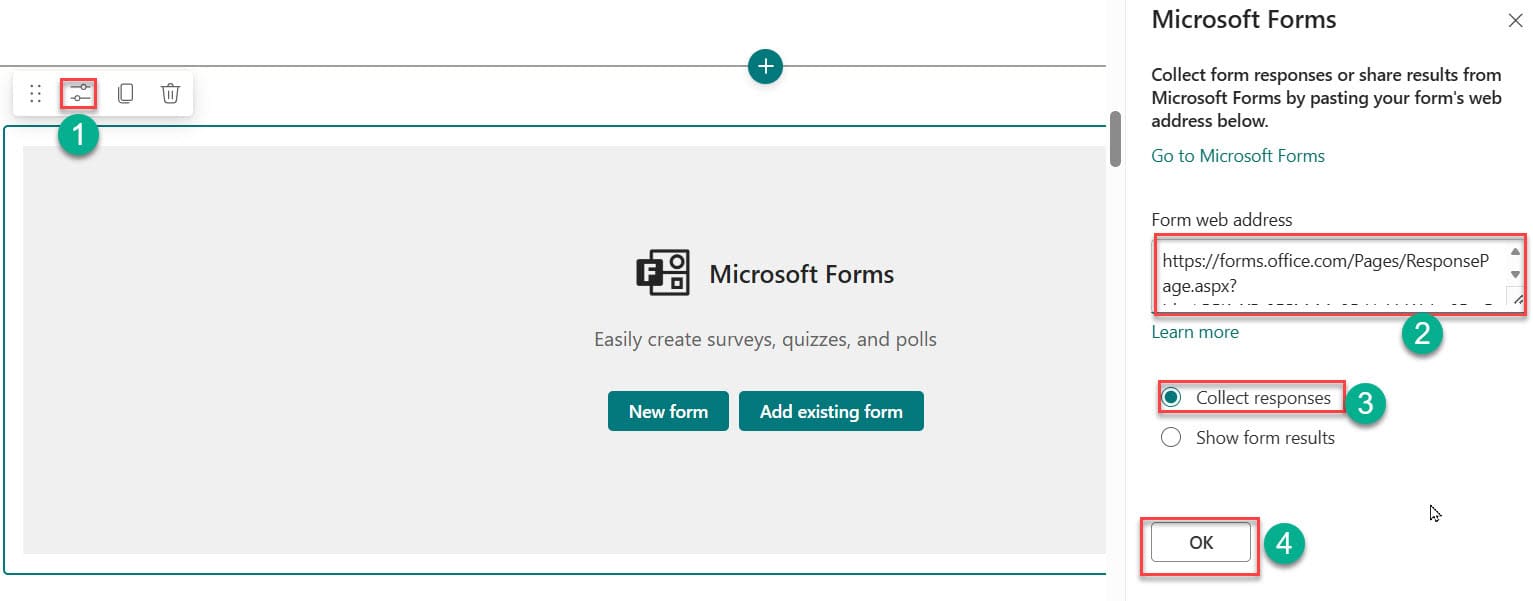
Here I embedded an IT Support Request form:

People fill it in right on the page. To act on each response, for example emailing the help desk, see how to send an email based on a Microsoft Forms response.
Edit the form
Select the web part in edit mode, open its properties and select Edit current form. Forms opens so you can change the questions:

When you come back, select OK to refresh the web part. Here I changed the first question from Employee ID to Employee Name:

Show form results on the page
To show a live summary instead of the form, select Show form results in the web part properties and select OK:
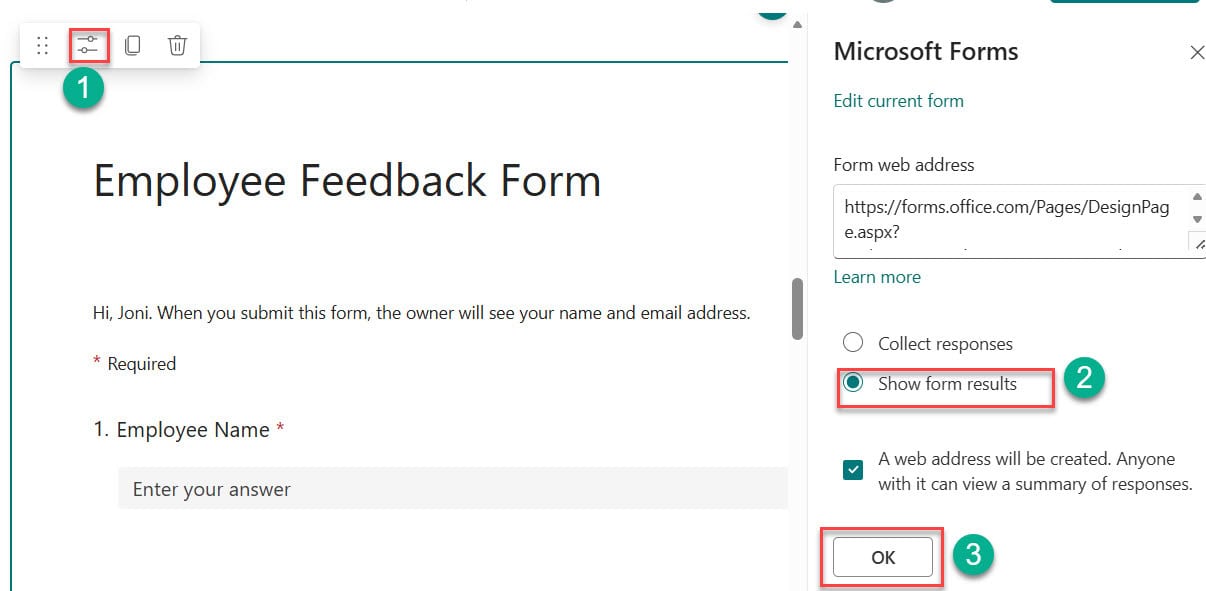
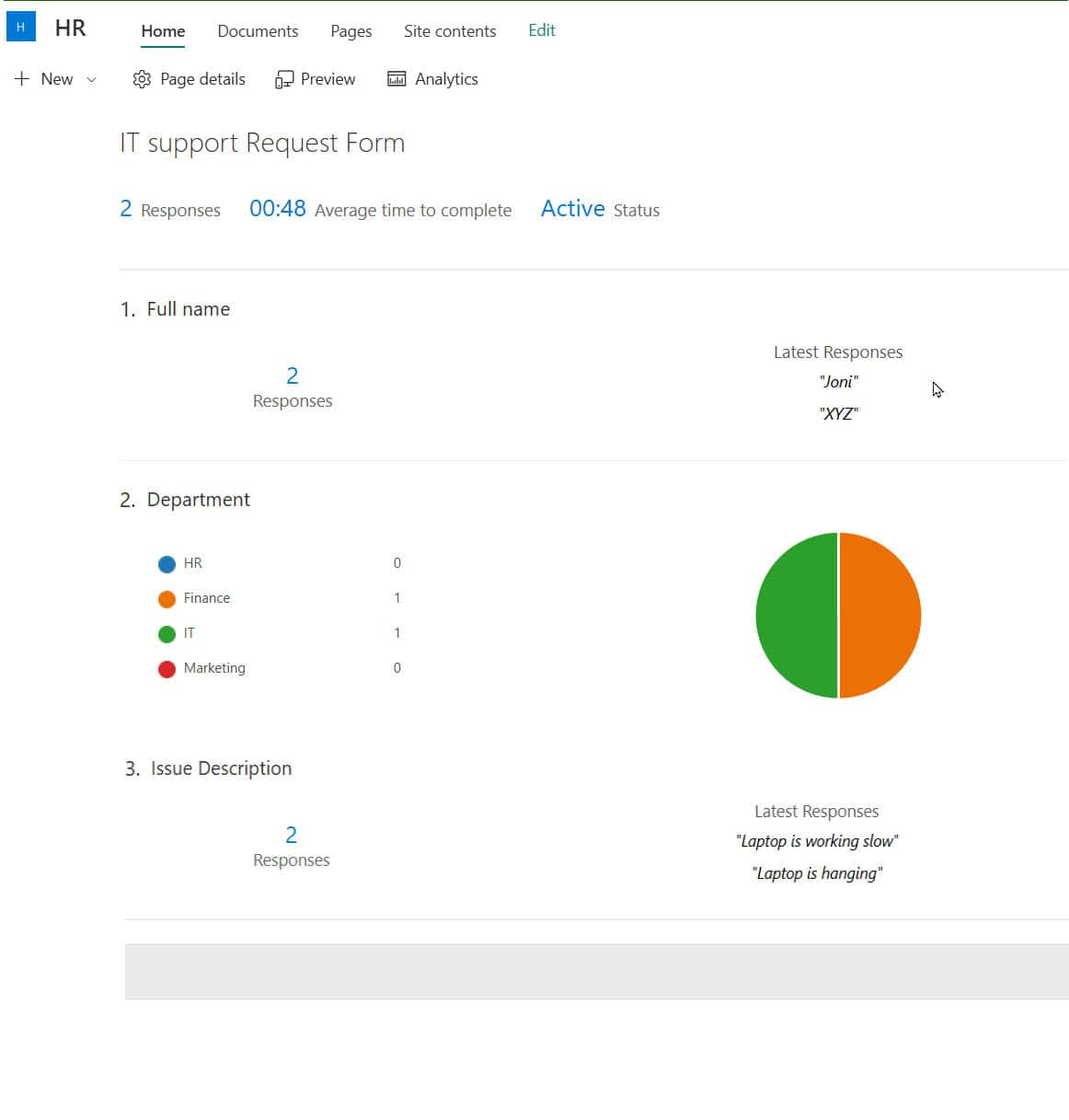
Understand what this does first: it creates a summary link, and anyone who has that link can see a summary of the responses, even outside the page. That’s fine for a lunch poll, but not for feedback that names people or anything confidential.
For private results, keep them in Forms or Excel and share them only with the people who need them. See how to save Microsoft Forms responses to Excel Online.
Ideas for your intranet
- A short pulse survey or poll on the home page, next to company news.
- A help desk or facilities request form on the team site.
- An event registration form beside the Events web part.
- Turning each response into a document with a PDF created from Microsoft Forms.
Troubleshooting
- People see a sign-in or permission message: check the form’s settings for who can respond.
- Changes to the form don’t show: select the web part, select OK to refresh it, and republish the page.
- Show form results is missing or fails: only form owners can create the results link.
- The web part isn’t in the list: your site may be on SharePoint Server 2019 or a government cloud, where it isn’t available.
These SharePoint web part tutorials go well with this one:
Frequently Asked Questions
How do I embed a Microsoft Form in SharePoint?
Add the Microsoft Forms web part, select Add existing form, paste the form link and keep Collect responses selected. Microsoft covers the options in use the Microsoft Forms web part.
Can I show form results on a SharePoint page?
Yes. Choose Show form results in the web part. Keep in mind that anyone with the summary link can view the results.
Why can’t I see my Microsoft Forms changes on the page?
Select the web part, select OK to refresh it, and republish the page.
Where are responses from the Forms web part stored?
In Microsoft Forms, like any other form. You can open them in Excel or save them to SharePoint with Power Automate.

I have worked with Microsoft technologies for more than 18 years, including SharePoint, Microsoft 365 and the Power Platform (Power Apps, Power Automate and Power BI), at companies like HP, TCS and KPIT. I started EnjoySharePoint in 2011 to share the solutions I build in real projects with readers in the United States, Canada, the United Kingdom, Australia, New Zealand and beyond. Microsoft has recognized this work with the Microsoft MVP award 13 times since 2014.