
In this article, I will explain how the Power Automate IF expression works along with below-mentioned examples:
- Power Automate If Expression Dynamic Content
- Power Automate If Equals Expression
- Power Automate If Greater Than
Power Automate IF Function Expression
Power Automate If condition is one of the most commonly used expressions in Power Automate flows. The If expression checks whether a given condition is valid.
- If valid -> Returns true
- If not valid -> Returns false
Syntax:
if(expression, valueIfTrue, valueIfFalse)Example: If (equals(2,3),’ Yes’, ‘No’)- Returns Yes -> If the given values are equal.
- Returns NO -> If the given values are not equal.
Power Automate If Expression Examples
Now, I will discuss some examples of using the If expression while building flows in Power Automate.
Example1:- Power Automate If Expression Dynamic Content
To explain the If expression in a variable of dynamic content, create an Instant cloud flow where a user manually triggers the flow.
Follow the below steps:
1. In Power Automate, select Instant Cloud flow -> Click on +Add an input to insert two number fields to take the values manually.

2. After that, add an Initialize variable action to initialize the input values. Provide Name, Type, and Value.
I wanted to check whether the If statement is valid by comparing it with the input values.
Value: if(equals(triggerBody()?['number'],triggerBody()?['number_1']),'Yes','No')
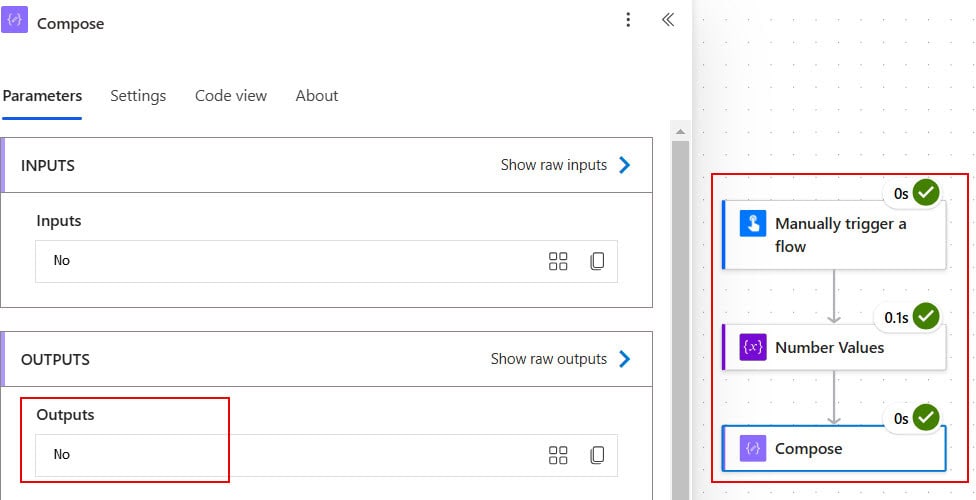
3. To check the output from the previous step, add a Compose action.
- Inputs: Take the value from the dynamic content of a variable.

4. Now, click on Save and Test icons. Run the flow Manually. Enter values in the number field.

5. After the flow runs successfully, if the given number values equal, it will return ‘Yes’ or ‘No’.
Example2:- Power Automate If Equals Expression
I will describe how the If equals condition functions in Power Automate using an Excel spreadsheet as a data source.
Scenario: I have Excel data with a few columns like Employee Name, From, To, Mode Of Journey, and Accommodation Included. I wanted to update the Accommodation Included column value to Yes if the Mode of Journey is Flight.
Condition: if(equals(['Mode Of Journey'],'Flight'),'Yes','No')
Follow the below steps:
1. Create an Instant Cloud flow by selecting the ‘Manually trigger a flow’ trigger.
2. Next, take a List rows present in a table action to fetch all the rows in an Excel spreadsheet.
Configure the details like:
- Location: Select the location of the file.
- Document Library: Choose the document library.
- File: Select Excel file.
- Table: Select the Table name from the drop-down.

3. After that, add a Compose action to take the if equals expression that finds out the items with Mode Of Journey equals Flight.
- Inputs: Insert the below given expression.
Each loop will be added automatically by taking the body/value option.
if(equals(items('For_each')?['Mode Of Journey'],'Flight'),'Yes','No')
4. Here, add a Condition to check whether the output from the previous step is ‘Yes‘, then update the column value in the Excel sheet.
| Choose Value | Operator | Choose Value |
| @outputs(‘Compose’) | is equal to | Yes |

5. After that, Under the True branch, choose the Update row action. Provide the parameters like Location, Document Library, File, and Table.
- Key Column: Select the Key column from the drop-down to identify the row that we want to update.
- Key Value: Choose the value from dynamic content.
- Accommodation Included?: Add ‘Yes‘ as a value in this column.

Save your flow. Then, manually trigger it. Once the flow runs successfully, you can see that the Excel sheet has been updated.
Result: Accommodation Included? -> ‘Yes’

Example3:- Power Automate If Greater Than
Let’s discuss another example of Power Automate If expression, i.e., [If greater than].
Scenario: To explain this example, I will use one of my SharePoint lists named [Product List] with a few columns.
My requirement is whenever a user creates or modifies an item in the SharePoint list If the Product Quantity is greater than 1000-> Add that item to the Excel sheet [Bulk Products Purchase List].
SharePoint List [Products List]

Excel Sheet [Bulk Products Purchase List]

Check Out the steps below:
1. On the Power Automate Home page, select Automated Cloud flow with the ‘When an item is created or modified‘ trigger.
Choose and select Site Address and List Name.

2. After that, add a Compose action to check if the Product Quantity is greater than a specific value.
- Inputs: Add the If expression given below.
if(greater(int(triggerBody()?['TotalQuantity']), 1000), 'Yes', 'No')
3. Then, take Condition action to check whether the If condition is valid or not.
| Choose Value | Operator | Choose Value |
| Outputs(Compose) | is equal to | Yes |

If the Condition is satisfied, the True branch will execute else the False branch will execute.
4. Under the ‘True‘ branch, add an action named Add a row into a table. Configure the properties below:
- Location: Select the location where the Excel file is stored.
- Document Library: Choose the document library (SharePoint site).
- File: Select the Excel file (Bulk Products Purchase List).
- Table: Choose the table name from the dropdown.
Click on the Show all button to display all the Advanced parameters.
- Product Name: Select from the dynamic content.
- Product Price: Choose from the dynamic content of a trigger.
- Product Availability: Add value from the dynamic content of a SharePoint list.
- Product Quantity: Take Product quantity value from trigger dynamic content.

When the flow is ready, Click on Save and Test. Run the flow manually.
5. Now, go back to the SharePoint list. Add or modify the SharePoint list item as shown in below screenshot:

6. When the flow successfully meets the True condition, an item from the SharePoint list will be added to the Excel Spreadsheet.
Refer to the image below:

Conclusion
In this tutorial, I have covered the If expression in Power Automate and its syntax. Also, we have discussed how to use if expression in Power Automate flows with real-time examples.
You may also like:
- Check if an Item Exists in a SharePoint List Using Power Automate
- Check if a field exists in SharePoint Using Power Automate
- Send Email Using If Condition in Power Automate
- Check If a String is Empty in Power Automate
- Format Number as Currency in Power Automate

After working for more than 18 years in Microsoft technologies like SharePoint, Microsoft 365, and Power Platform (Power Apps, Power Automate, and Power BI), I thought will share my SharePoint expertise knowledge with the world. Our audiences are from the United States, Canada, the United Kingdom, Australia, New Zealand, etc. For my expertise knowledge and SharePoint tutorials, Microsoft has been awarded a Microsoft SharePoint MVP (12 times). I have also worked in companies like HP, TCS, KPIT, etc.

